The Document Management Tab allows you to gather all attachments—whether sent or received—under one tab for each contact. This eliminates the need to search through multiple messages or email threads.
With filters such as "Sent," "Received," and "All," users can quickly locate specific attachments, making document retrieval faster and more efficient.
Files can be easily previewed or downloaded directly from the Document Management Tab, allowing you to quickly access important documents without leaving the conversation.
Whether you send or receive attachments via email, SMS, or social media platforms, the Document Management Tab automatically syncs these files, ensuring that all documents are stored with the corresponding contact.
In addition to automatic syncing, users can manually upload files directly into the Document Management Tab, making it a central hub for all client-related documents.
From your dashboard, navigate to Contacts.
Select a contact, which will open the Contact Card.
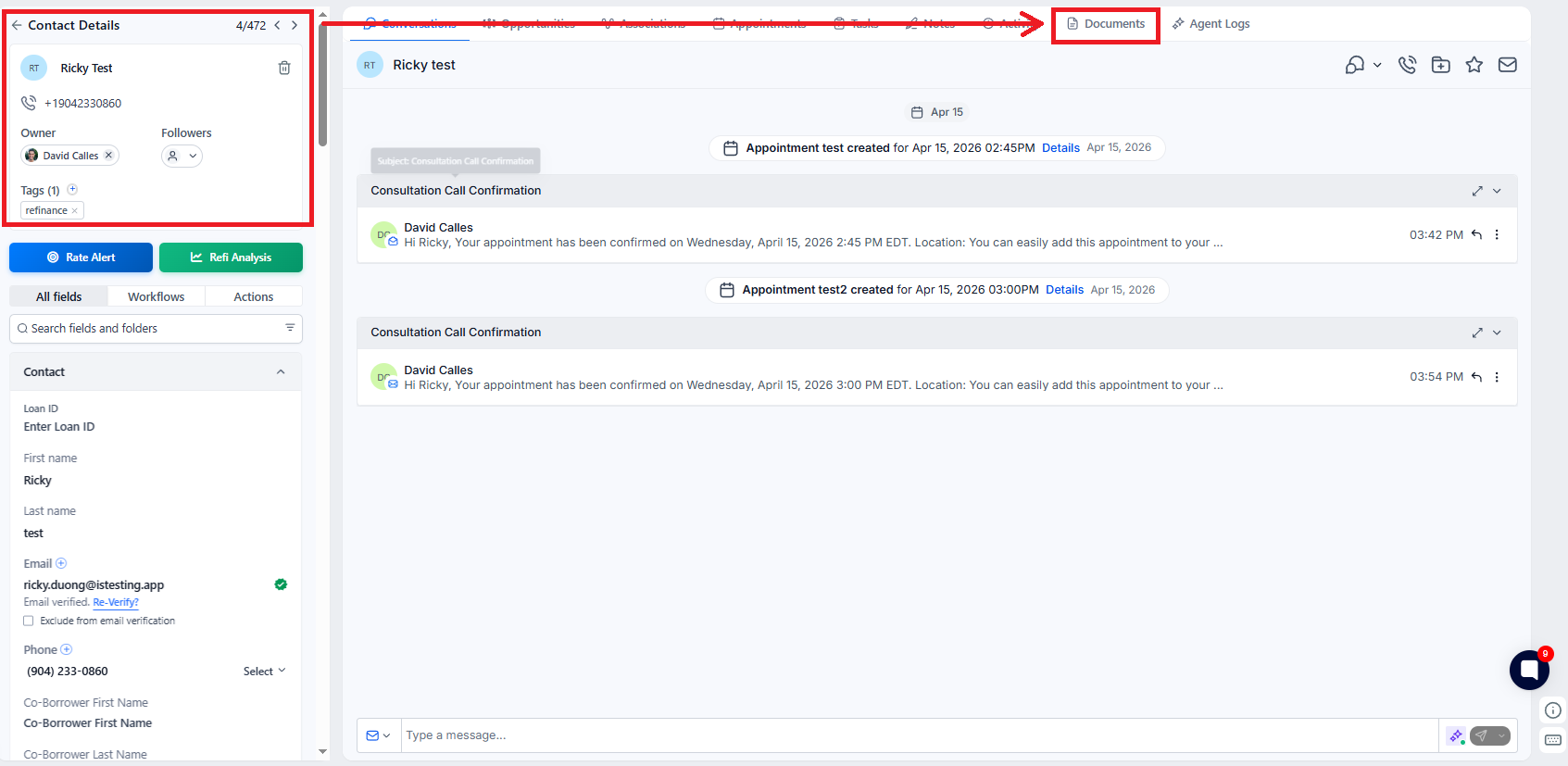
On the top-right corner of the Contact Card, click on the Documents tab.
View All Documents: By default, the tab will display all documents associated with the contact.
Filter by Category: Use filters like Sent, Received, or Internal to narrow down your search.
Search: Use the search bar to quickly locate a specific file by keyword (e.g., "Invoice").
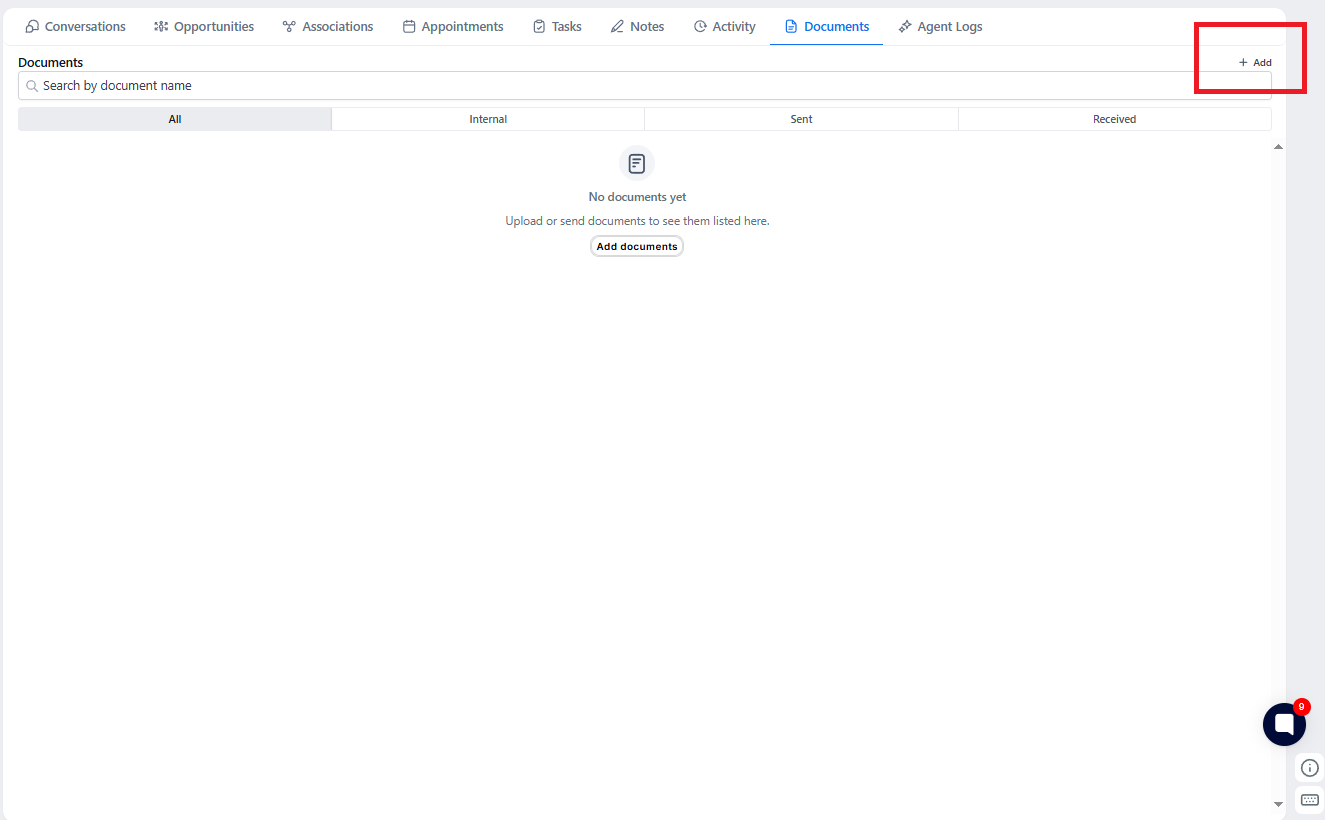
In the Document Management Tab, click the + Add button.
Drag and drop the file into the window or browse your system to upload a file.
Once uploaded, the file will be accessible under the selected category (Sent, Received, or Internal).
When composing an email, SMS, or message:
Attach your document as usual by selecting Upload from System.

Check the box labeled Add to Documents to ensure the attachment is automatically synced with the Document Tab.

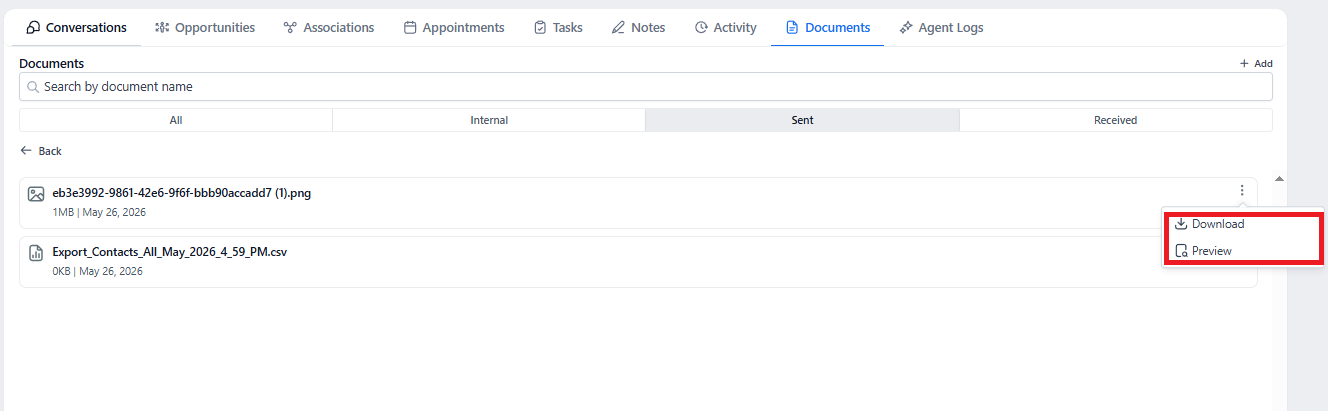
Click the three dots next to any file in the Document Tab.
Select Preview to view the document in a new window, or choose Download to save it to your device.
Use Filters for Quick Navigation: Regularly filter documents by "Sent" or "Received" to keep a clear record of outgoing and incoming attachments.
Stay Organized with Custom Naming: Ensure that uploaded documents are named clearly to improve searchability and reduce clutter.
Assign Responsibility: When multiple users handle a contact, the automatic synchronization ensures everyone stays informed about sent or received documents.
A1: Yes, attachments sent via Instagram or Facebook are automatically synced and stored in the Document Tab alongside emails and SMS messages.
A2: When attaching a document to an email, check the Add to Documents box to save it automatically in the Document Management Tab.
A3: You can store various file formats, including PDFs, images, spreadsheets, and other commonly used file types.
A4: Yes, you can manually upload internal documents to the Document Tab using the + Add button.
A5: The maximum file size for uploads depends on the platform’s general attachment limits, typically up to 25MB for emails.
