Go to Contacts on the left
Click on Bulk Actions at the top
Next to your Bulk Import operation, click on Show Stats

Click on the 3 dots and on Show Error Log

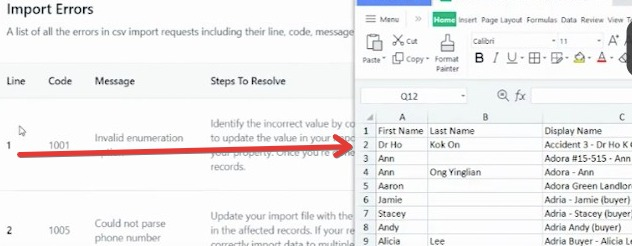
You will see a list of the errors that have happened
Note: When the error says it's happening on Line 1 it's referring to the first contact.
Master Type | Error ID | Error code | What the error means | Steps to resolve the error |
Formatting mistakes when placing values in the spreadsheet | 1001 | Unknown error | The system is unable to process the file due to an unknown error. | Confirm that your file meets all requirements. Try to re-import after clearing your browser cache or using another browser. |
1002 | Multiple owners found in the system | "The import file contains an Owner value that matches more than one user in the account. This usually occurs for names (e.g., there are two John Doe users in your account, and the import file contained the name "John Doe"). The affected records were imported, but the Owner's property does not contain a value." | Replace the name of the owner with their email address in your import file, then re-import the file. You can also manually update the Owner property value in the affected records. | |
1003 | Invalid sheet count | "The import file contains more than one sheet. Your data was not imported." | Remove any additional sheets from your import file, then re-import. | |
1004 | Invalid required property | "A required property in the import file contains an invalid value. The data in that row was not imported." | Confirm the format requirements of your specific property or the property type, update your file to match the correct format, then re-import. | |
1005 | Invalid enumeration option | "The import file contains a value that does not match an existing option in an enumeration property. This applies to multi-select, dropdown select, radio select, and checkbox-type properties. | Identify the incorrect value by comparing your import file against the property.. You can choose to update the value in your import file to match an existing option or add the value as a custom option to your property. Once you're done, re-import the file or manually update the property value in the affected records. | |
1006 | Invalid contact ID | "During the import, the checkbox to update existing records using Contact IDs was selected. However, the Contact ID listed in the file did not match an existing ID in the software. | Ensure that the [object] IDs are correct. You may need to export your existing records to get the correct object IDs. If you're not updating or associating existing objects here, do not select the checkbox during the import process. | |
1007 | File not found | "The file you selected was not found. Your data was not imported." | Verify that you have saved your file to your computer and that it is the correct file type. Once you've done that, re-upload the file. | |
| 1008 | Failed validation of Email | "The import file contains an email address that does not conform to the format of a typical email address (e.g., [email protected]) | "For contacts, update your import file with the correct email, to make sure your format is correct with '@' '.com then re-import the file. |
1009 | Empty unique property value in the file | "The import file contains a row with data that cannot be processed because there is no value against the record of its unique identifier (primary column)." | Verify that your data value matches the correct format for the property you are importing, then re-import the file. You can also manually update the property value in the affected records. | |
1010 | Duplicate unique property value | "The same value of the primary column is present against multiple records. Your data was imported against all records but there may be duplicates of the same record" | "Choose a different column header to act as your primary column or fix any mistakes, then re-import the files." | |
1011 | Duplicate unique property value in the file | "The same unique value was used multiple times within your files. Your data was imported but there may be duplicates of the same record. If you were trying to associate, your records were not associated." | "Choose a different column header to act as your unique value or fix any mistakes, then re-import the files." | |
1012 | Duplicate Contact ID in the file | "The same Contact ID was used multiple times within your files. | Update your import file so that there is only one row with that Contact ID. Keep the row with the most up-to-date information that you want to be included in your account. Once you've removed duplicates, re-import the files. | |
Miscellaneous | 1013 | Could not parse the phone number |
| "Update your import file with the correct numerical value and re-import, or manually update the property value in the affected records. |
1014 | Could not parse the date | "The import file contains a date value that does not match the format you selected during the import process. | "Update your import file with the correct value and re-import, or manually update the property value in the affected records. | |
1015 | Could not find the owner | "The import file contains a record owner that does not match a user here. | "Update the data in the Owner column of your import file to include the first and last name or email of a user in your account. If the person you want to assign the record to is not yet a user in the account, add them as a user, then re-import with their name or email as it appears in the account. | |
1016 | Ambiguous enumeration option | "The same record matches more than one of the existing options defined for an enumeration property. This applies to multi-select, dropdown select, single-choice select, and checkbox-type properties. | "Identify the incorrect value by comparing your import file against the property. Update the value in your import file to match only one existing option, then re-import the file. You can also manually update the property value in the affected records. | |
1017 | Location does not allow duplicate contacts - use 1010 & 1011 | |||
1018 | CustomField not supported -> validate while mapping itself - file and signature | |||
1019 | Invalid Custom Field value -> use 1005 instead | |||
1020 | Failed to create a contact | |||
1021 | No email, phone, firstName and lastName, and type are created | |||
1022 | Contact was not found | |||
1023 | Failed to update a contact | |||
1024 | Failed to add campaign/workflow |
Etc/GMT+12 | Europe/London |
Depending on the records you are importing, your file could include the following columns:
Date Picker
Acceptable formats-
mm/dd/yyyy (e.g. 10/28/2020)
yyyy/mm/dd (e.g. 2020/10/28)
You can also replace '/' with '-' '.' and it'll recognize the uploaded fields as a Date field (Available in our future release!)
Multiple Options, Checkbox, Textbox List
Acceptable formats-
Value 1, Value 2, Value 3 ...... (e.g. Blue, Yellow, Green or Blue, Yellow, Green or Blue, Yellow , Green)
You can also replace ' , ' with ' ; ' ' . ' and it'll recognize the uploaded fields as the aforementioned field
Radio, Single Option
Acceptable formats:
Value 1 (e.g. Blue)
File Upload, Signature
Not Supported
Contact Owner
To assign an owner to your contacts during the import, include the name of the 'User'
Acceptable formats:
FirstName LastName (e.g. Logan Paul or logan paul)
LastName FirstName (e.g. Paul Logan or paul logan)
Note #1: Unless the user has both FirstName and Last Name, the system will not recognize it during the upload
Tags
Acceptable formats-
Value 1, Value 2, Value 3 ...... (e.g. Blue,Yellow,Green or Blue, Yellow, Green or Blue , Yellow , Green)
You can also replace ' , ' with ' ; ' ' . ' and it'll recognize the uploaded fields as the aforementioned field
Tags (example formats) | Status |
lowercase | ok |
UPPERCASE | ok (will be lowercased) |
ProperCase | ok (will be lowercased) |
with a space | ok |
With A Space | ok (will be lowercased) |
pre-existing tag | ok (maps successfully) |
DoNotDisturb
Acceptable formats-
True or False ( true or false )
Yes or No ( yes or no )
Phone Number
For the vast majority of cases, as long as you format the phone numbers in E.164 (Ex: +1 1234567890) our system will recognize it as valid- irrespective of the default Country picked at the sub-account level
If you have set the Country to the US, the following would work perfectly fine as well
123-456-7890
(123) 4567890
1234567890
Furthermore, if you are working with international numbers (Outside the US), we'd encourage you to visit: https://libphonenumber.appspot.com/ and run your phone number format by the tool in conjunction with the codes below to ascertain its appropriateness for upload.
Numerical
Acceptable formats-
1.23.4
1234
.123
Monetary
Acceptable formats-
1234
1,234,234,333
“BD”: “Bangladesh”, | “SH”: “Saint Helena”, |
