Navigate to Automation on the left > Workflows at the top and create a new workflow or edit an existing one.
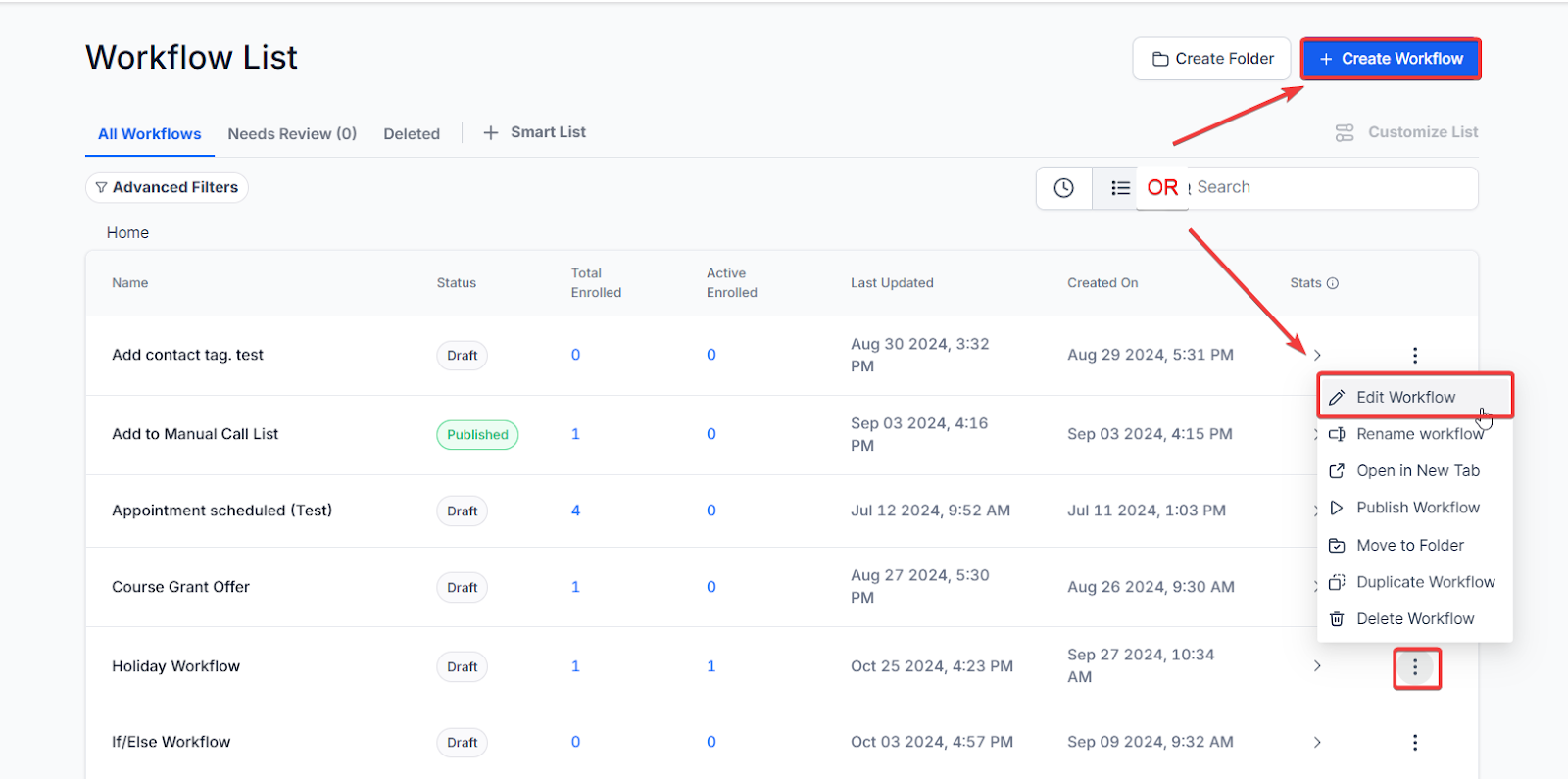
Click “Add New Workflow Trigger.”
Select Number Validation in the Events section of the Workflow Triggers Menu or use the search feature. Once selected, the Trigger setup menu will appear.
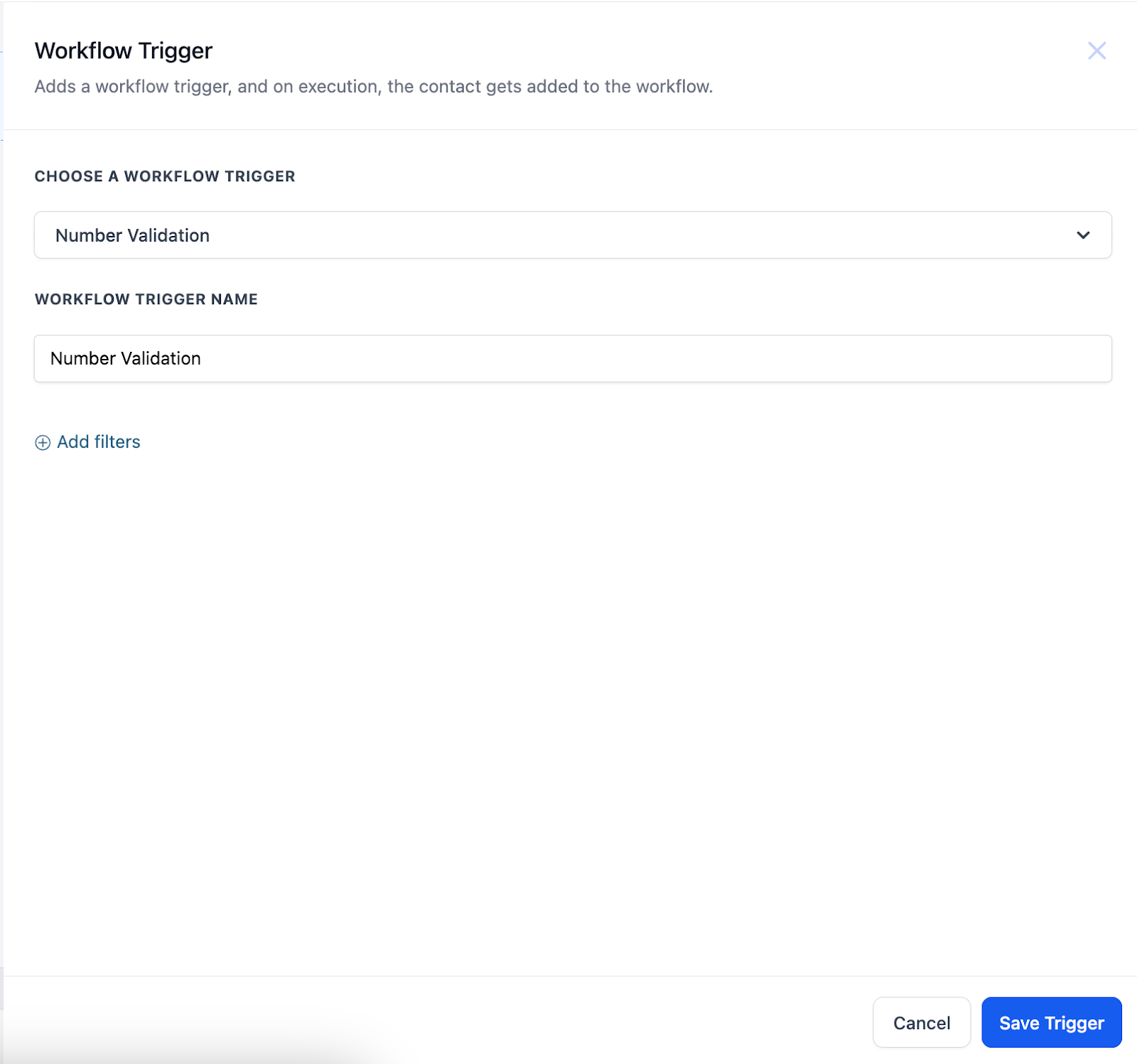
(Optional) You can change the workflow builder display name of this trigger using the textbox below Workflow Trigger Name. Note that this will only affect the display name within the workflow builder and has no other impact on the content or functionality of this Workflow Trigger.
Press + Add filters to expand the Filters section of the Trigger setup menu.
The Error is filter parameter will allow you to select which number validation errors can trigger this workflow. You can select SMS Incapable, Not Valid, or you can choose both.
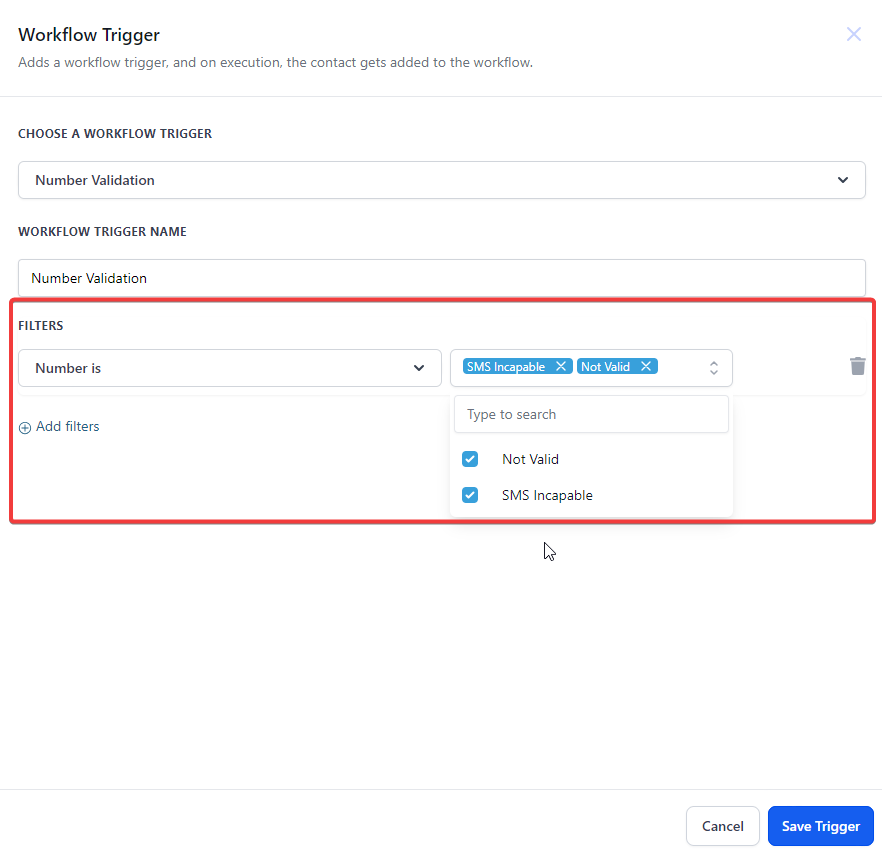
You can also filter by Custom Fields, which will only allow contacts who meet your selected custom value criteria to be added to this workflow. Custom values are set up elsewhere in your account.
Press Save Trigger in the bottom right corner of the Trigger setup menu.
We have multiple articles available to explain the setup of each of the Workflow Actions. Feel free to review our articles on these for more information on setting these up.
Pro Tip: You can use any Workflow Actions to be triggered by the Number Validation trigger, or you can leave this workflow without any actions.
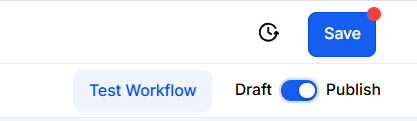
Press Save in the top right corner of your browser to save the workflow.
If your workflow is ready to be enabled, make sure the toggle switch under Save is set to Publish.
Be sure to test your workflow to make sure it is set up correctly using the Test Workflow button next to the Publish toggle switch.
For an in-depth overview of Workflow Testing see our article, “Using the Testing Features in Workflows.”
Now your workflow is set up and ready to go with the Number Validation Workflow Trigger.
1. What types of number validation errors can trigger the workflow?
You can choose between the following error types to trigger the workflow:
SMS Incapable
Not Valid
You can also select both options if needed.
2. Can I filter which contacts are added to the workflow?
Yes, you can use the Custom Fields filter to add only contacts that meet specific criteria to the workflow. These custom values must be set up elsewhere in your account.
3. Do I need to add Workflow Actions for the trigger to work?
No, you can leave the workflow without any actions. However, adding actions like notifications or follow-up tasks can enhance the workflow’s effectiveness.
4. How do I ensure my workflow is working correctly?
After saving and publishing your workflow, use the Test Workflow feature to confirm it is functioning as intended. For detailed instructions, refer to the article “Using the Testing Features in Workflows.”
