Navigate to Automation > Workflows section within platform and either create a new workflow or select an existing one to edit.
Click on "Add New Workflow Trigger" to initiate the trigger setup process.
Select "Refund Trigger" from the available triggers in the menu. You can utilize the search feature to find it quickly.
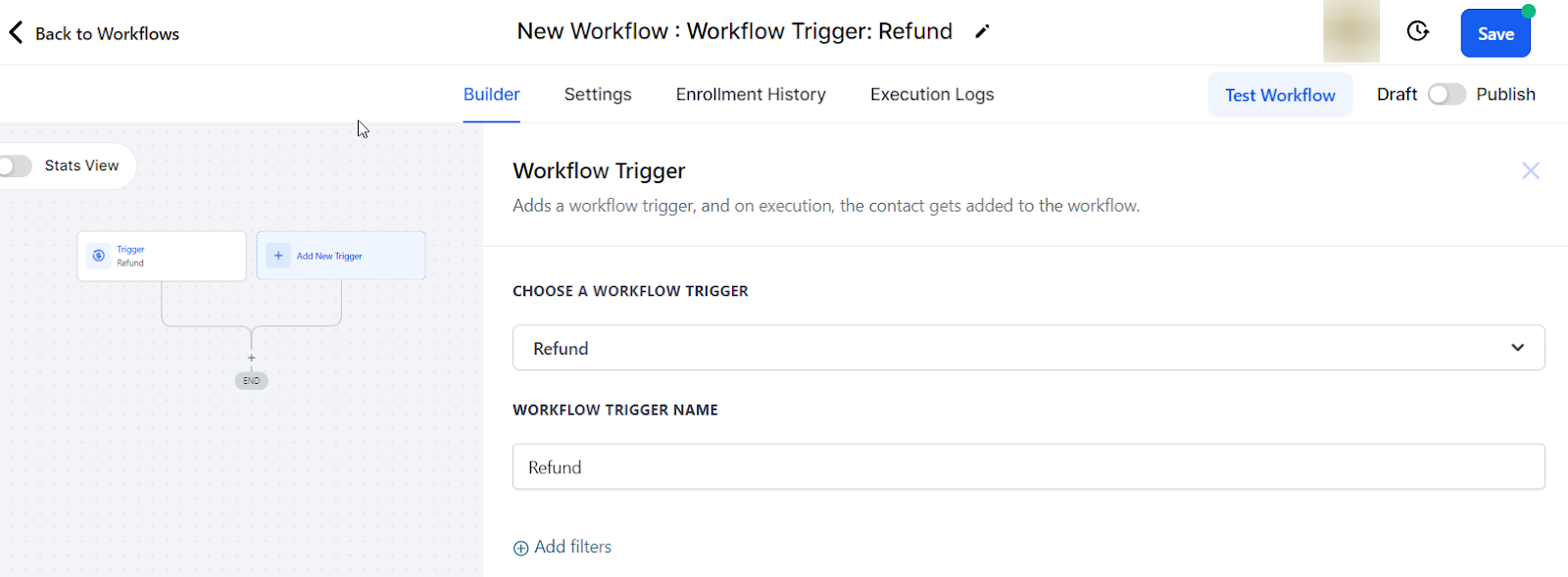
Optionally, you can modify the display name of the trigger for easier identification within the workflow builder.
Under the "Filters" section, define the specific conditions for the refund trigger. This includes selecting the refund event that should trigger the workflow, such as successful or failed refunds, full or partial amounts, or specific sources of the refund.
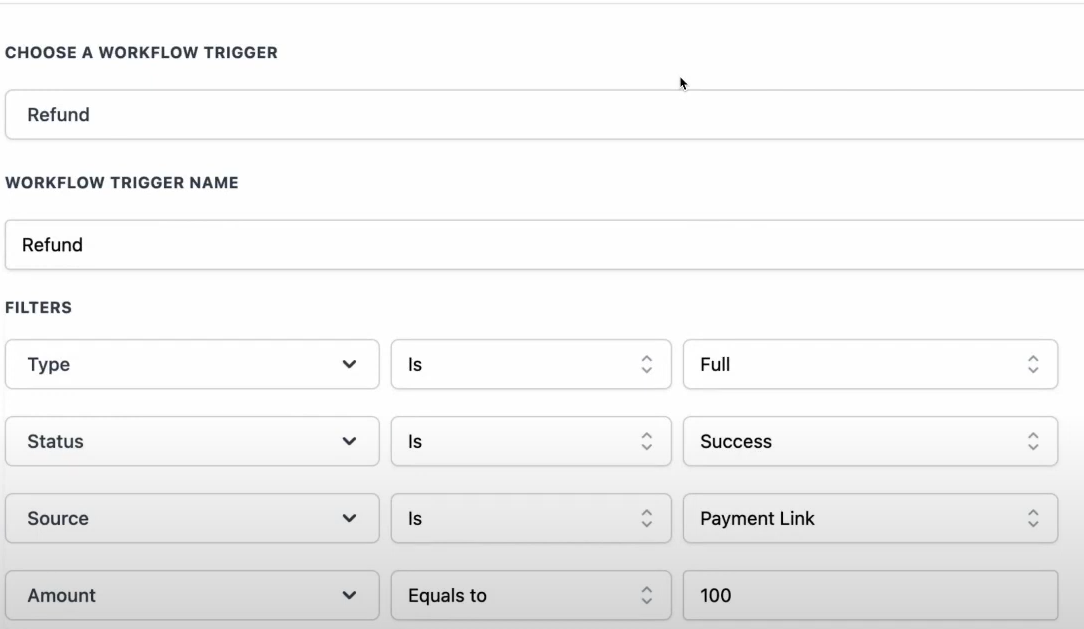
Configure additional filters if necessary, such as custom fields, to further refine the trigger conditions.
Once all filters are set, click "Save Trigger" to finalize the trigger setup.
After setting up the trigger, define the actions that should be automated based on the refund event.
Choose from a variety of workflow actions available within , such as sending notifications, updating records, or triggering follow-up actions.
Configure each action according to your specific requirements, ensuring seamless automation of tasks related to refund events.
NOTE: We have multiple articles available to explain the setup of each of the Workflow Actions. Feel free to review our articles for more information on setting these up.
Press "Save" in the top right corner of your browser to save the workflow.
If your workflow is ready to be enabled, ensure the toggle switch is set to "Publish."
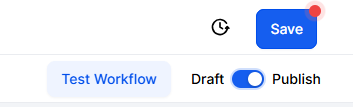
Test your workflow using the "Test Workflow" button to verify that it is set up correctly and functioning as intended.
Once tested successfully, your workflow is ready to be deployed and will automatically trigger actions based on refund events within .
NOTE: For an in-depth overview of Workflow Testing see our article, “Using the Testing Features in Workflows”
Here are some detailed functionalities and use cases:
Refund triggers enable users to personalize communication with customers throughout the refund process. By accessing refund information within email templates and conditional logic, users can create tailored messages based on refund statuses and conditions. This level of customization allows businesses to maintain transparent and proactive communication with customers, enhancing overall satisfaction and trust.
By integrating refund triggers into workflows, businesses can enhance the overall user journey and experience. Automation streamlines refund processes, reducing the burden on staff and ensuring timely resolution for customers. Additionally, personalized communication fosters a positive customer experience, even in the event of a refund, by providing clarity and reassurance throughout the process.
A: Yes, allows users to define custom conditions based on refund statuses, amounts, and sources, providing flexibility to tailor workflows to specific business requirements.
A: Refund information, including refund values, statuses, and sources, can be accessed within email templates using custom variables provided by 's workflow automation tools.
A: Absolutely, offers a range of trigger conditions, allowing users to automate actions based on various refund-related events, such as partial refunds or refunds from specific sources.
A: No, users can create multiple refund triggers within their workflows, allowing for comprehensive automation of refund-related processes to suit their business needs.
