Need a borrower or another contact to sign a document?
Konnectd's built-in E-Signing tool lets you upload an existing PDF or create a simple document from scratch, add the required signature fields, and send it for signature.
This can be useful for documents such as:
Letters of explanation
Borrower acknowledgments
Authorization forms
Custom forms
Other PDFs or documents that require a signature
Note: E-Signing is a convenient option for documents you need signed. Continue using your LOS or other required systems for lender-specific disclosures and documents that must be completed through those systems.
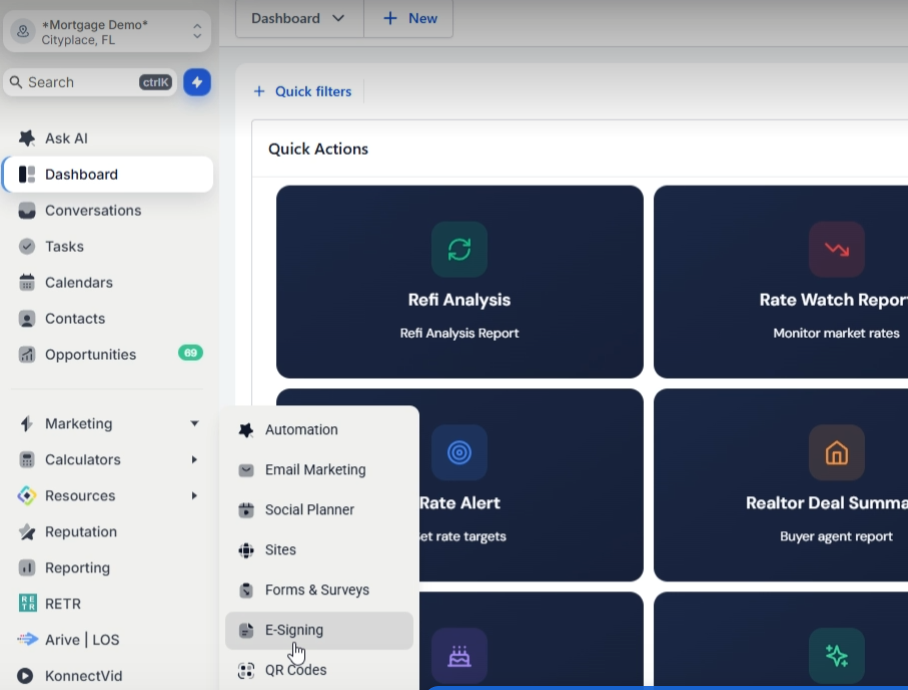
From the Konnectd sidebar, go to:
Marketing → E-Signing
From here, you have two options:
Already have a PDF? Upload it and add your signature fields.
Need to create the document? Start with a blank document and build it directly inside Konnectd.
If the document is already saved as a PDF, there's no need to recreate it.
Create a document and select the option to upload your existing PDF.
Select the contact who needs to sign the document.
Uploading a PDF doesn't automatically tell Konnectd where the borrower needs to sign.
Navigate to the appropriate location in your PDF and select:
Add Element → Signature
Drag the signature field onto the exact location where you want the recipient to sign.
Resize or reposition the field as needed.
Make sure the signature field is assigned to the correct signer.
Review the document and save your changes.
You can then send the document to the signer or share the signing link directly.
The recipient opens the document in their browser, completes the assigned signature fields, and submits it.
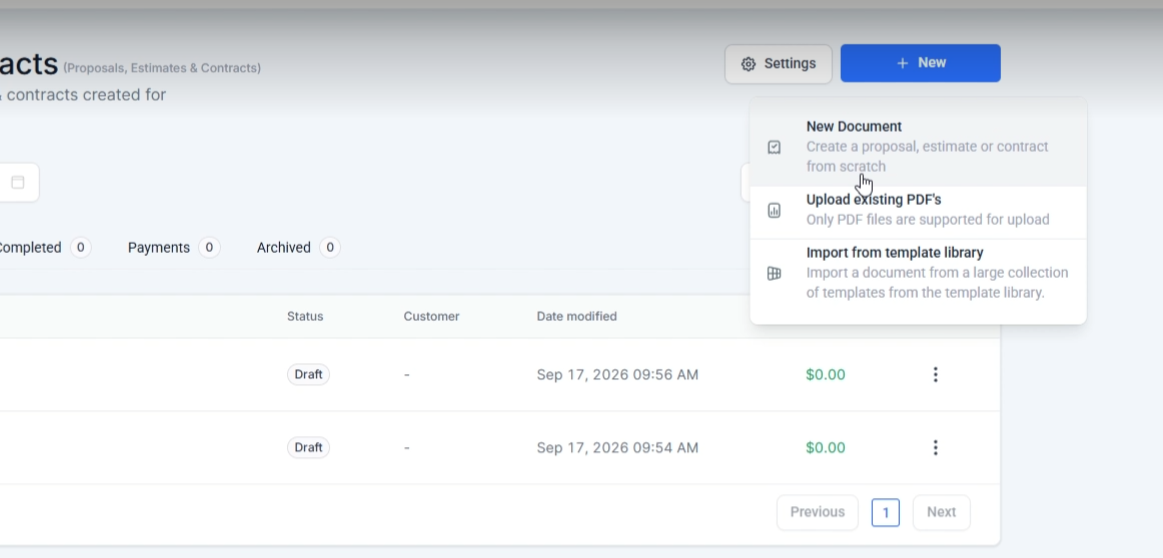
Don't have a PDF yet? You can also create a simple document directly inside E-Signing.
Create a new blank document.
Add a Text block and enter the content you need.
For example, you could create a simple letter of explanation directly inside Konnectd.
Add a Signature element underneath your document content and position it where the recipient should sign.
Select the appropriate contact and make sure the signature field is assigned to that person.
Save the document and send it for signature.
You can also add multiple signers to the same document.
Add each recipient, then place the appropriate signature fields throughout the document.
Make sure each signature field is assigned to the correct signer before sending.
Each signer will complete the fields assigned to them.
You can also track documents directly from the contact's profile.
Open the appropriate Contact Profile and go to the Documents section.
From here, you can use the available views to see:
Sent documents
Received documents
All documents
This makes it easy to return to the borrower's contact record and see the documents associated with that contact without having to search for them elsewhere.

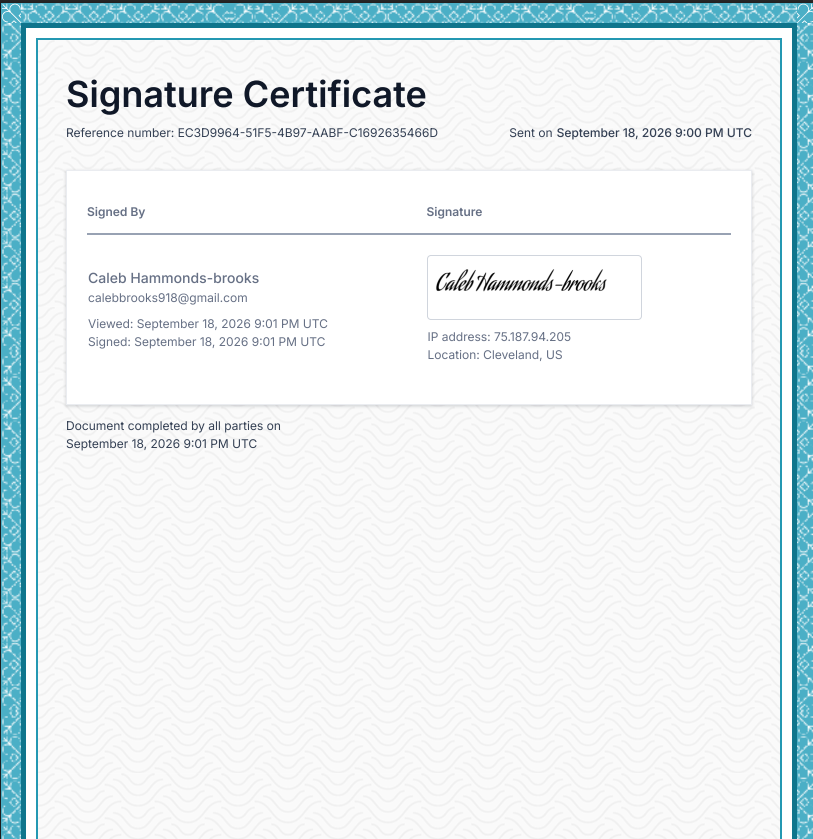
Once a document has been completed, Konnectd maintains signing activity associated with the document.
The completed signature certificate can include information such as:
Signer details
Email address
IP address
Date and time the document was viewed
Date and time the document was signed
This provides a record of the signing activity associated with the completed document.
Upload PDF → Select signer → Add signature field → Send → Track from Contact Profile
Start blank → Add text → Select signer → Add signature field → Send
That's it. Whether you're uploading an existing letter of explanation or creating a simple document from scratch, the document can be prepared, sent for signature, and tracked directly inside Konnectd.
