Once you’ve started using the PowerDialer, you’ll notice that after every call, you’re given four simple options to choose from. These are called statuses, and each one can trigger a different follow-up automatically.
That means: no extra steps, no manual sending — just click what happened and let LO Ninja take care of the rest.
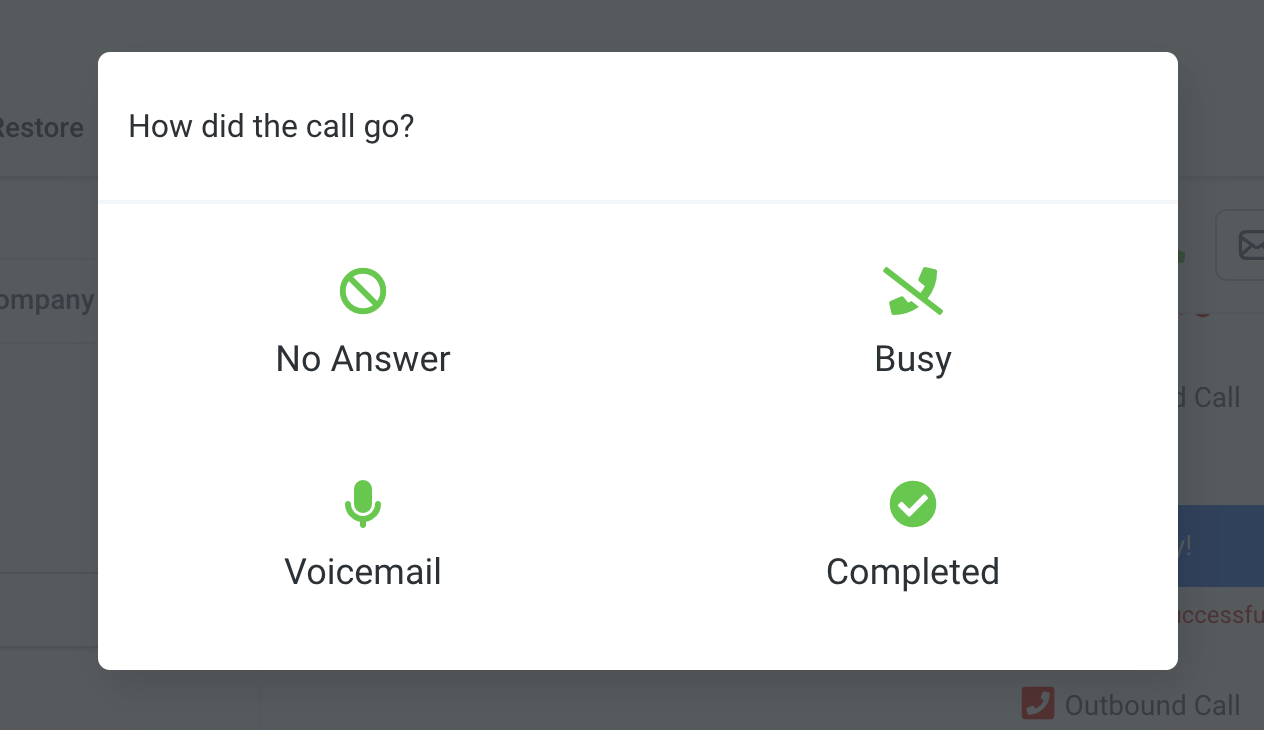
The 4 Disposition Options
After each call, you’ll see:
1) Voicemail
• Sends a pre-recorded voicemail to the contact.
• Optional: Add a text message to go out immediately after the voicemail.
Great for follow-up without needing to repeat yourself live.
2) No Answer
• You can set these contacts up to receive their own voicemail & text as a follow up.
Perfect for leads you don’t want to forget about.
3) Call Successful
• Add a special tag like “Call Successful” (or your custom tag).
• Optional: Trigger automations like sending a thank-you message, booking links, or adding to a Smart List.
Helpful when calling realtors, past clients, or people you want to keep track of for events or offers.
4) Busy
• Place them right back in the power dialer to call them on your next turn around.
Helpful option is to send them an email with your calendar link to schedule a better time.
How to Use This Effectively
Before You Start Dialing:
• Set up the automations for each disposition inside the PowerDialer workflow. Reach out to chat support if you need help!
• Choose your voicemail, SMS, and actions for successful calls.
While Calling:
• After each call, just click what happened — the CRM handles the rest.
• Your follow-ups are instant, personalized, and completely automated.
Pro Tip:
Use “Call Successful” tags to build a smart list of everyone you connected with. Then you can send invites, gifts, or follow-up messages in one batch.
