Claude can now work directly with your Konnectd account. Once it's connected, you can ask it questions about your contacts, pipeline, tasks, and more, and it will look in your account for the answer. This article walks you through setting it up, whether you're doing it for the first time or coming back to double-check a step.
Look for Ask AI inside your Konnectd account. That's Claude, already built in, no setup needed.
Almost anything you'd normally do by hand in Konnectd, you can now ask Claude to do instead.
Look things up, like:
"Who did I text this week, and what did they say?"
"What's in my pipeline right now? Which deals have gone quiet?"
Get things written, like:
"Write a follow-up text for my newest lead."
Get things done, like:
"Tag Jane Miller as pre-approved and remind me to call her Friday."
A few more ideas:
"Summarize my calls from this week into a quick recap I can send my manager."
"Which contacts haven't been touched in over 30 days?"
"Move Mike Torres to the next stage and add a note about why."
“Who are my best refinance targets.”
“Have I missed any calls over the last 7 days.”
You need a Claude.ai account. Custom connectors work on every plan: Free, Pro, Max, Team, and Enterprise.
If you're on a Free plan, note that you can only have one custom connector active at a time.
You need your Konnectd CRM login.
Asking Claude to pull or update something in Konnectd uses your normal Claude usage, just like any other question. Tools and connectors require more effort, so they can use your available usage faster than regular chatting.
The more contacts, records, or files Claude works through at once, the more usage it takes. For example, “What’s Jane’s phone number?” uses very little, while “Pull every contact I haven’t texted in 60 days and summarize each one” or processing large batches back-to-back uses noticeably more.
If you’re on a lower tier and running low on usage, this is usually why.
1. Open Claude.ai and go to Connectors Click Settings, then Connectors, then Add custom connector.
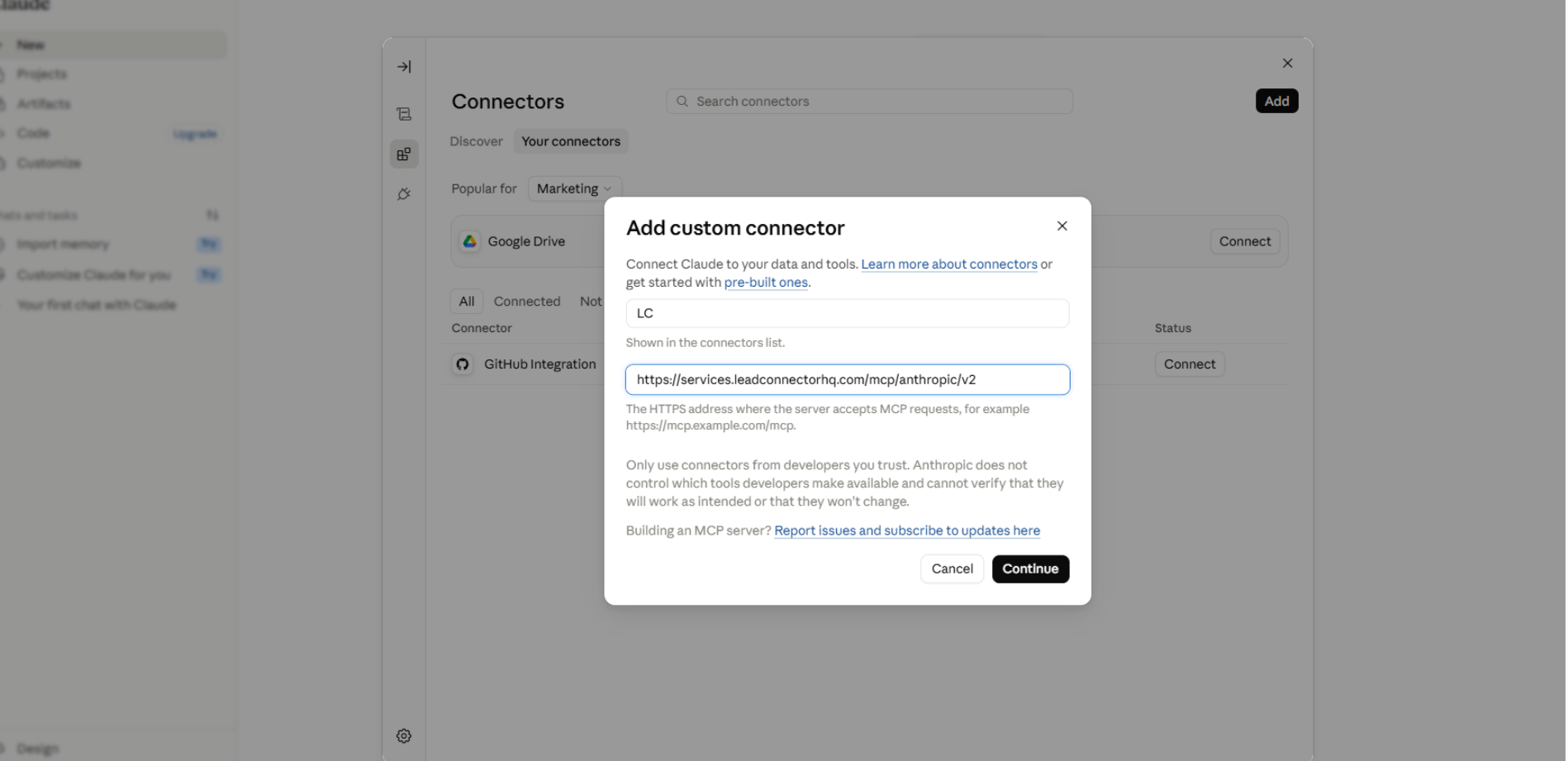
2. Name it and add the link Name it Konnectd, then paste in this link: https://services.leadconnectorhq.com/mcp/anthropic/v2
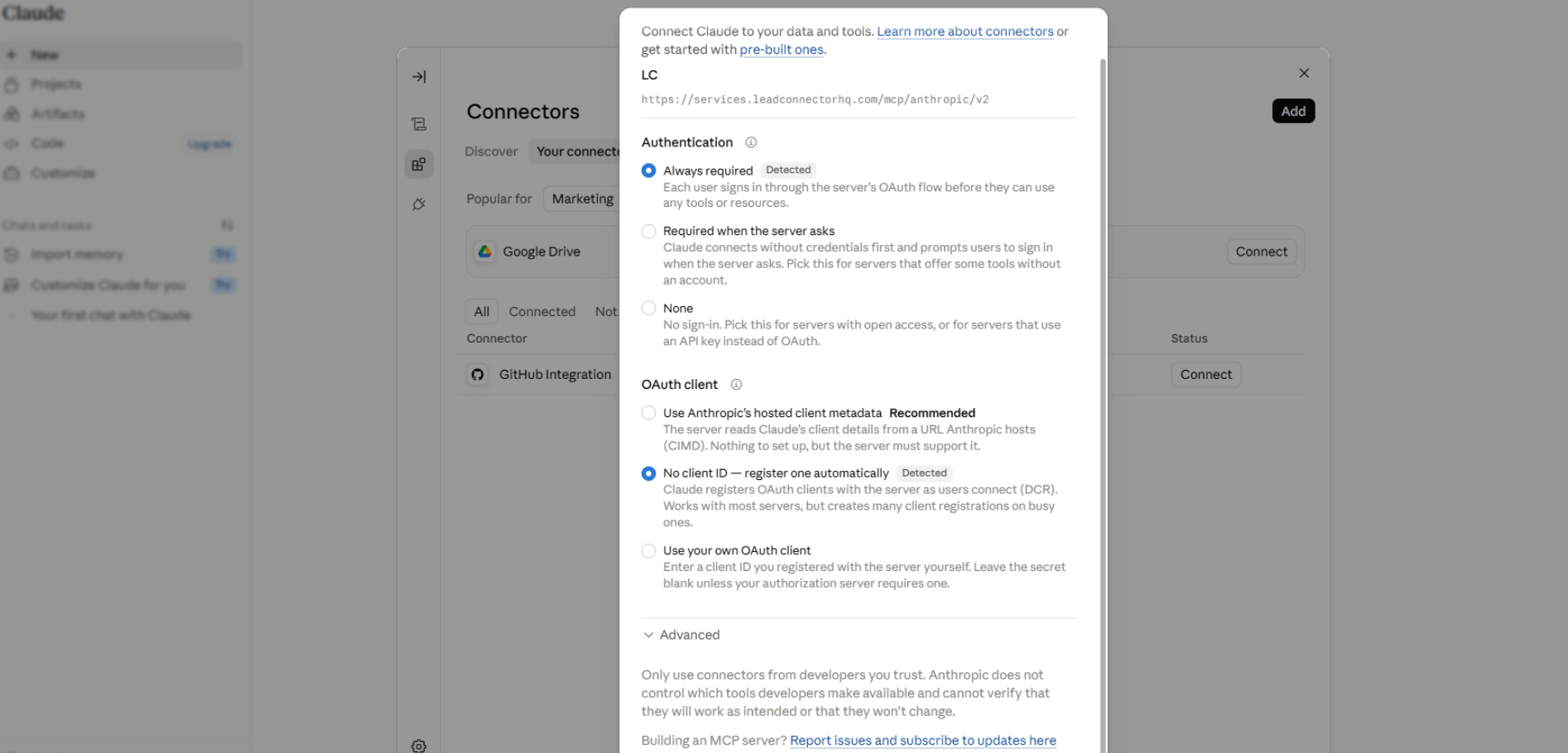
3. Leave the settings alone You'll see a couple of extra choices on this screen. Leave them exactly as they are. The correct ones are already picked for you and have a small "Detected" tag next to them:
Authentication → Always required
OAuth client → No client ID, register one automatically
Skip the Advanced section too. There's nothing to fill in there. Click Add.
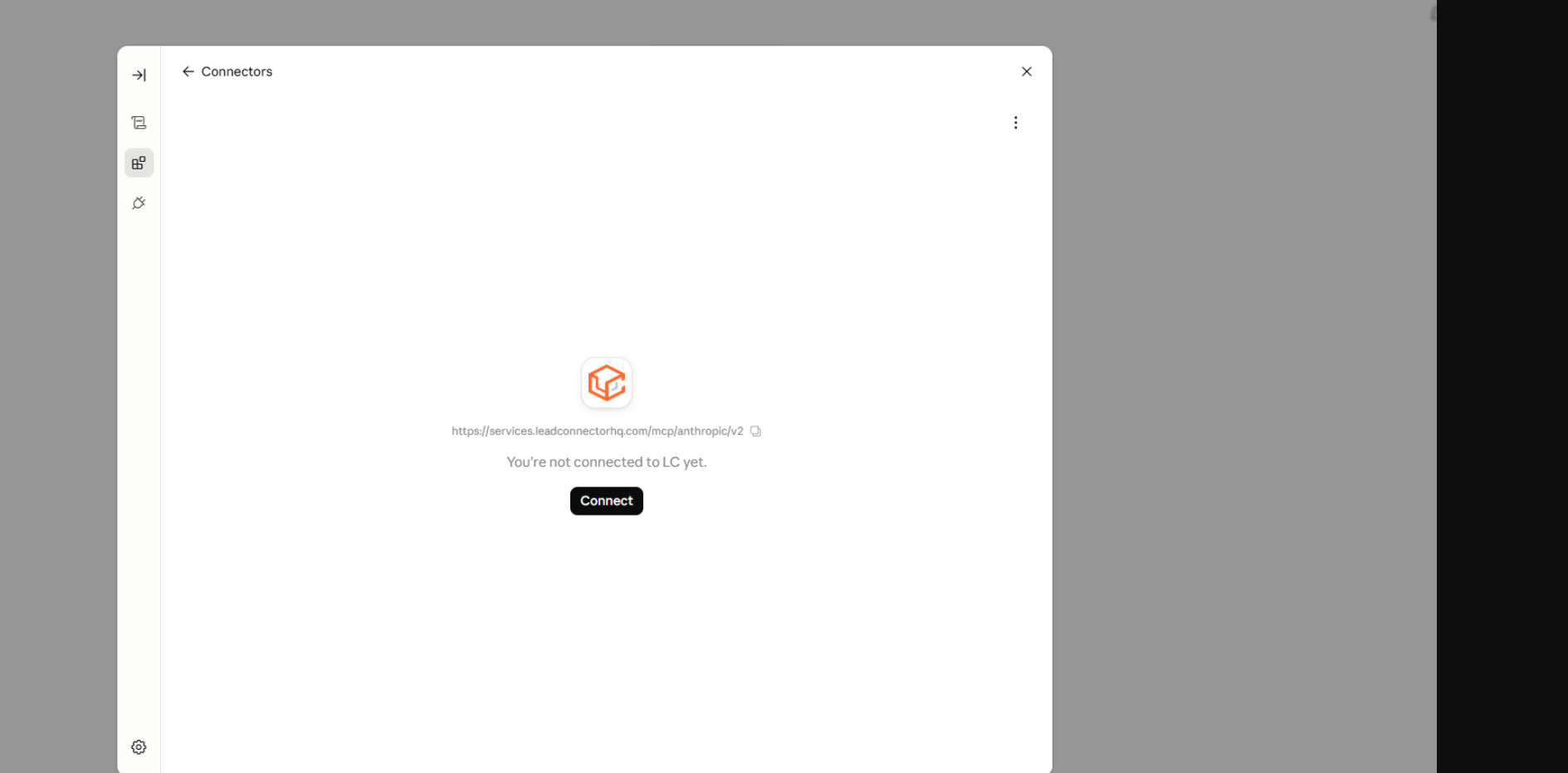
4. Sign in and approve Click Connect. Sign in to LeadConnector with your Konnectd login, choose your account, and click Approve.
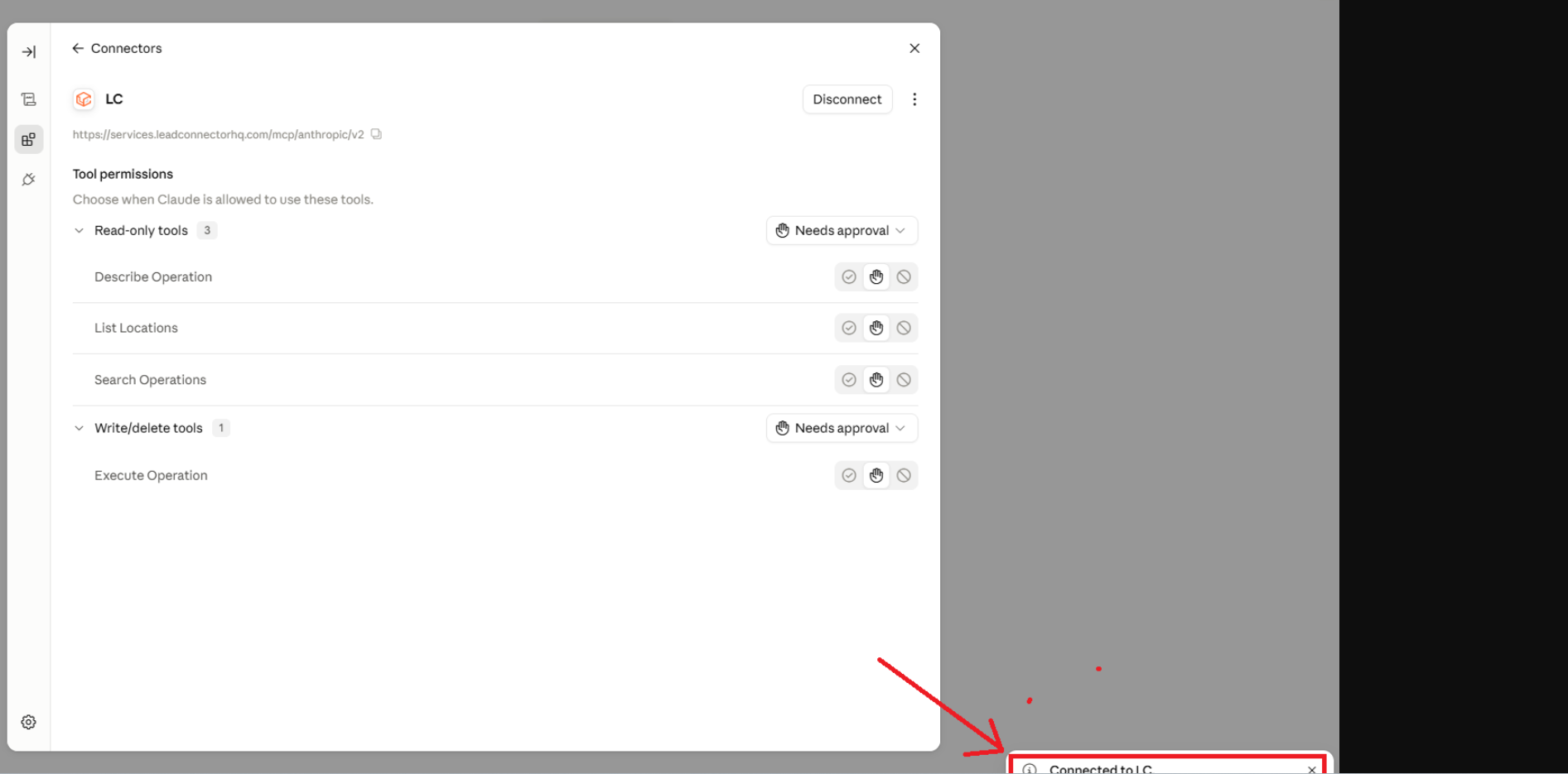
5. Try it Start a new chat and ask something simple to check it worked, like: "Find the last 5 contacts I added in my account."
The "Detected" tag doesn't show up. Double-check the link was pasted in exactly, with no extra spaces or characters. If it still doesn't appear, refresh the page and re-enter it.
The connection fails after clicking Approve. This usually means the Konnectd session timed out. Go back to Settings → Connectors, remove the Konnectd connector, and set it up again from step 1.
Claude says it can't find something that's definitely in the account. Try being more specific in your question (a full name instead of a nickname, or a date range instead of "recently"). If it still can't find it, disconnect and reconnect the connector, since permissions can occasionally need a refresh.
You can remove this connection any time from Claude.ai under Settings → Connectors. Removing it does not change or delete anything in your Konnectd account.
Yes. You're in charge the whole time.
You sign in with your own Konnectd login. Nobody else can turn this on for you.
Claude only reaches the account you connect it to. It can't get into anything else.
Claude shows you what it wants to do and waits for your OK before it changes, adds, or sends anything.
You can shut it off any time.
