
How to Create and Add an llms.txt File
Step 1: Get Your File Written
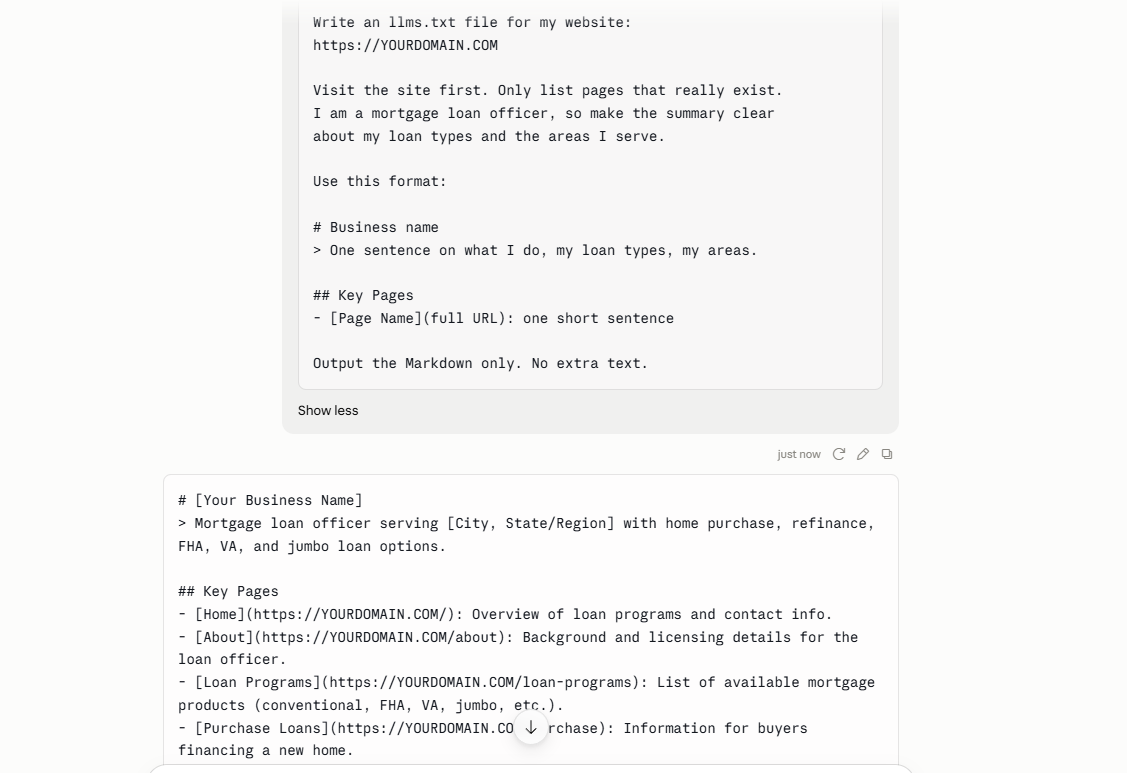
Open ChatGPT, Claude, or Gemini. Any one works. Paste the prompt below and swap in your website.
Write an llms.txt file for my website:
https://YOURDOMAIN.COM

Visit the site first. Only list pages that really exist.
I am a mortgage loan officer, so make the summary clear
about my loan types and the areas I serve.

Use this format:

# Business name
> One sentence on what I do, my loan types, my areas.

## Key Pages
- [Page Name](full URL): one short sentence

Output the Markdown only. No extra text.
Important: Open each link the AI lists. If a page does not load, delete that line. AI can sometimes invent pages that do not actually exist on your website.
Using AI Studio For Your Website?
Skip this step. Ask AI Studio to generate your llms.txt content, and it will write the file for you. No further action needed below.
Step 2: Paste It Into Your Account
Copy what the AI gives you, then:
Go to Settings → Domains and URL Redirects
Find your domain and click Manage
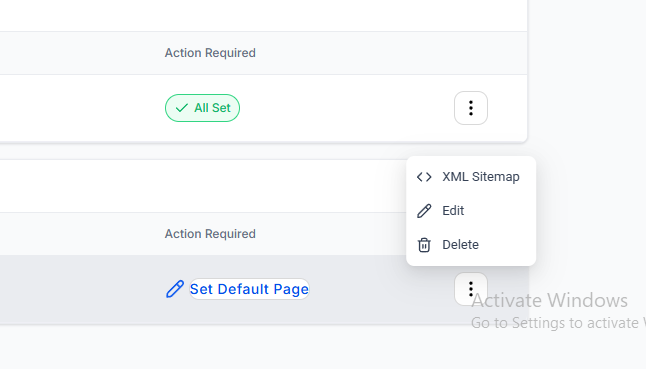
Click the three dots next to the connected product, then select Edit
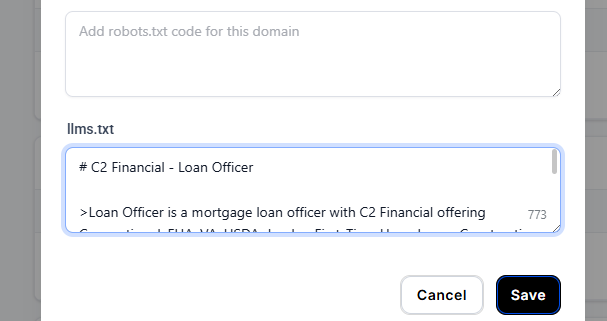
Scroll to the llms.txt box and paste your text
Click Save
[IMAGE: The llms.txt box inside Edit Domain]
The file publishes right away.
Step 3: Check That It Is Live
Open your URL in your browser:
https://yourdomain.com/llms.txtIf you are using a subdomain, use the full subdomain:
https://offers.yourdomain.com/llms.txtYour file should be displayed directly in the browser.
If you get a "not found" page, go back to Step 2 and make sure you saved the llms.txt file on the correct domain.