
Overview
This guide walks you through creating an automated workflow that triggers when a contact submits a form on your website. This automation helps you instantly respond to new leads and track form submissions in your CRM.
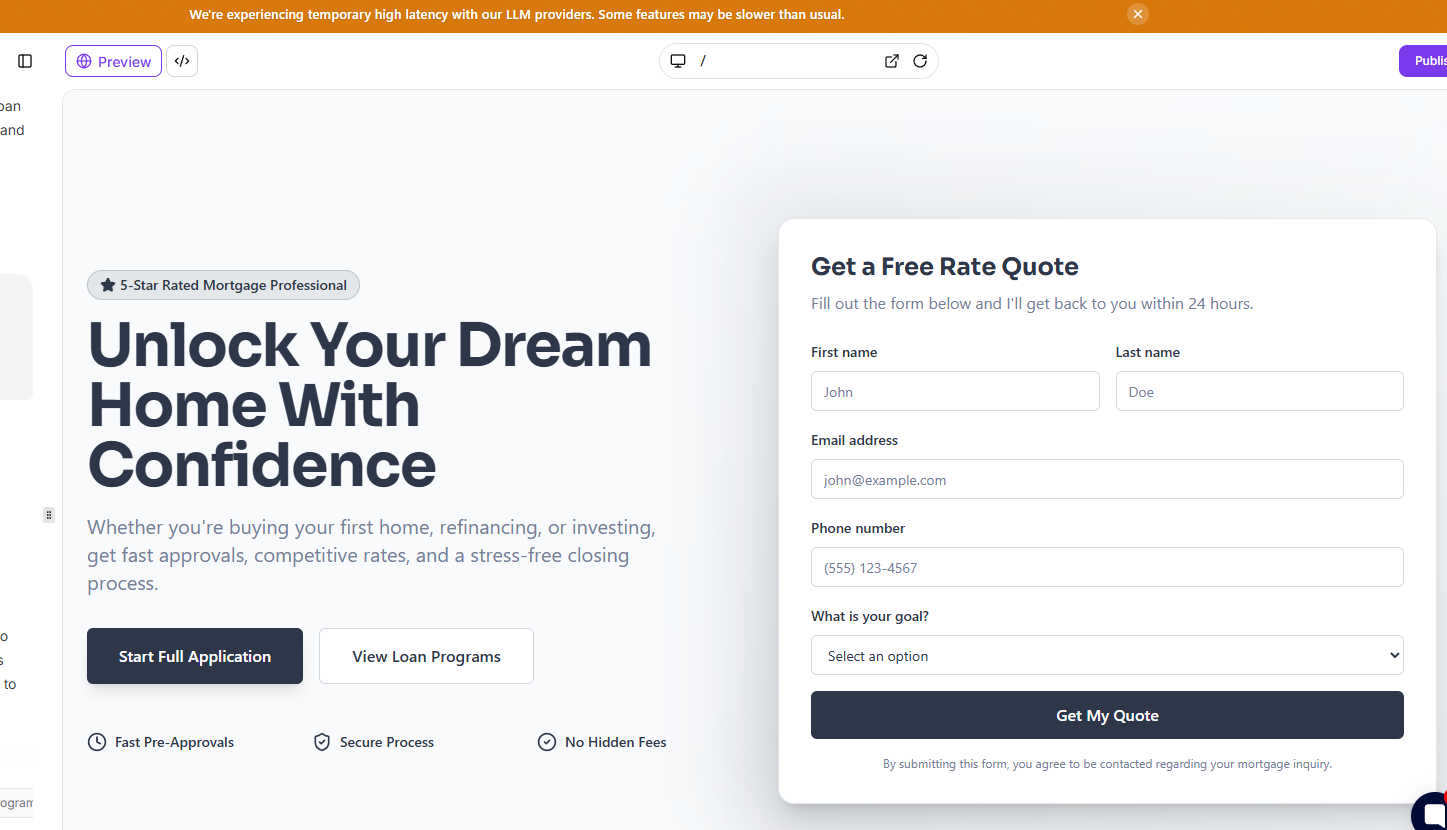
1. Fill out the form on your site
Start by testing the user experience. Fill out the form on your website by clicking the pop-up button to ensure the submission process is working as expected.
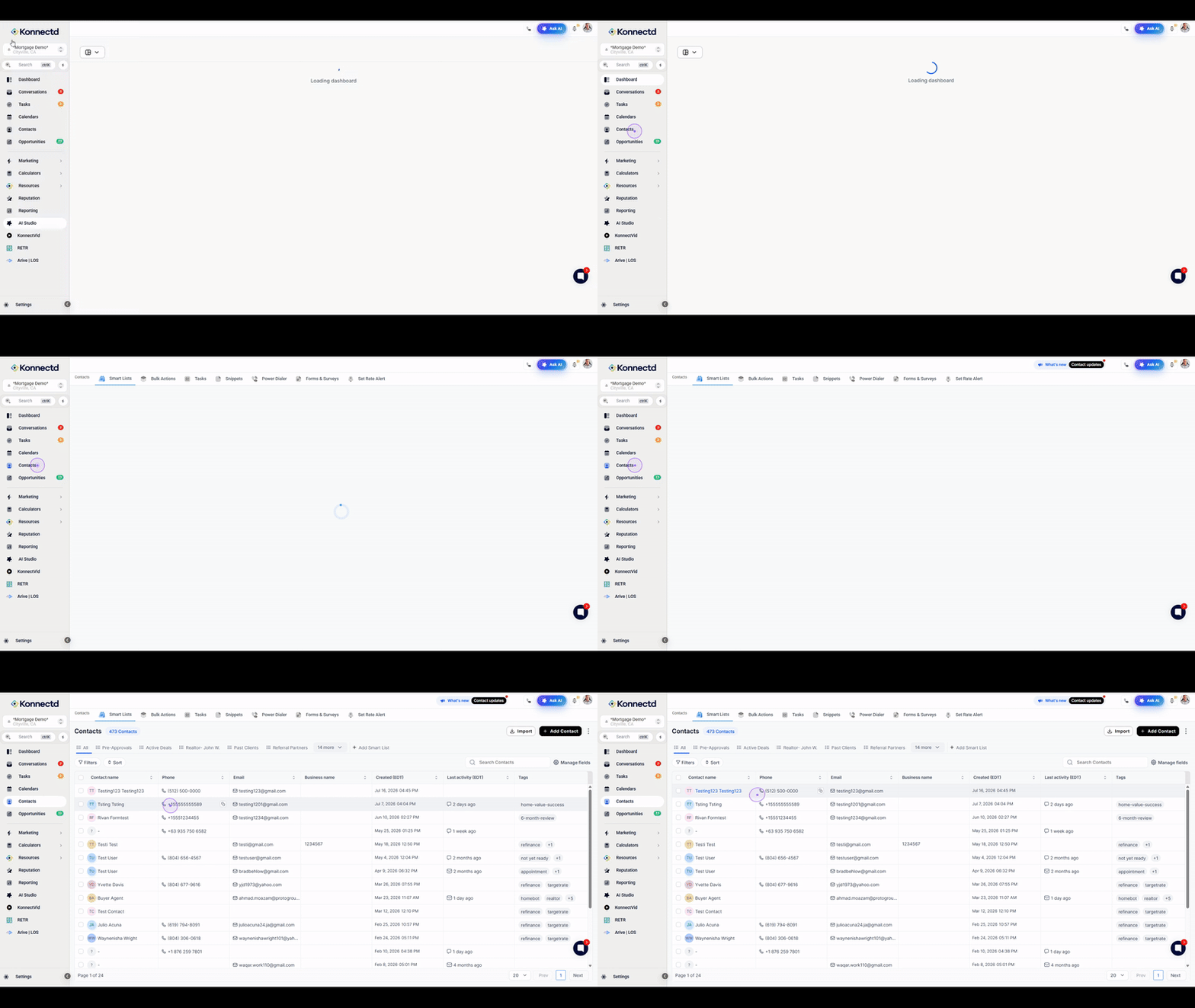
2. Navigate to the Contacts section
Once the form is submitted, click on the Contacts menu item in the left sidebar to access your contact database and verify that the new lead information has been captured.
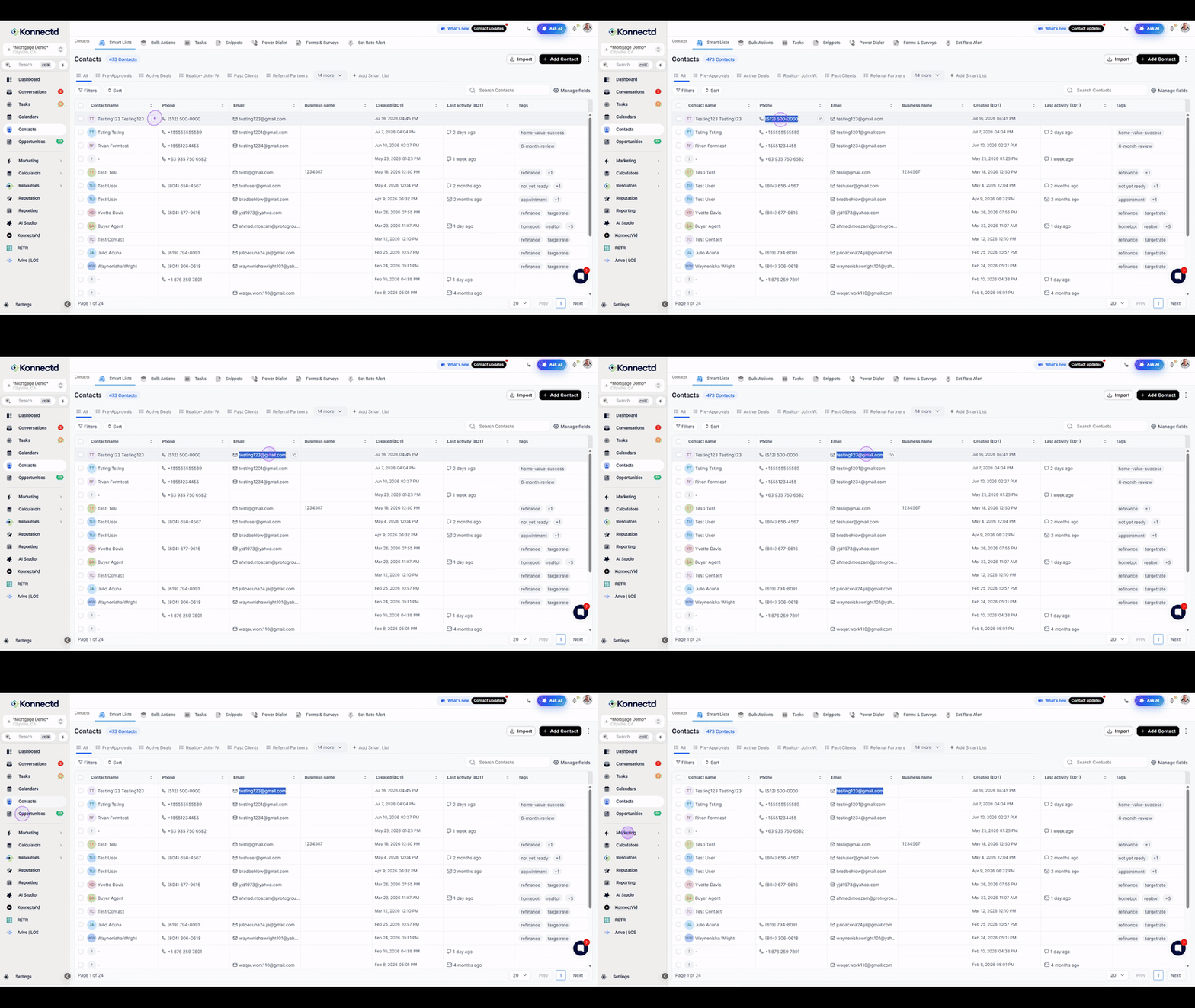
3. Review contact details
Click on a contact's email address or phone number in the list to view their detailed information. This step confirms that the data from your form submission is being recorded correctly in the system.
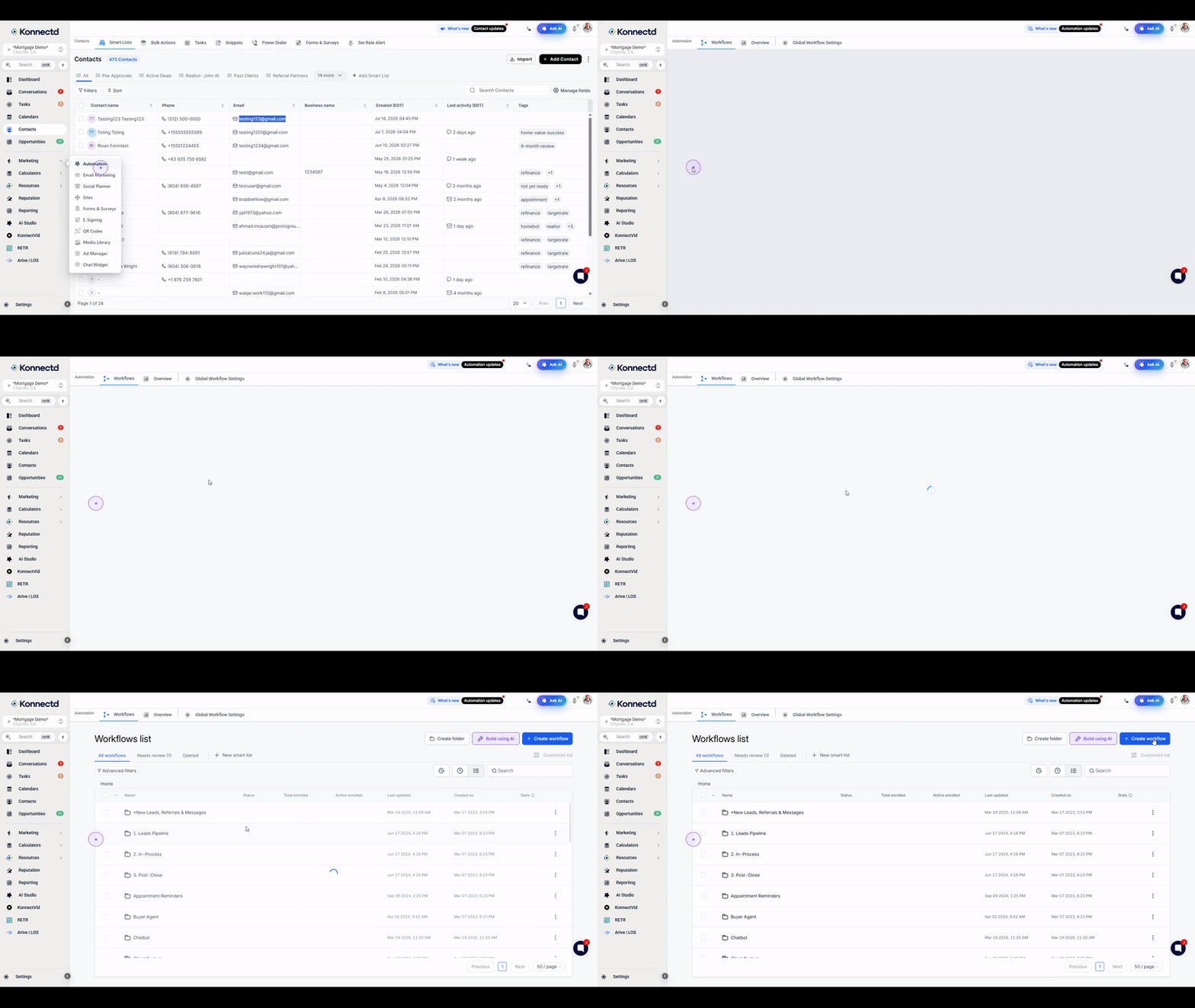
4. Create a new workflow
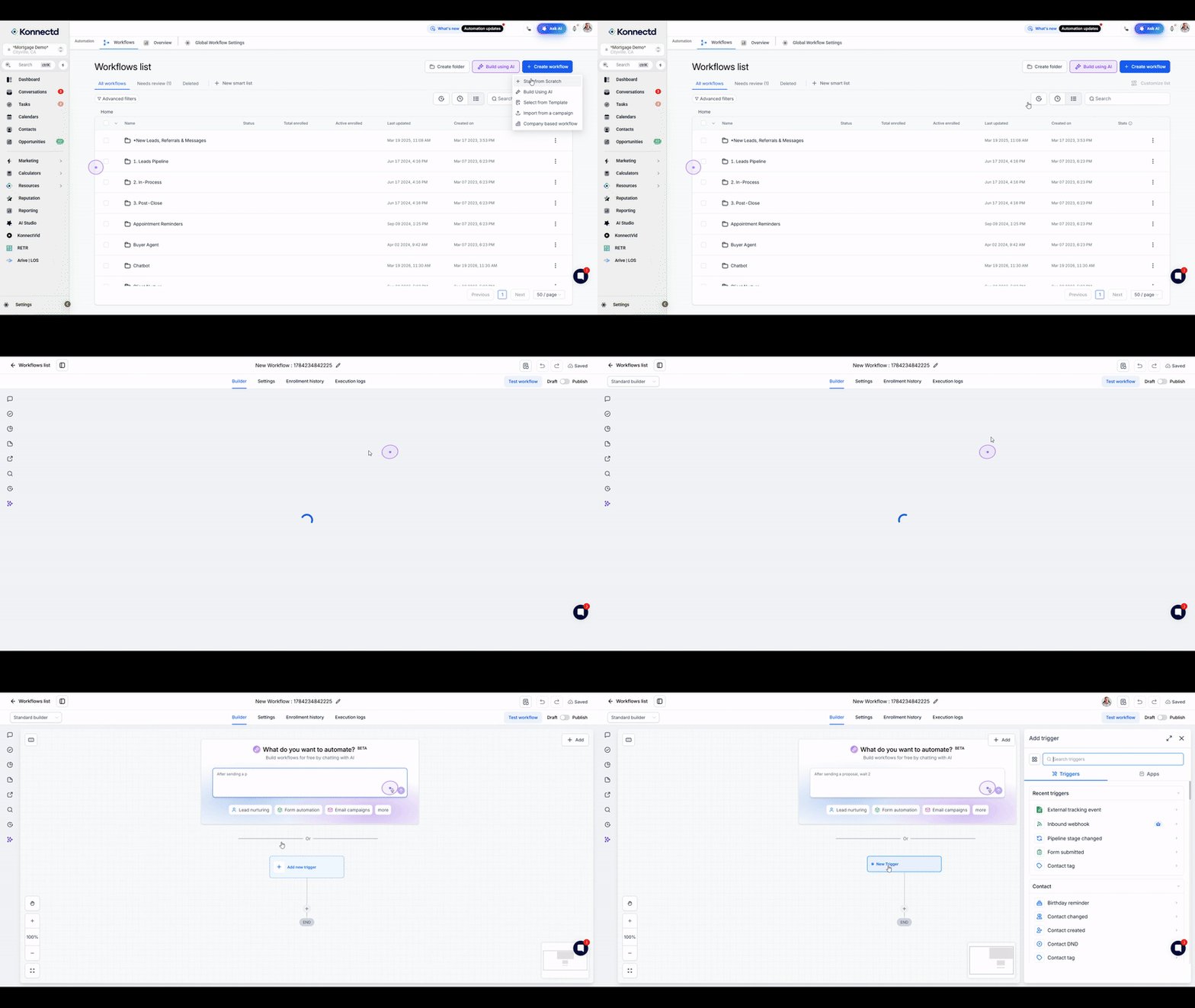
Navigate to your automation settings, then click the Create workflow button. Select Start from Scratch to begin building your new automation logic from the ground up.
5. Select the External Tracking Event trigger
Within the workflow builder, click Add new trigger. Choose External tracking event from the list of available triggers to set up the automation to listen for form-based activity.
6. Configure form submission filters
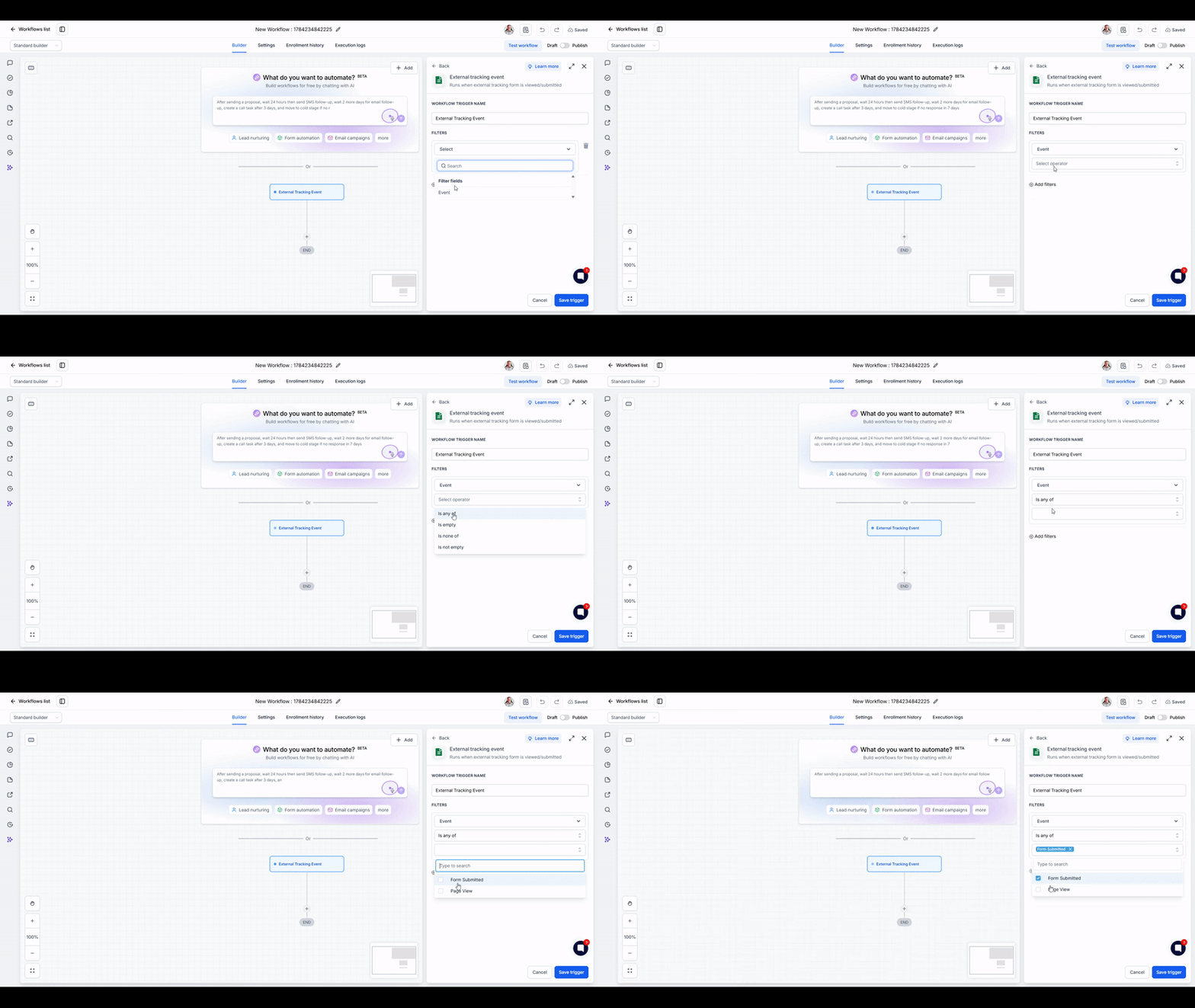
Refine the trigger by setting the Event filter to "Form Submitted" and the External Form filter to "Website Form Fill." These settings ensure the workflow only activates when the specific form you are tracking is submitted.
7. Save and publish the workflow
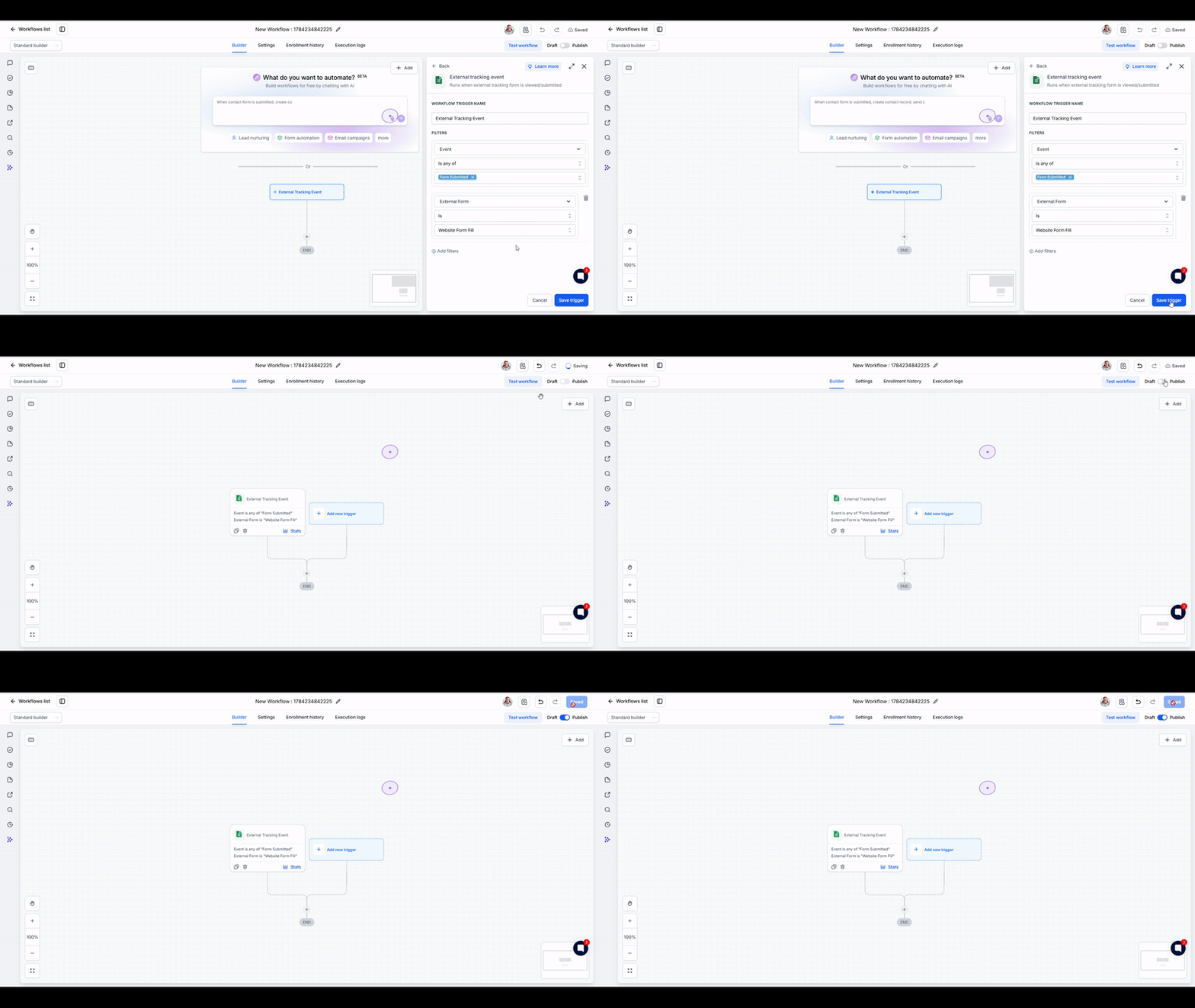
Click Save trigger to confirm your configuration. Finally, toggle the workflow status to Published in the top right corner to activate your automation and begin tracking submissions.
Next Steps
Now that your workflow is live, it will automatically trigger whenever a contact submits the specified form. You can continue to build out your sequence by adding actions such as sending automated follow-up emails, creating internal tasks, or updating contact tags.