Editing a DSCR Funnel
Follow these steps to open, edit, and preview your funnel content in the Konnectd visual editor.
Navigate to Marketing > Sites
Start by clicking on Marketing in the left sidebar to expand the menu options, then select Sites to access the funnels management page.
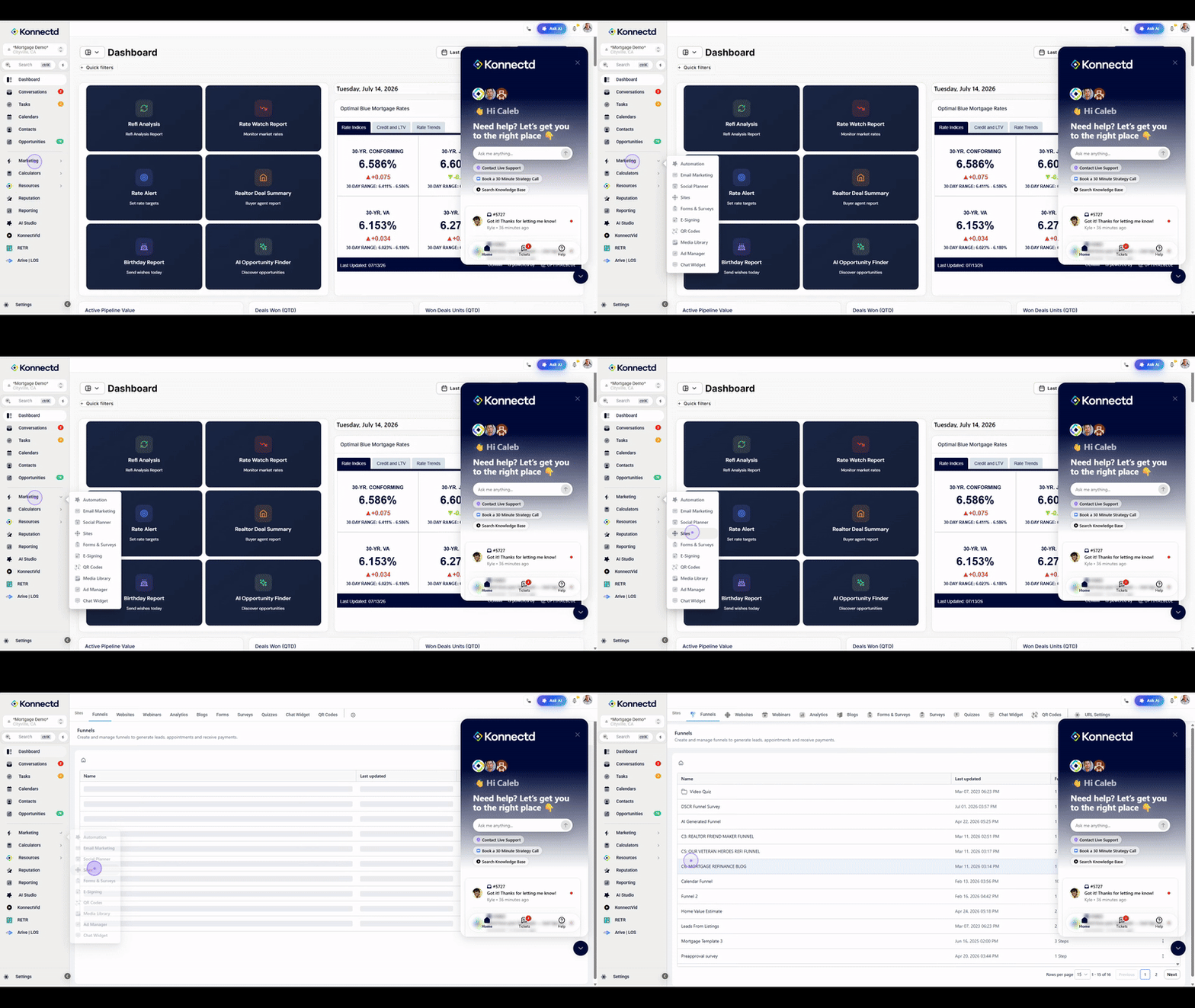
Select the DSCR Funnel Survey
From the funnels list, locate and click on DSCR Funnel Survey to open its details and preview page.
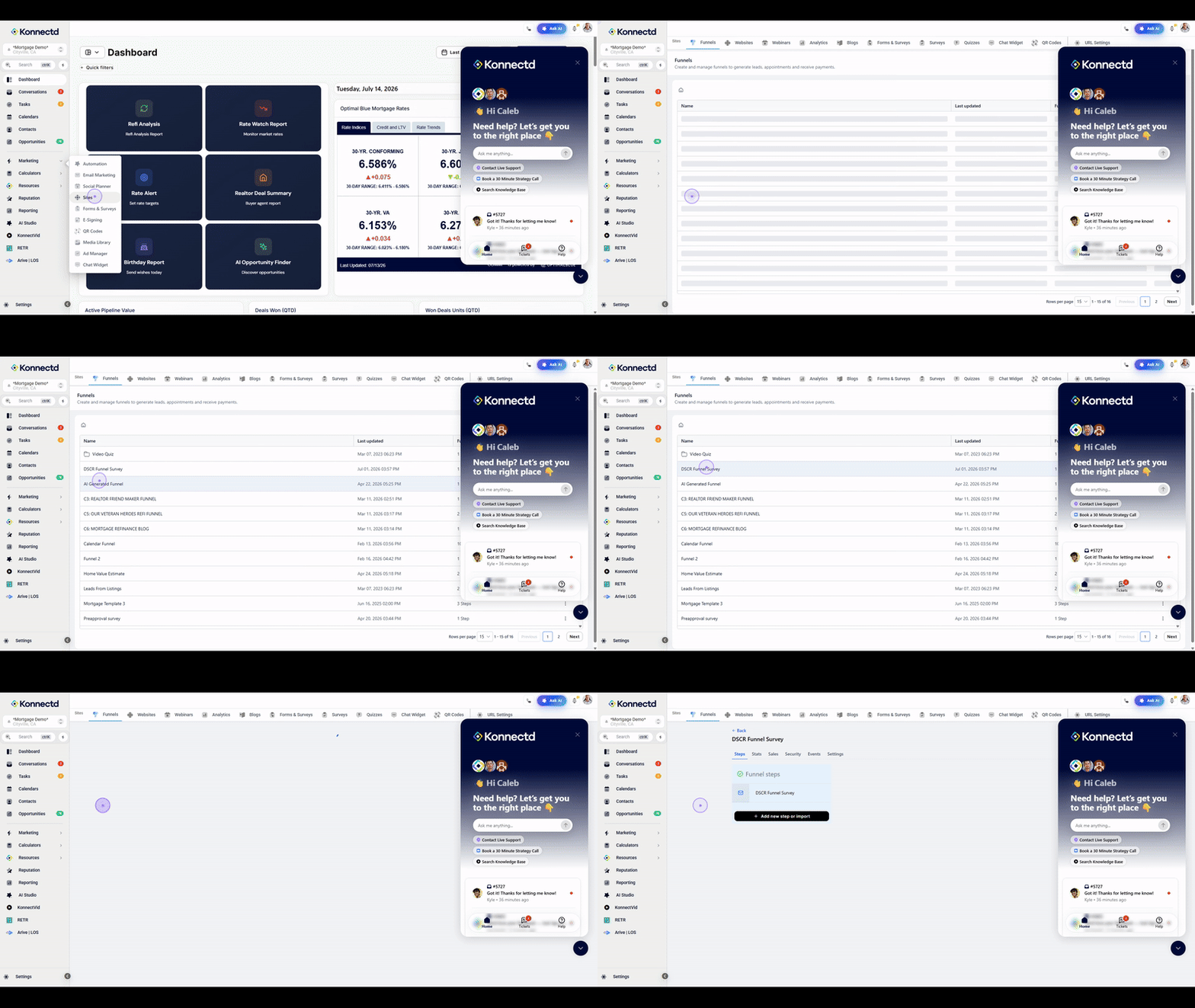
Click the Edit button
Click the Edit button located below the funnel preview to launch the visual editor where you can modify content, styling, and settings.
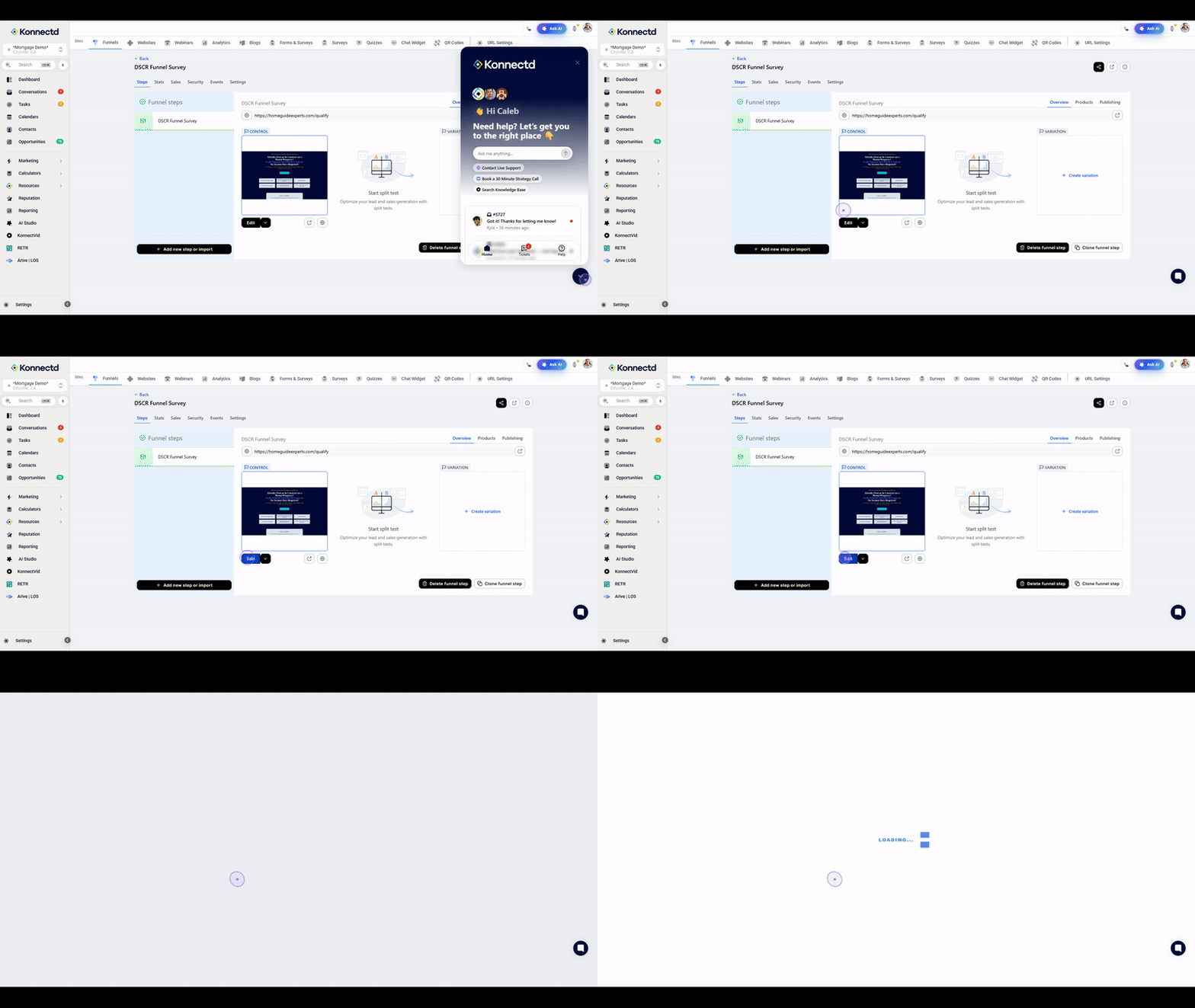
Edit the content
Once the editor is open, you can select any element on the page to modify its text, images, or layout using the right-side properties panel.
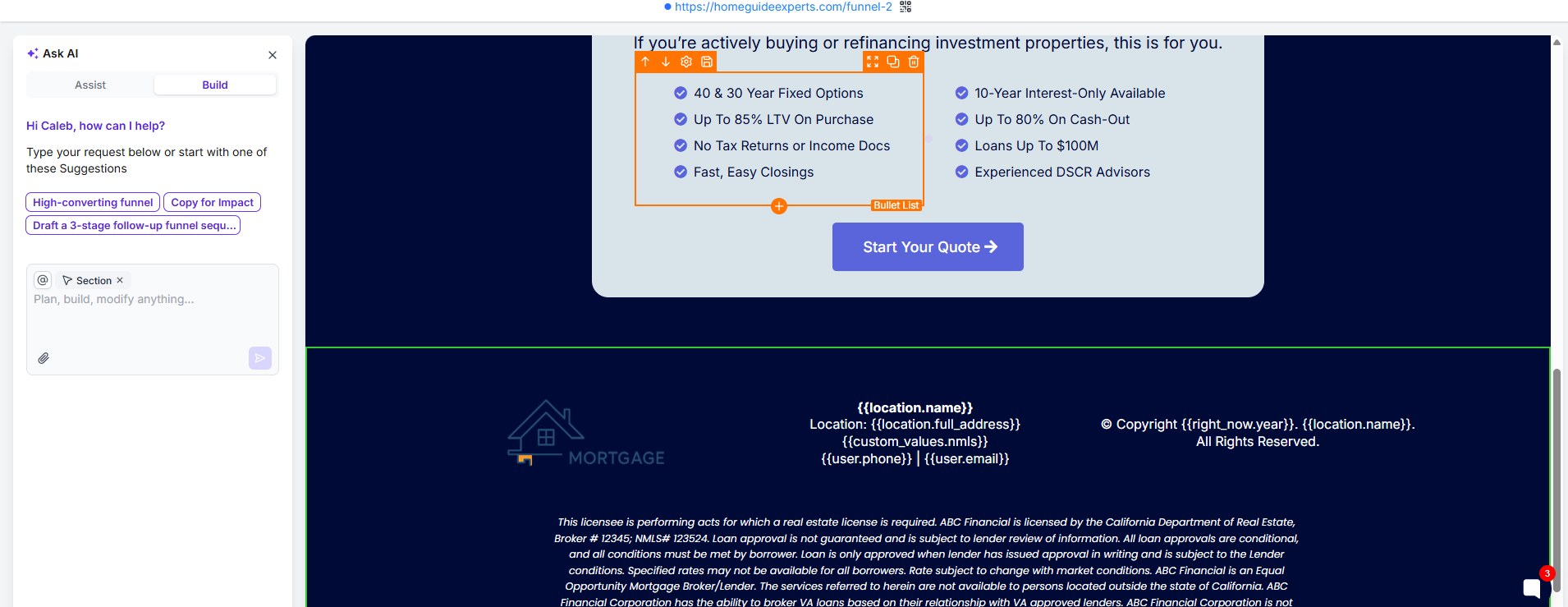
View it by clicking the link at the top of the page
After you have finished making your changes and saved your work, you can view the live version of your funnel by clicking the link provided at the top of the editor page.