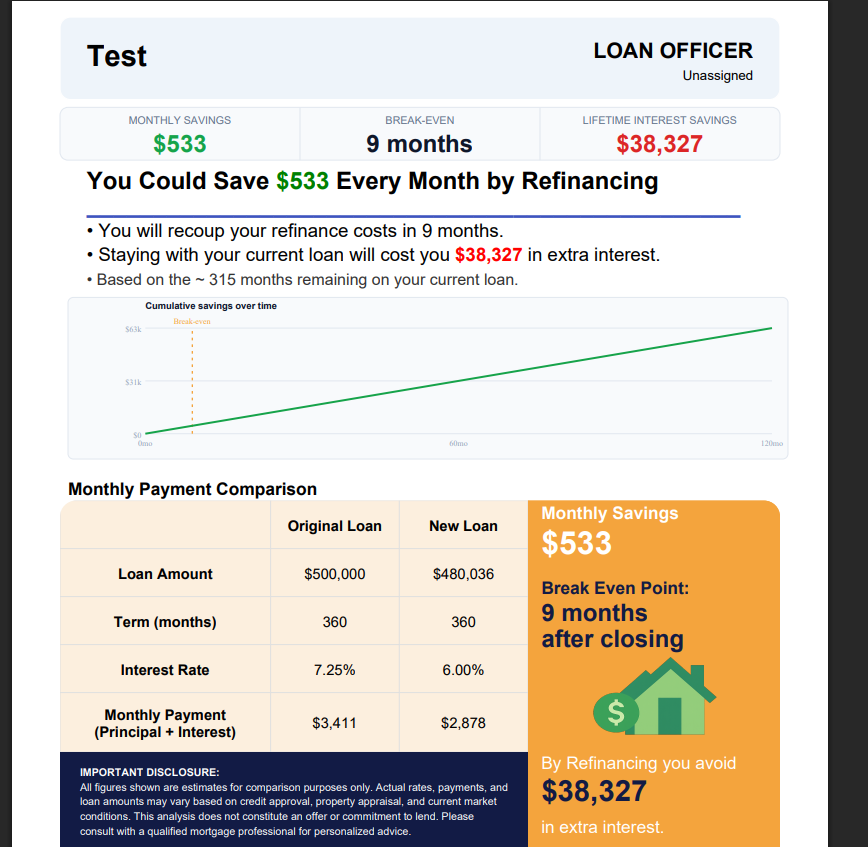
How to Generate a Refinance Analysis Report
This guide will walk you through creating a comprehensive refinance analysis report to help your contacts understand their refinancing options.
1. Open the Refinance Analysis tool
Click the green Refi Analysis button on the contact details page to open the refinance analysis modal.
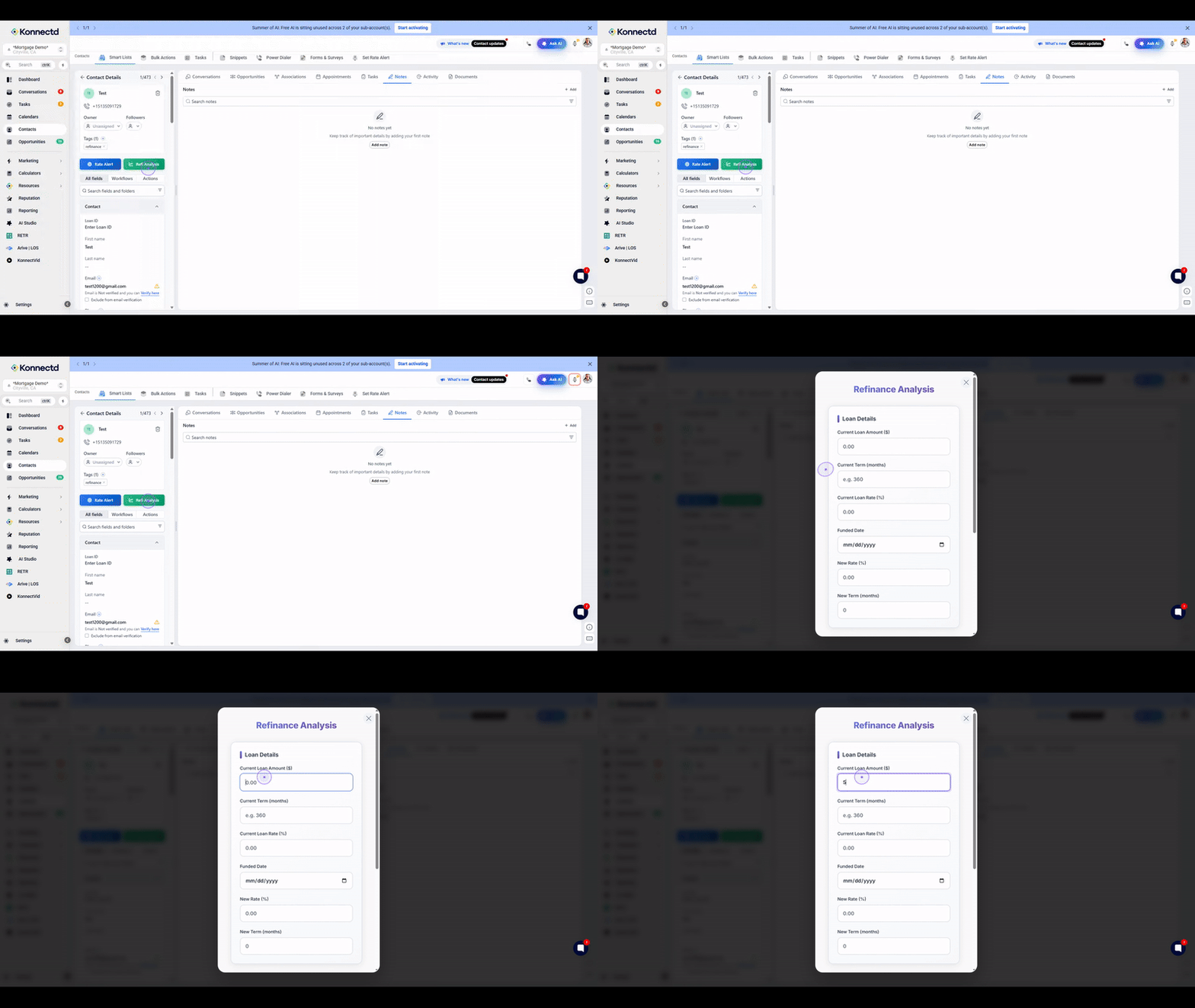
2. Enter the current loan terms
Enter the remaining loan term in months in the Current Term (months) field (e.g., 360 for a 30-year loan).
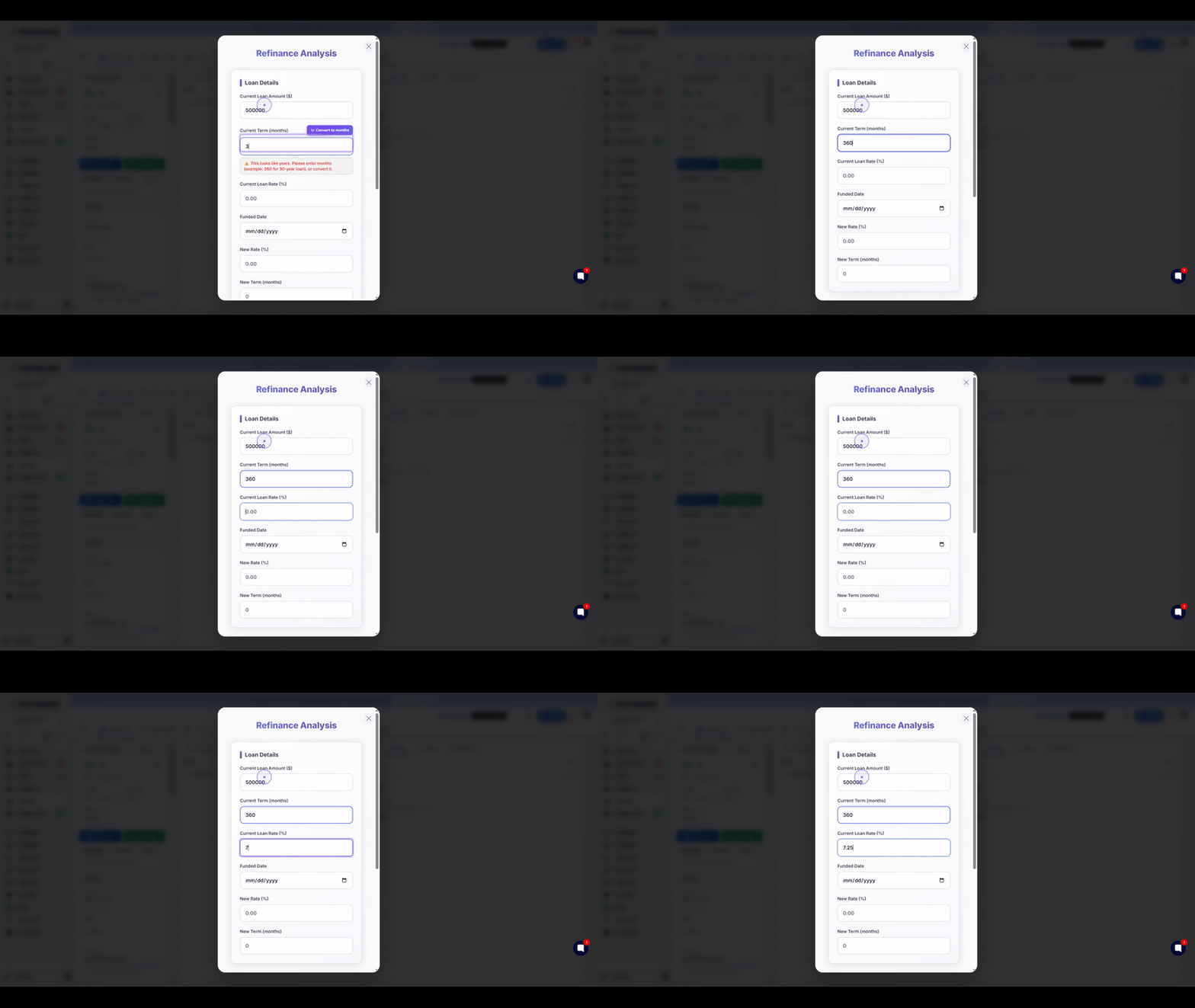
3. Generate the report
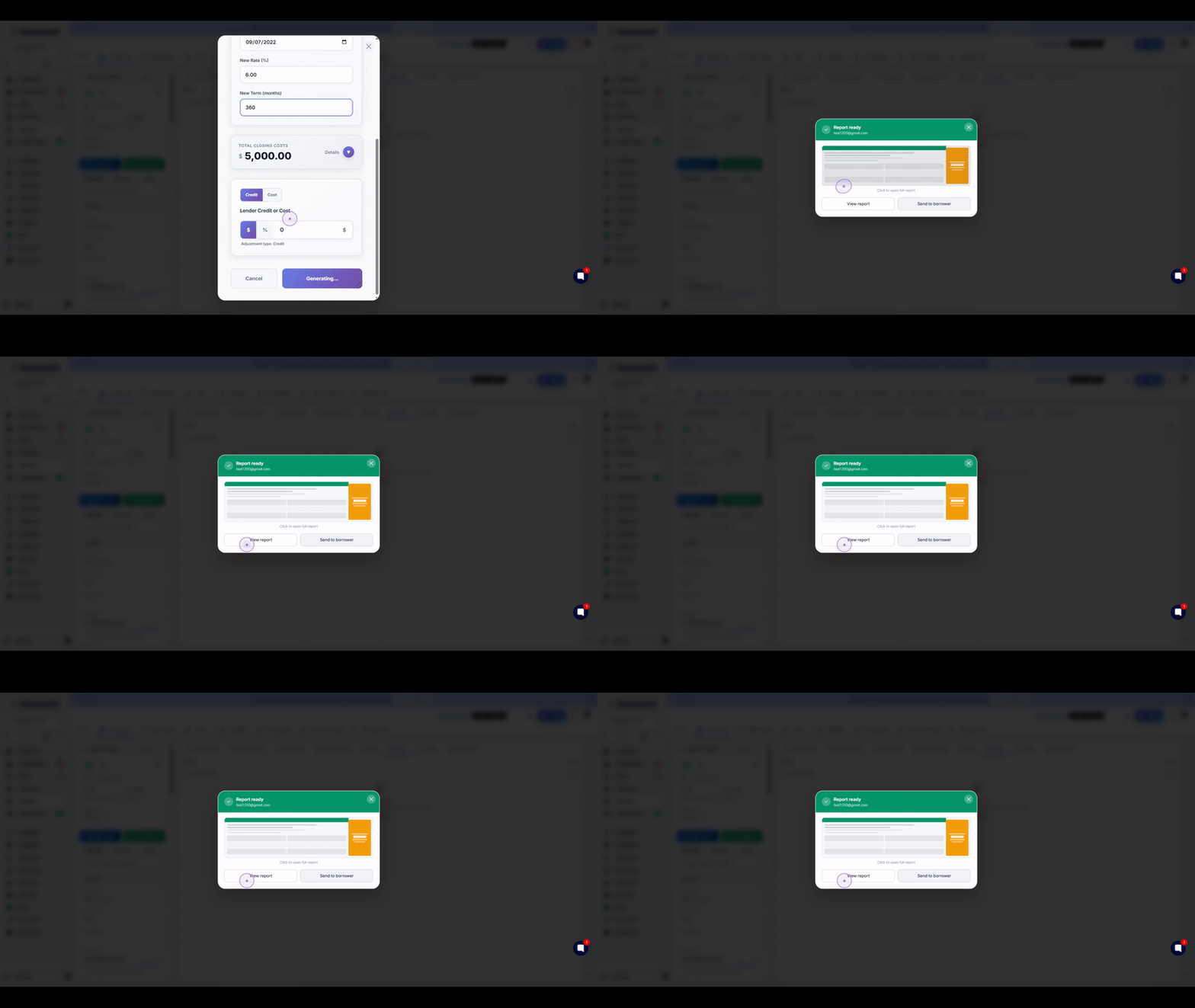
Scroll down to review the Total Closing Costs section, then click the Generate Report button to calculate the analysis.
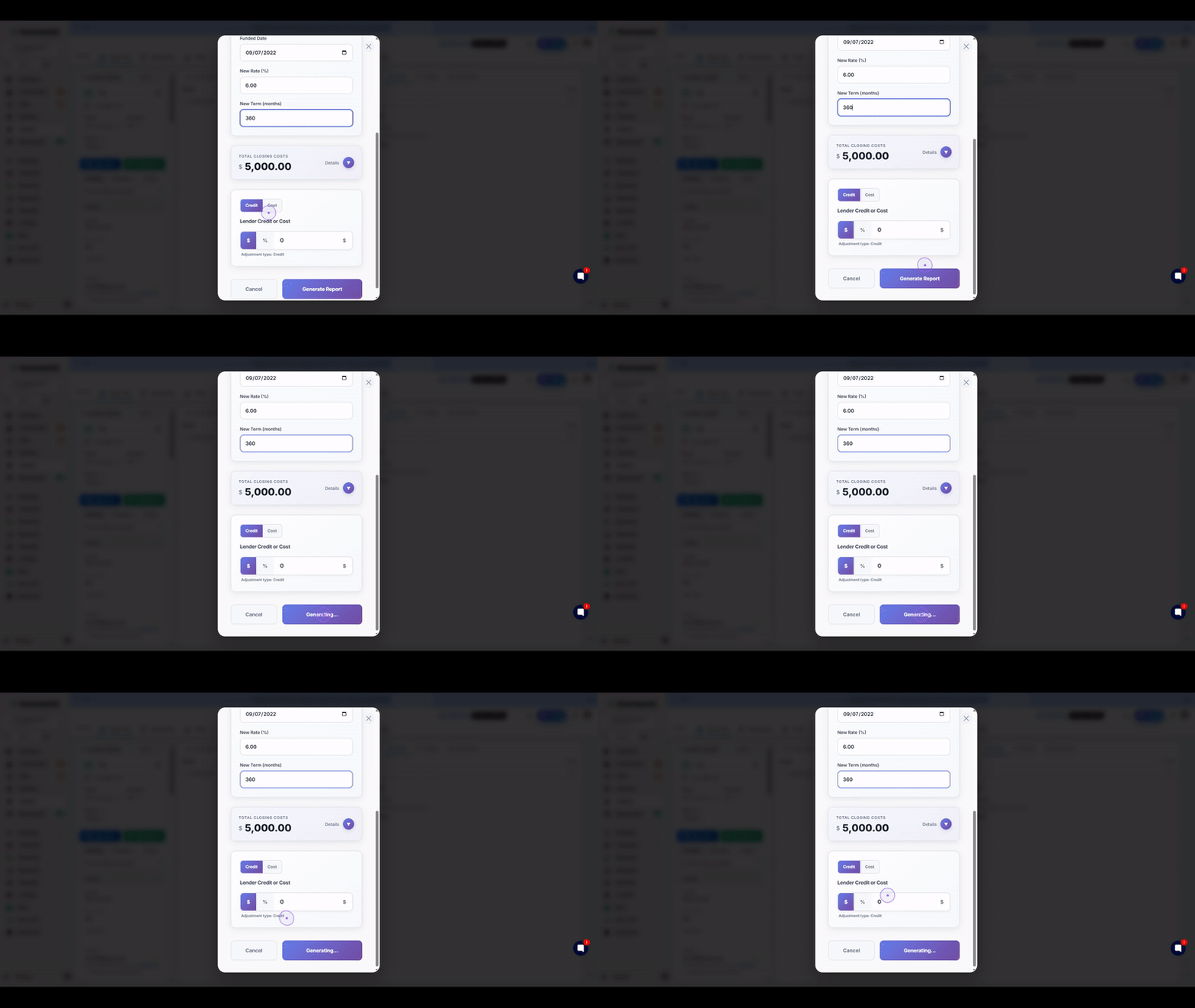
4. View the generated report
Once the report is ready, click the View report button to open and review the detailed refinance analysis.
5. Review the final analysis
Once the report has been generated, you can review the comprehensive breakdown of the refinance options provided in the final summary view.