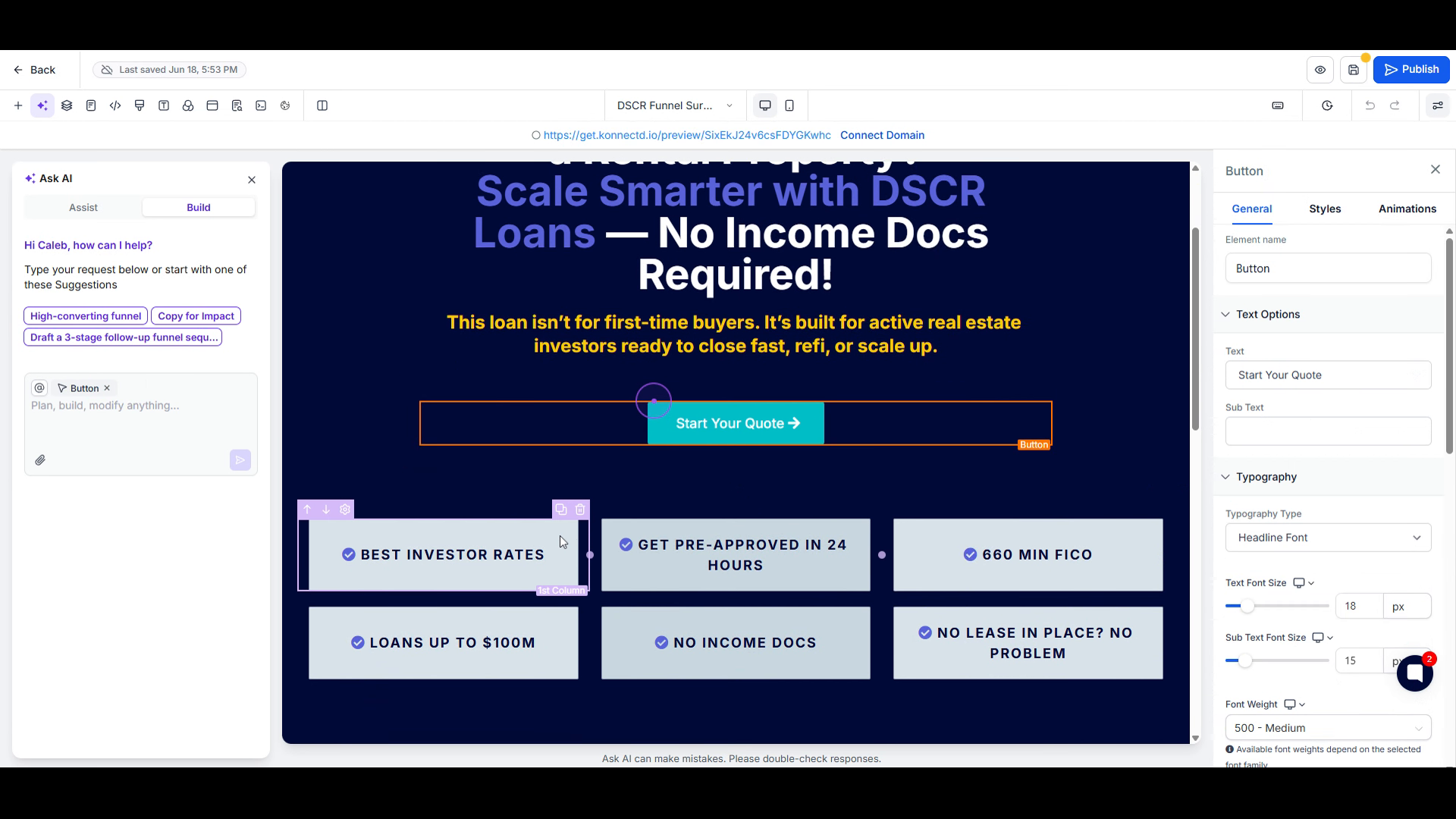
How to Edit and Publish a Funnel Page
Follow these steps to access your funnel's page editor and publish your changes to a custom domain.
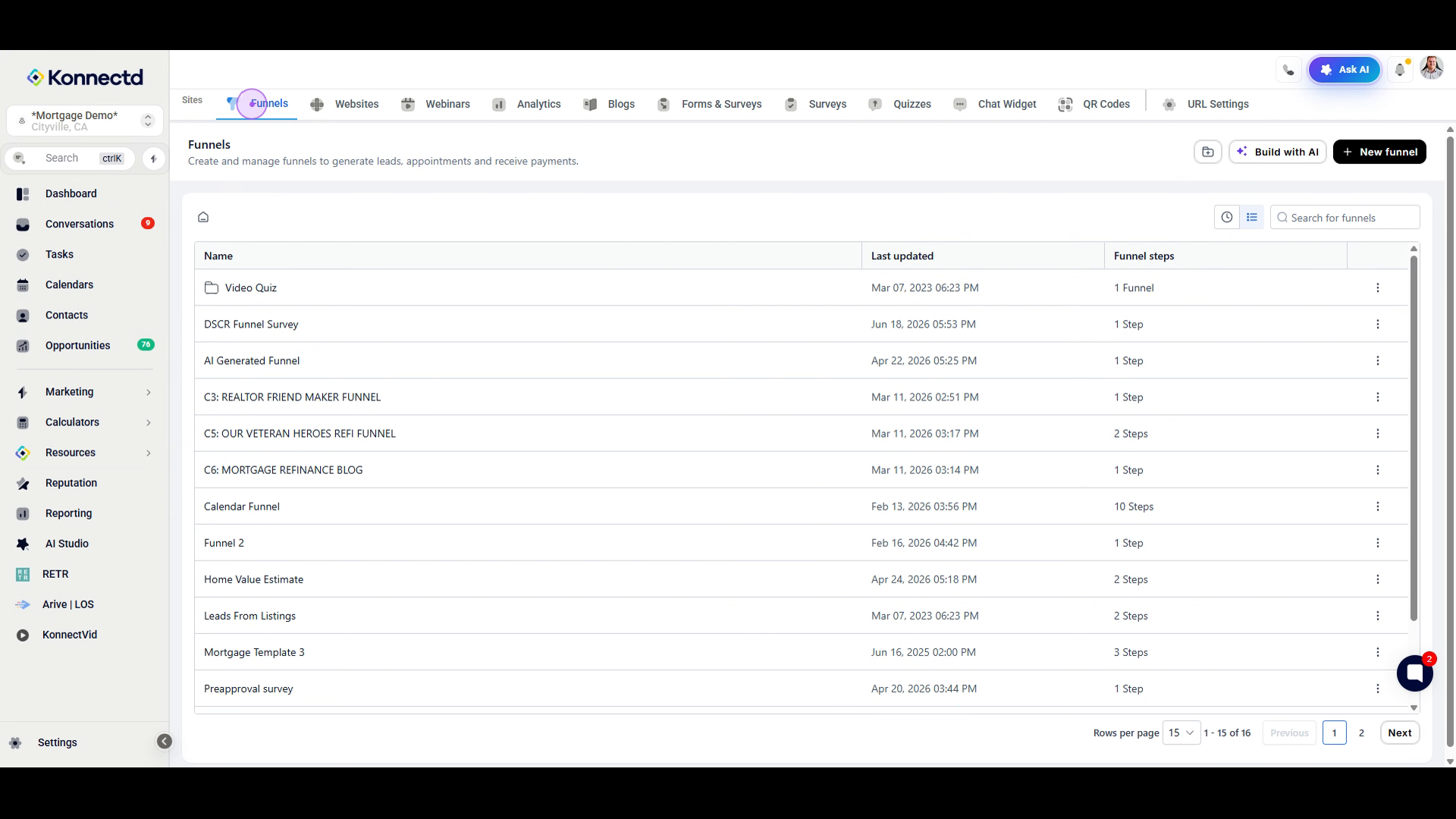
Navigate to Marketing > Sites > Funnels
Click on Marketing in the left sidebar, then select Sites and click the Funnels tab to view your funnel list.
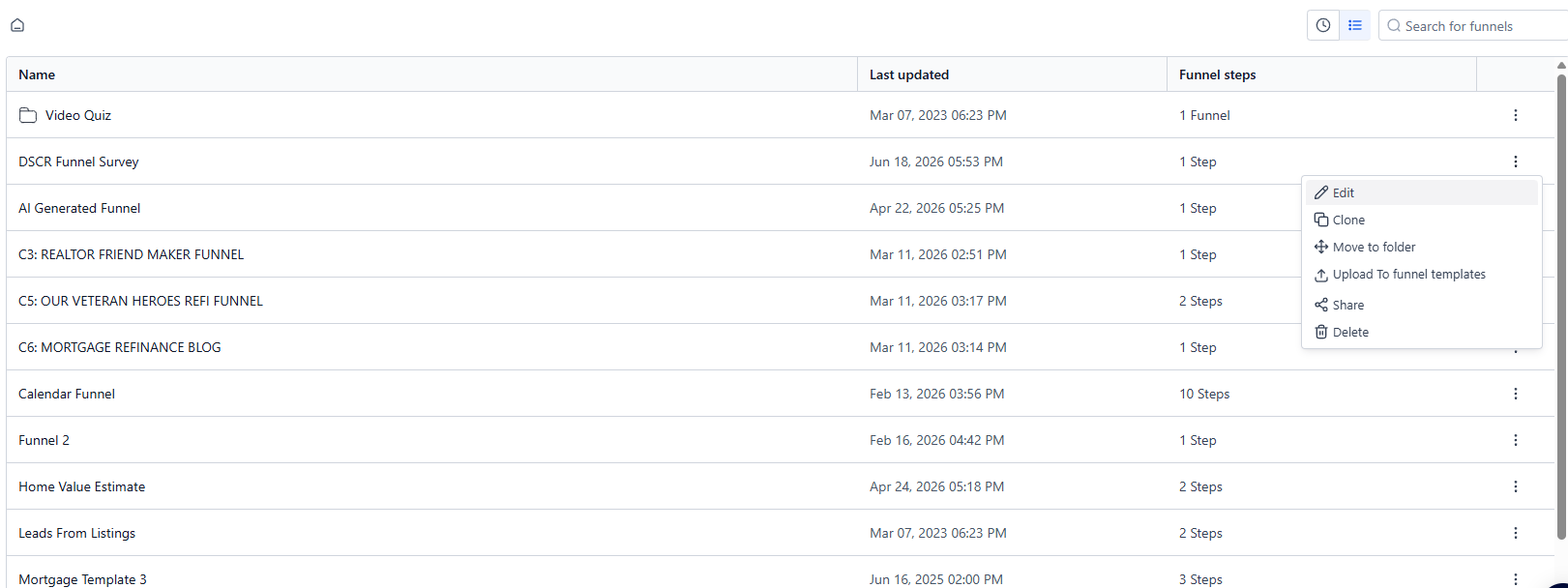
Select Edit from the action menu
Find your funnel in the list, click the three-dot menu icon on the right side of the row, and select Edit from the dropdown menu.
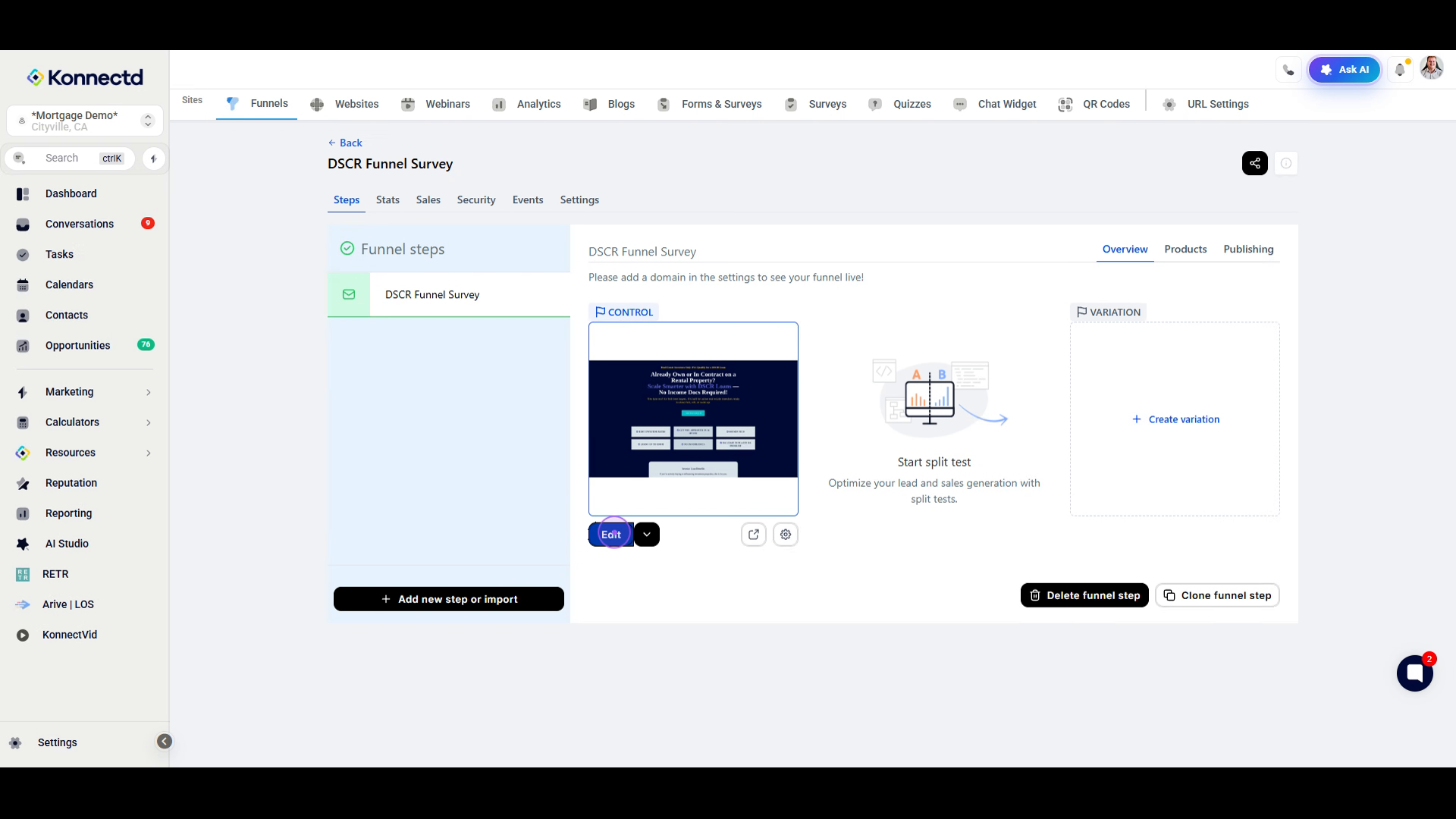
Open the page editor
In the funnel builder, locate the funnel step you want to edit and click the Edit button below the step preview to open the page editor.
Publish your funnel
Click the Publish button in the top right corner, select your domain from the dropdown in the modal, and click Save to make your funnel live.