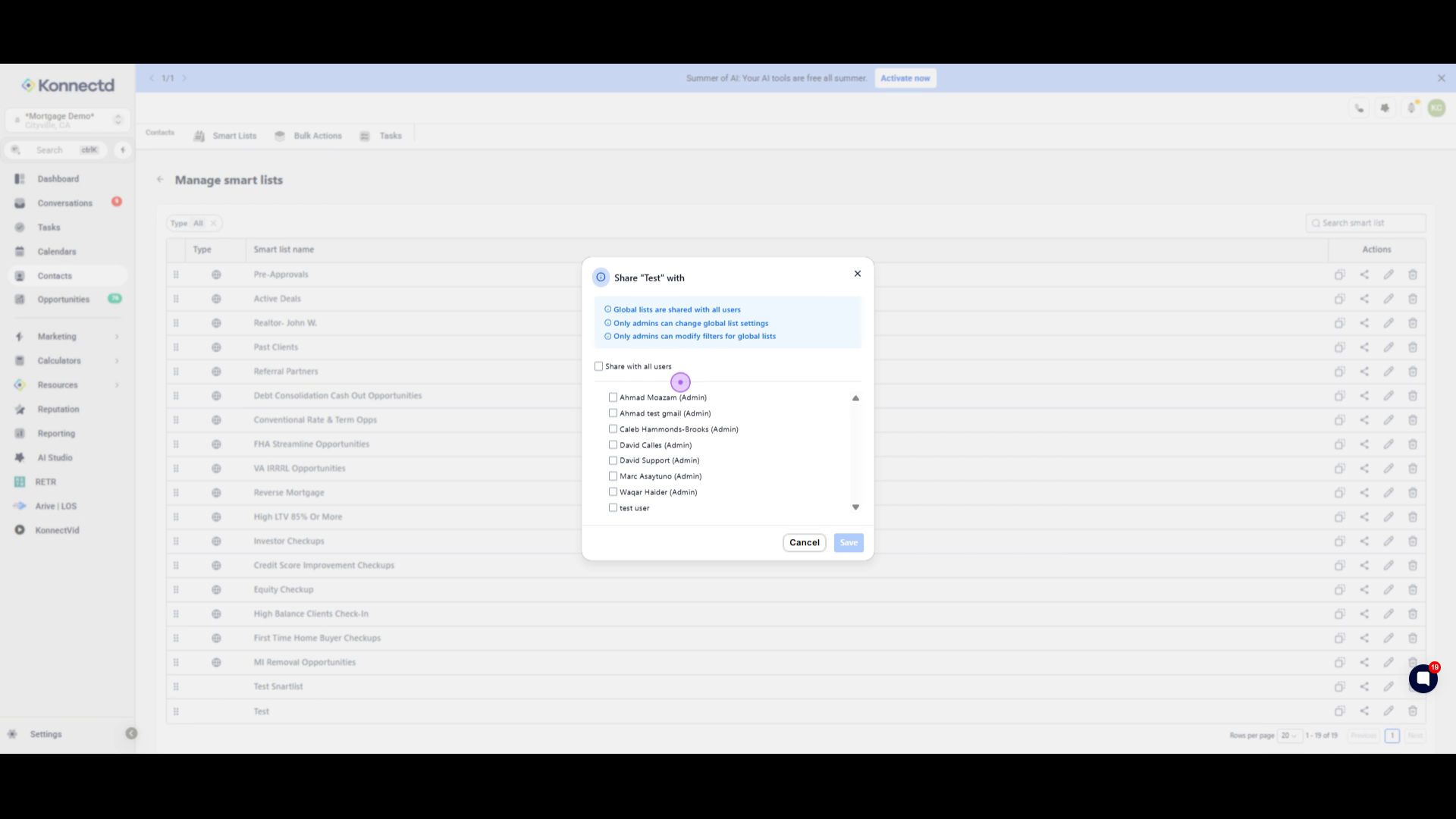
Smart Lists allow you to save filtered contact views for quick access later. This guide walks you through creating a Smart List based on contact tags and managing sharing settings.
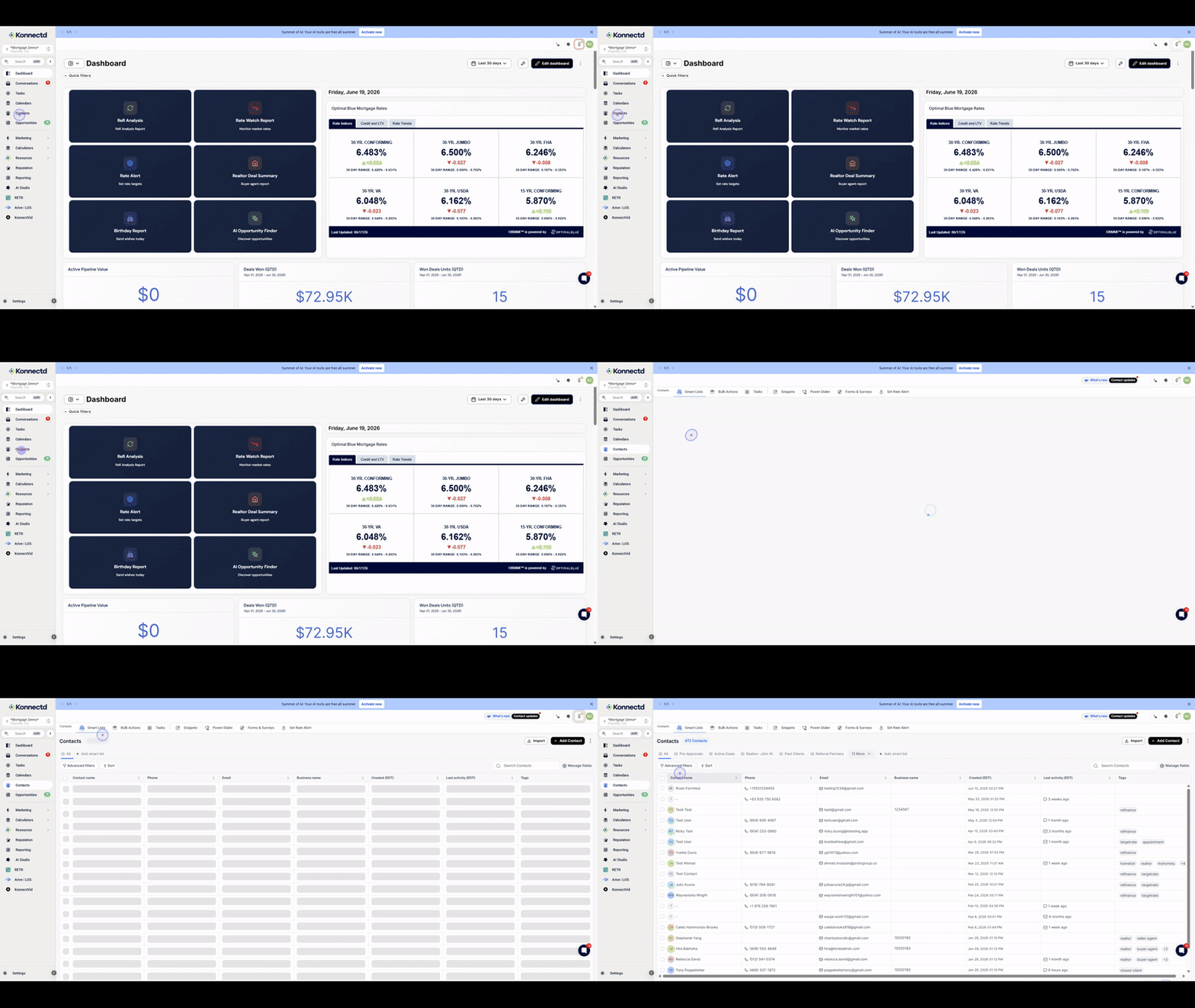
1. Navigate to the Contacts section
Click on Contacts in the left sidebar to access your contact database.
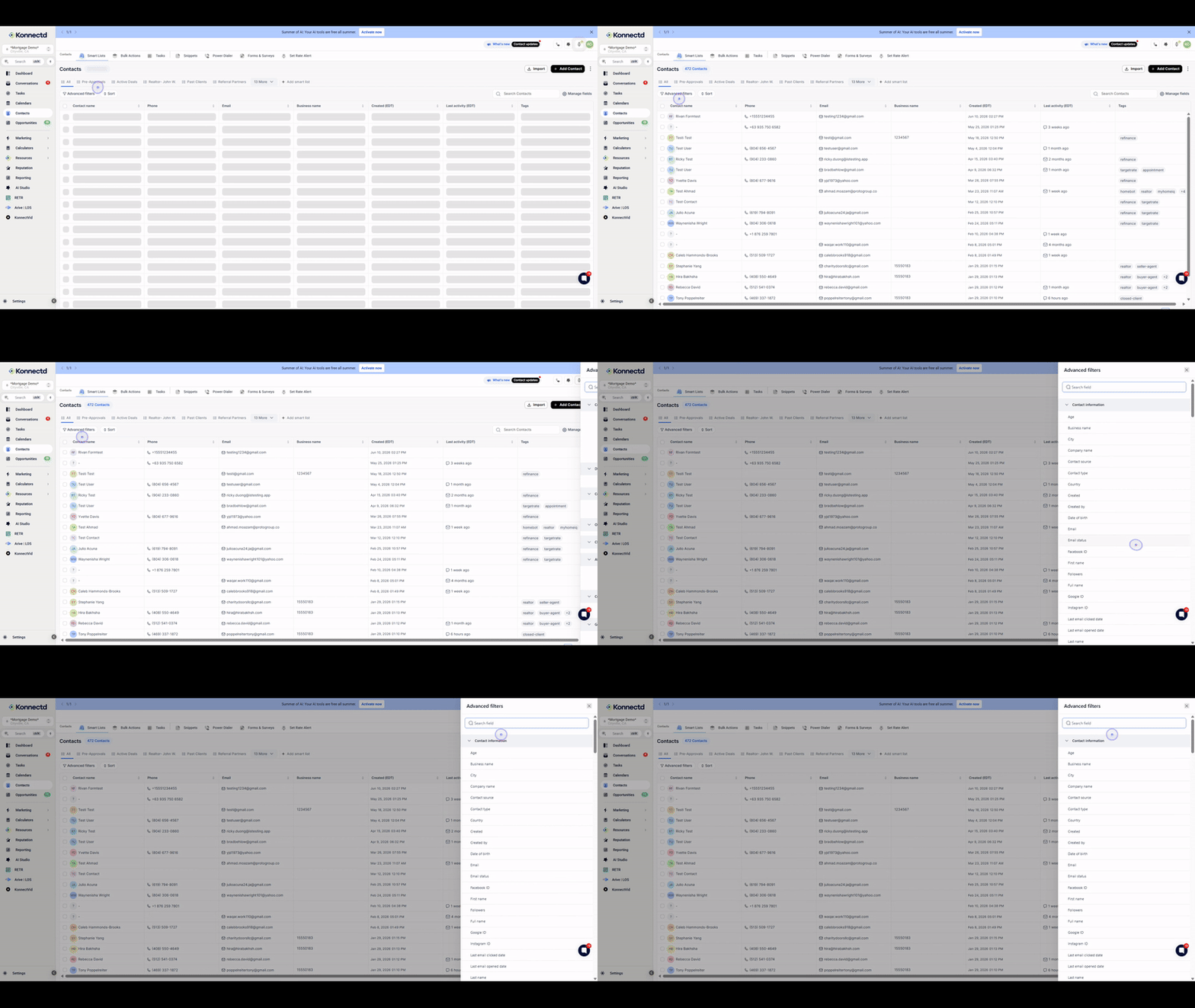
2. Open the Advanced Filters panel
Click the Advanced filters button to open the filtering options on the right side of the screen.
3. Select a Filter
In this example we’ll use the tag filter, type "tag" to quickly locate the Tag filter option.
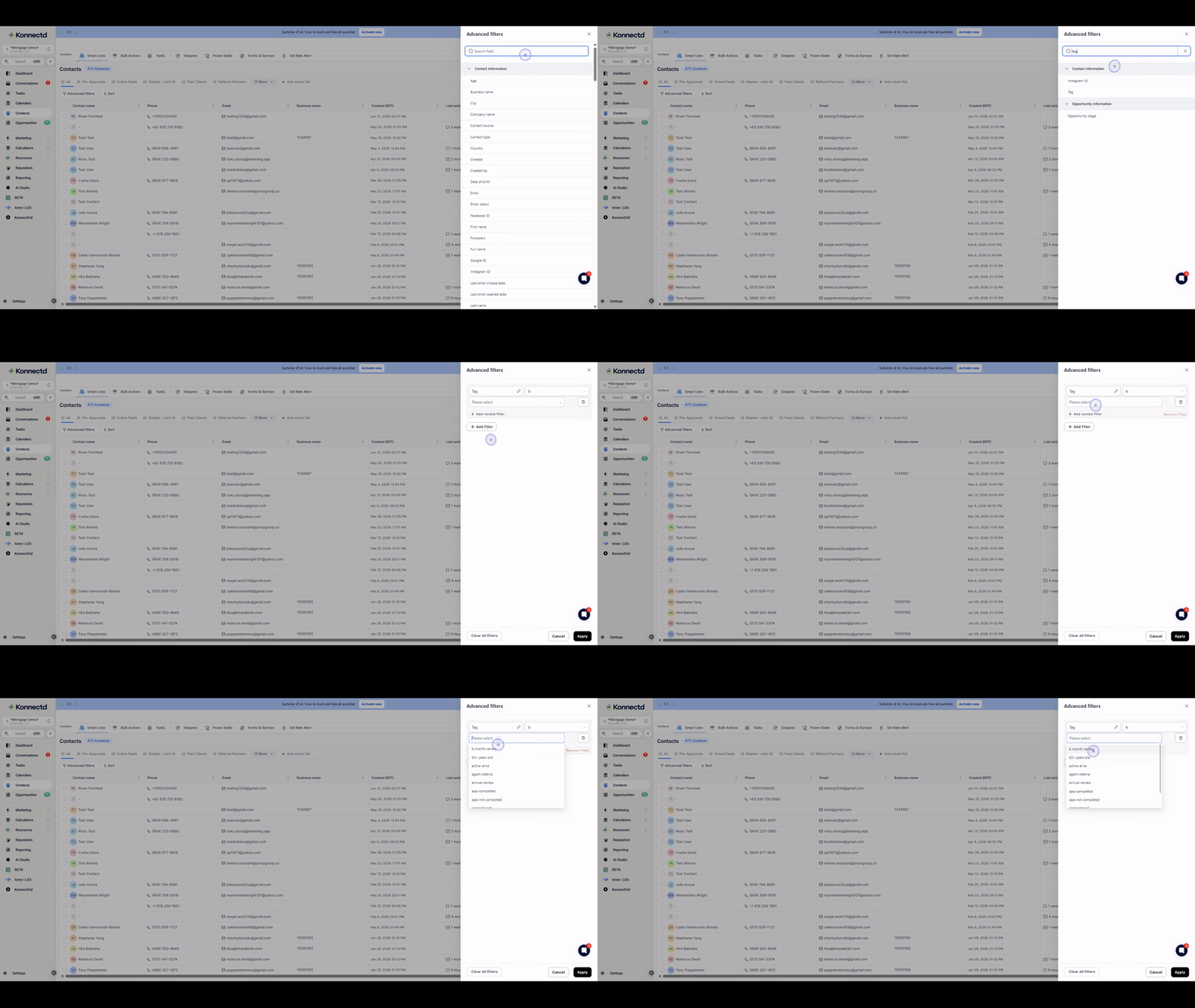
4. Select the Tag filter
Click on Tag from the search results to add it as a filter criterion.
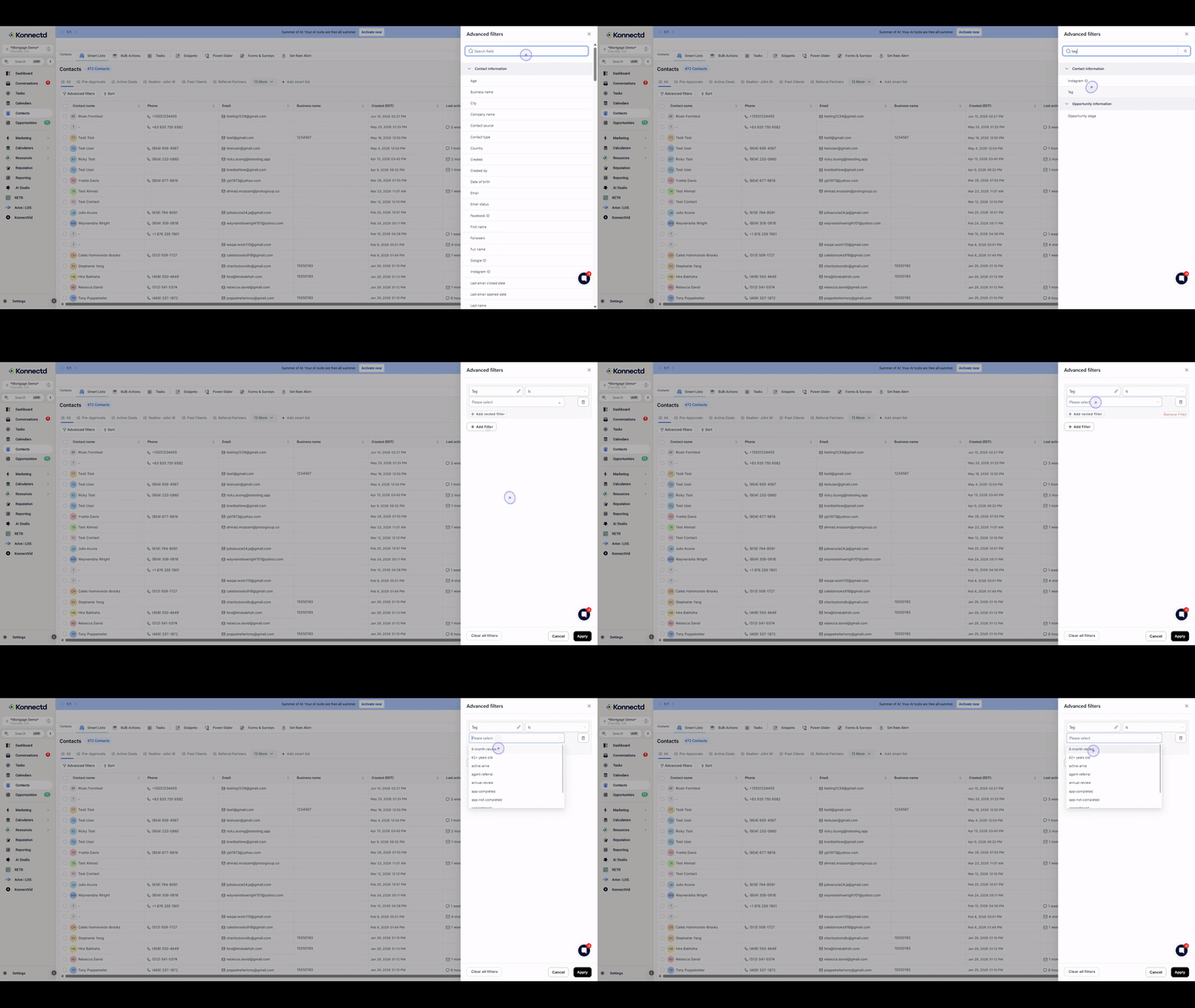
5. Select the tag value
Choose "6-month-review" or your desired tag value from the dropdown menu.
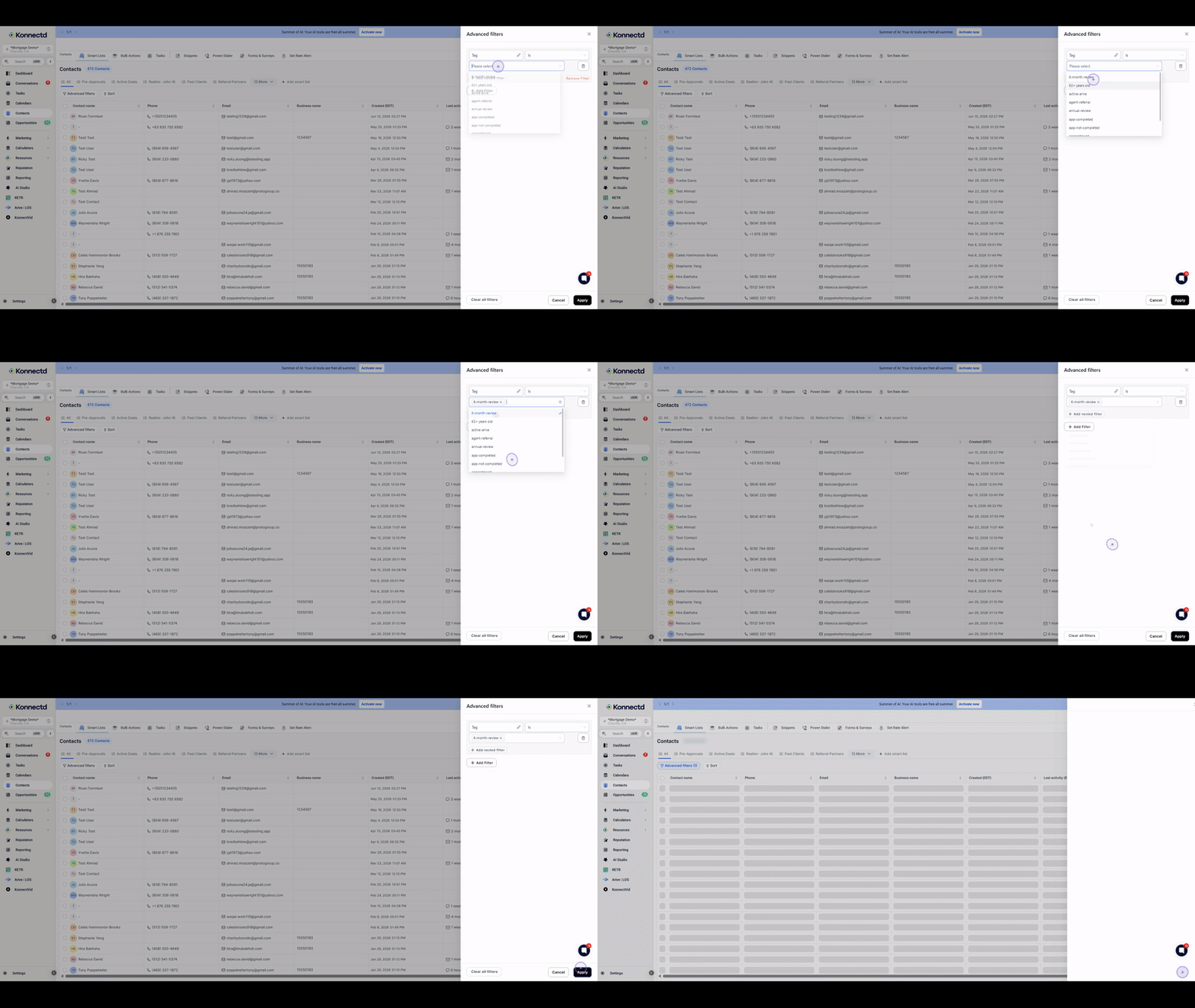
6. Apply the filters
Click the Apply button to filter your contacts and display only those matching the selected tag.
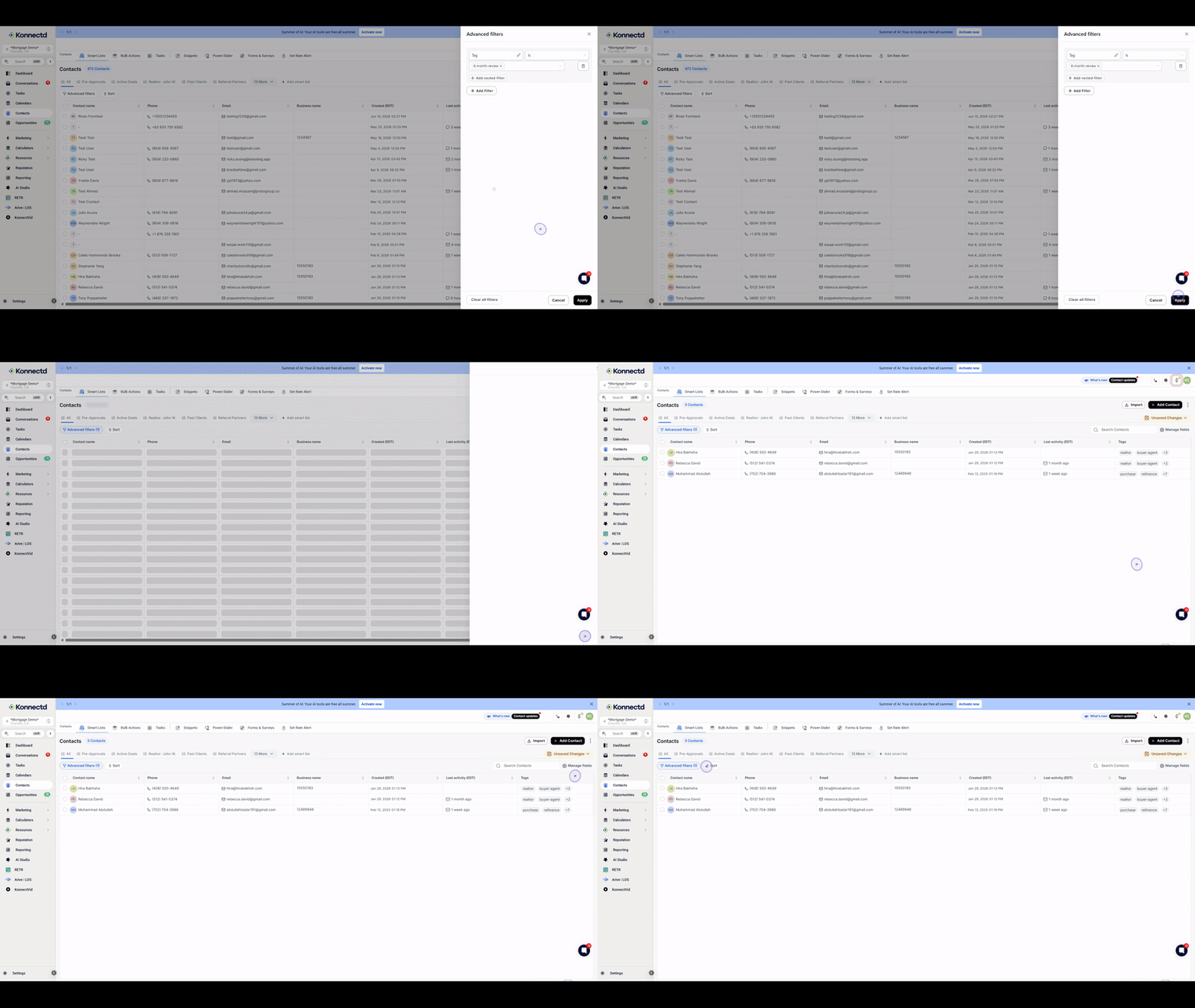
7. Save as a new Smart List
Click the settings menu and select Save as new smartlist to save your filtered view.
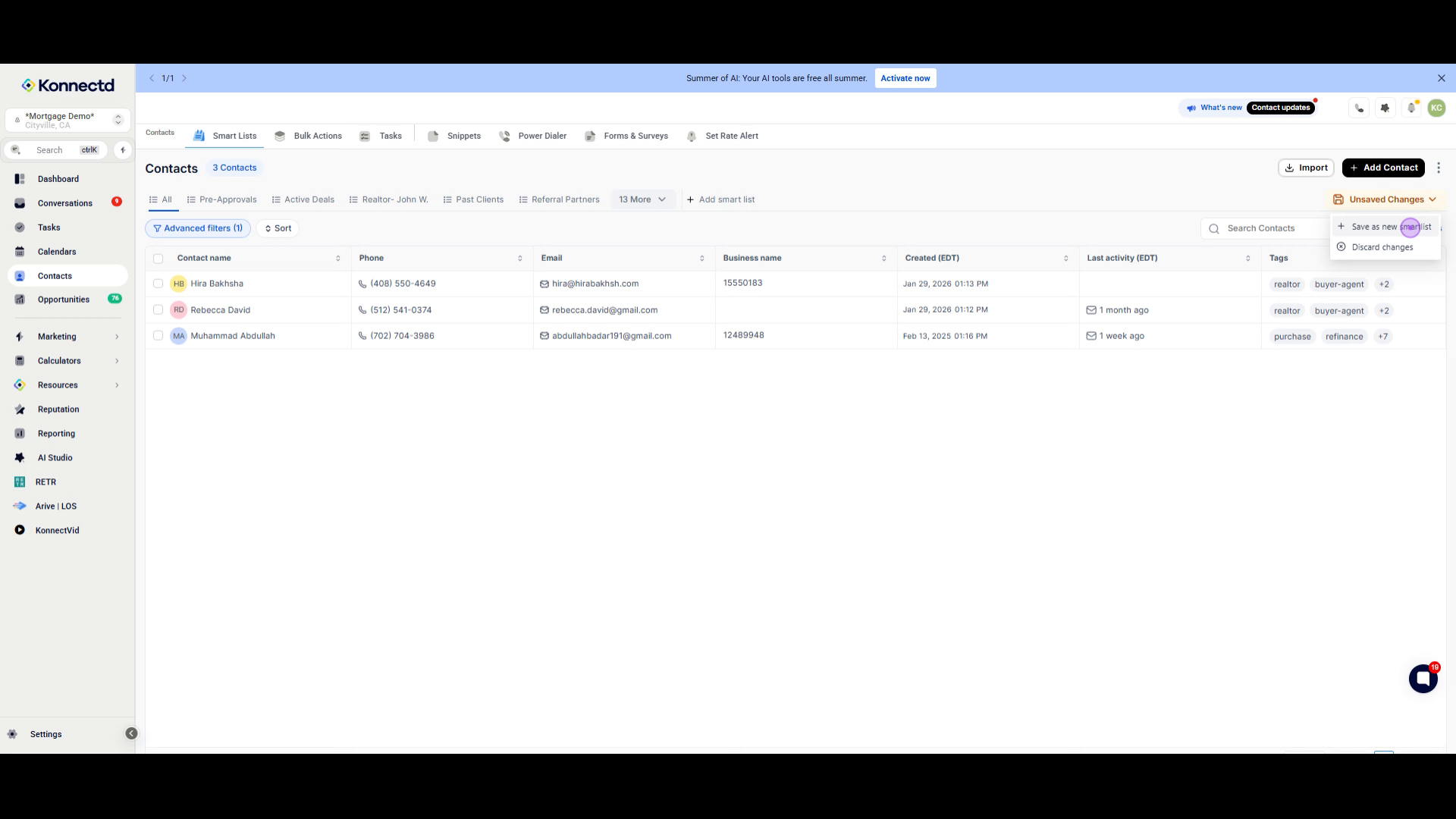
8. Name your Smart List
Enter a descriptive name for your Smart List, such as "Test", in the Smart list name field.
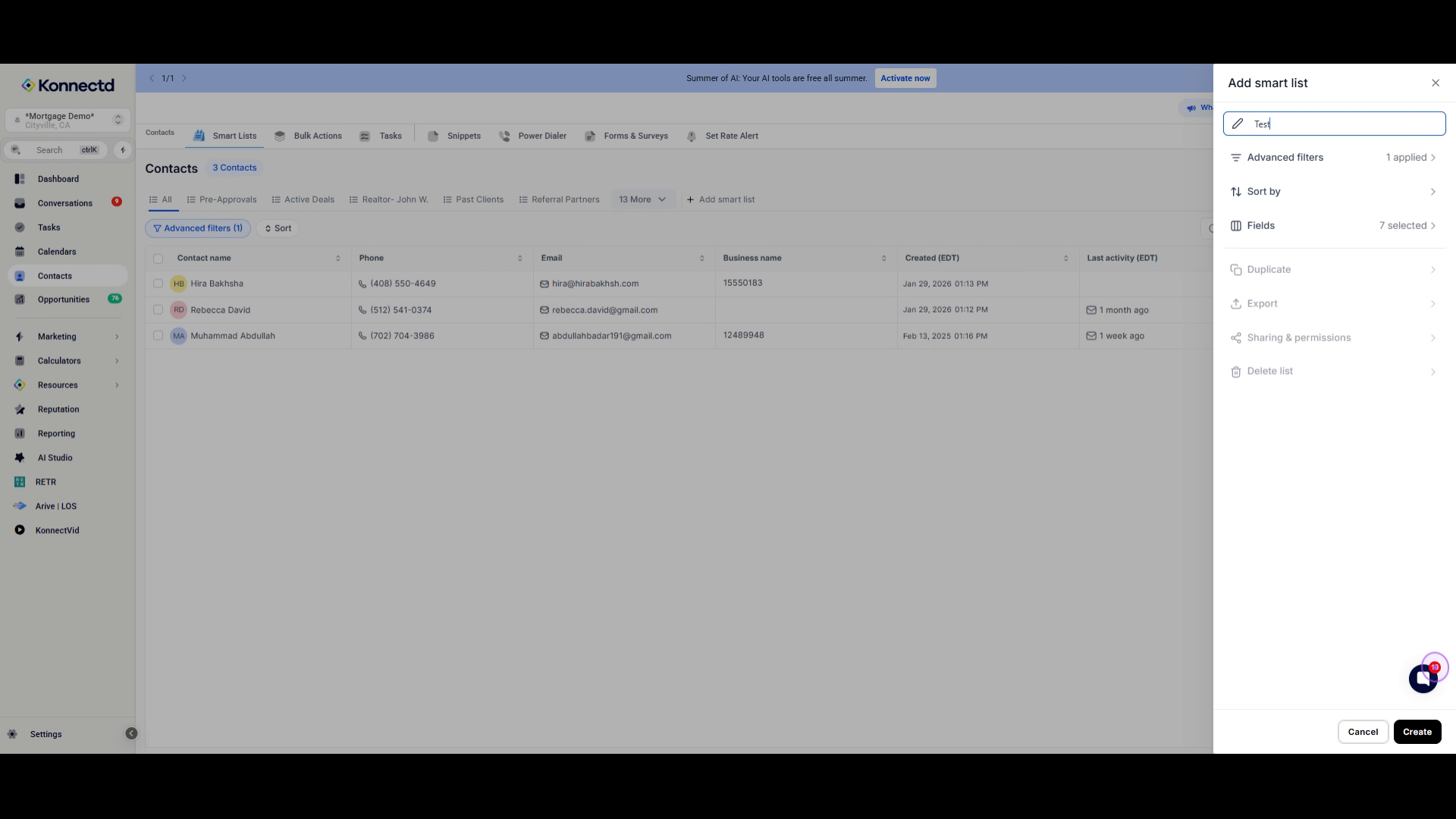
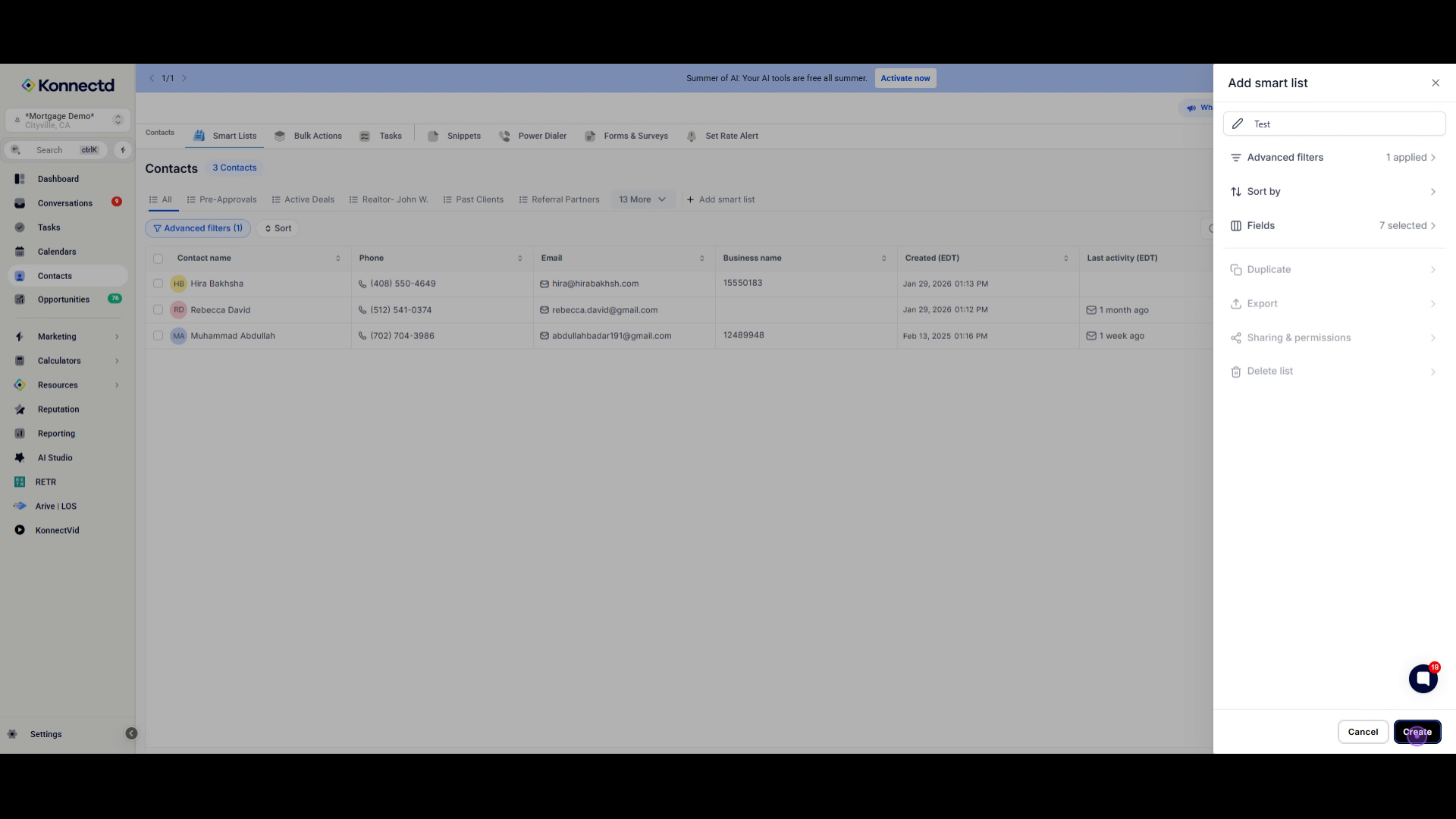
9. Create the Smart List
Click the Create button to finalize and create your new Smart List.
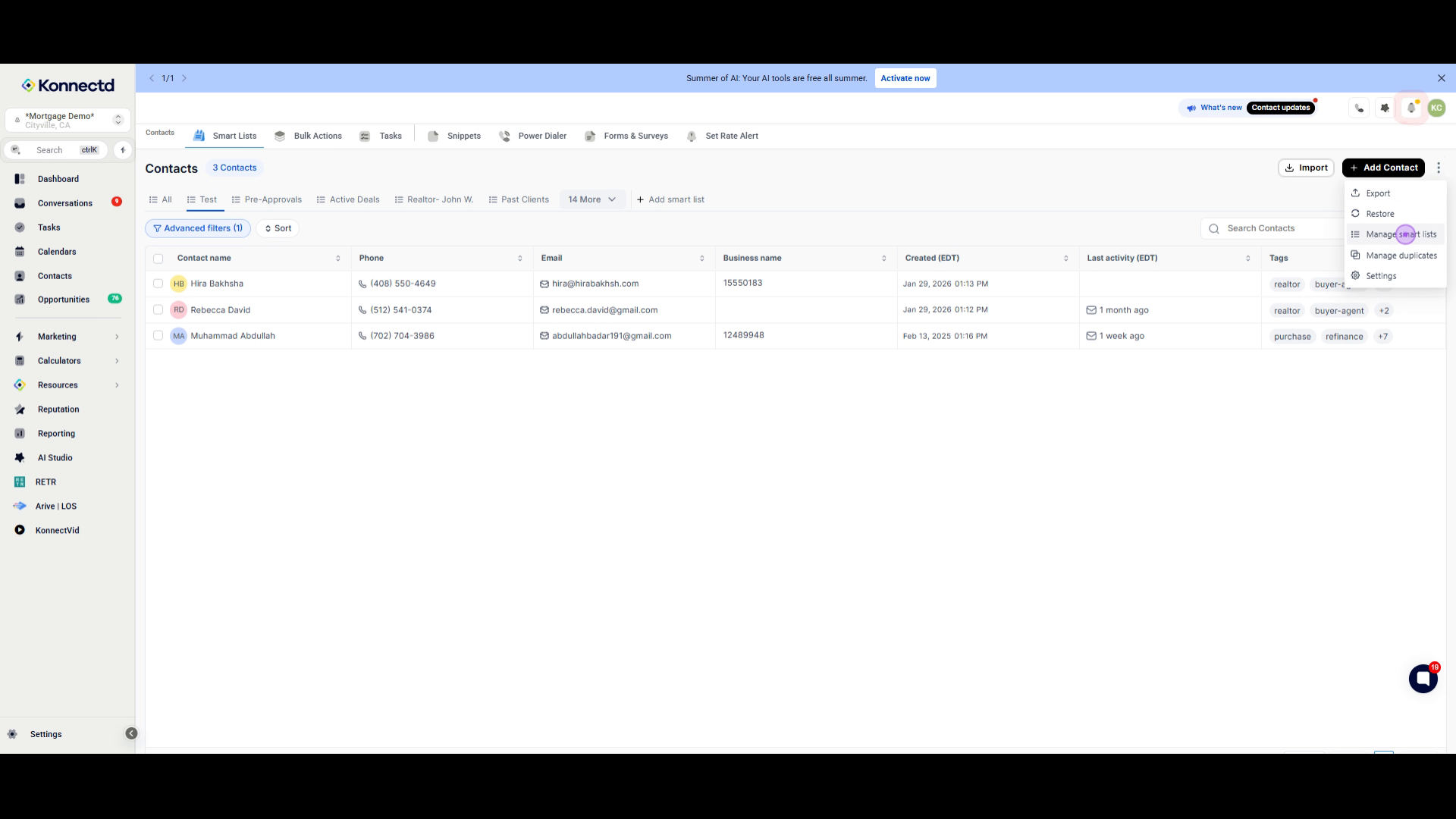
10. Access Manage Smart Lists
Open the settings menu and select Manage smart lists to view and organize all your Smart Lists.
11. Share your Smart List
Click the share icon next to your Smart List to configure sharing permissions with other users in your organization.