How to Create an Email Template Using AI
AI Email Templates in Konnectd allow you to create professionally designed marketing emails in seconds. Simply describe the type of email you want to create, and AI will generate a complete template that you can customize and save for future use.
Step 1: Navigate to Email Marketing
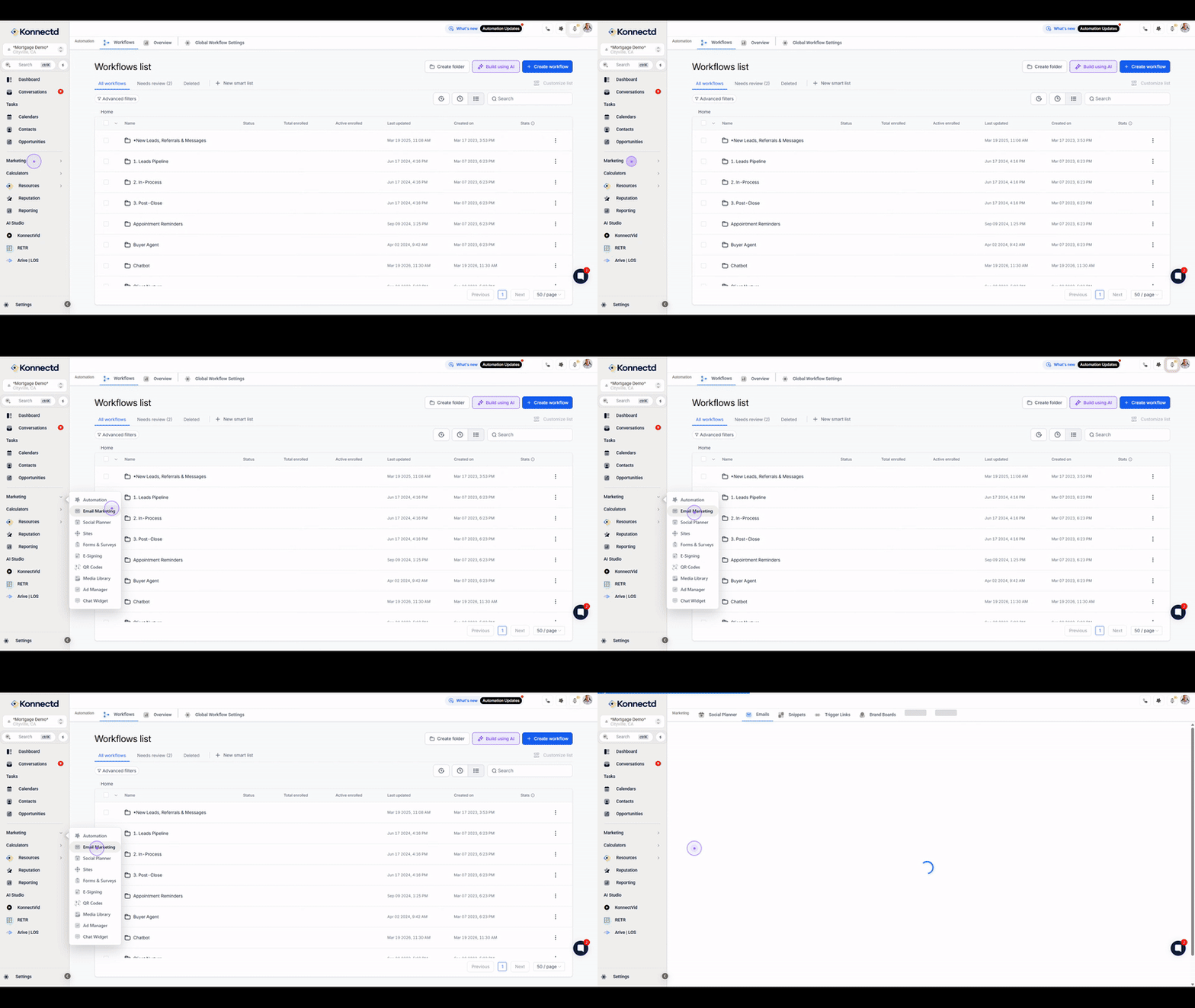
From the left sidebar, click on Marketing to expand the menu, then select Email Marketing from the submenu options.
Step 2: Access the Templates Section
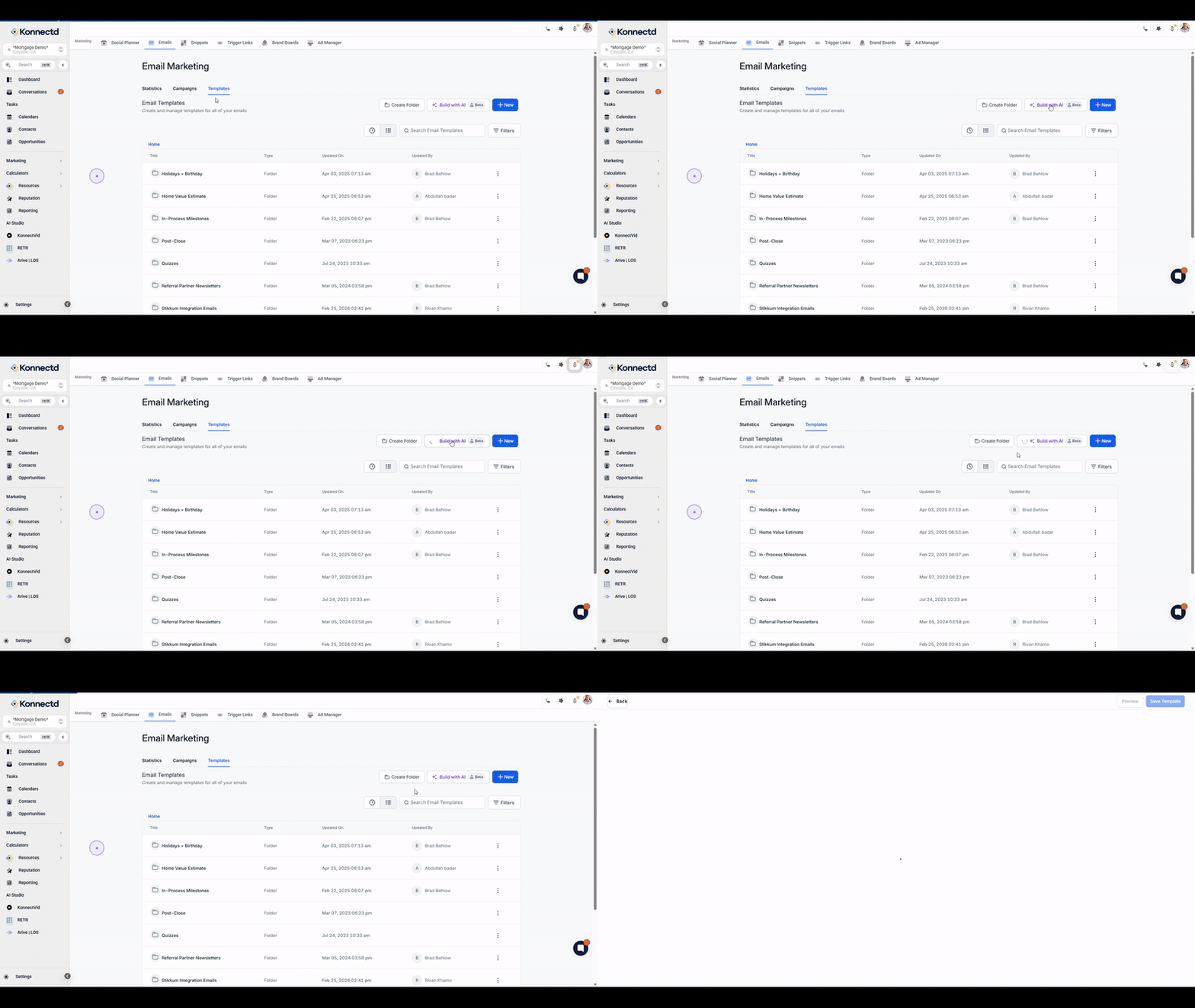
Once on the Email Marketing page, click on the Templates tab to view your existing templates and access the template builder.
Step 3: Generate Content with AI
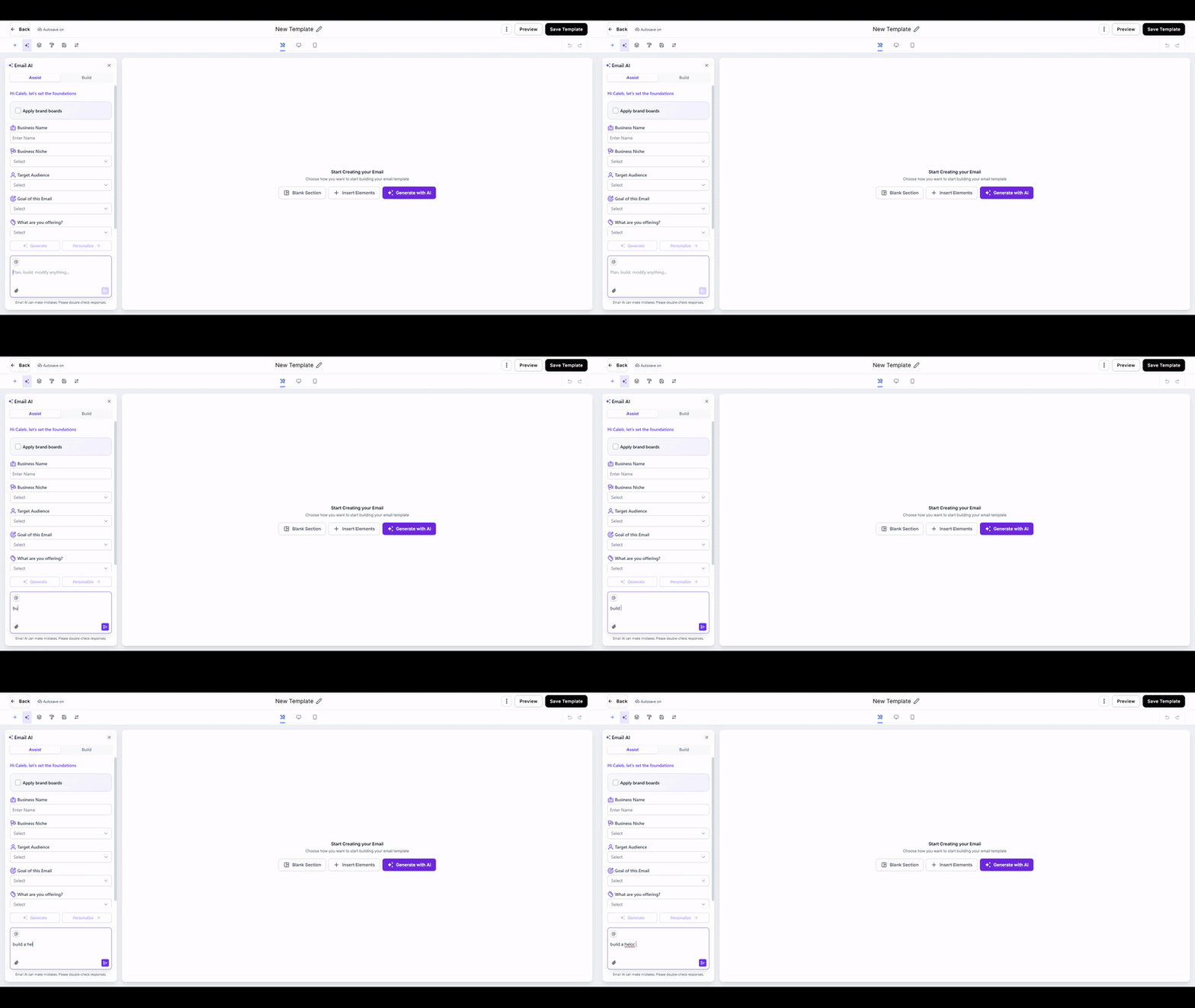
In the Email AI panel, type a detailed prompt describing the email you want to create, including content type and design preferences, then submit your request.
Example Prompt: Create a professional email announcing lower mortgage rates to past clients. Include a call-to-action button encouraging them to schedule a mortgage review.
Step 4: Review and Customize
Once AI generates your email template, review the content and layout. Click on any text block, image, button, or section to make changes using the editing panel on the right.
You can customize:
Text and headlines
Colors and branding
Buttons and calls to action
Images and layout sections
When you’re finished, click Save to store the template for future use.