
How to Create a QR Code for an Event or Open House
This guide will walk you through creating a QR code that captures attendee information and automatically follows up with them.
Step 1: Create Your Form
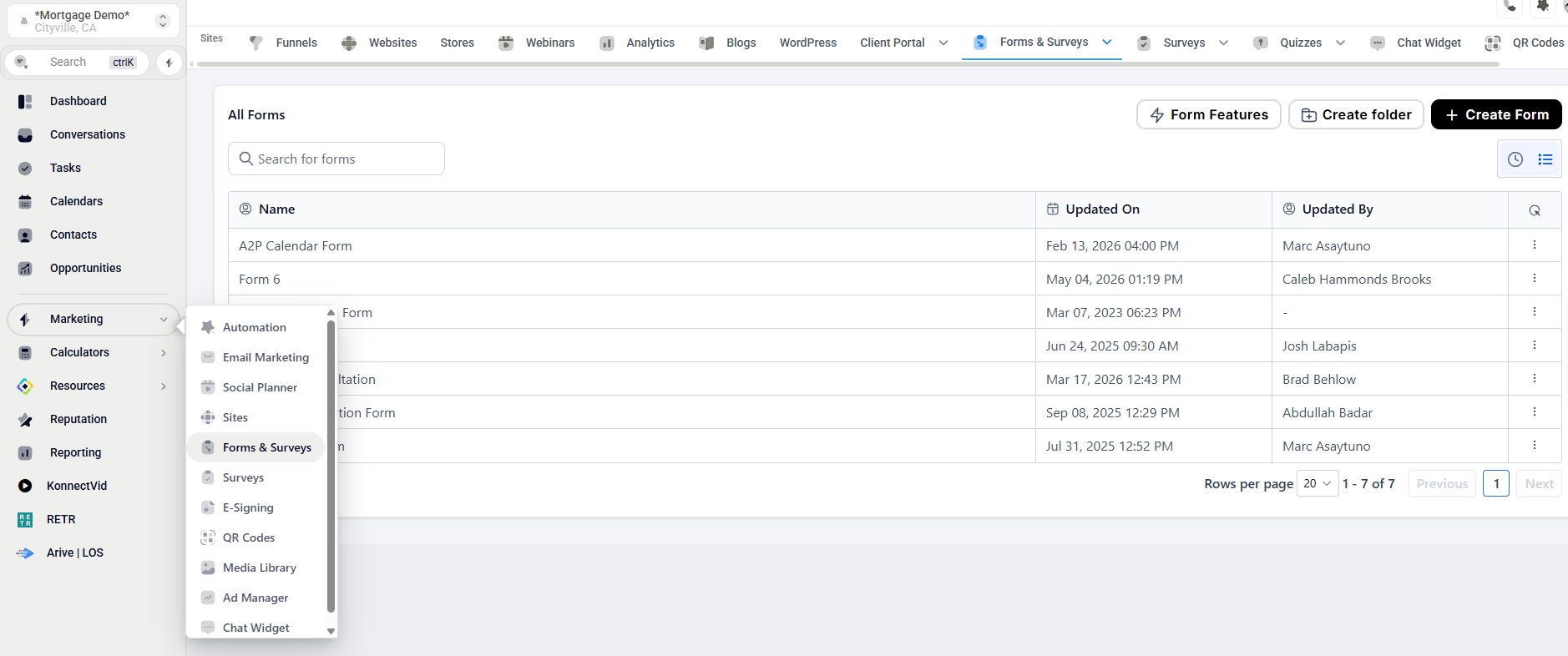
Navigate to Marketing → Forms/Surveys
Click Create New Form
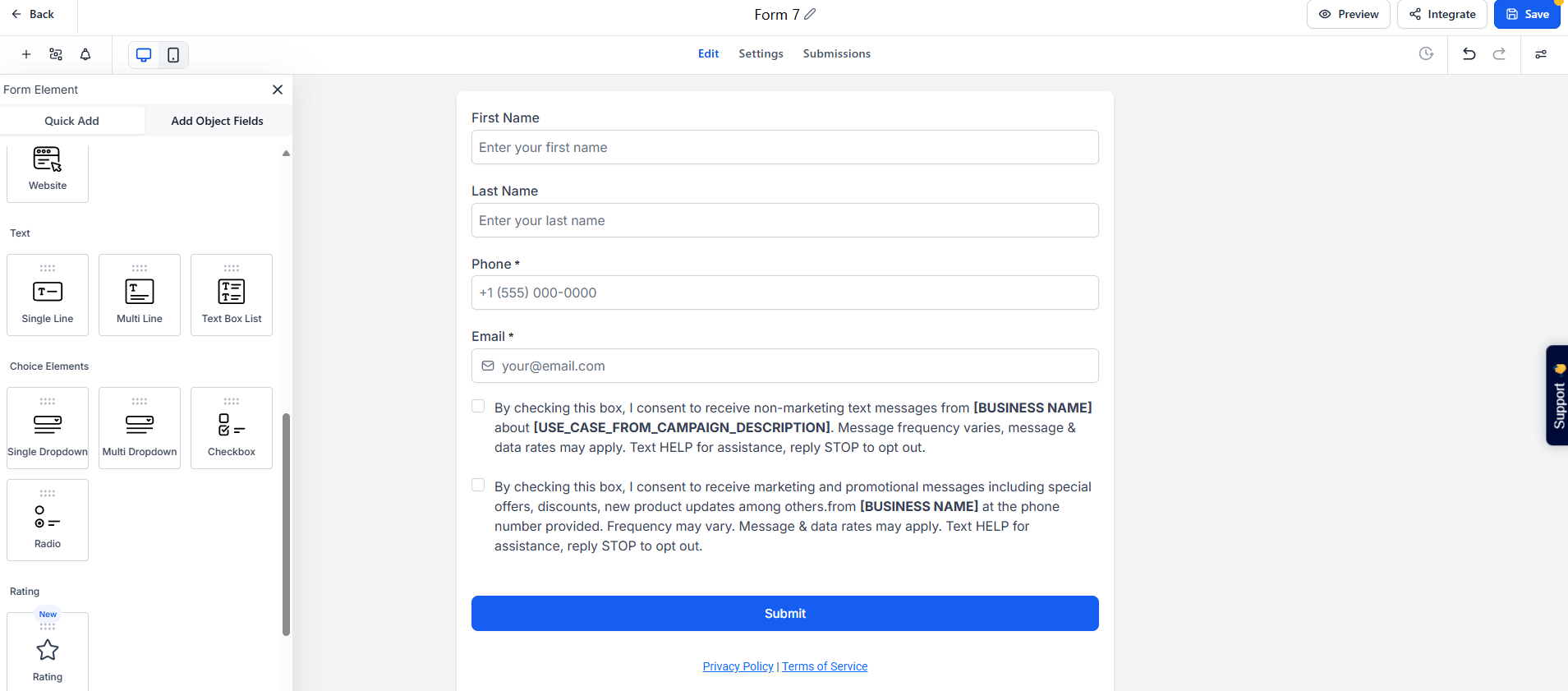
Add the fields you want to capture:
Name
Email
Phone Number
(Optional) Customize your form:
Add a background image
Include photos or videos
Adjust styling to match your branding
Save your form
Step 2: Create Your QR Code
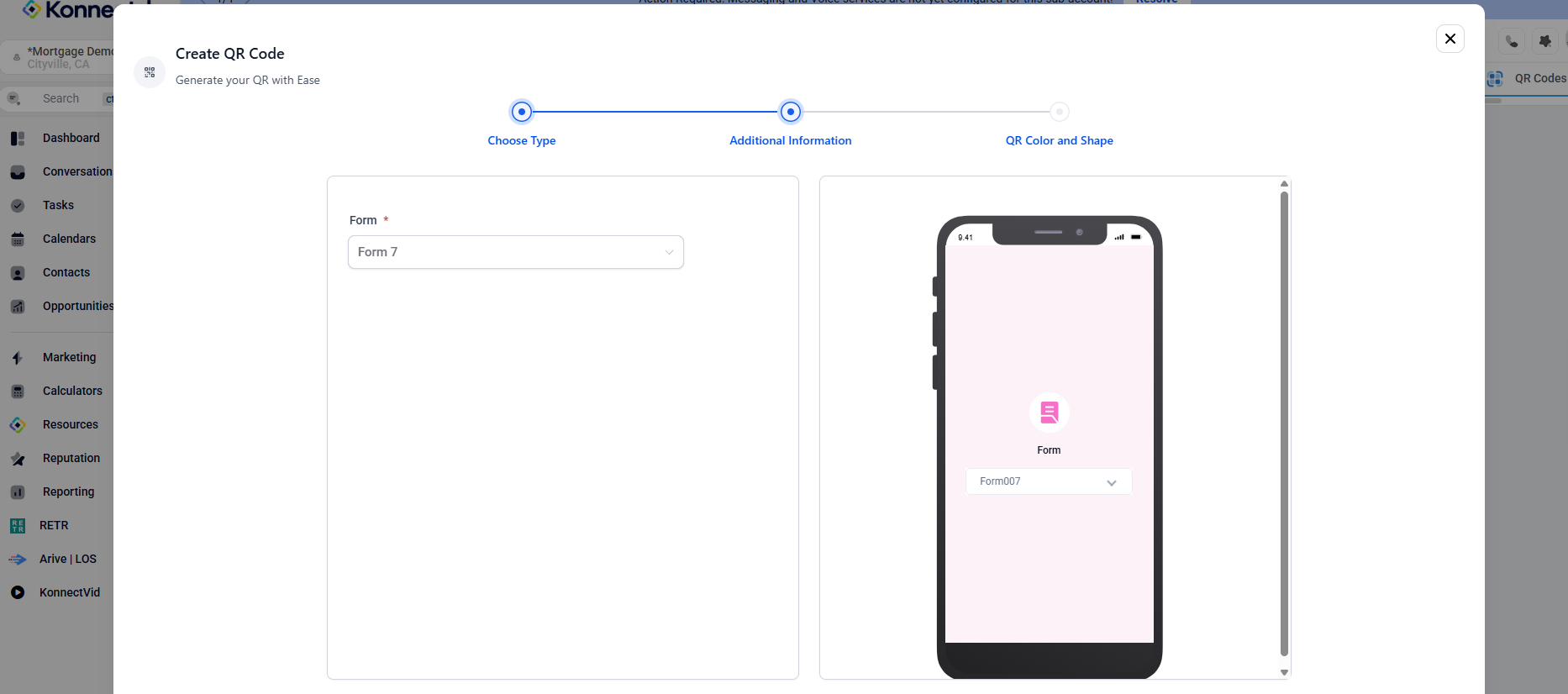
Go to Marketing → QR Codes
Click Create New QR Code
Select Form (first option)
Choose the form you created in Step 1
Customize your QR code design (colors, logo, etc.)
Click Download
You can now:
Print the QR code for your event or open house
Display it digitally (tablet, screen, email, etc.)
Step 3: Build Your Automation Workflow
Navigate to Marketing → Automations
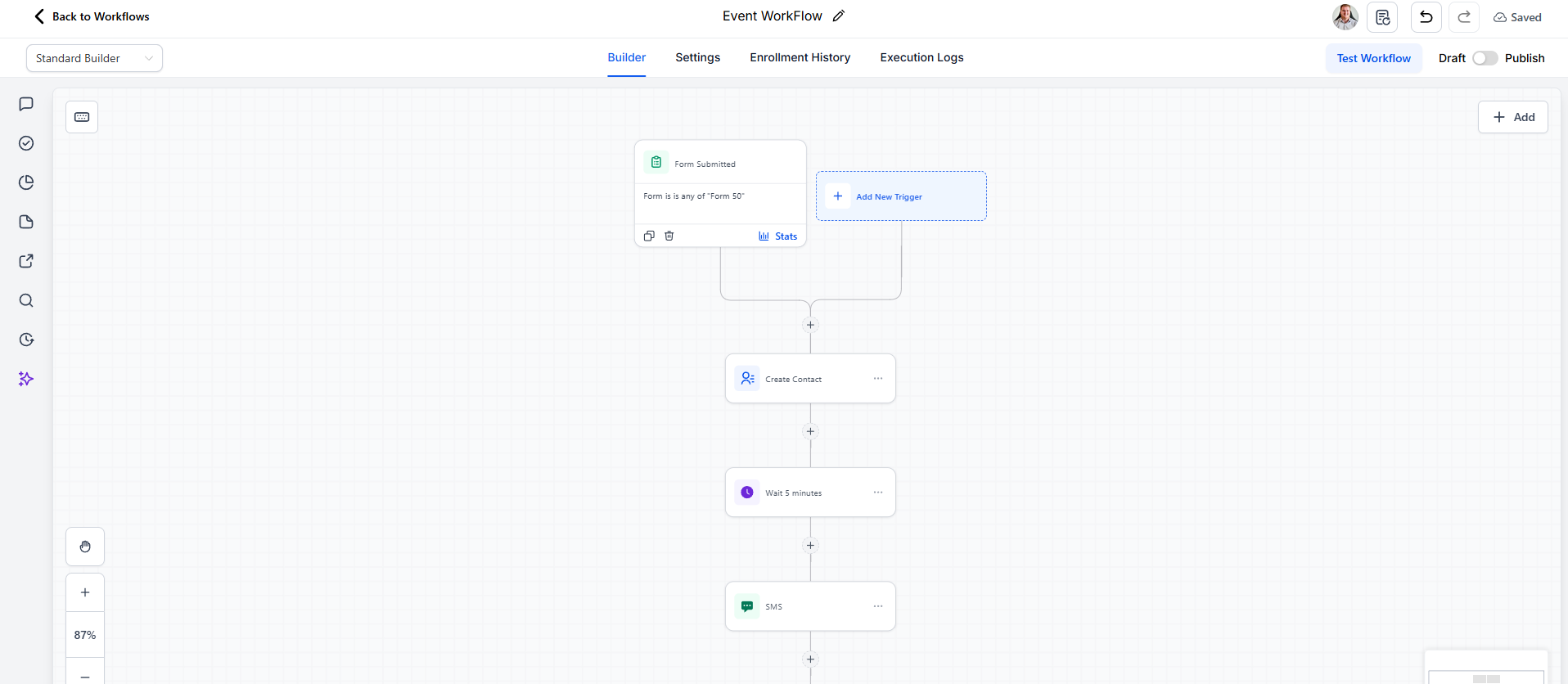
Click Create Workflow
Set Your Trigger:
Select Form Submitted
Choose the form you created
Add Actions:
Create/Update Contact
Map the form fields (Name, Email, Phone Number) to the contact record
(Optional) Add follow-up actions:
Send SMS
Send Email
Apply a Tag (ex: “Open House Lead”)
Add to another workflow
Final Result
Once everything is set up:
A visitor scans your QR code
They fill out the form
Their information is automatically saved
Your follow-up actions are triggered instantly