With our redesigned UI, you can seamlessly connect your user-level integrations, such as third-party calendars and video conferencing apps, as well as account-level integrations like Google Organic Booking and Local Services Ads, with ease and convenience.
To simplify the integration and calendar setup process, we have launched the following enhancements:
Consistent Integration Experience: Across the My Profile page, My Staff page, and Calendar Connections.
Streamlined UI and UX: Enhances understanding of the integration process.
Comprehensive Validations: Reduce synchronization issues, ensuring a smoother integration experience.
Detailed Feedback: Allows users to better understand the changes they're making.
Processing Tag: Displayed during calendar syncing to prevent further actions until the sync process is complete, ensuring uninterrupted synchronization.
Improved User Journey: Essential illustrations and tooltips enrich the user experience.
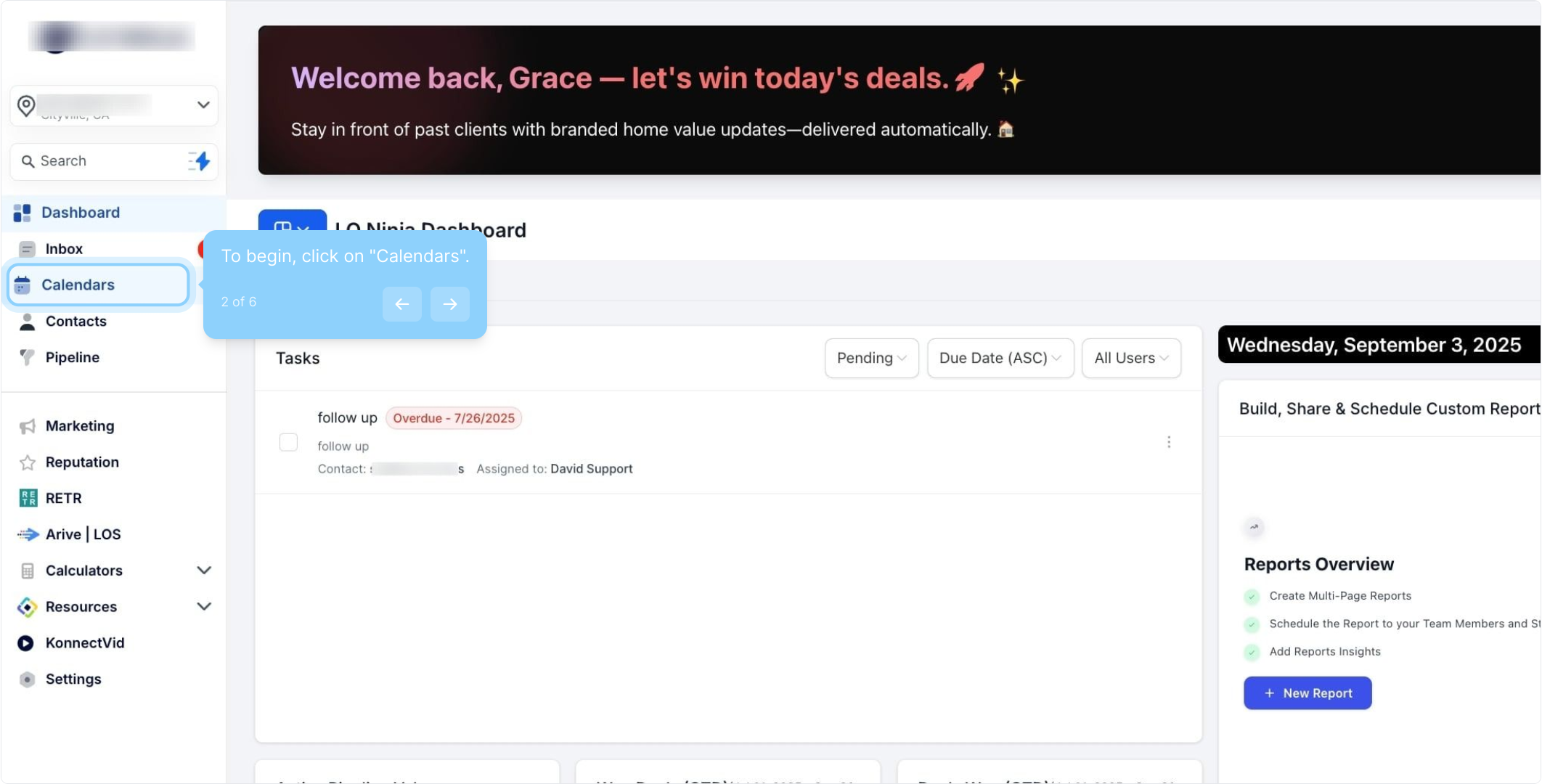
2. To begin, click on "Calendars".
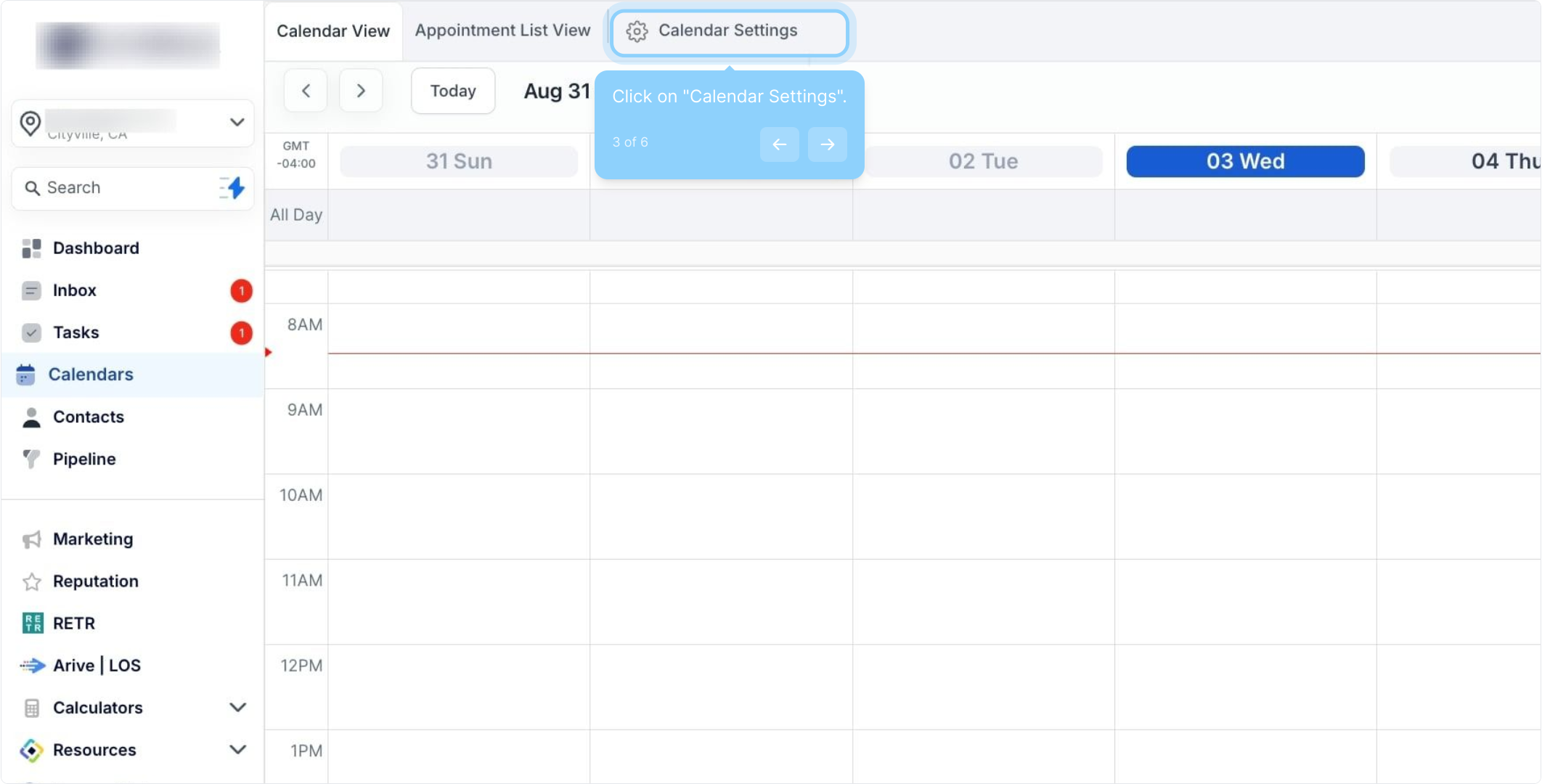
3. Click on "Calendar Settings".
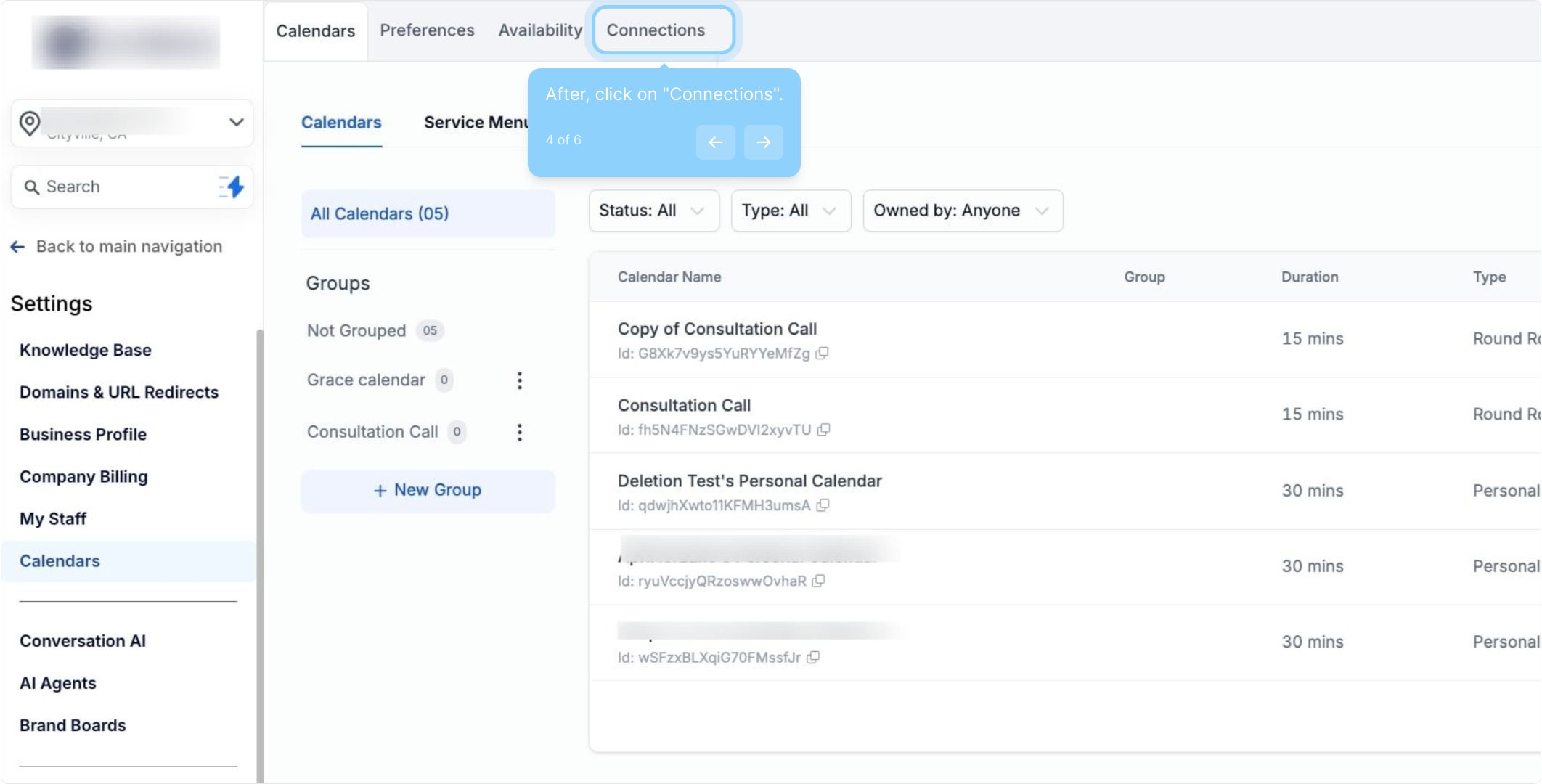
4. After, click on "Connections".
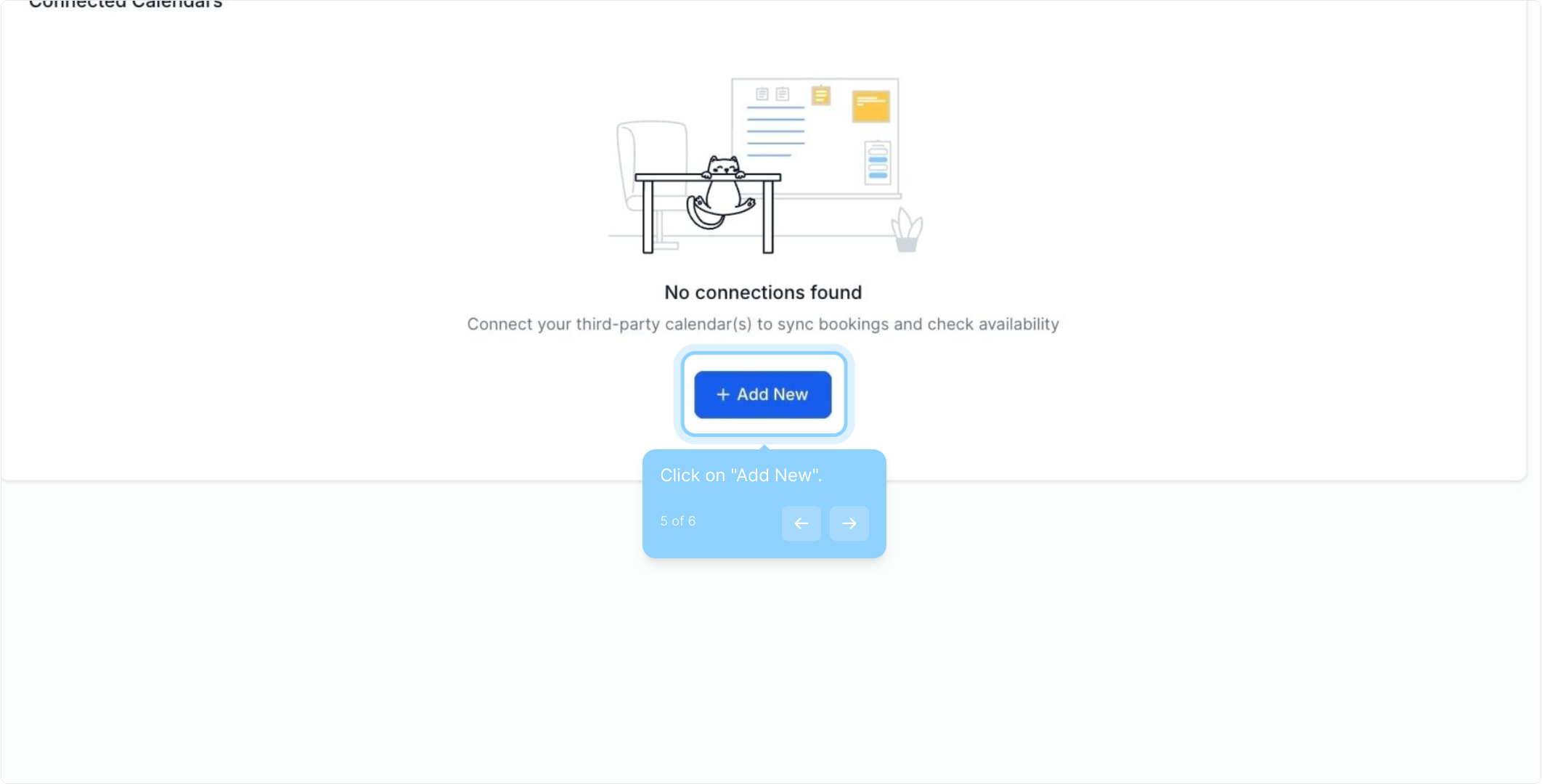
5. Click on "Add New".
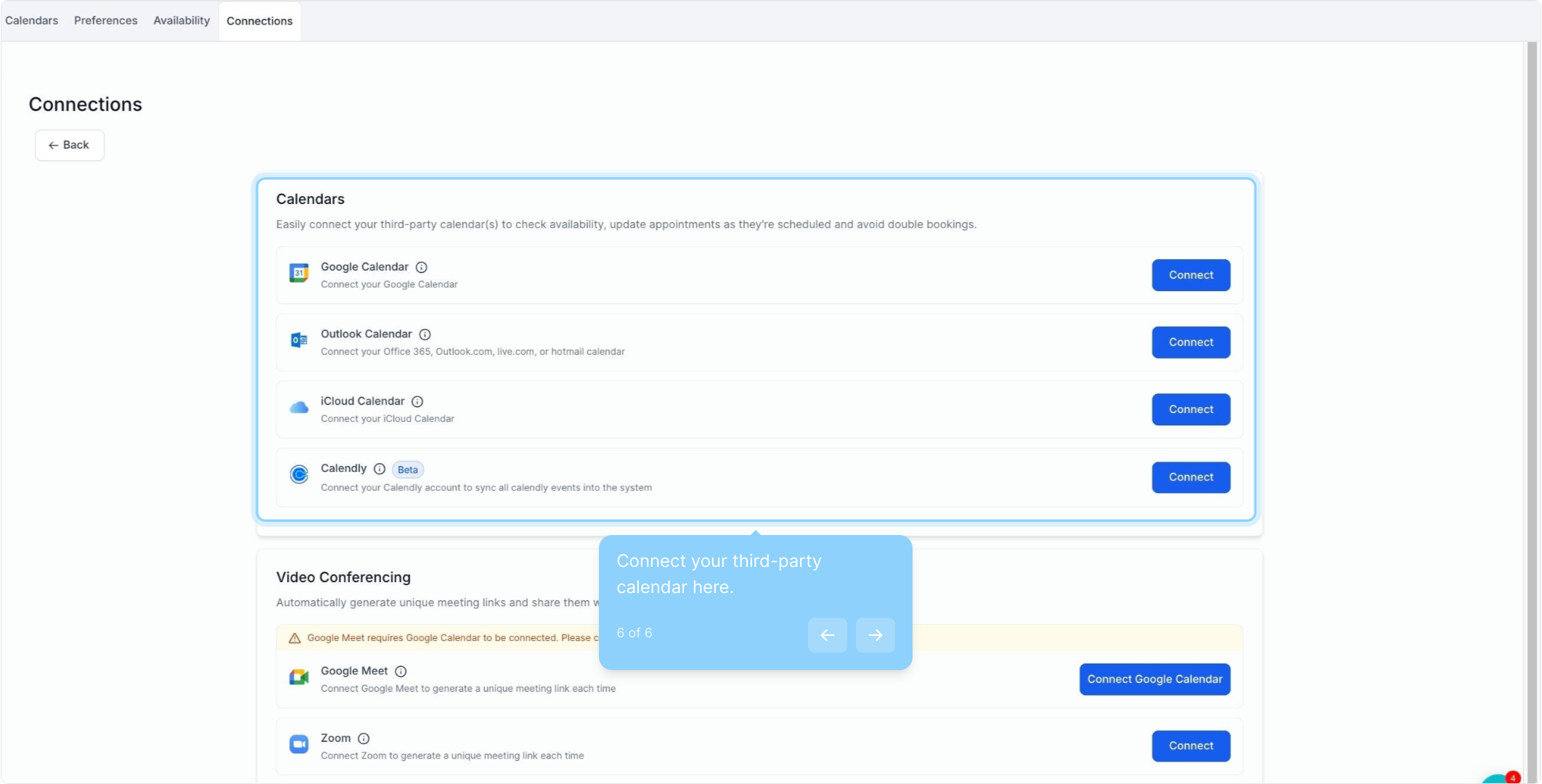
6. Connect your third-party calendar here.
Choose your integration.
Enter your credentials and complete the integration.
Configure your calendar settings for accurate event syncing.
Efficiency: Quickly and easily integrate calendars and services without confusion.
Reliability: Fewer synchronization issues due to comprehensive validations.
Clarity: Detailed feedback and tooltips provide a clearer understanding of the process.
Convenience: Integration steps are consistent across different pages, making it easier to navigate and use.
Double-Check Integrations: Ensure all credentials are entered correctly to avoid synchronization issues.
Monitor Sync Status: Pay attention to the processing tag to know when the sync is complete.
Utilize Tooltips: Use the provided tooltips for additional guidance during the integration process.
Regularly Update Integrations: Keep your third-party integrations updated to maintain smooth syncing.
How do I integrate my calendar?
Navigate to Settings > My Profile > Calendar Settings or Calendars > Calendar Settings > Connections Tab, click ADD NEW, choose your integration, and enter your credentials.
What should I do if my calendar is not syncing?
Check for detailed feedback provided during the integration process and ensure all information is correctly entered.
