
Easily block time in your calendar to indicate when you are unavailable, whether for personal reasons or external commitments.
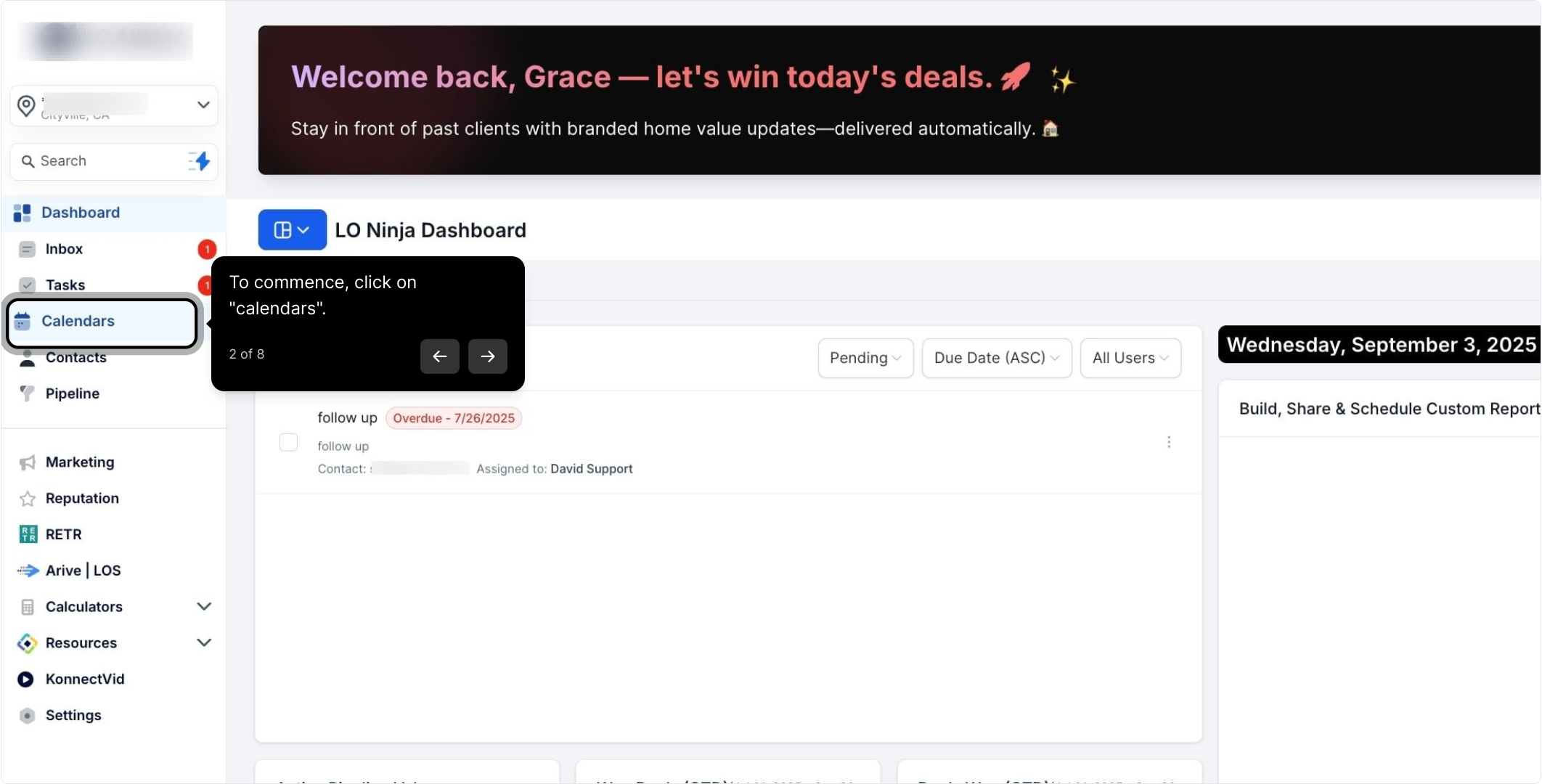
2. To commence, click on "calendars".
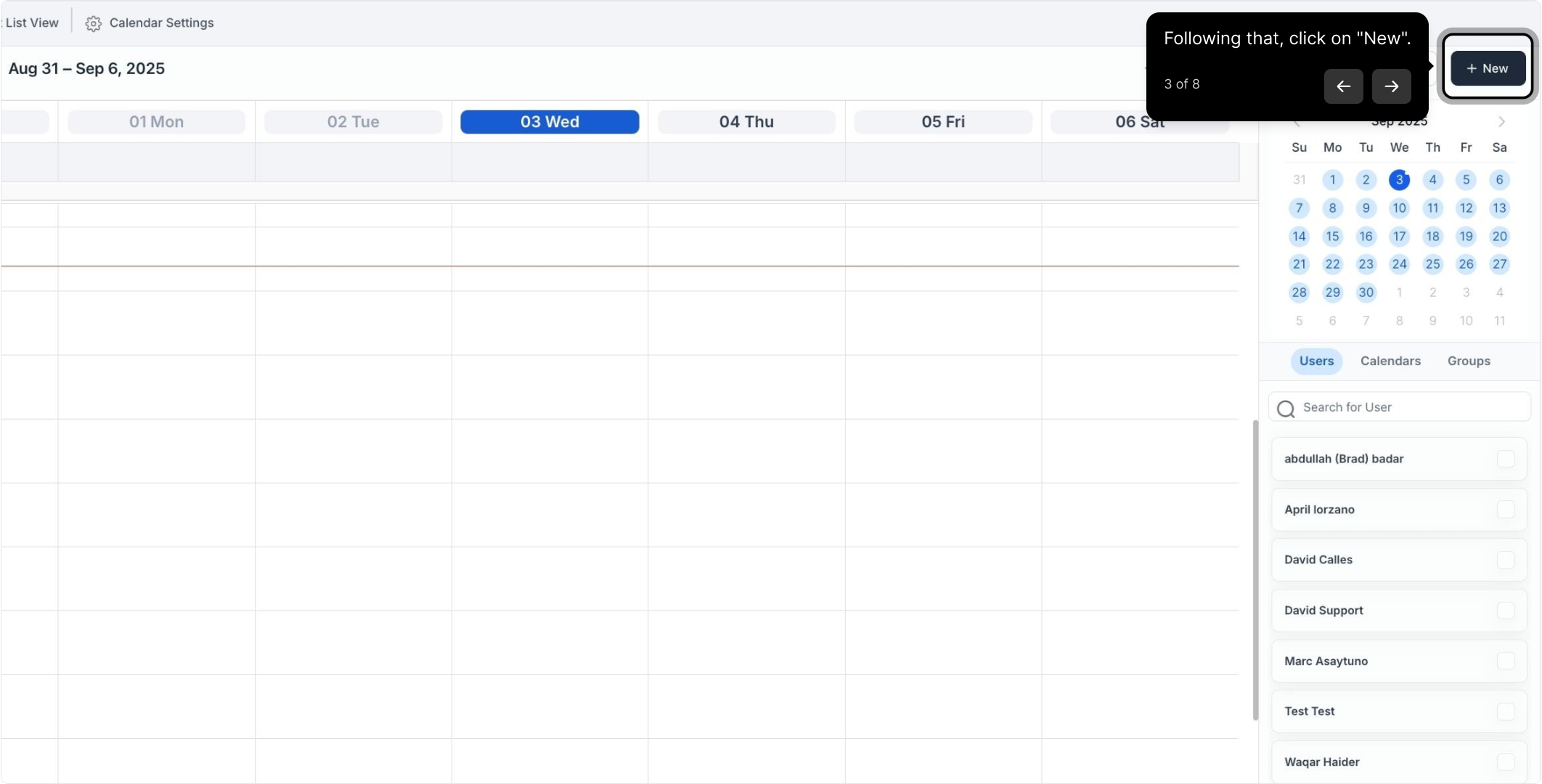
3. Following that, click on "New".
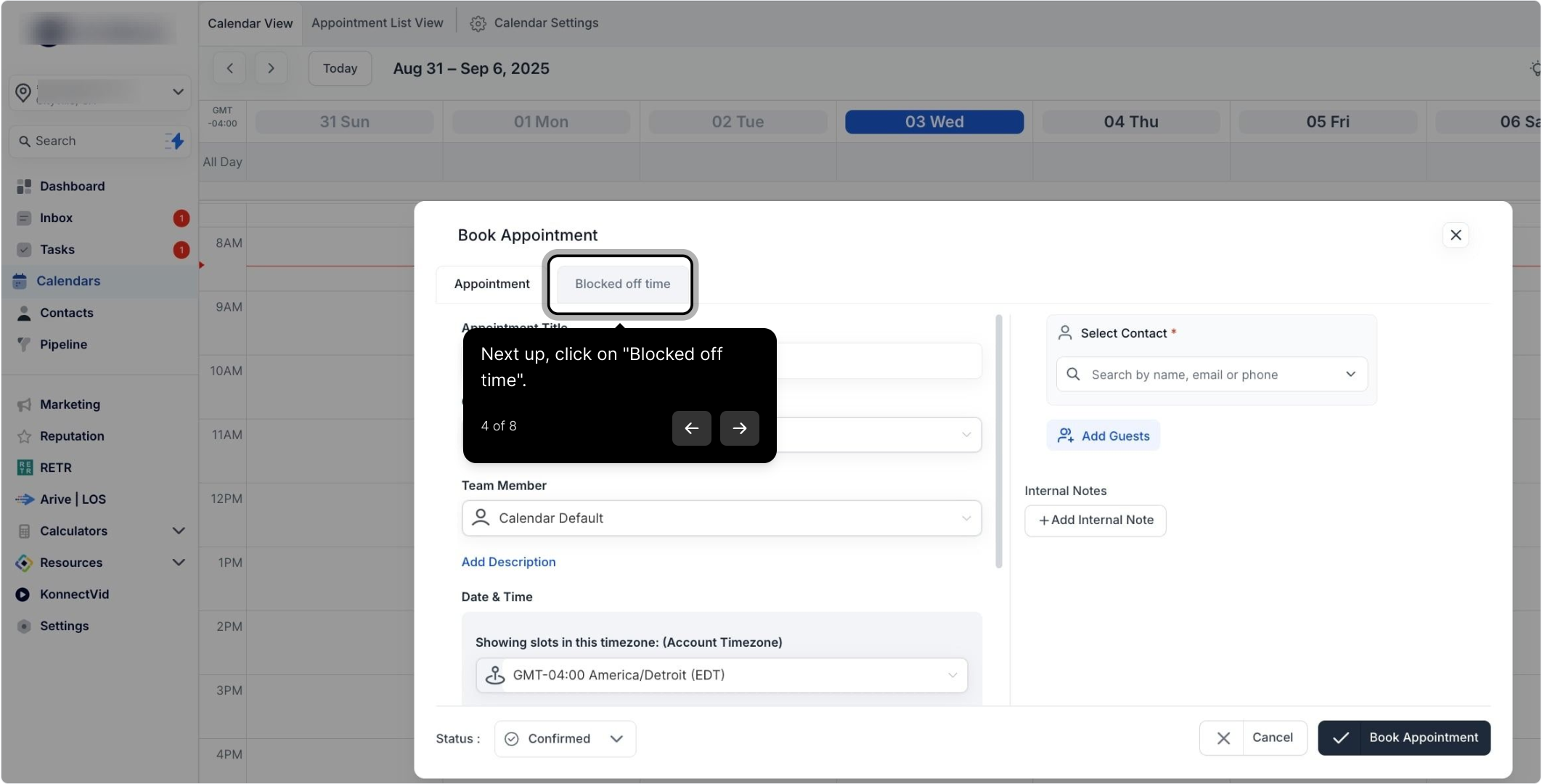
4. Next up, click on "Blocked off time".
5. Enter your appointment title here.
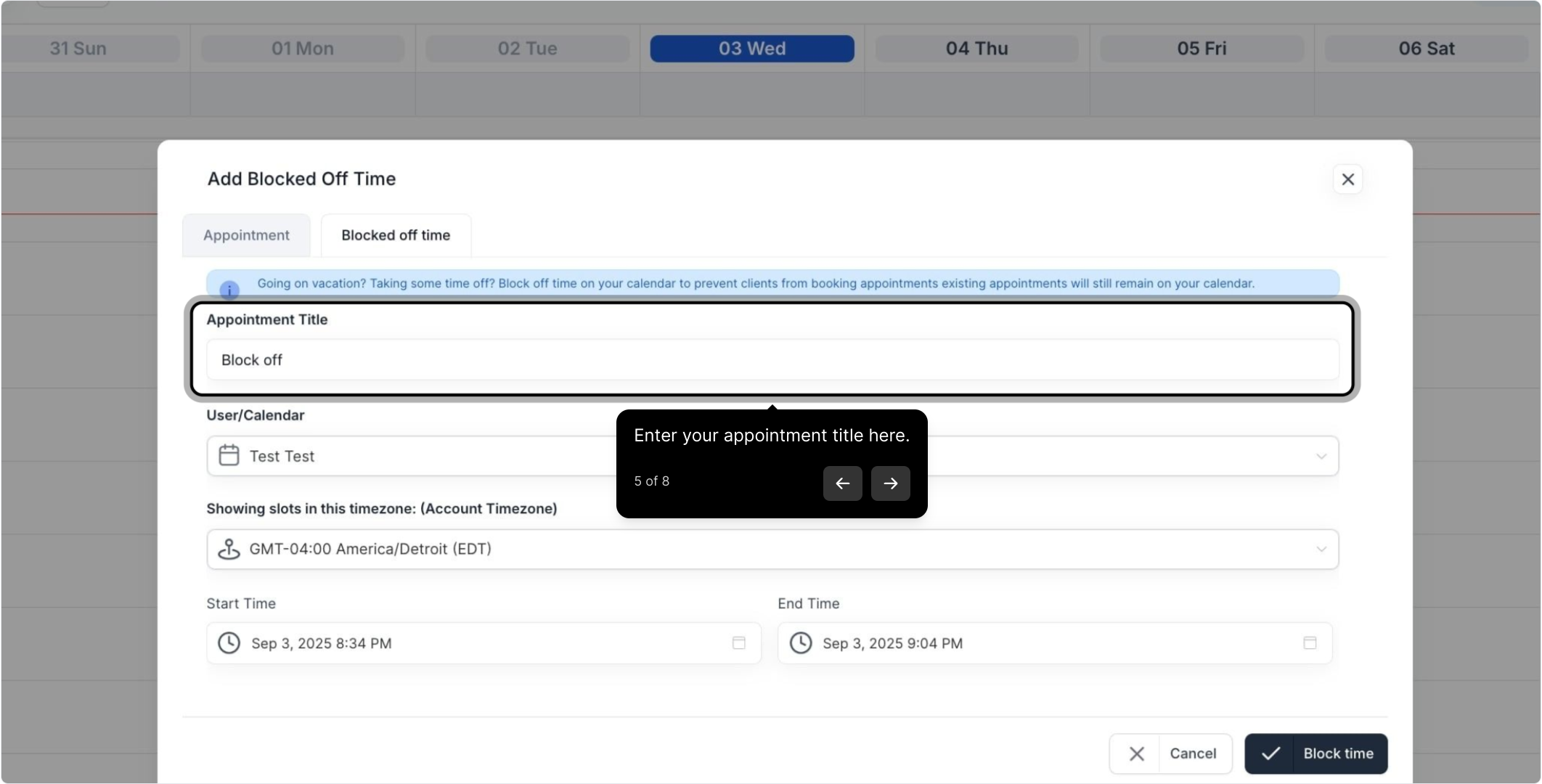
6. Select a user or calendar from the dropdown list.
NOTE: You can use the Calendar drop-down in the top right to toggle between different Users’ calendars, and even within a particular User’s calendar, you can still determine who the time blocked off is for - just be sure to select the correct User in the popup when adding the blocked time. (For example, you could be viewing John’s calendar, but in the popup, you decide to add blocked time into Sally’s calendar.)
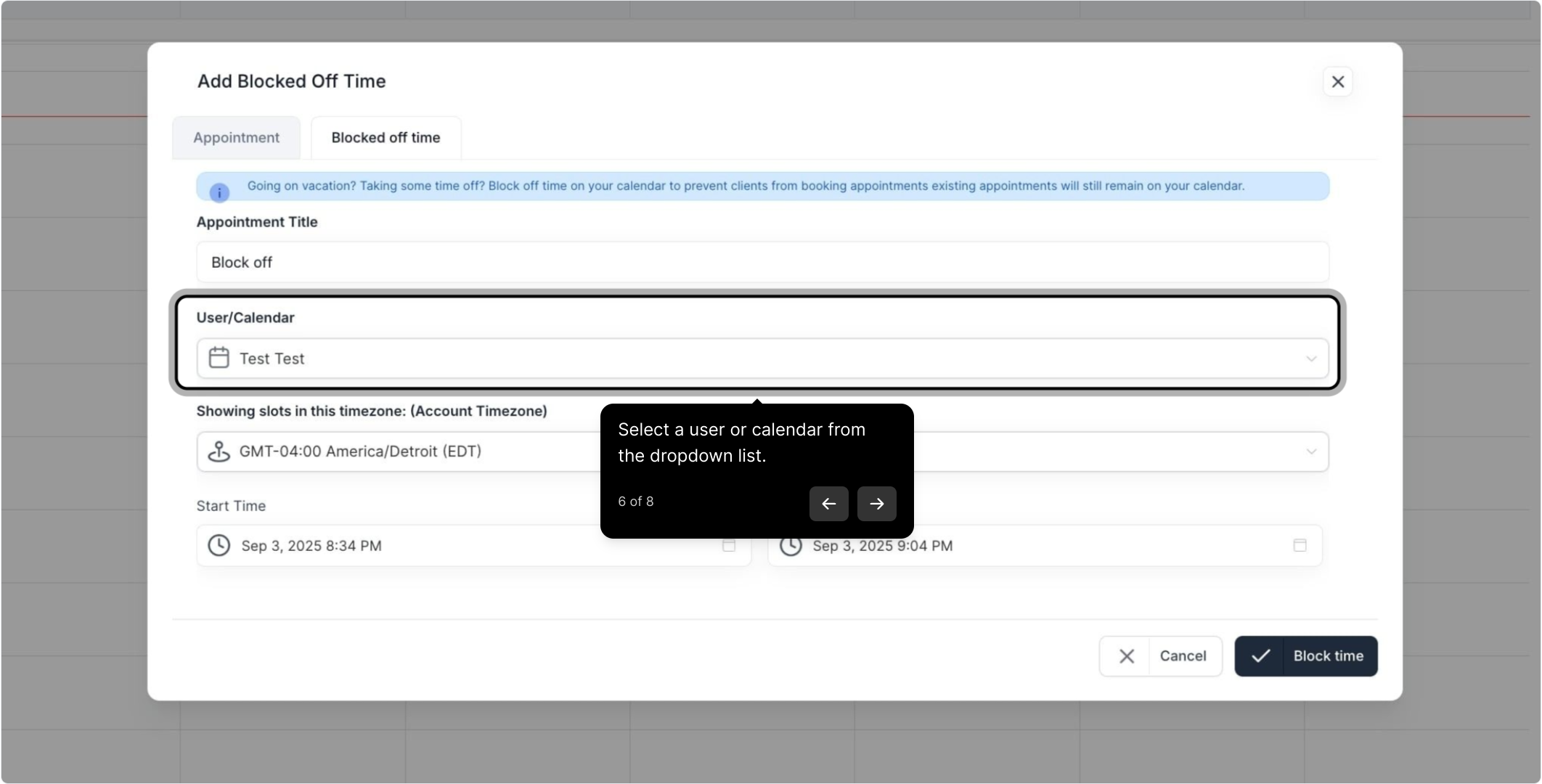
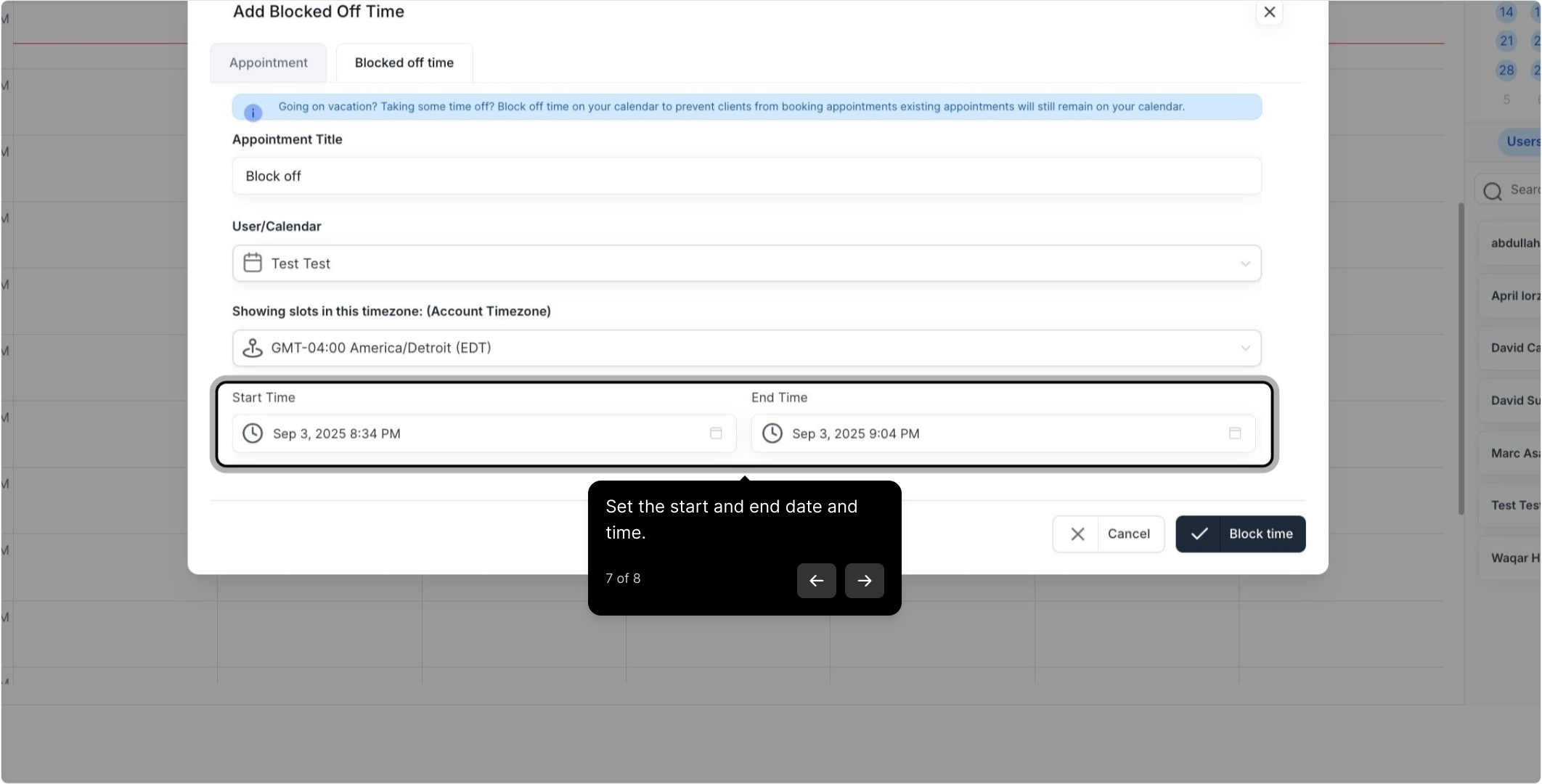
7. Set the start and end date and time.
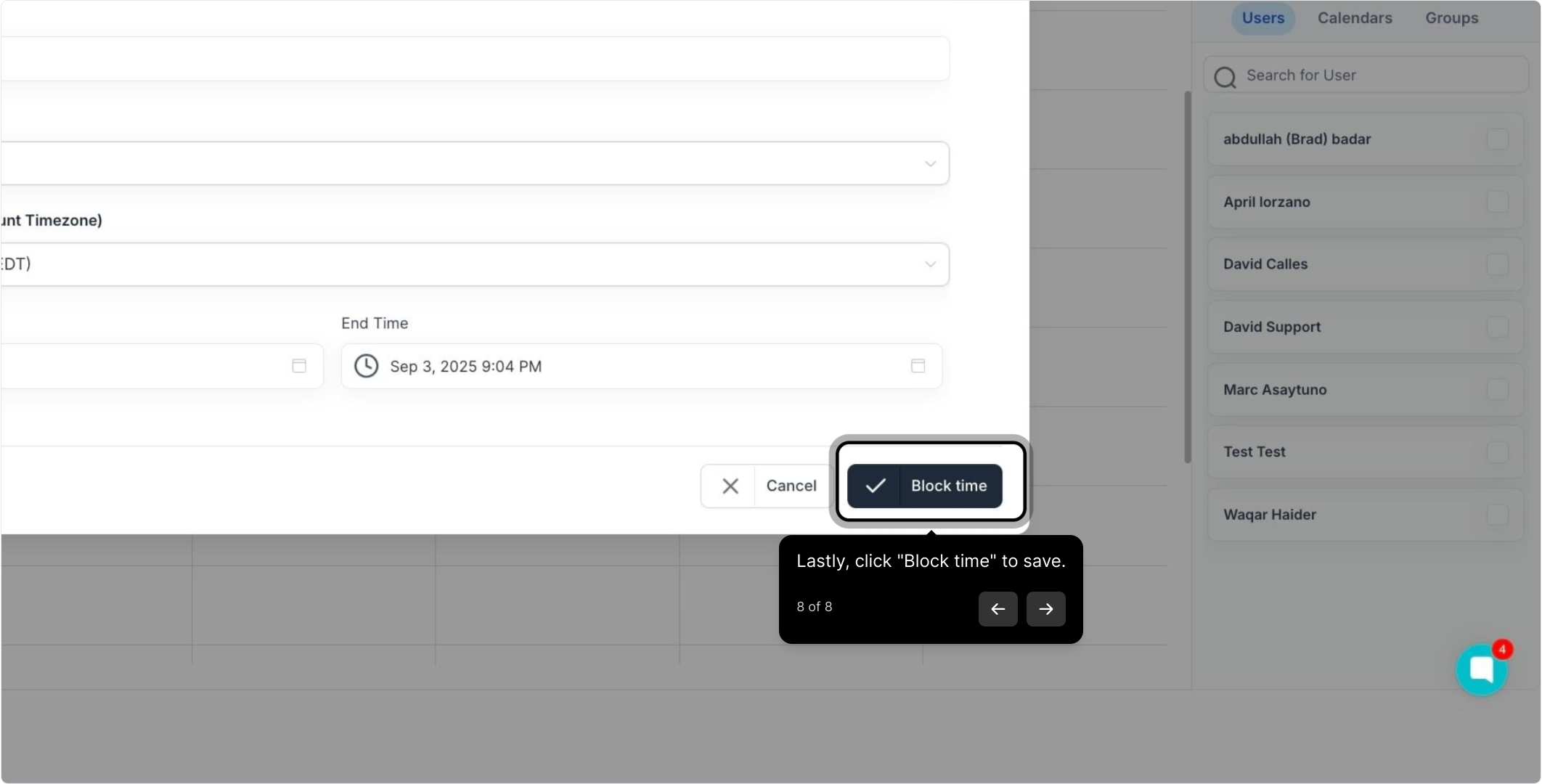
8. Lastly, click "Block time" to save.
FAQs
1. Can I block time off in someone else’s calendar?
Yes, you can block time off for others by selecting their calendar and adding blocked time on their behalf.
2. How do I toggle between different Users’ calendars?
Use the calendar dropdown in the top right corner to switch between different Users' calendars.
3. What should I include in the blocked time pop-up?
Ensure to include the timezone, start and end times, and a descriptive title to clearly define the blocked time.
4. Can I add blocked time for multiple users from one calendar?
Yes, even if you are viewing one User’s calendar, you can add blocked time to another User’s calendar by selecting the correct User in the pop-up.