Learn how to temporarily deactivate a calendar service (e.g., a 30-minute consultation or demo) instead of deleting it.
Deactivate calendars that are not currently offered and reactivate them later as needed.
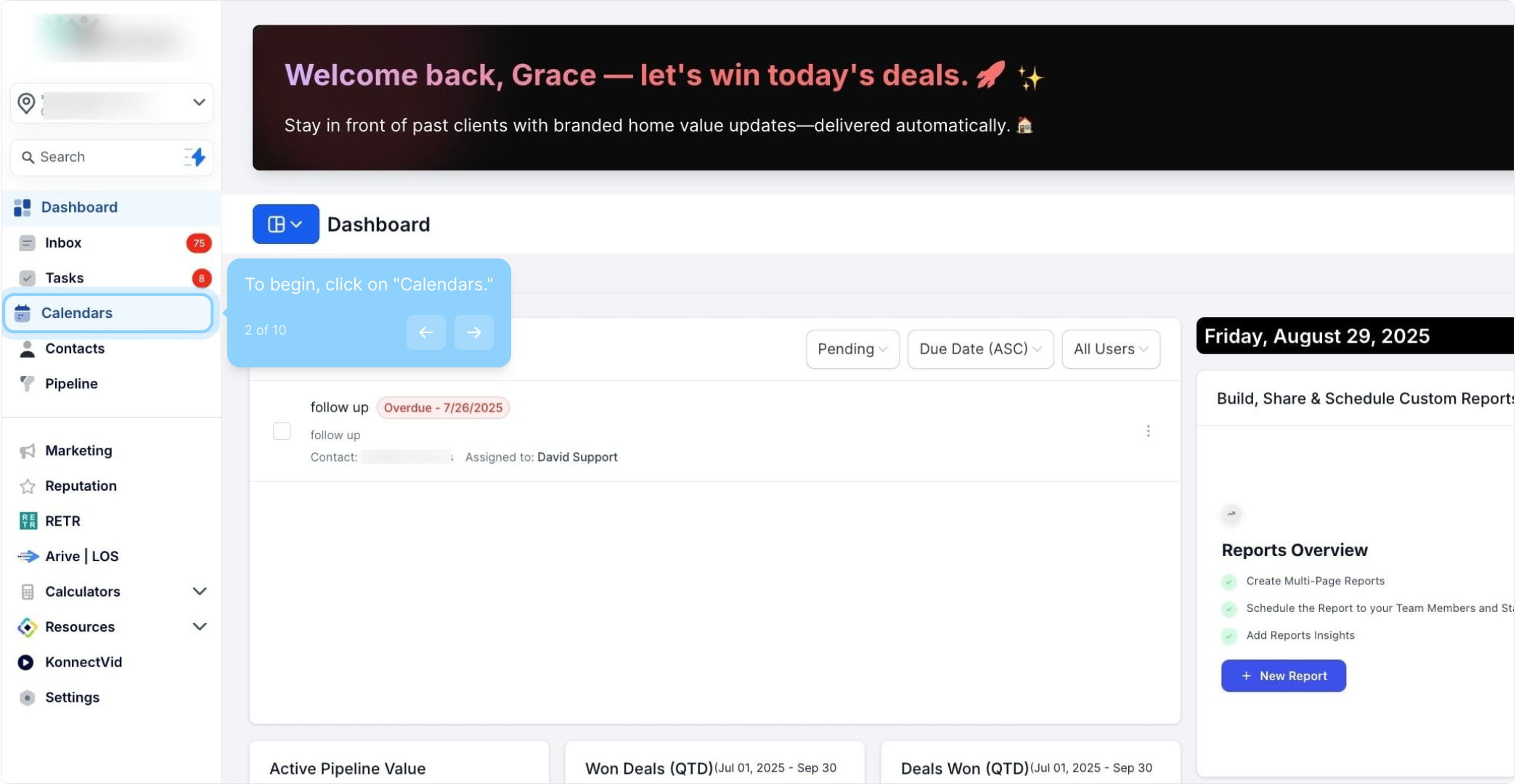
2. To begin, click on "Calendars."
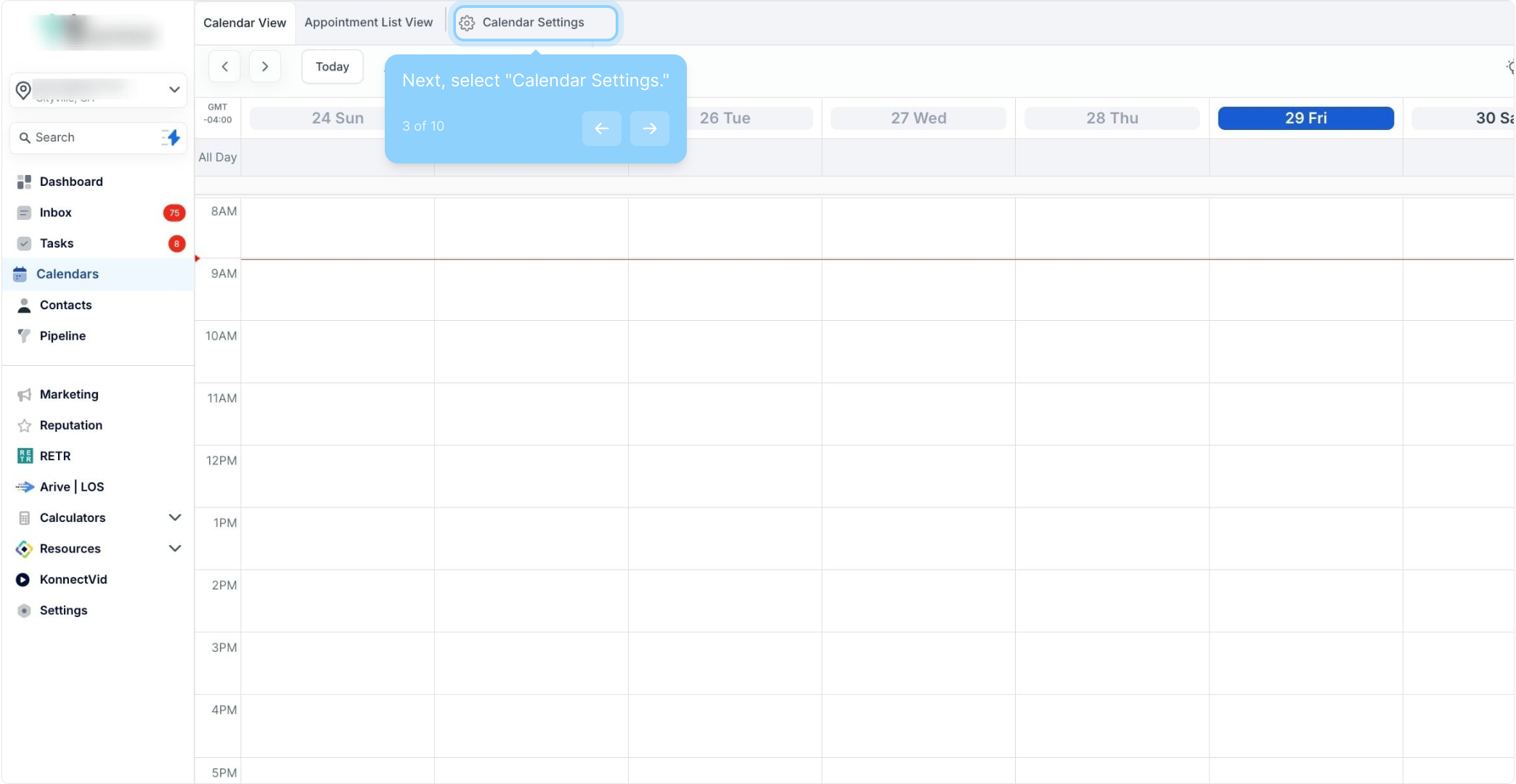
3. Next, select "Calendar Settings."
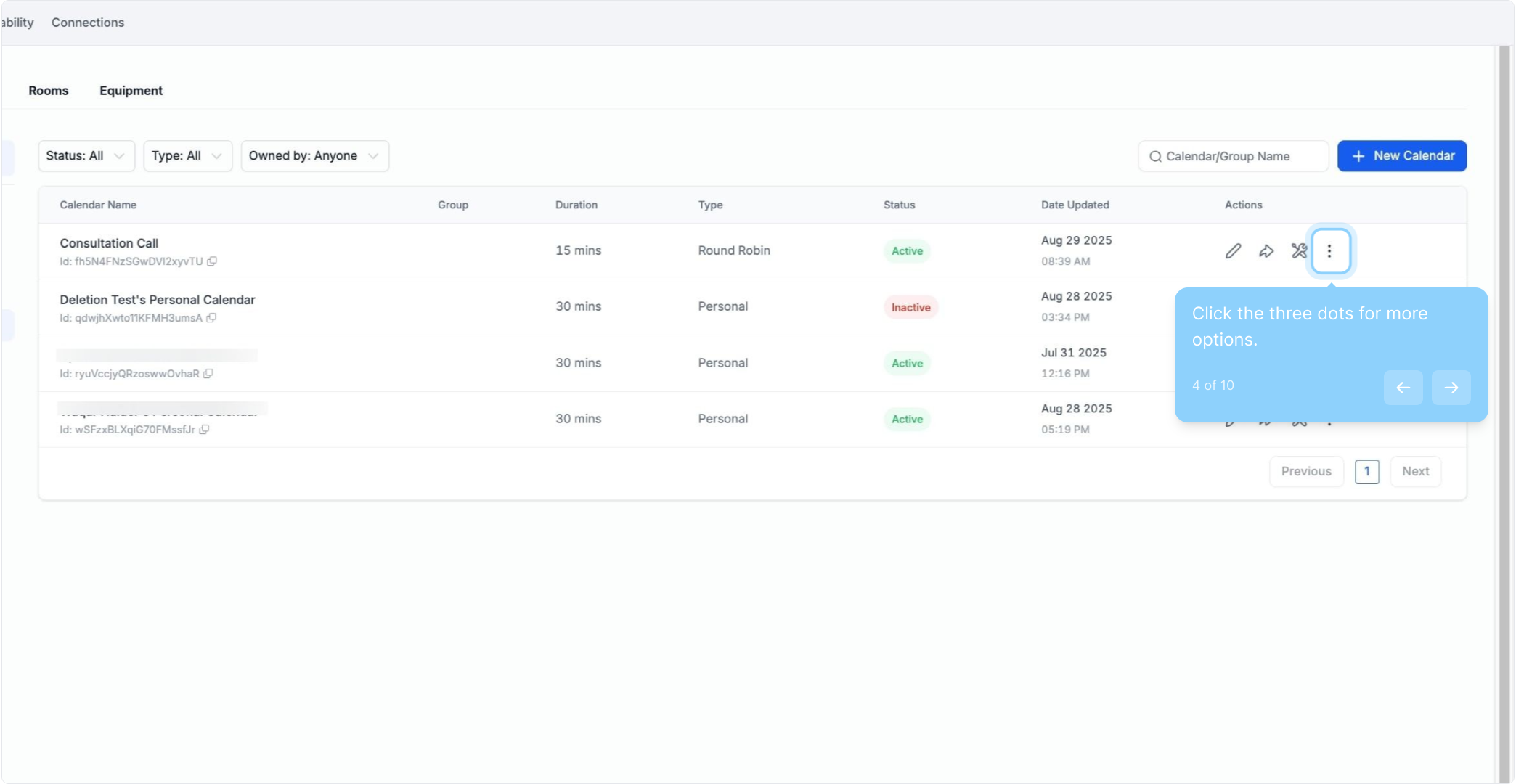
4. Click the three dots for more options.
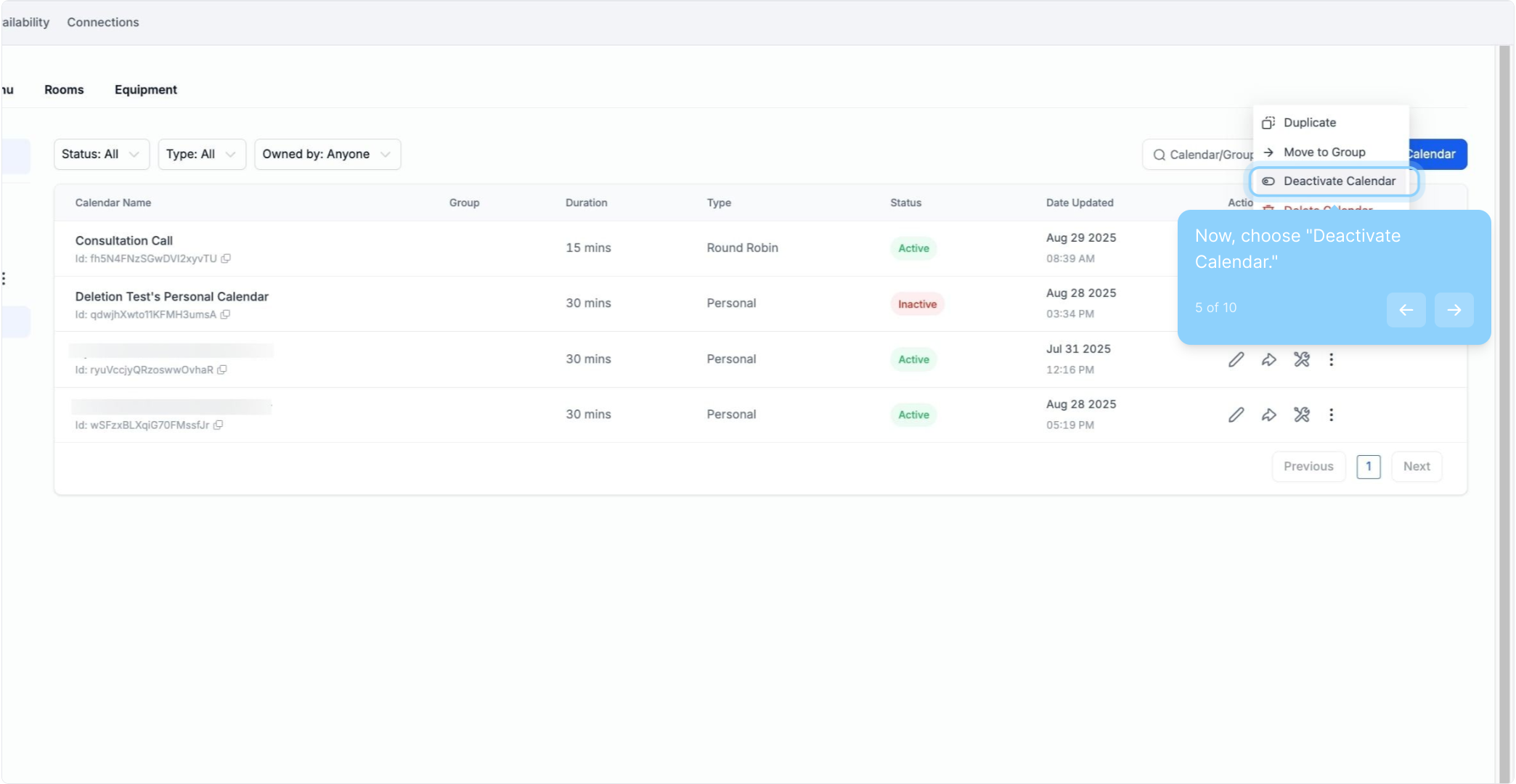
5. Now, choose "Deactivate Calendar."
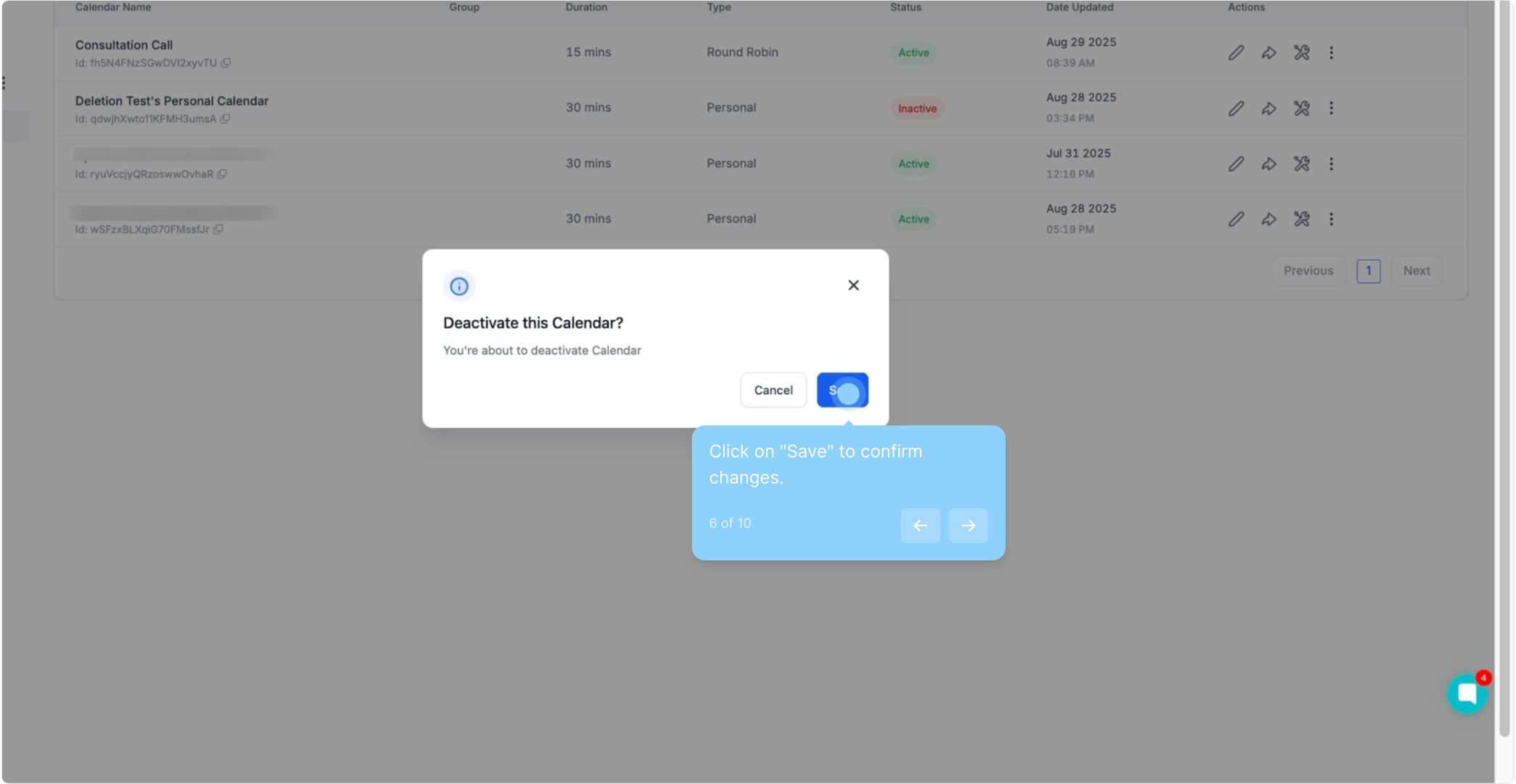
6. Click on "Save" to confirm changes.
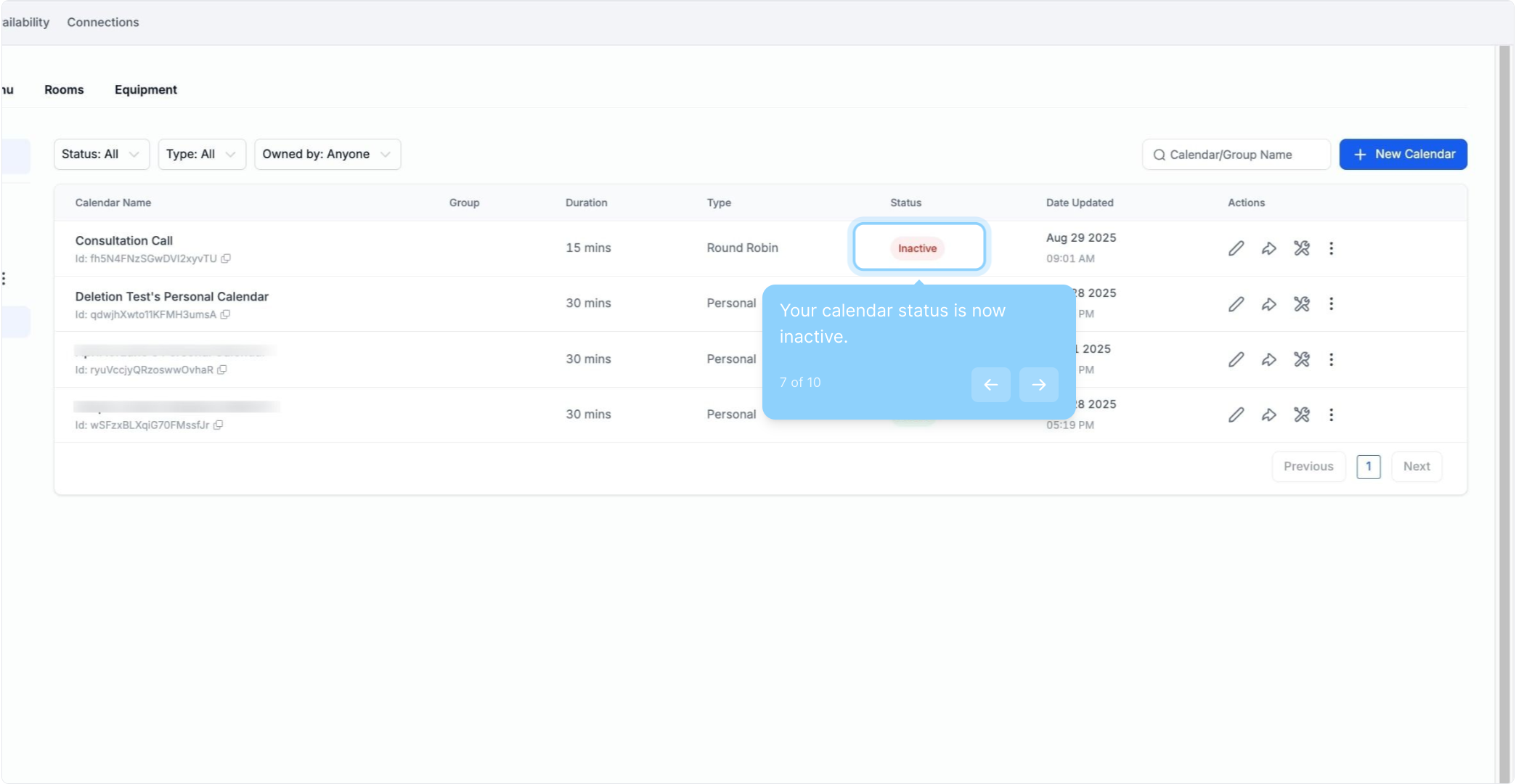
7. Your calendar status is now inactive.
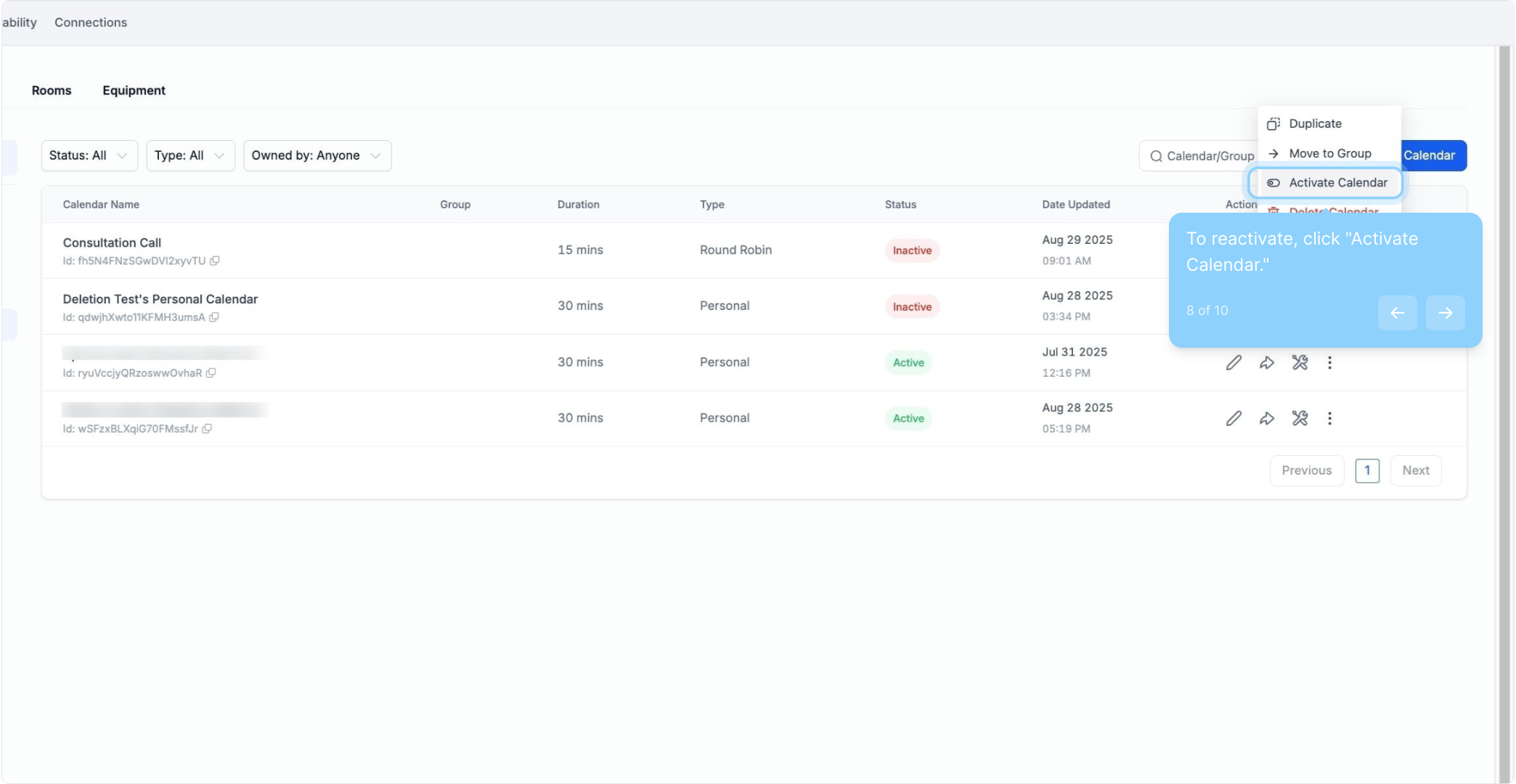
8. To reactivate, click "Activate Calendar."
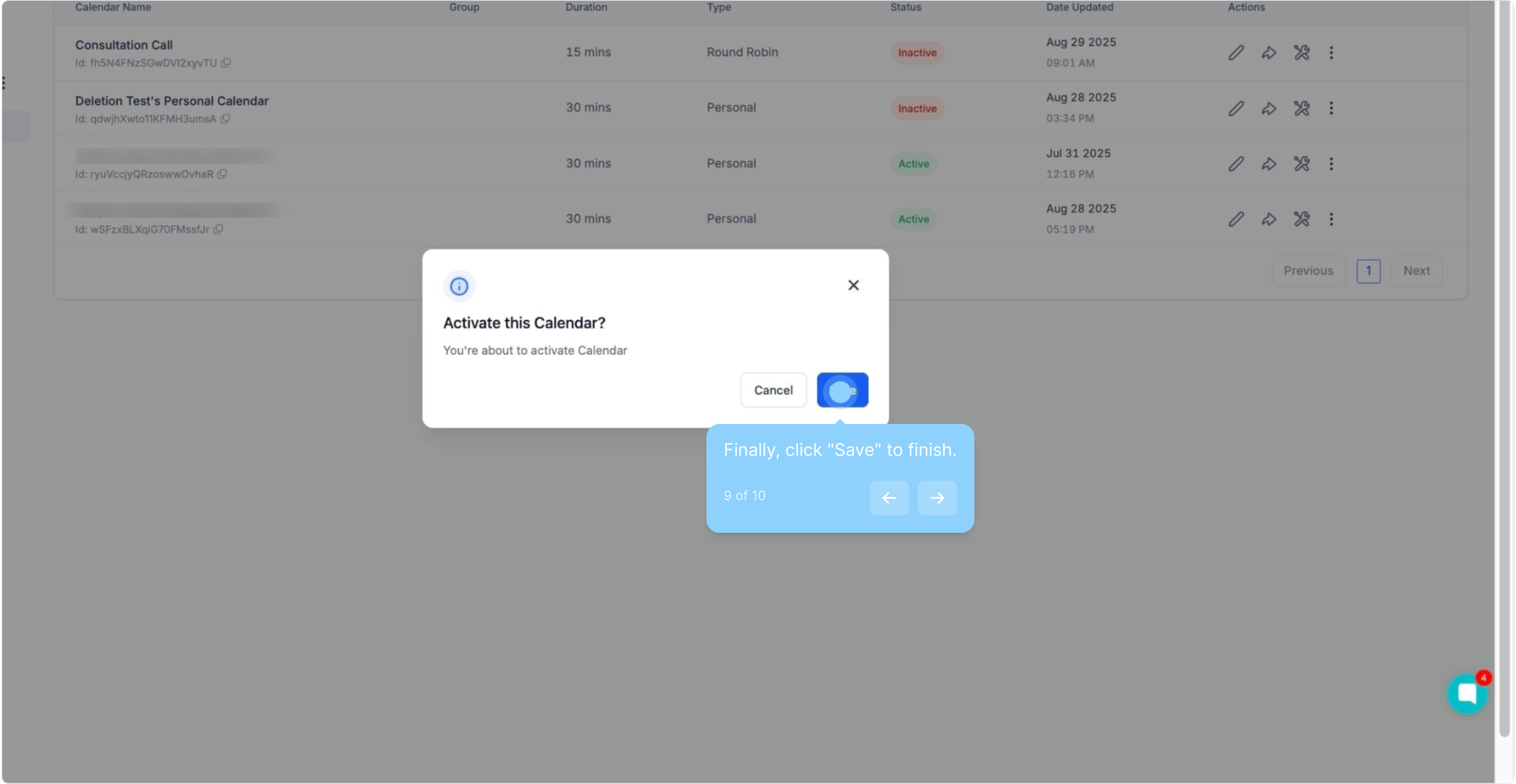
9. Finally, click "Save" to finish.
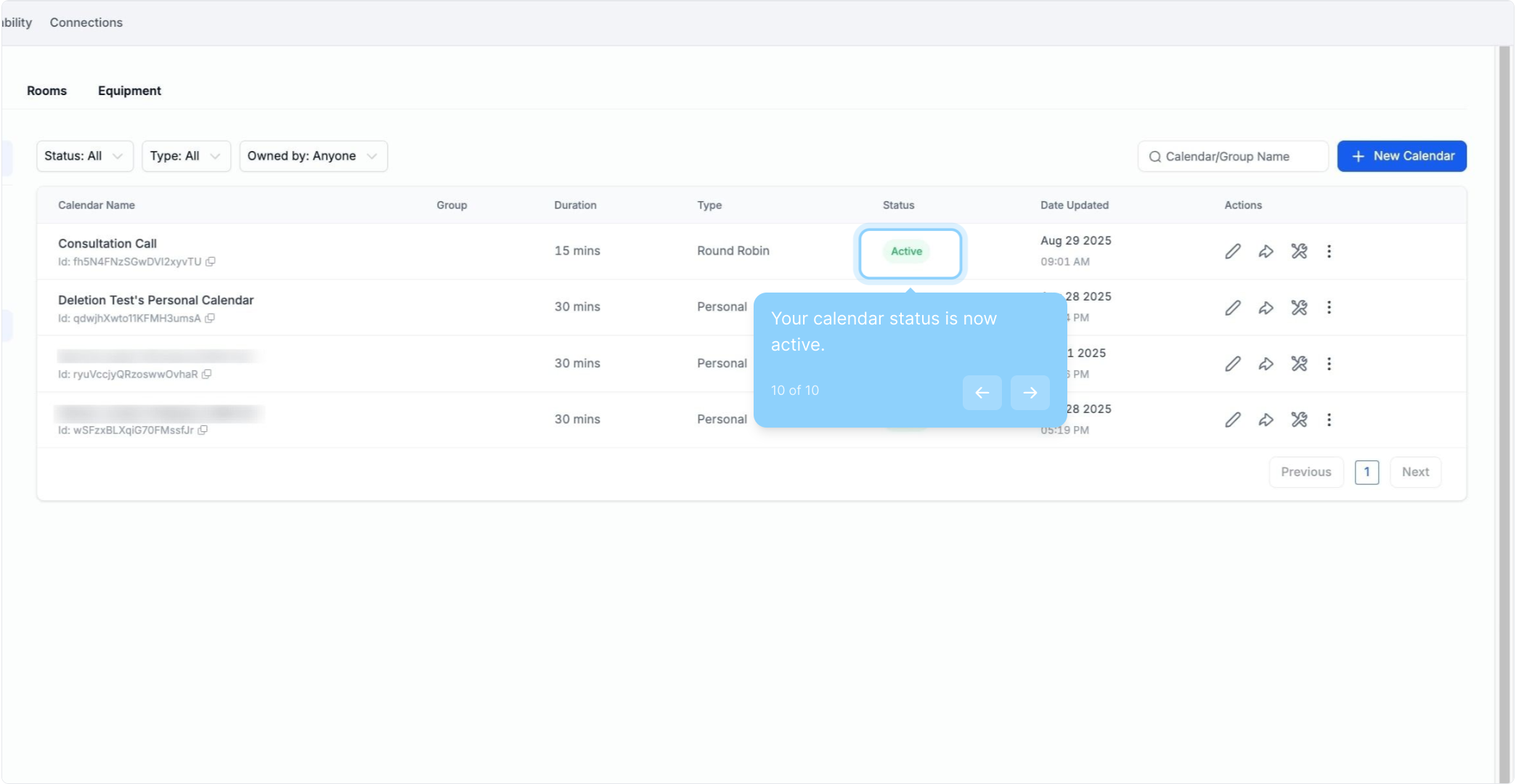
10. Your calendar status is now active.
1. How do I deactivate a calendar service?
Navigate to Settings > Calendars.
Select the calendar you want to deactivate.
Click the 3-dot dropdown menu and choose “Deactivate calendar”.
In the popup window, click Save to confirm deactivation.
2. How can I tell which calendars are active or deactivated?
In the calendar settings area, check the “Status” column. It will show which calendars are active and which are drafts (deactivated).
3. How do I activate a previously deactivated calendar?
Click the 3-dot dropdown menu for the calendar you want to reactivate.
Select “Activate Calendar”.
The calendar will be instantly re-enabled.
4. Can I reactivate a calendar at any time?
Yes, you can reactivate a calendar at any time using the steps outlined for activation.
5. Will deactivating a calendar delete my existing appointments?
No, deactivating a calendar does not delete any existing appointments. It simply hides the calendar from view until you reactivate it.
6. What happens to the appointments in a deactivated calendar?
Appointments in a deactivated calendar remain intact. They will reappear when you reactivate the calendar.
