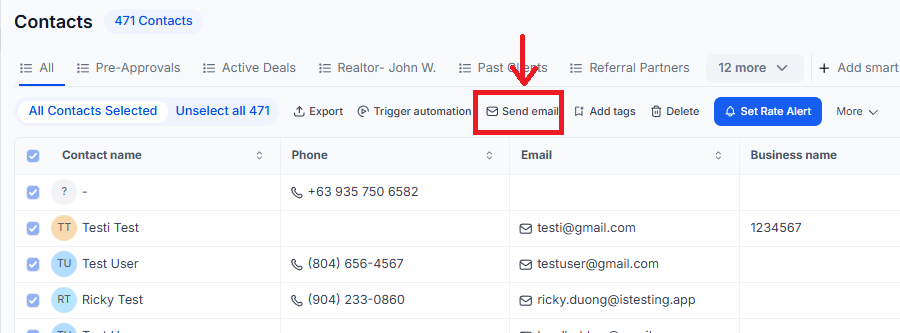
You can use the formatting buttons to add a trigger link, change the font style, use custom values/merge fields, and attach a file.
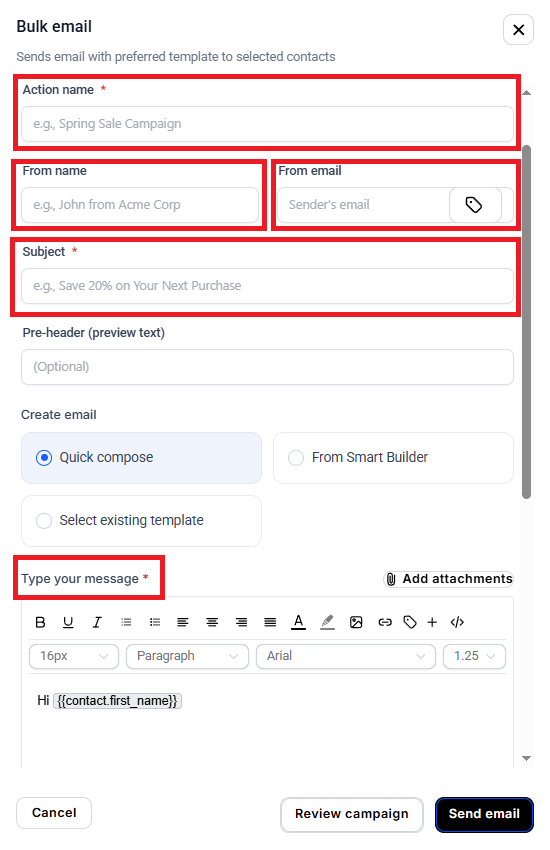
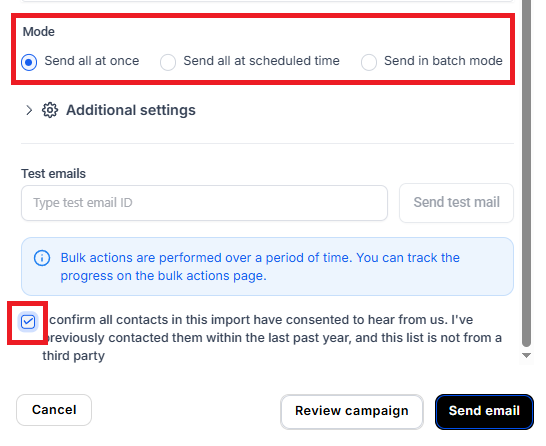
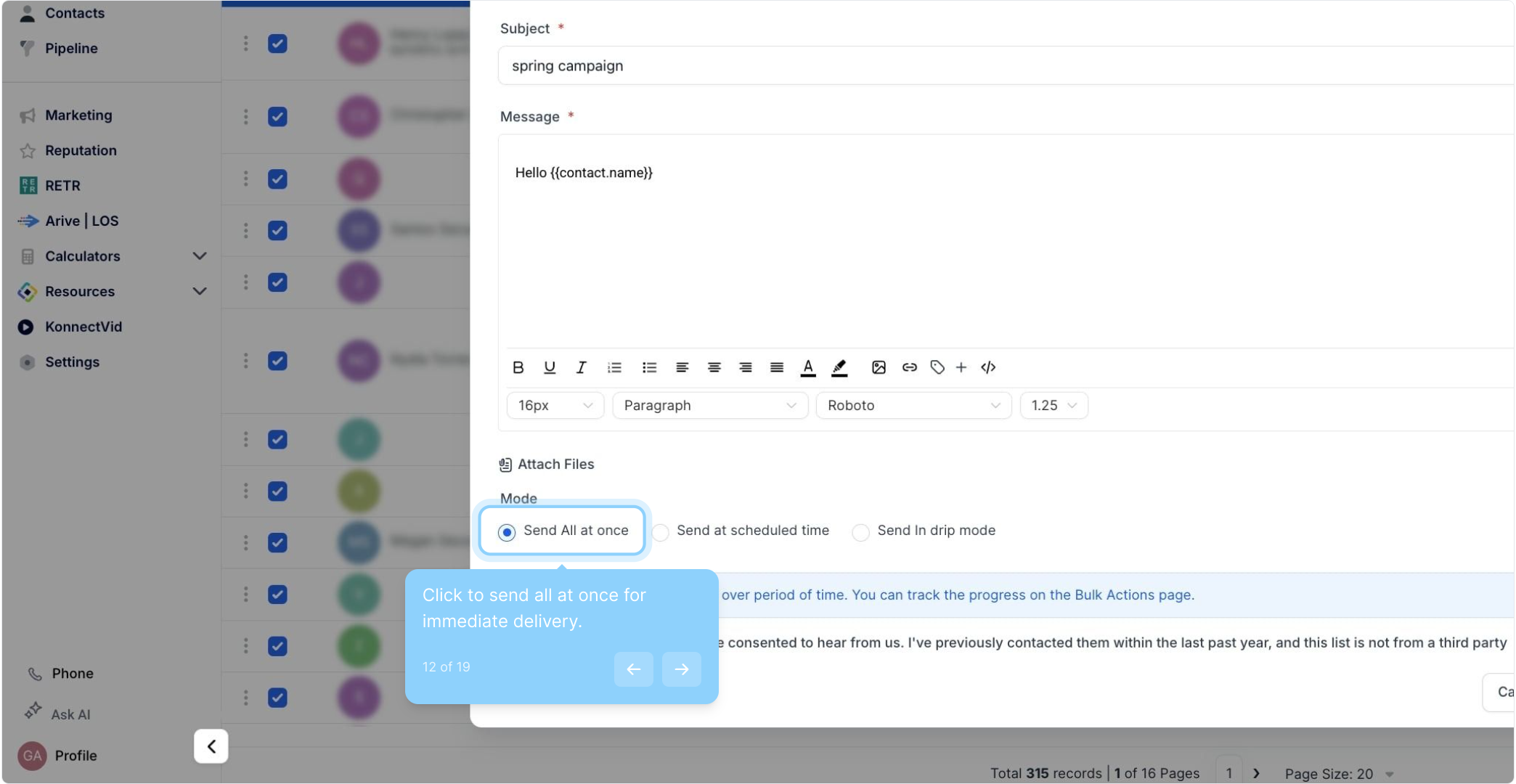
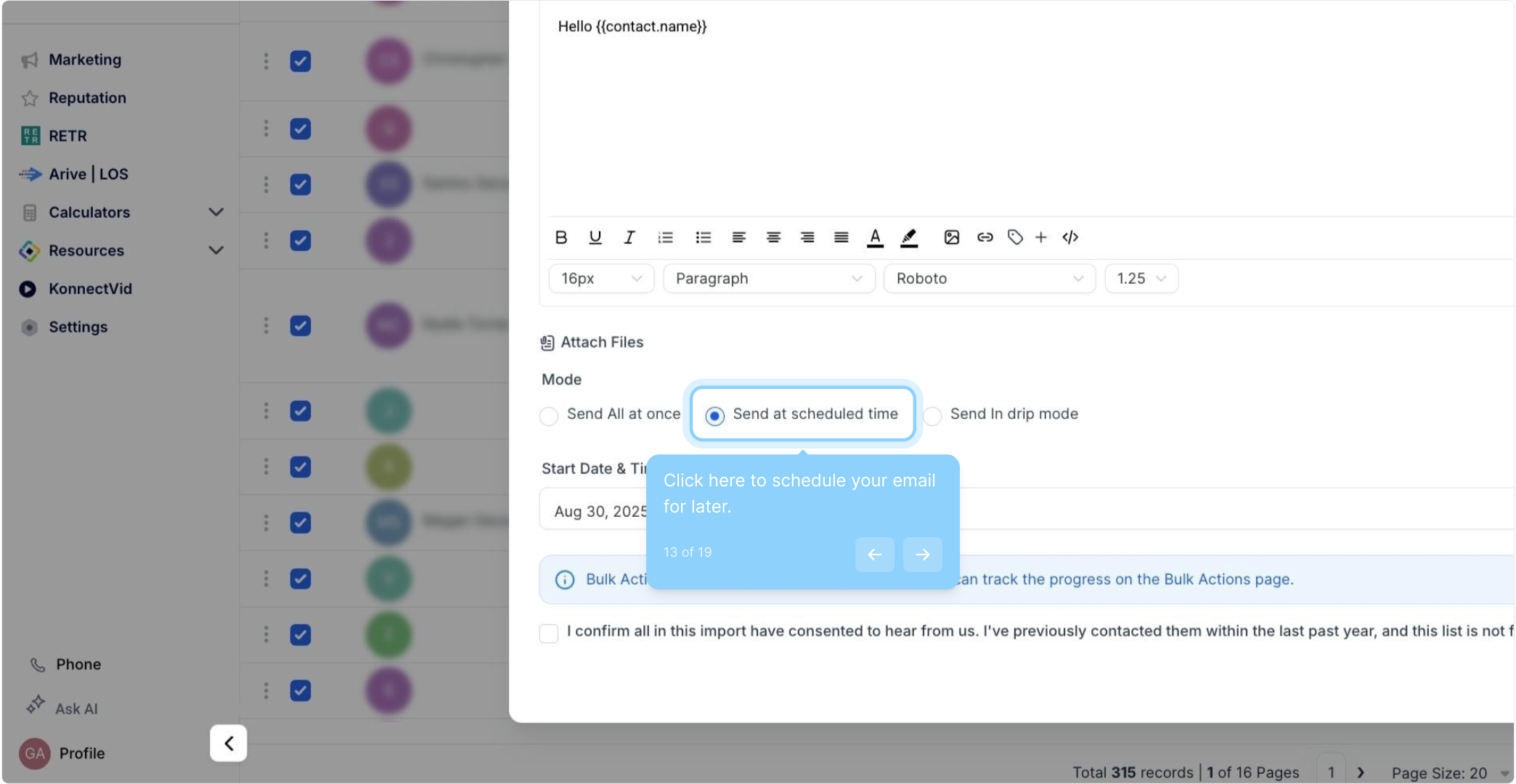
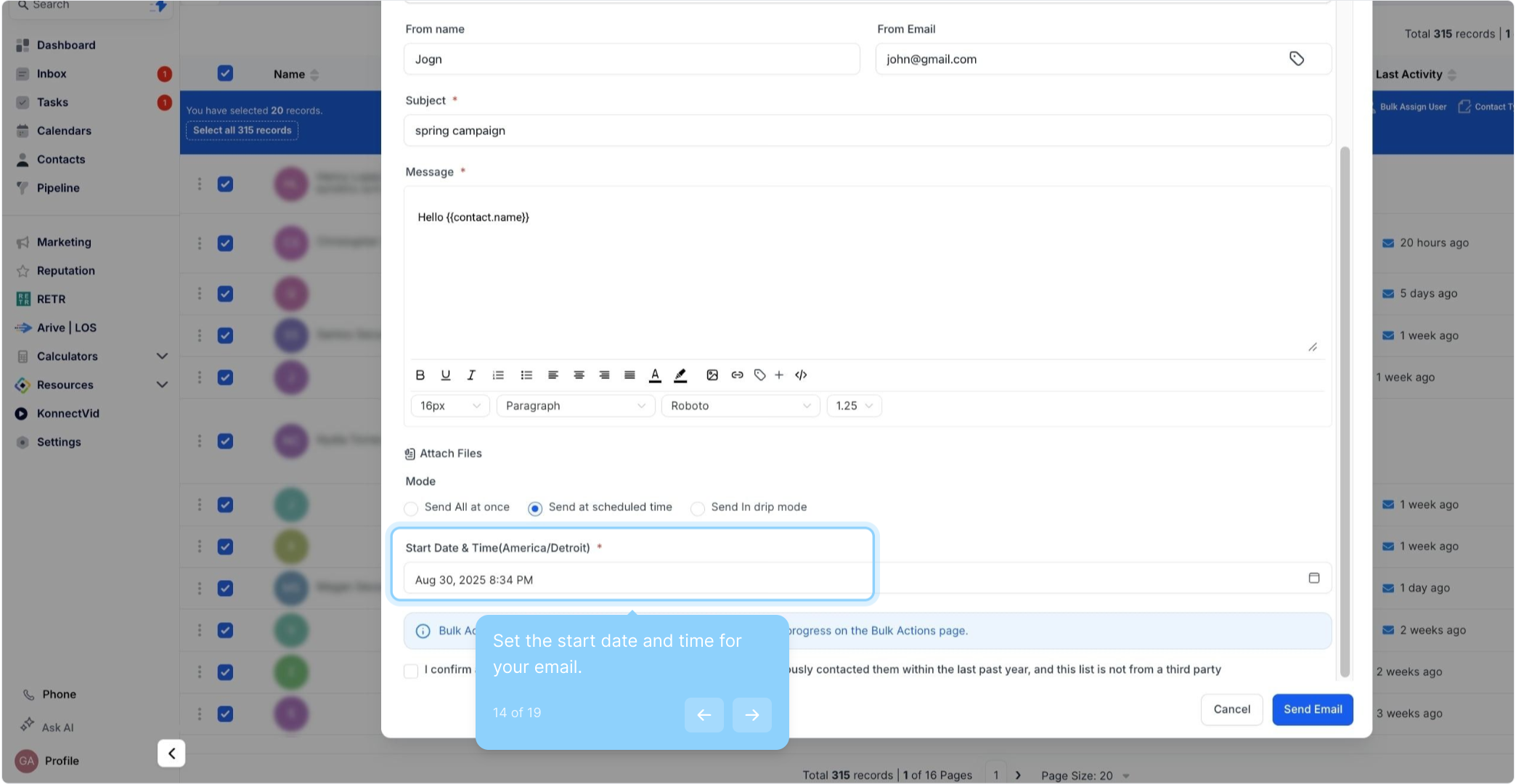
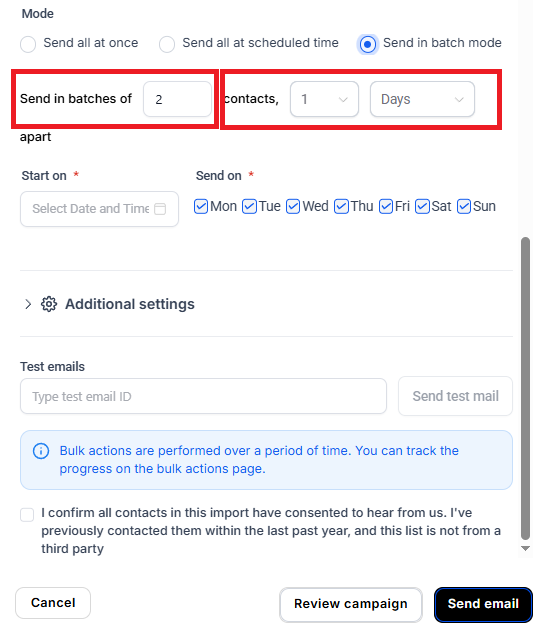
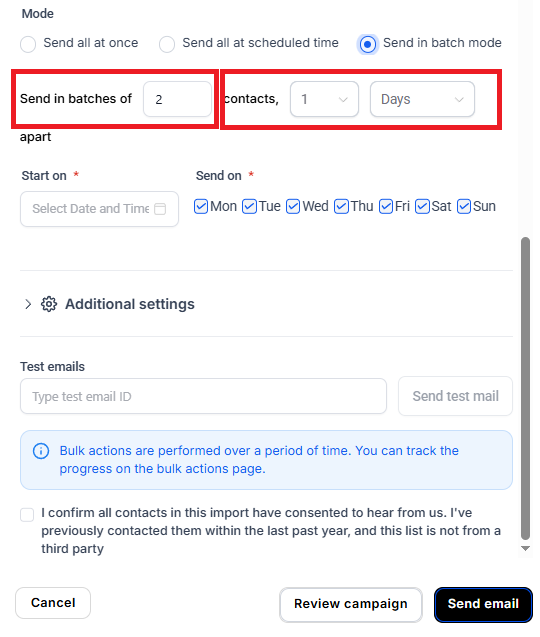
Then choose the scheduling for this action. You can choose “send all at once” to process the action immediately, “send all at scheduled time” to process the action at one time in the future, or “send in drip mode” to process groups/batches.
1. How do I select multiple contacts for a bulk email?
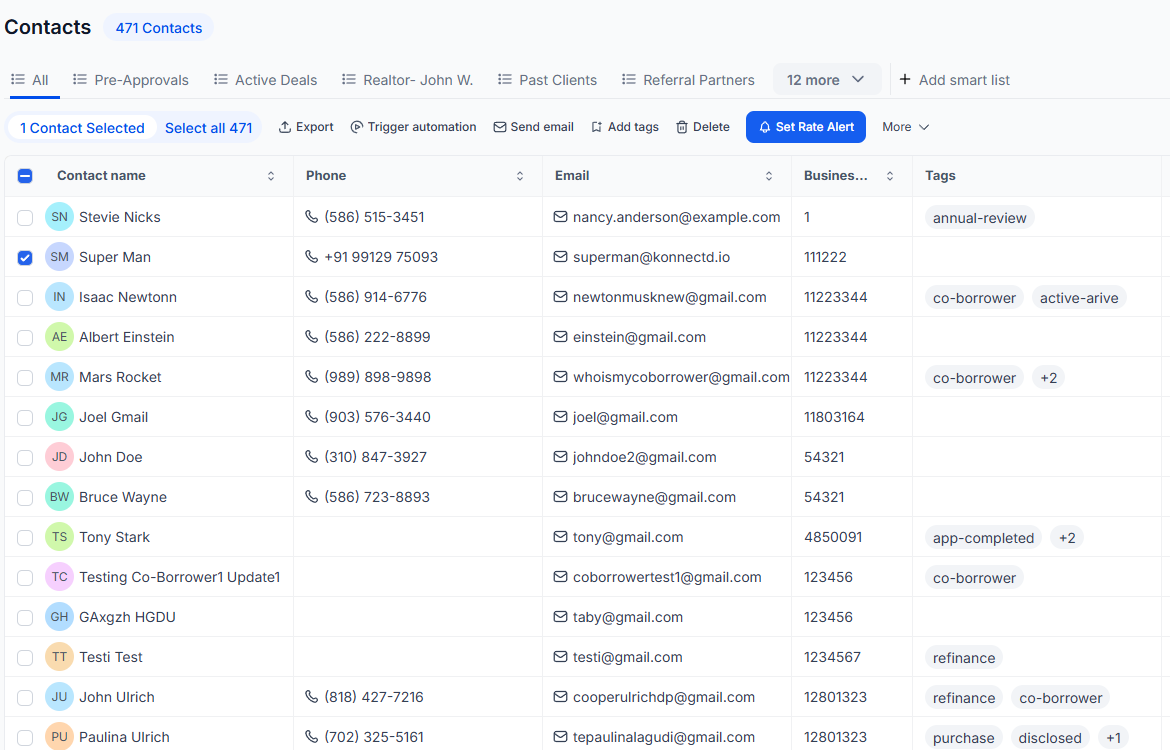
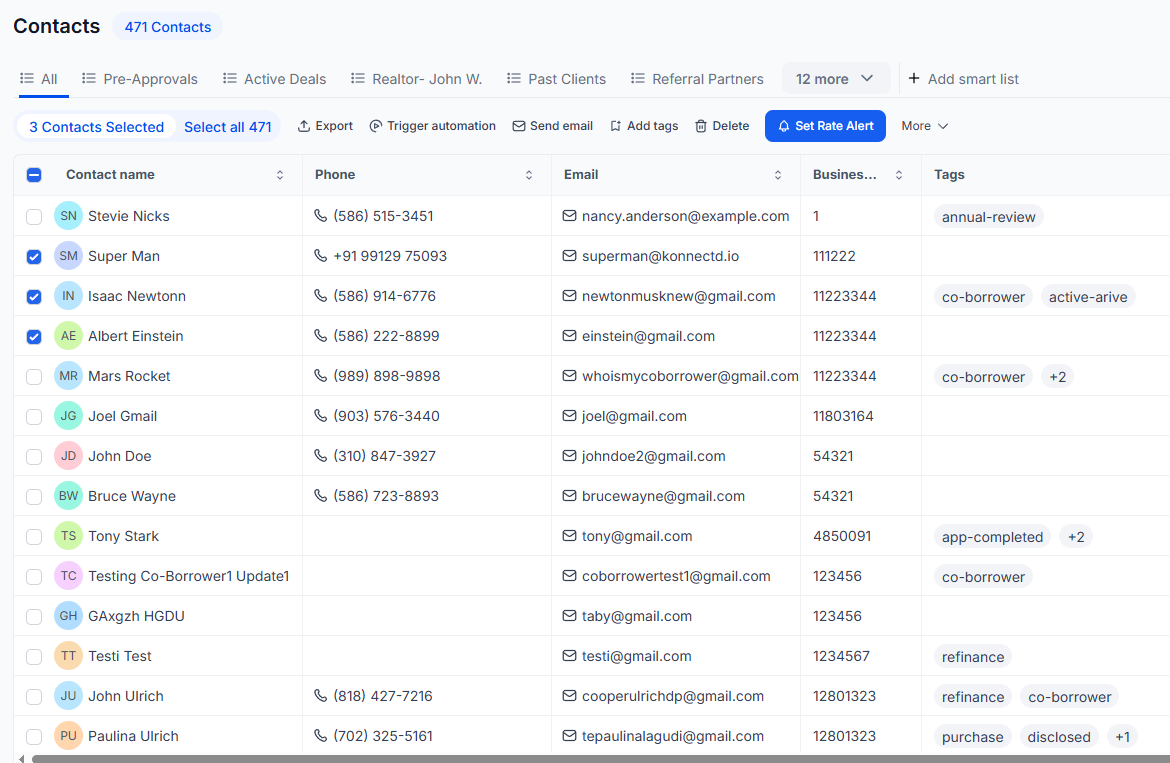
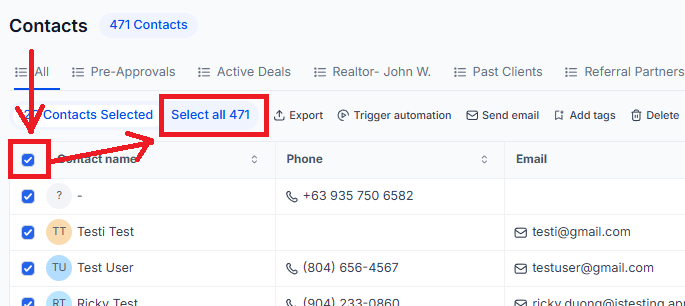
You can select contacts by checking the box next to each record or use the select-all option at the top of the page.
2. Can I use an email template for bulk email actions?
Yes, you can either create a new email message or choose a pre-existing template from the dropdown menu.
3. What is drip mode, and how does it work?
Drip mode allows you to send emails in batches. For example, you can set the system to send emails to 100 contacts every 5 hours, and the process will repeat until all contacts have received the email.
4. Can I schedule a bulk email for a future time?
Yes, you can schedule the email to be sent at a specific future time or choose to send it immediately.
5. What happens if I schedule a bulk email in drip mode?
The system will process the emails in batches based on the interval you set, ensuring a smooth distribution of emails over time.
6. Is it possible to attach files to a bulk email?
Yes, you can attach files to your bulk email using the formatting options in the pop-up window.
Announcing a New Product or Service
Scenario: A business wants to inform all customers about a new product launch.
Action: Use the bulk action feature to select all relevant contacts and send a one-off email announcing the product.
Outcome: All selected contacts receive the announcement simultaneously, ensuring broad reach and timely communication.
Sending an Event Invitation
Scenario: A company is hosting an event and needs to invite a large group of contacts.
Action: Select the contacts and send an invitation using a pre-designed email template. Schedule the email to go out at a specific time to ensure maximum engagement.
Outcome: The invitations are sent efficiently to all targeted contacts, increasing the likelihood of a strong turnout.
