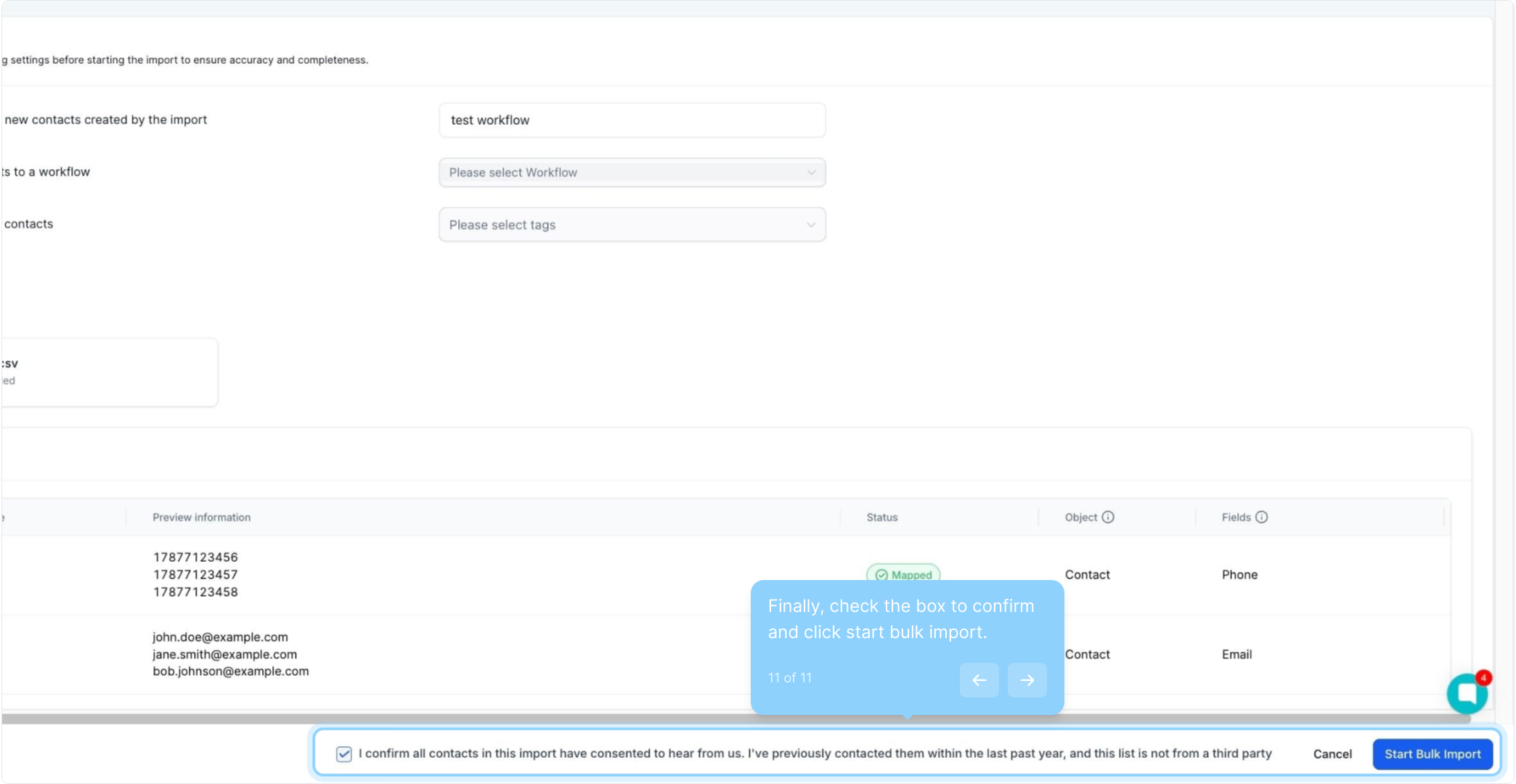
2. Click on "Contacts" to view your options.
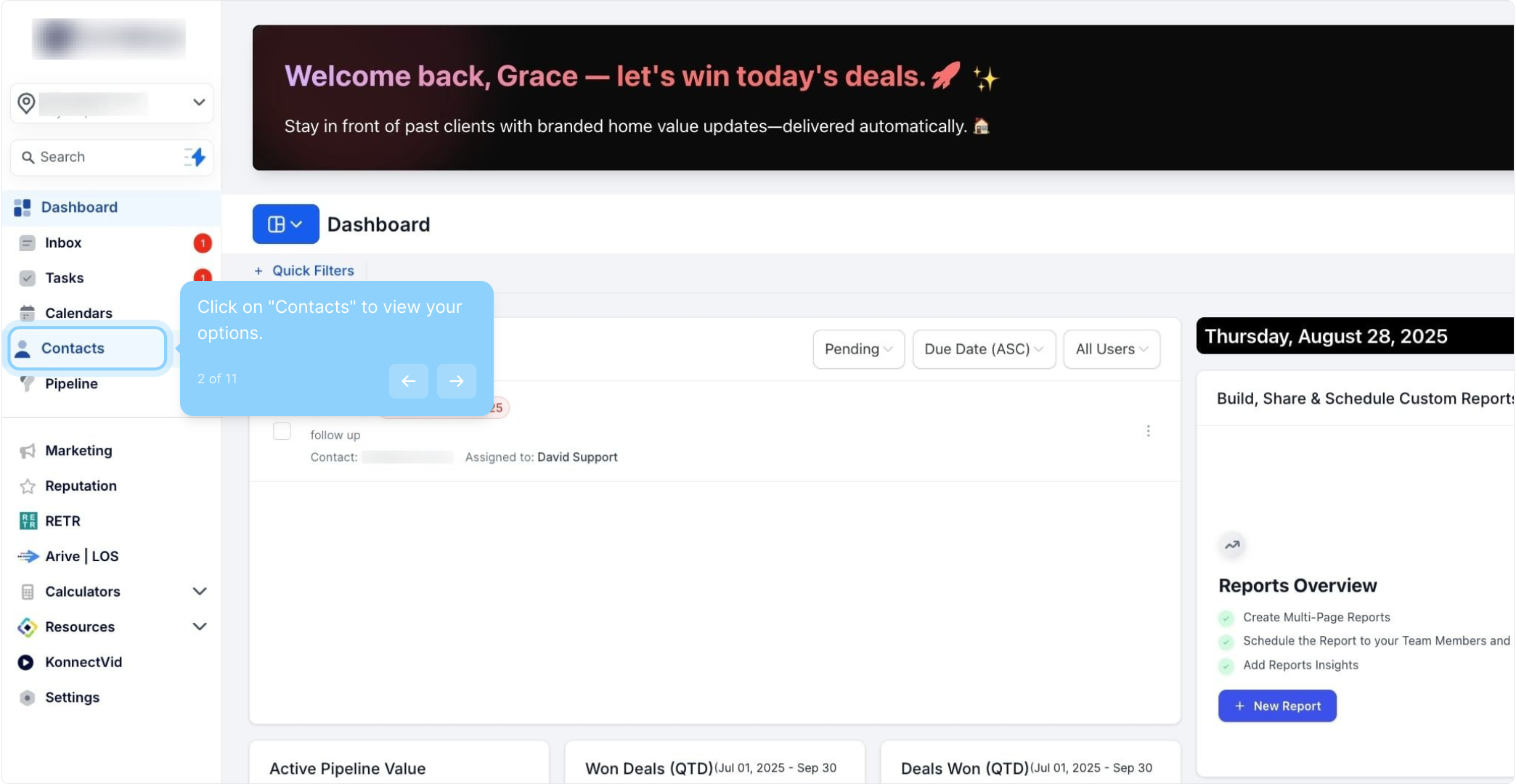
3. Next, hit the import button to proceed.
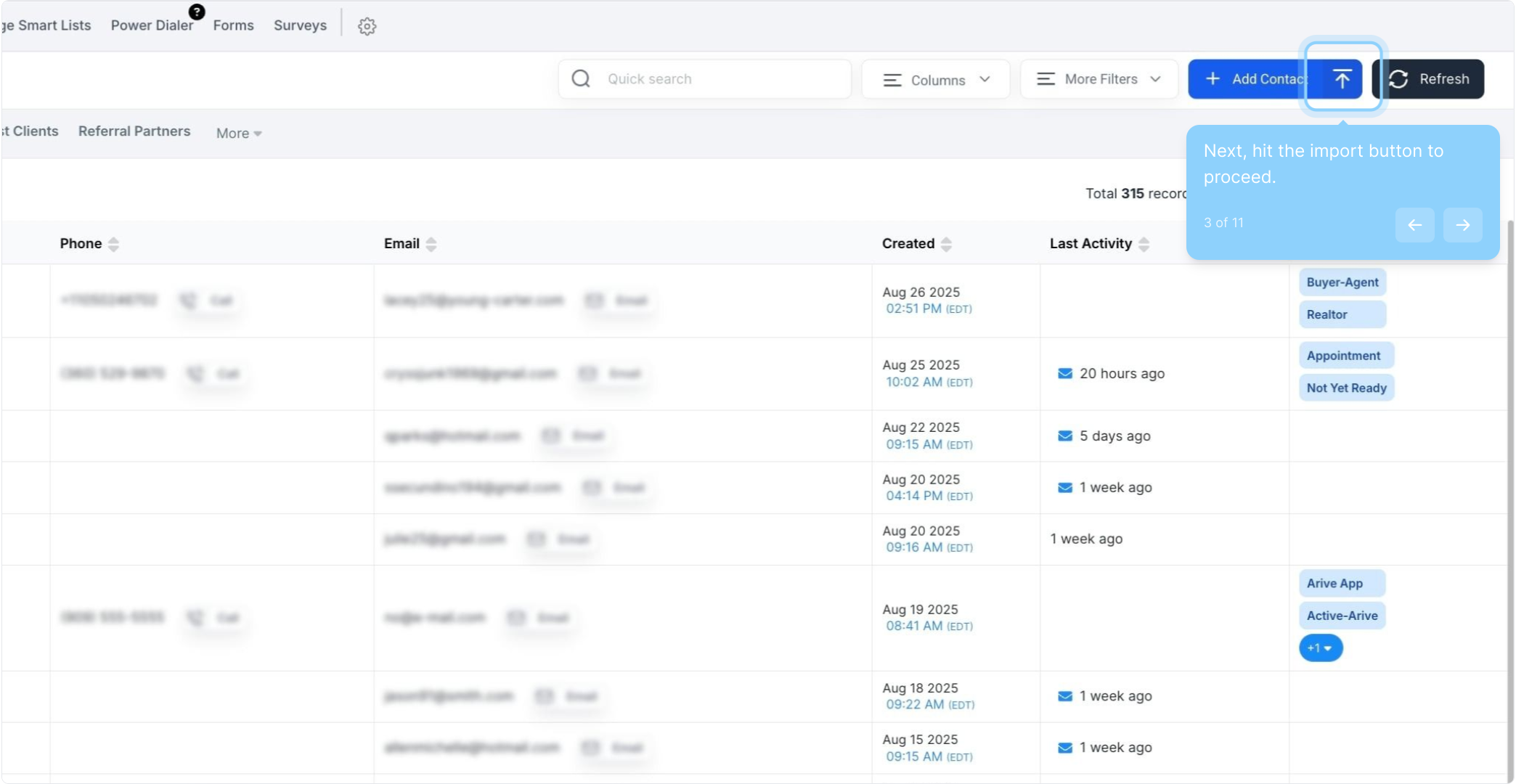
4. Click on "Next" to advance through the process.
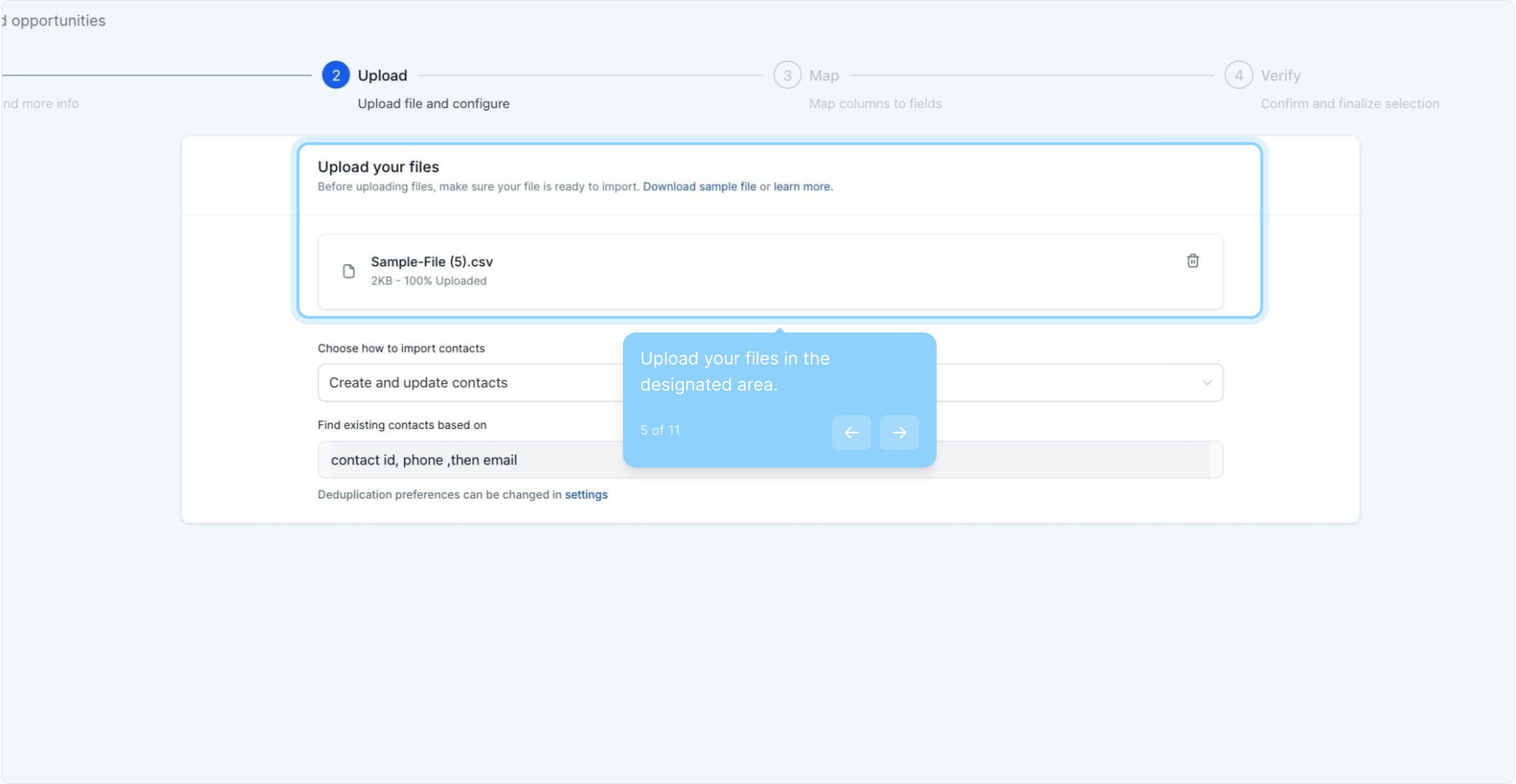
5. Upload your files in the designated area.
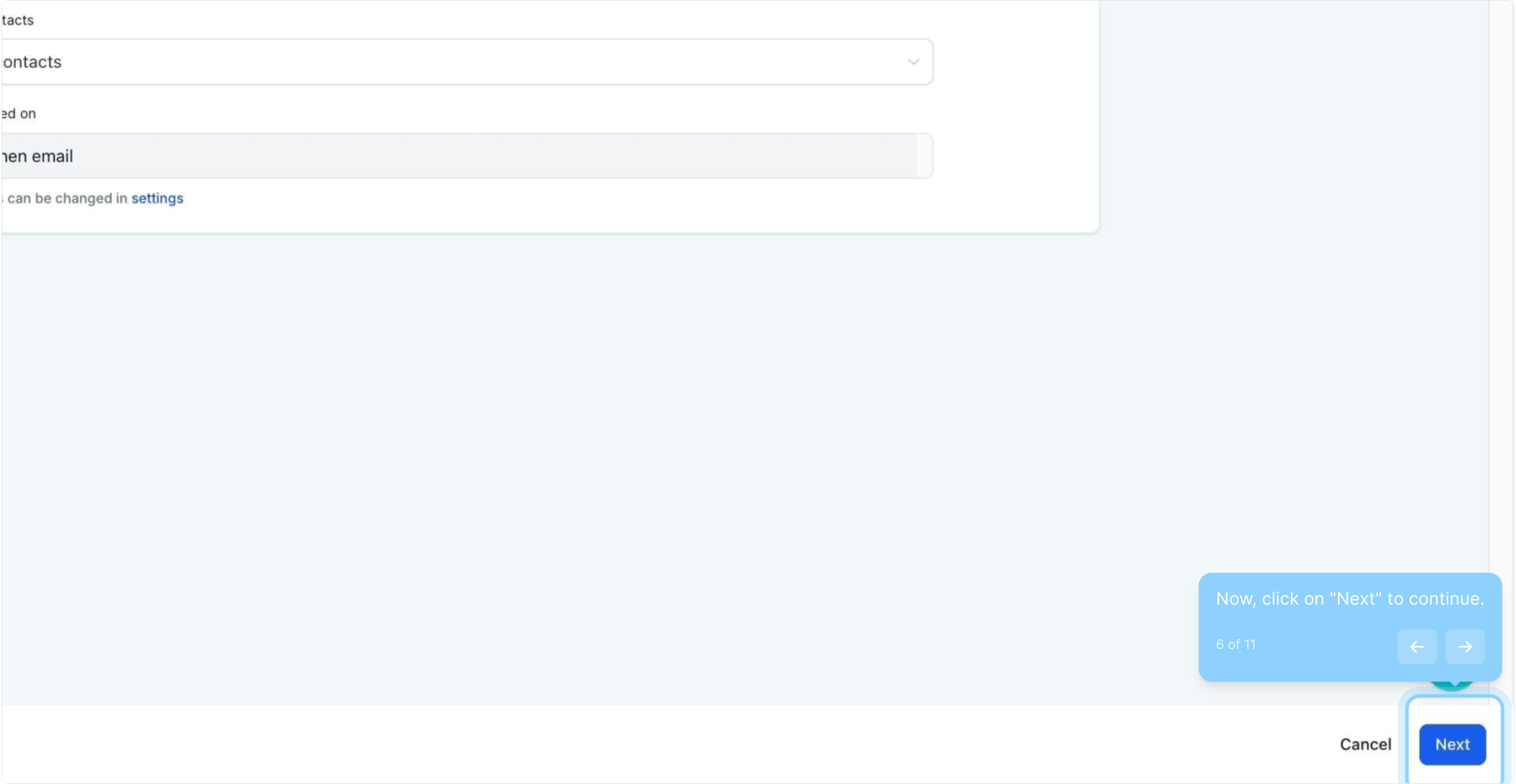
6. Now, click on "Next" to continue.
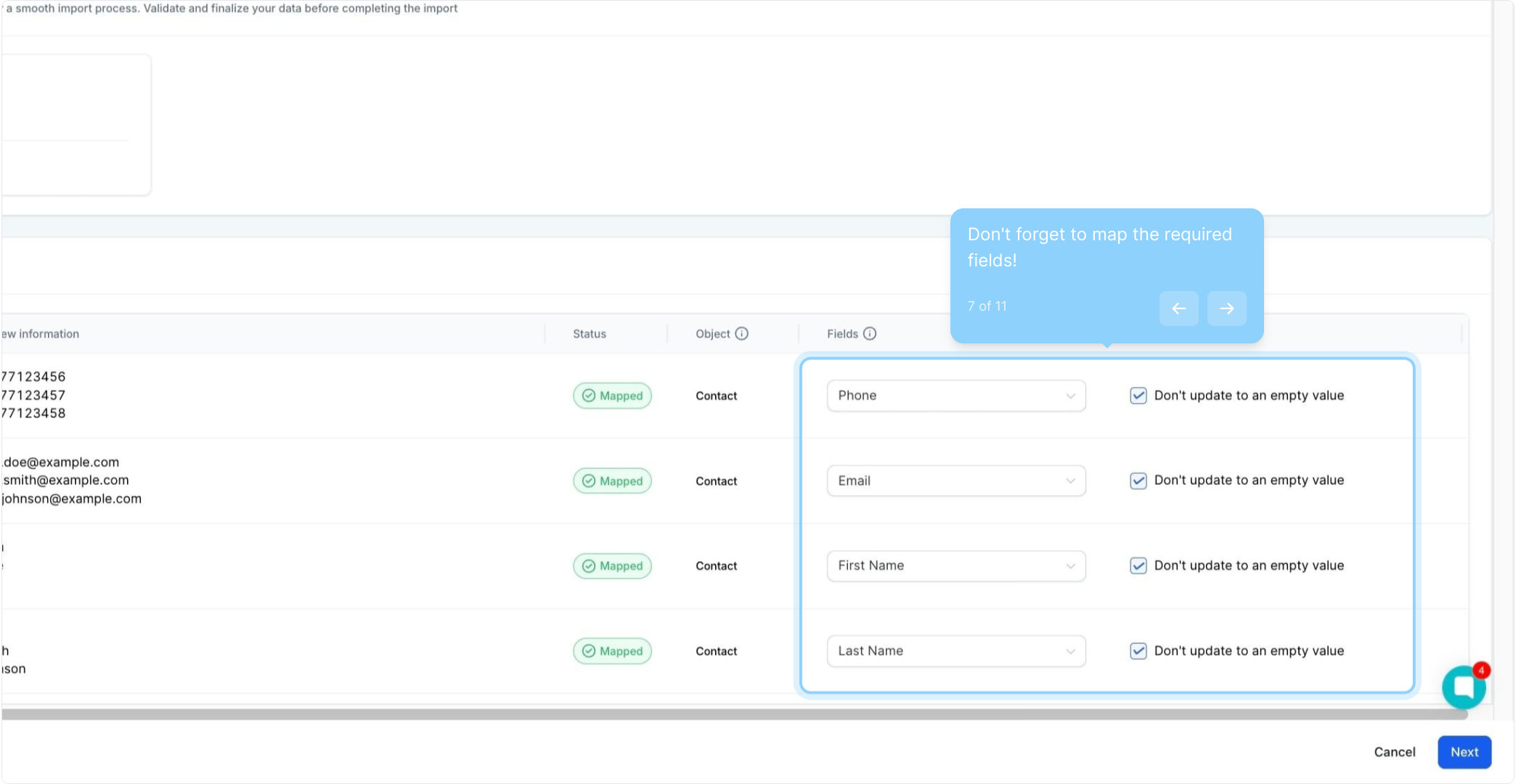
7. Don't forget to map the required fields!
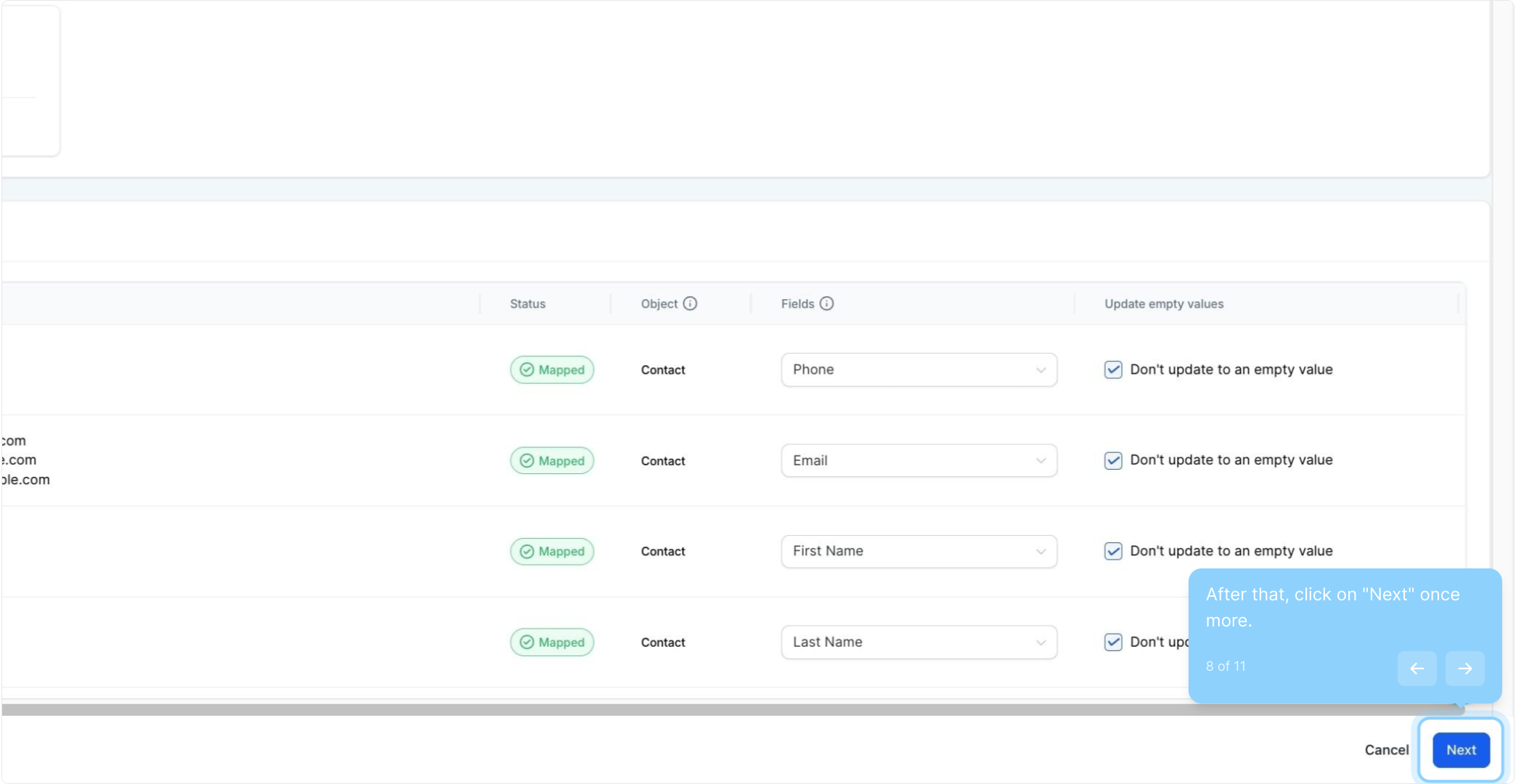
8. After that, click on "Next" once more.
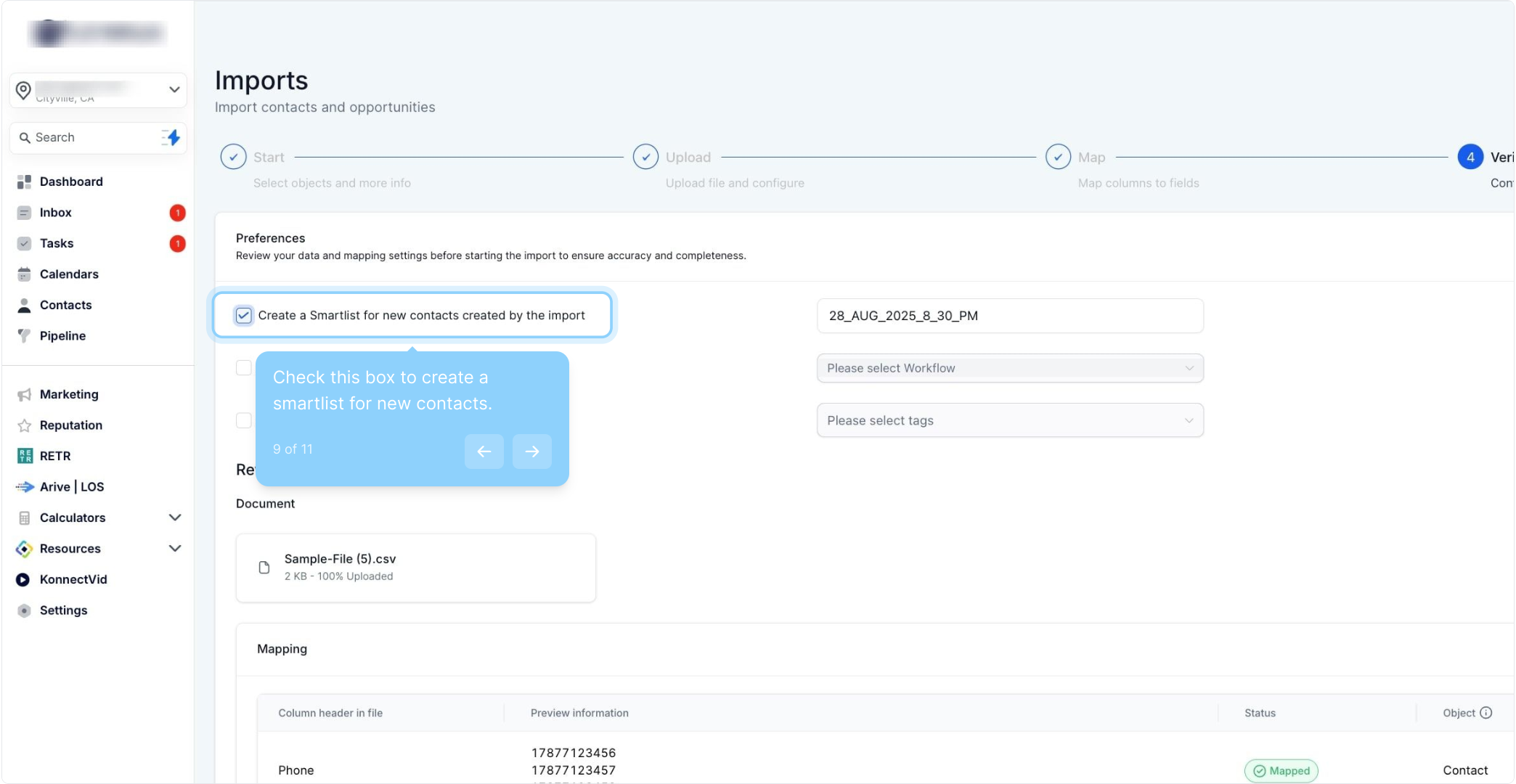
9. Check this box to create a smartlist for new contacts.
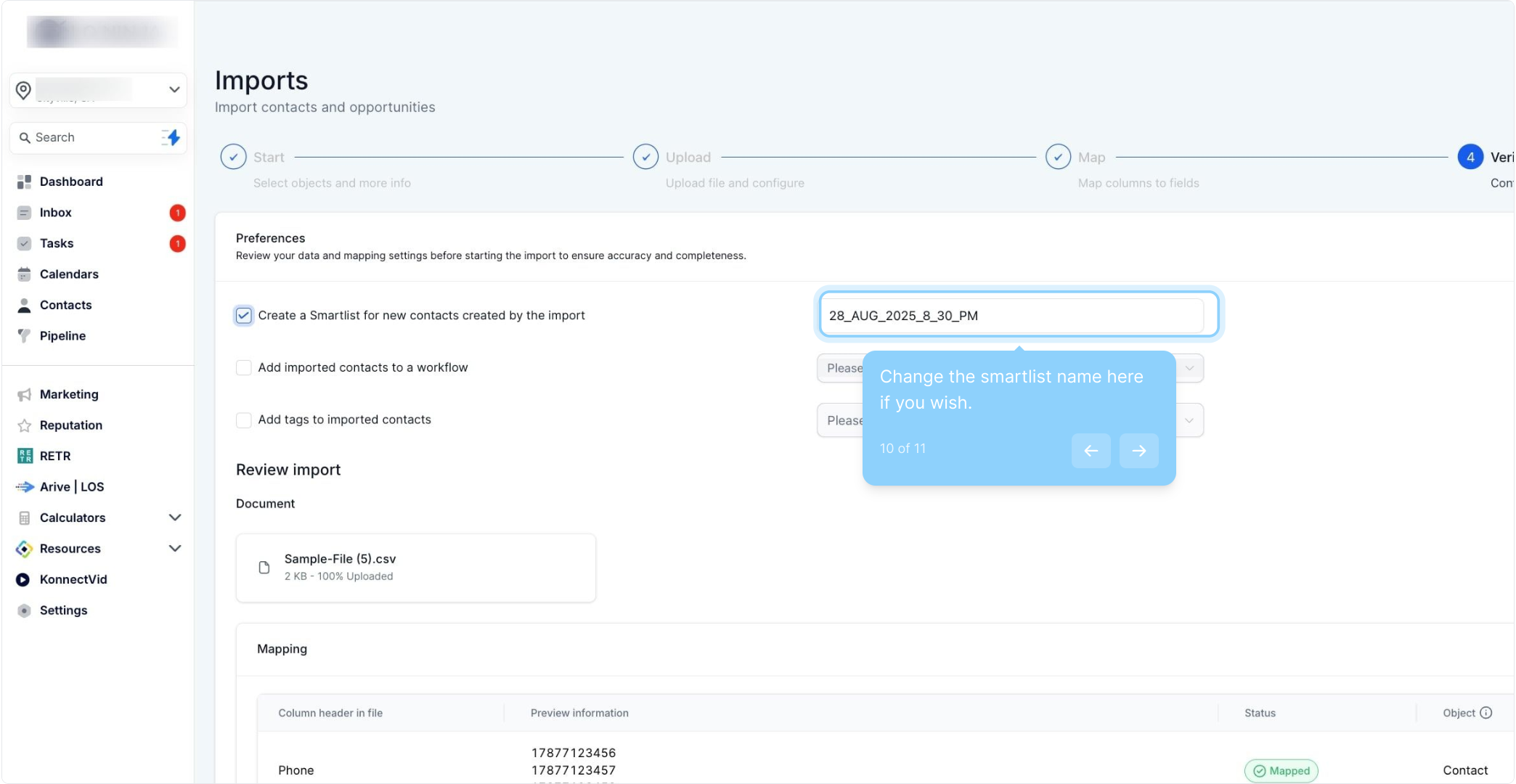
10. Change the smartlist name here if you wish.
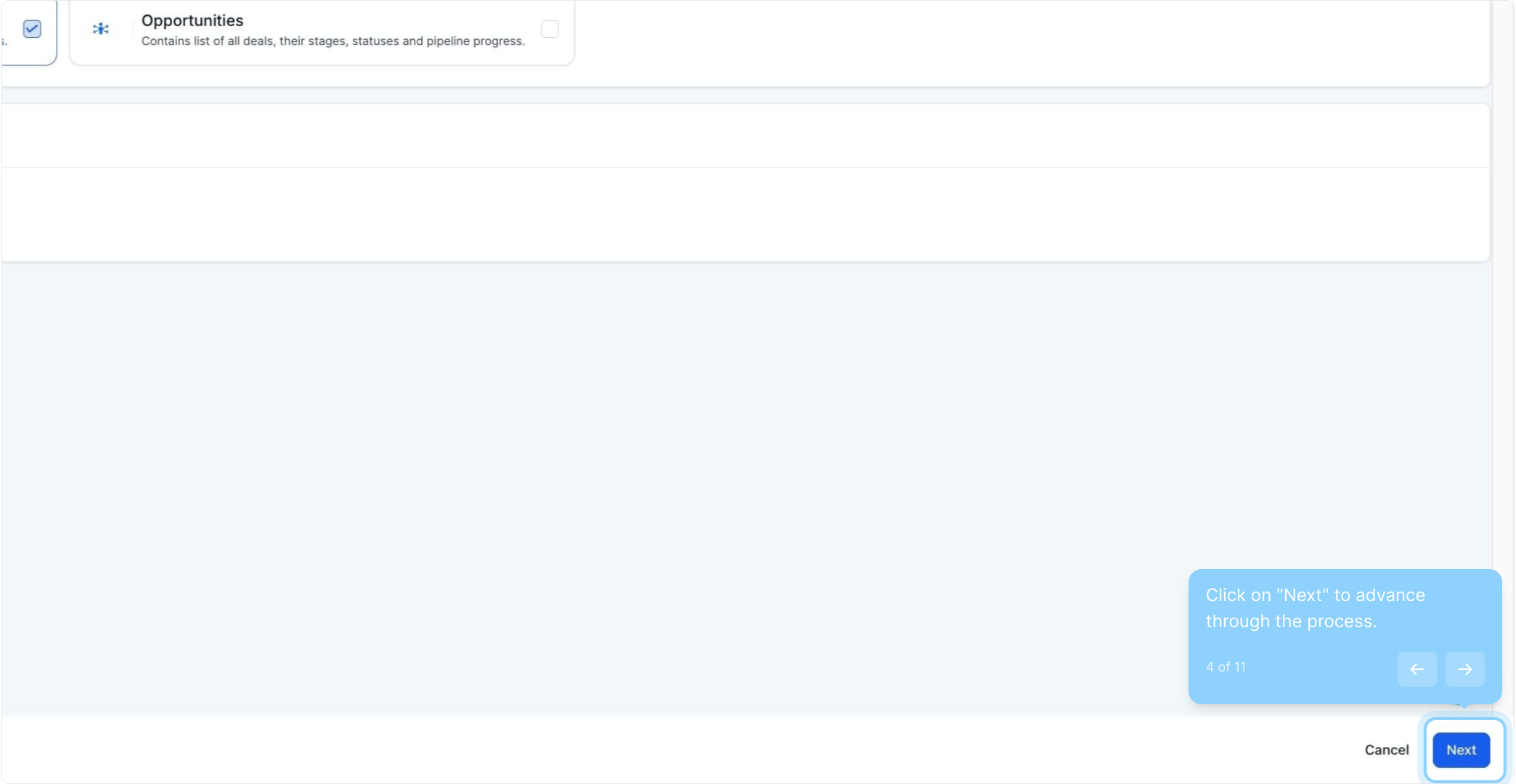
11. Finally, check the box to confirm and click start bulk import.