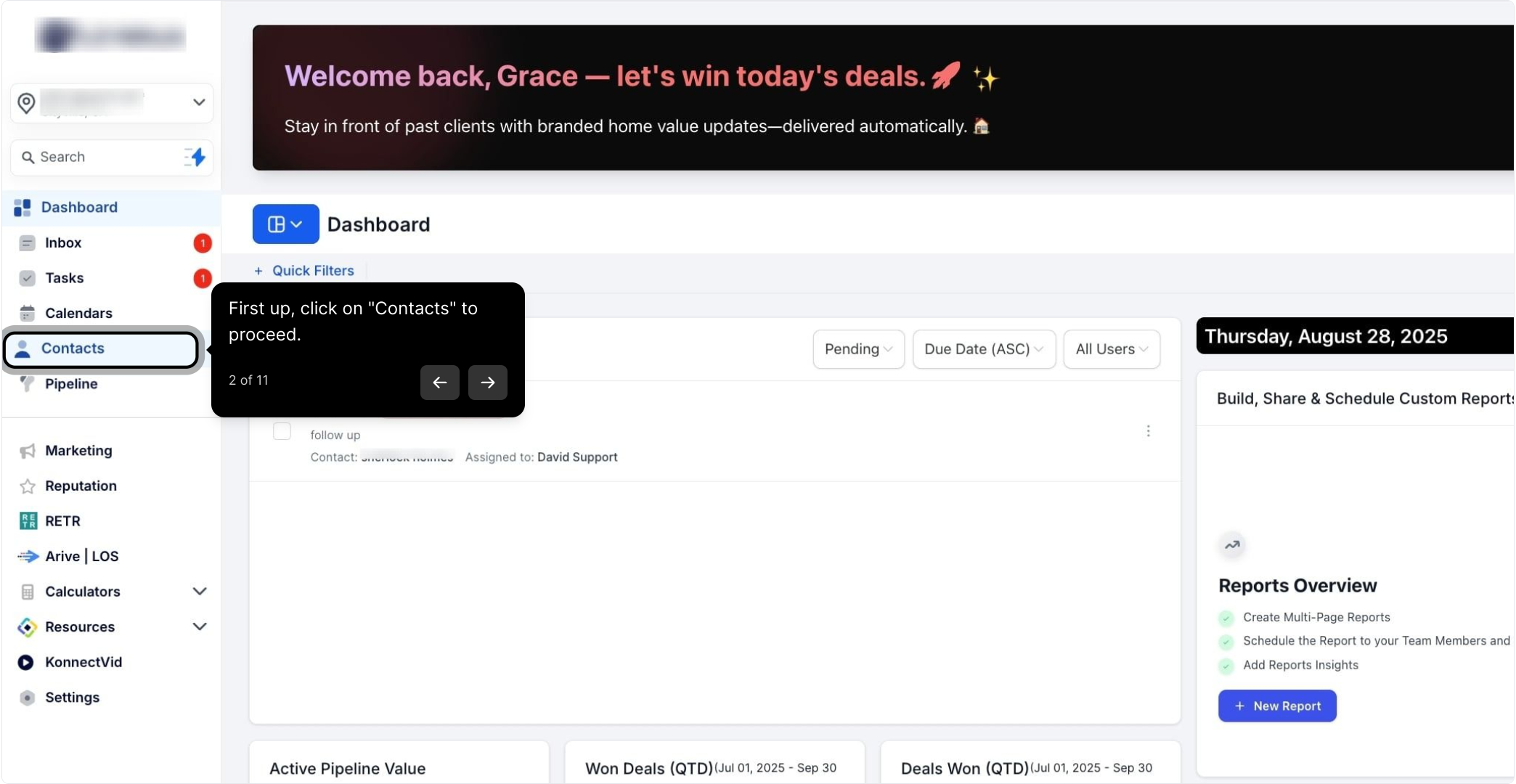
2. First up, click on "Contacts" to proceed.
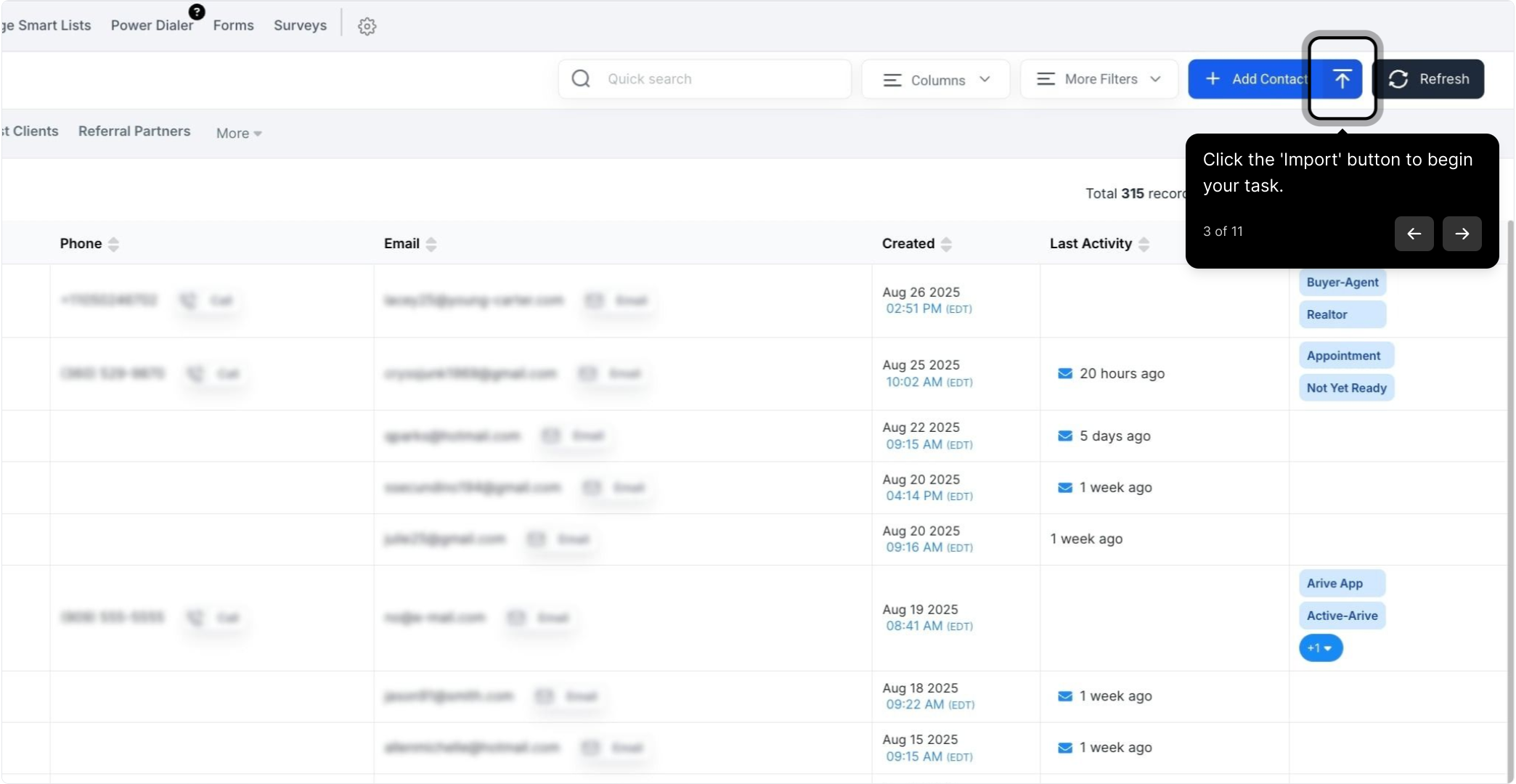
3. Click the 'Import' button to begin your task.
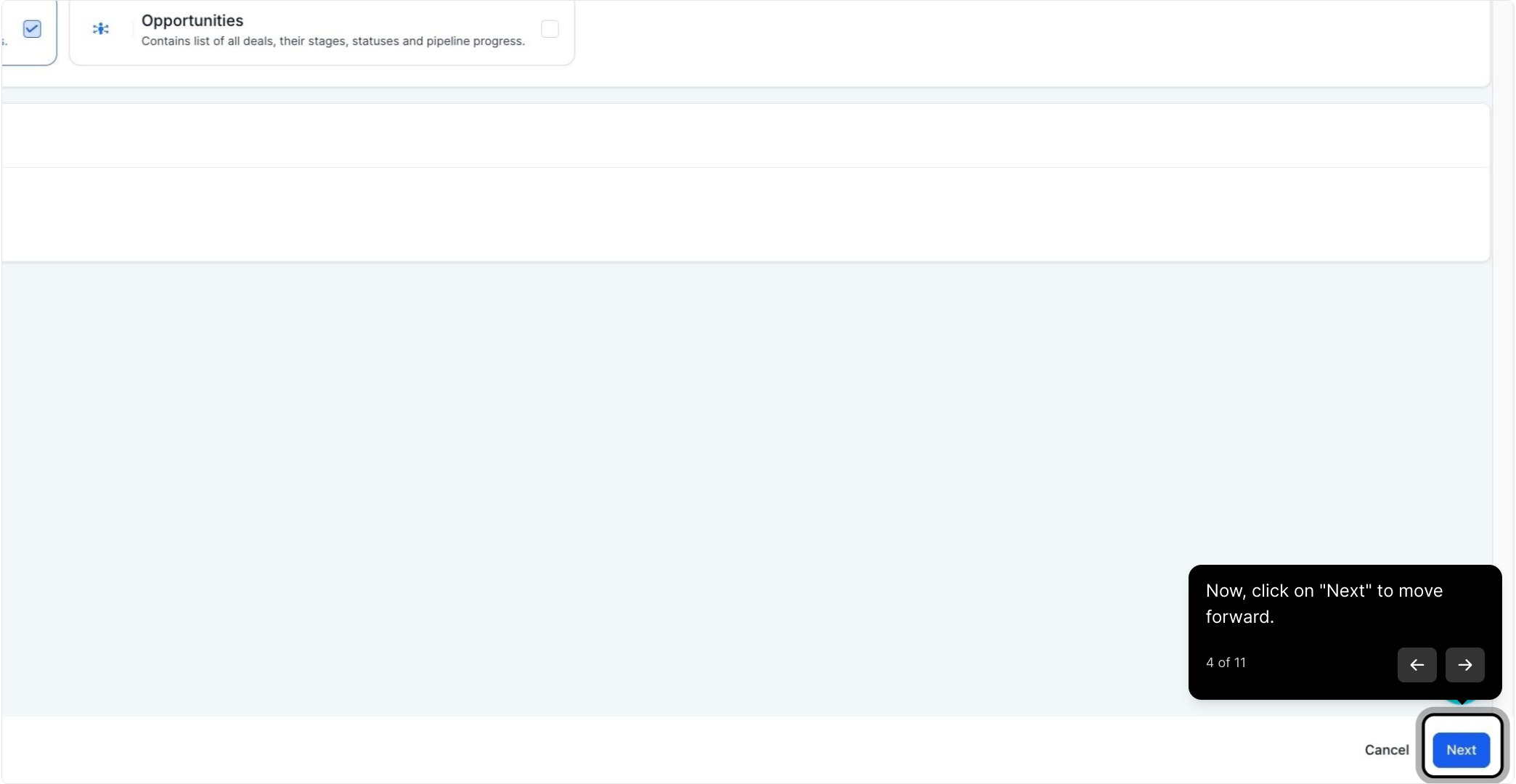
4. Now, click on "Next" to move forward.
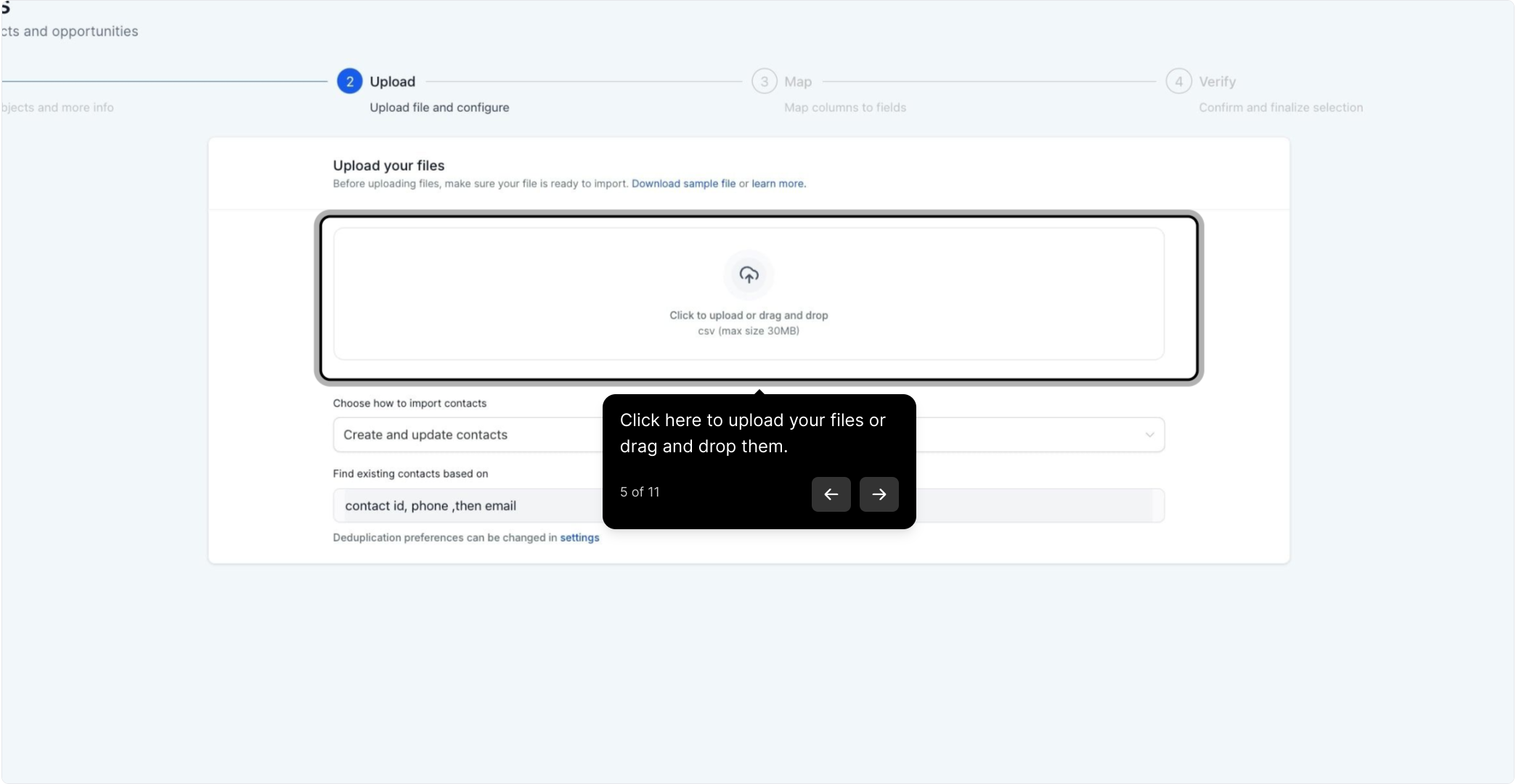
5. Click here to upload your files or drag and drop them.
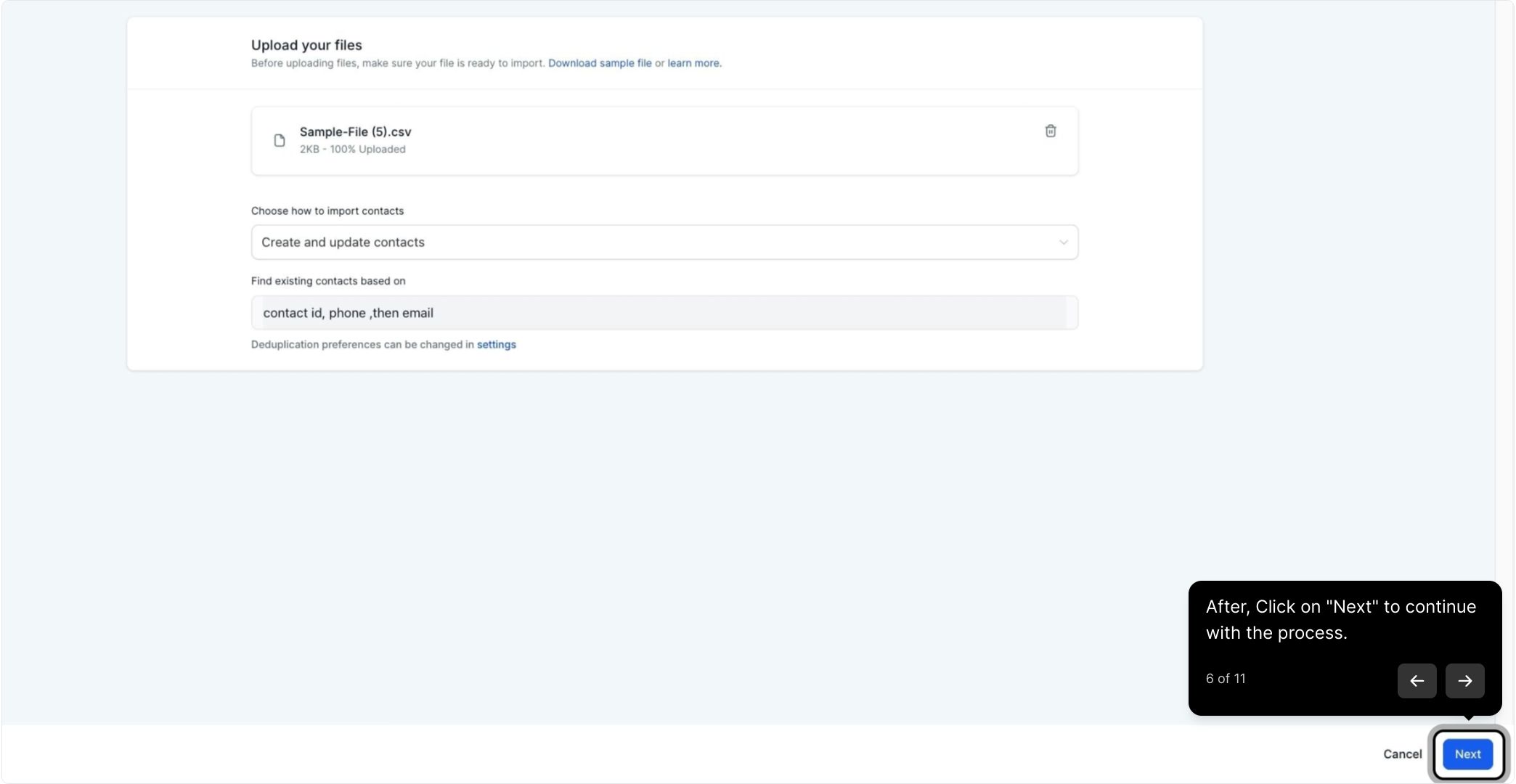
6. After, Click on "Next" to continue with the process.
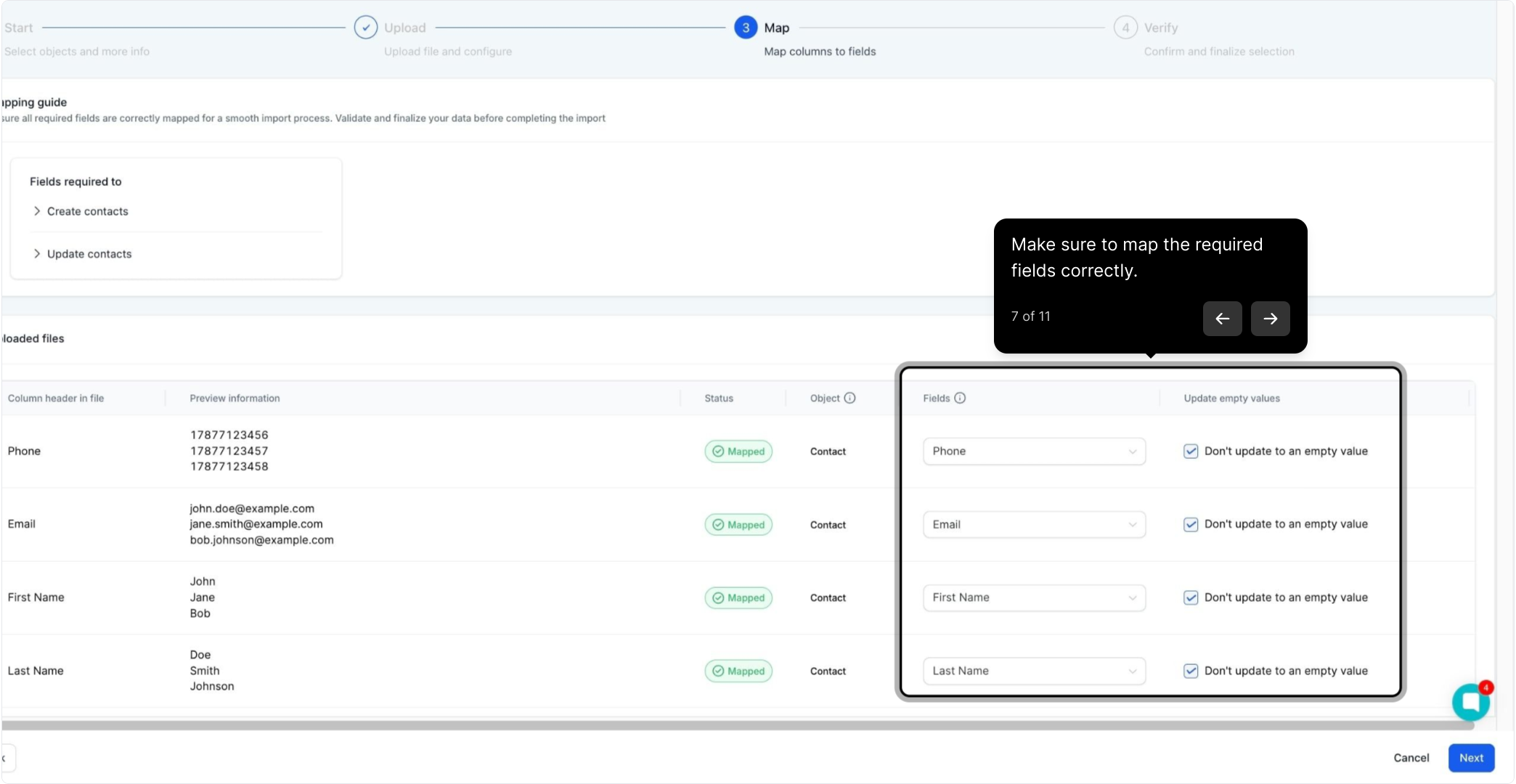
7. Make sure to map the required fields correctly.
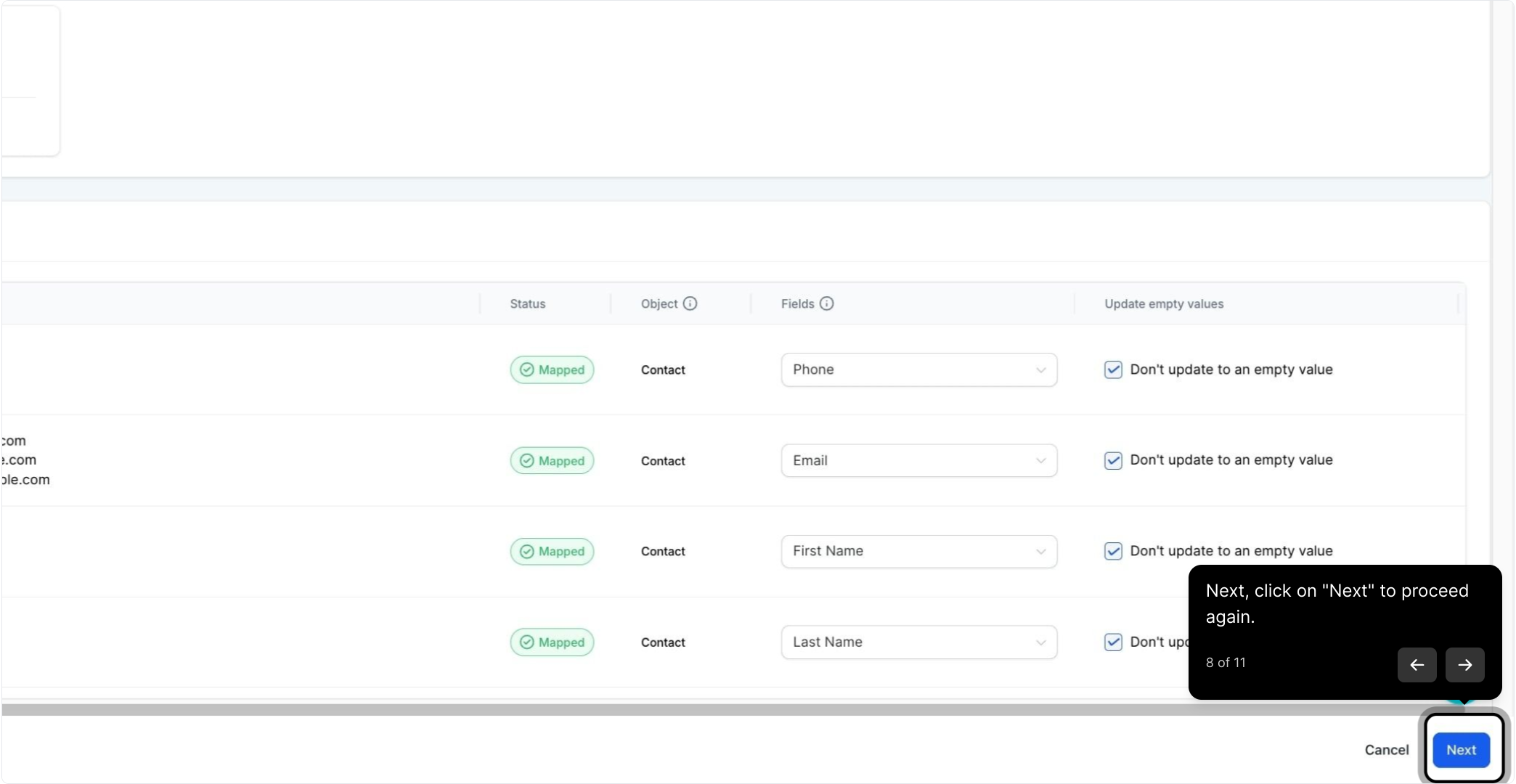
8. Next, click on "Next" to proceed again.
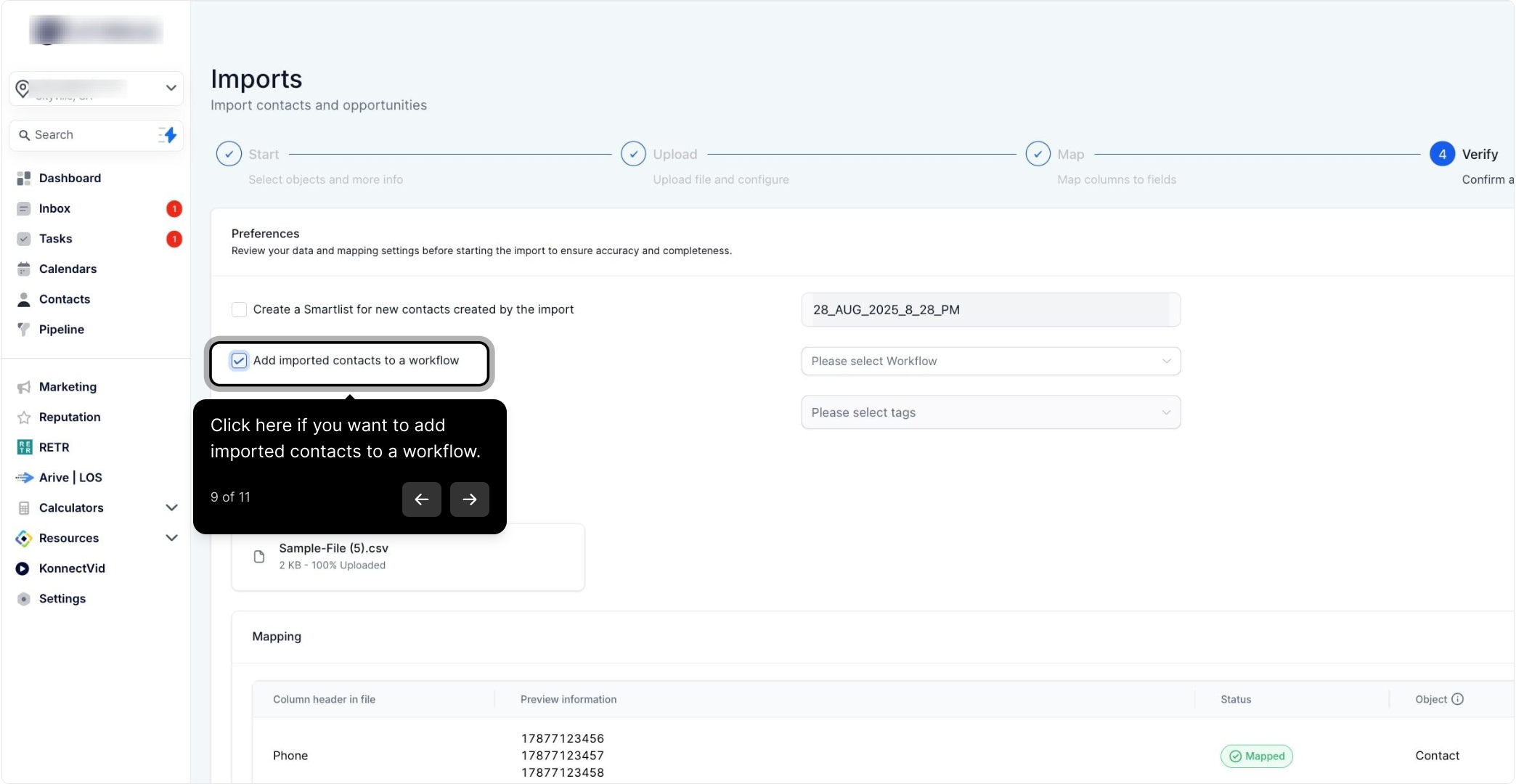
9. Click here if you want to add imported contacts to a workflow.
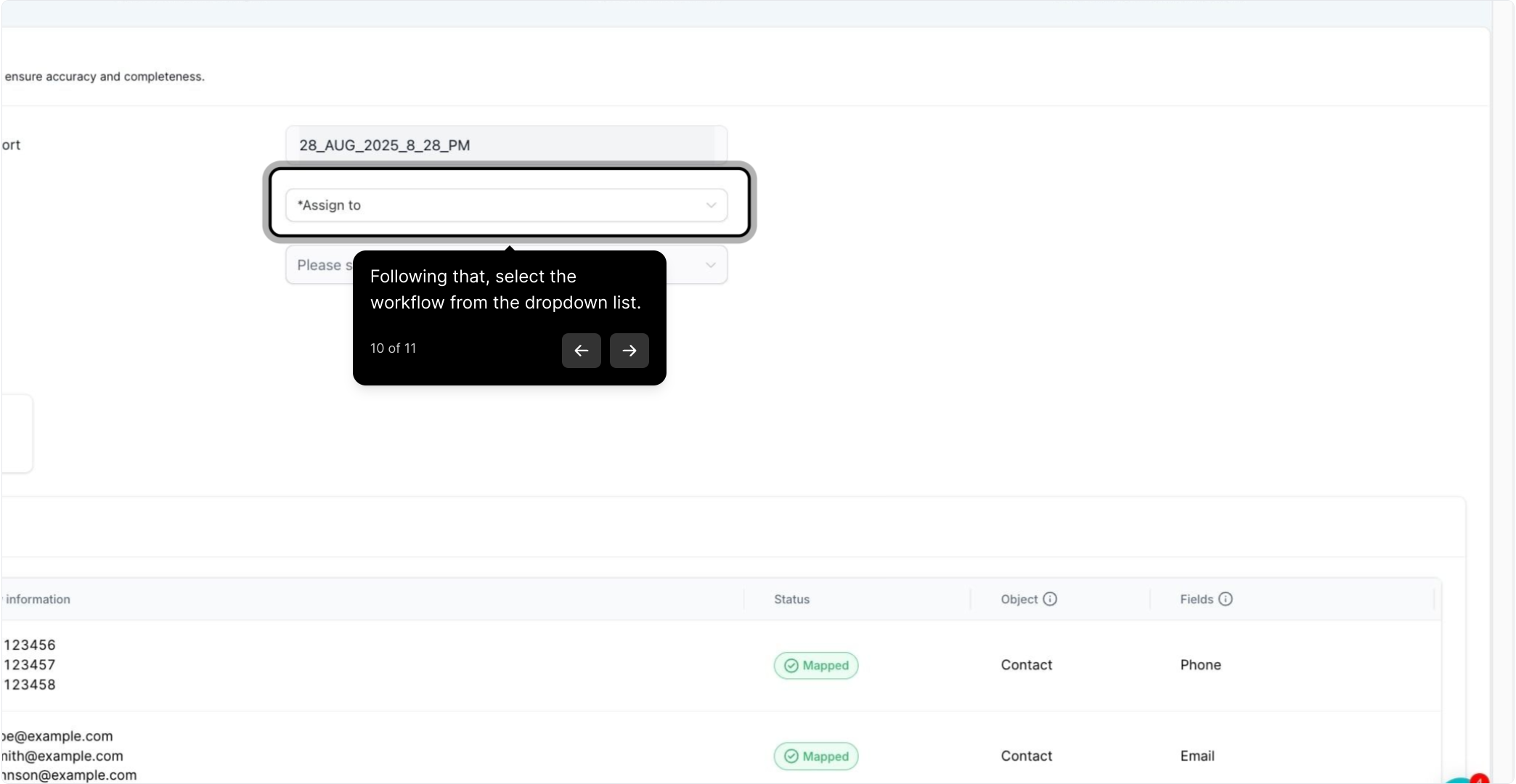
10. Following that, select the workflow from the dropdown list.
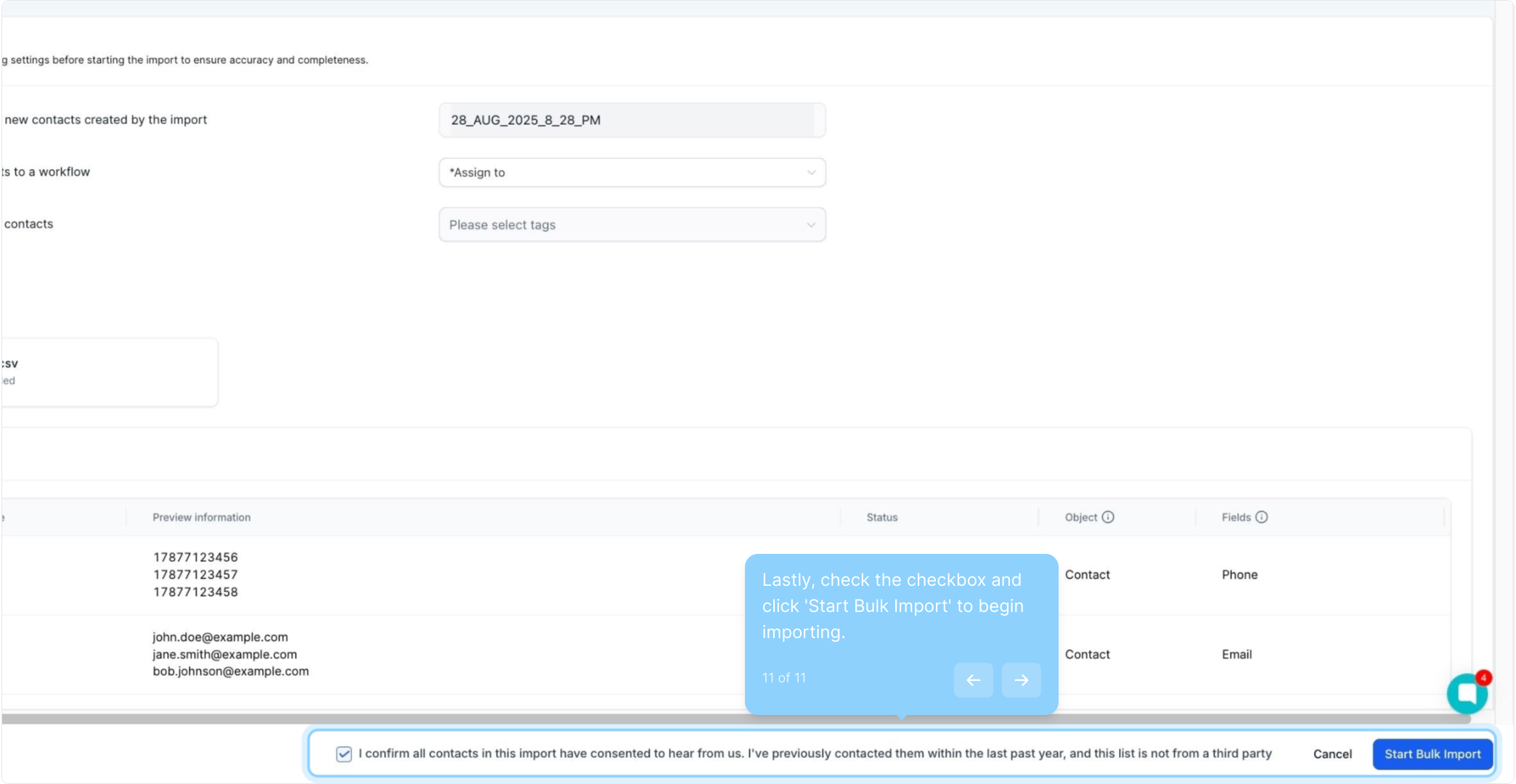
11. Lastly, check the checkbox and click 'Start Bulk Import' to begin importing.