
Option 1: This option is recommended if you have multiple and/or different tags to apply to the contacts in the list being imported.
In the .csv file, have a column titled "Tags" and include as many tags as you'd like, with each separated by a comma. These tags will be created and applied to the associated contact records during import
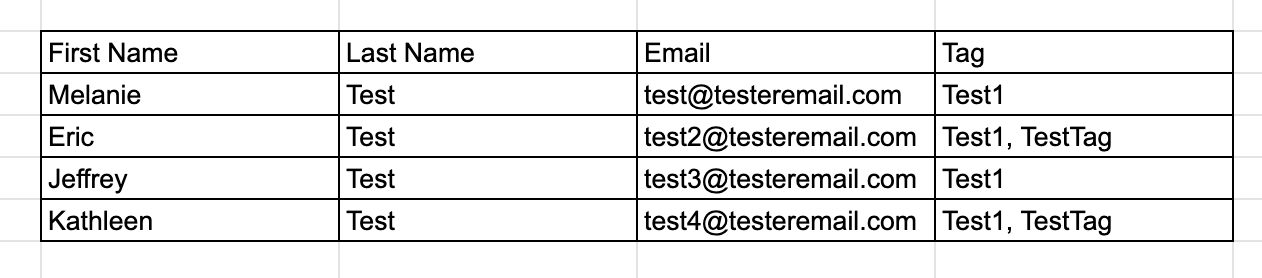
In this example, "Test1" would be applied to all 4 contacts during the import. The second tag, "TestTag", would be added to just 2 contacts.
Option 2: This option is recommended if you want to add one or more tags to the entire list.
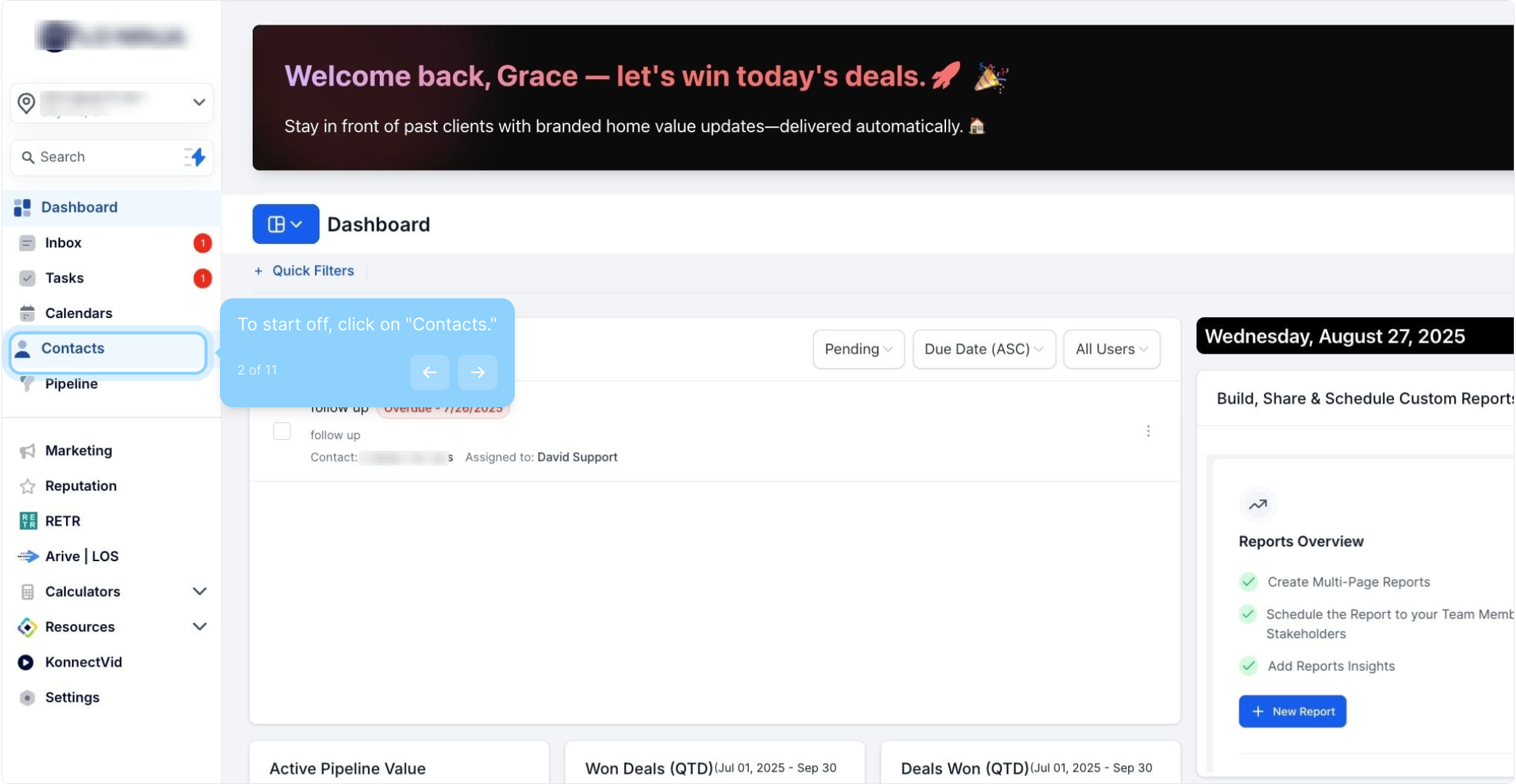
2. To start off, click on "Contacts."
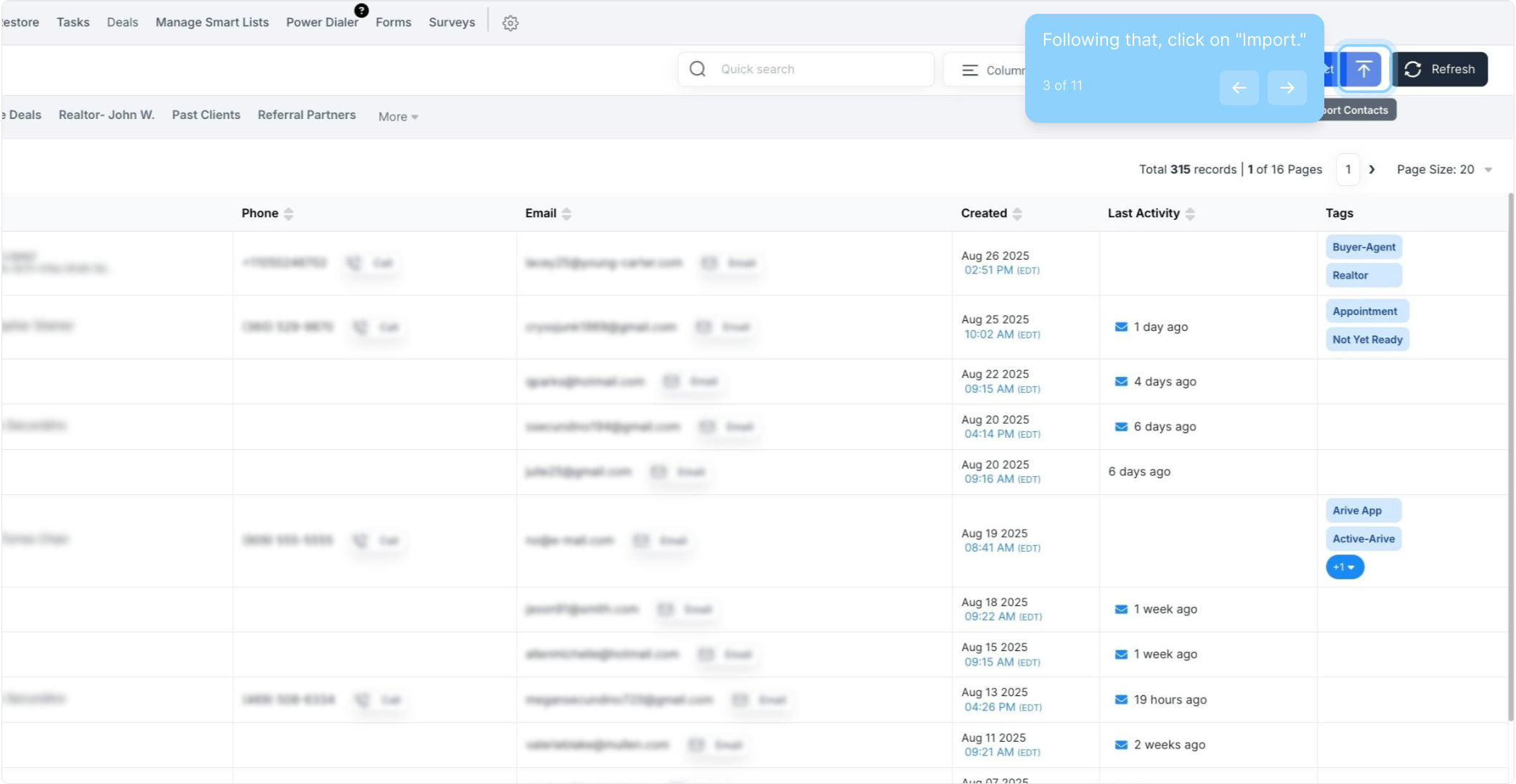
3. Following that, click on "Import."
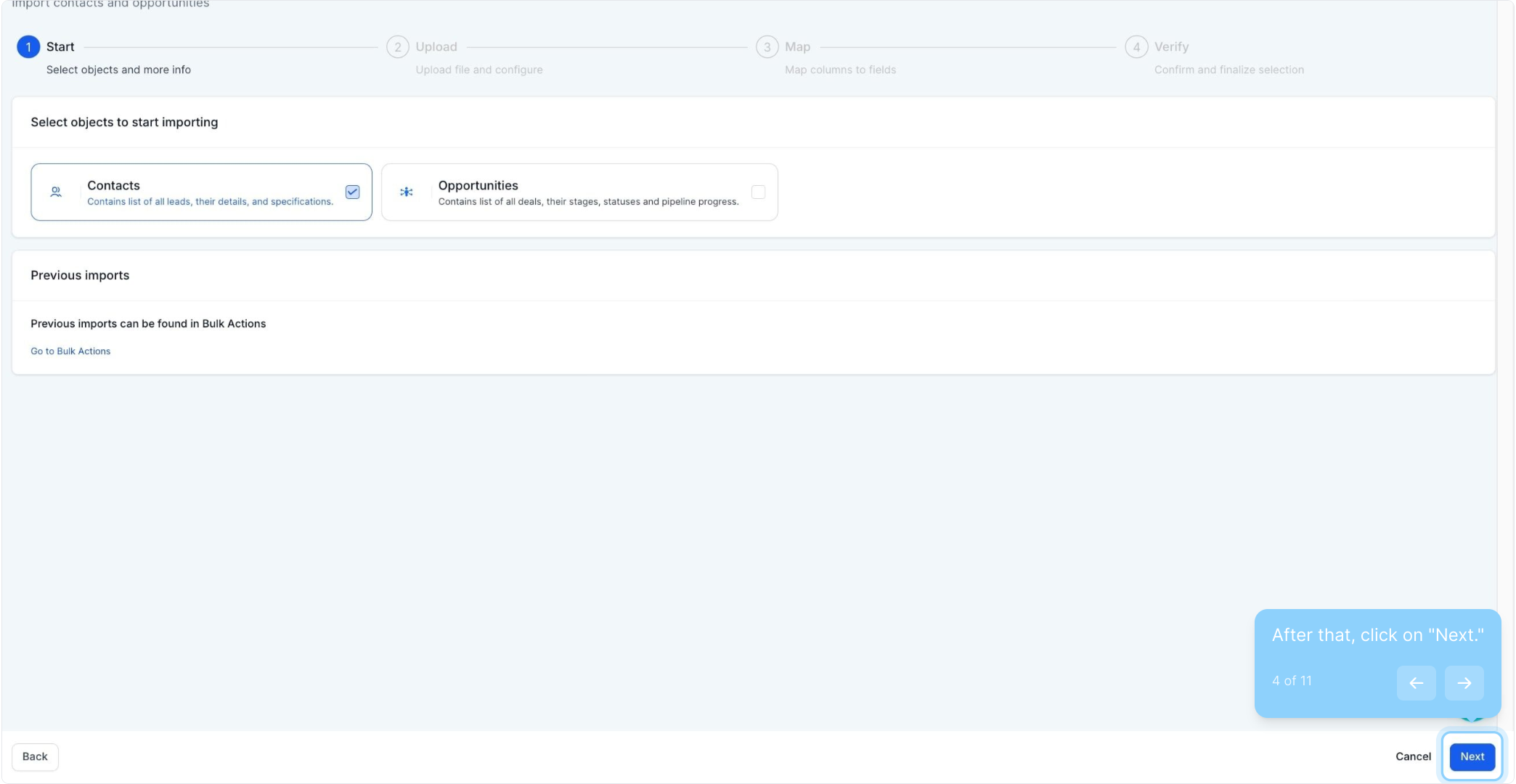
4. After that, click on "Next."
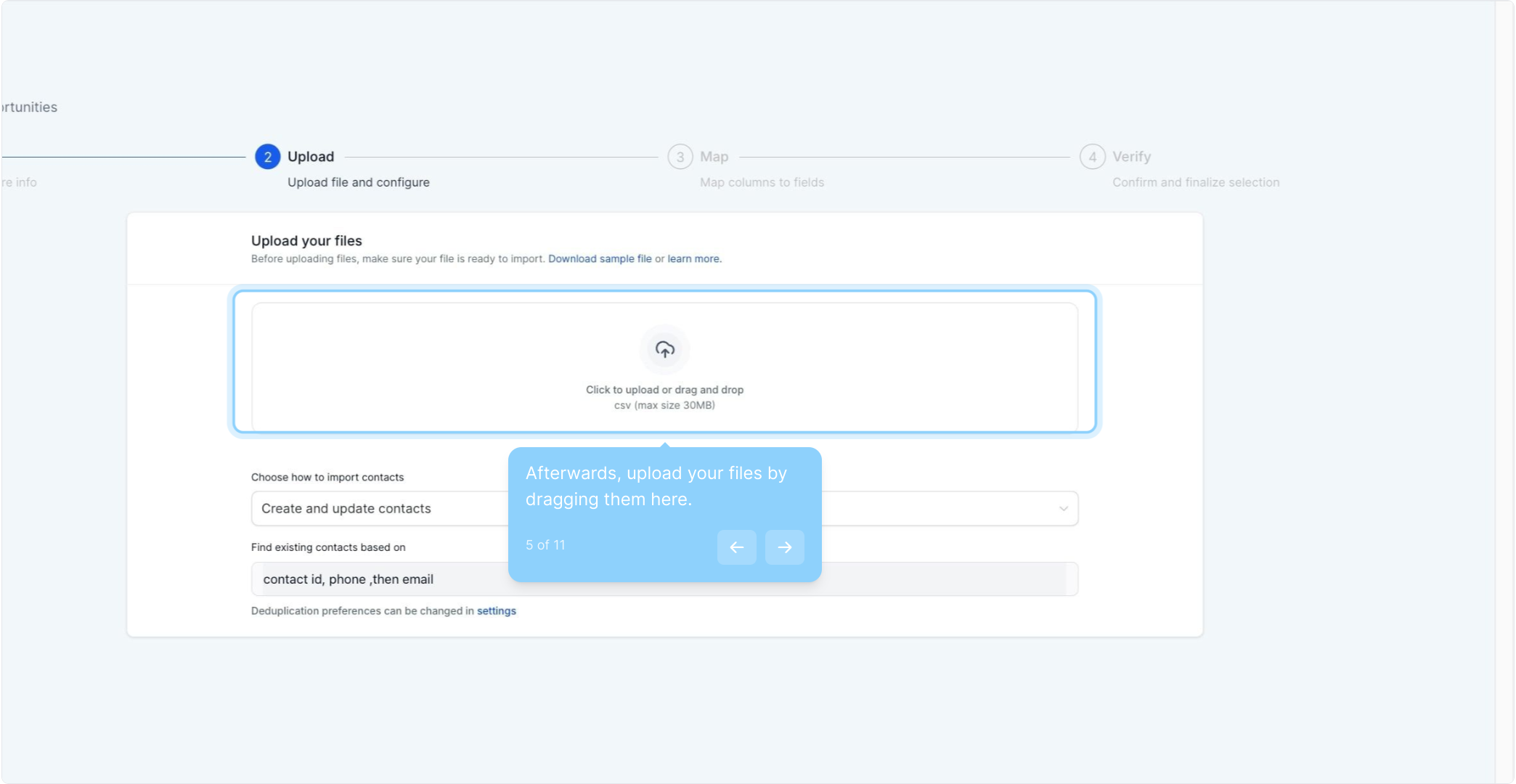
5. Afterwards, upload your files by dragging them here.
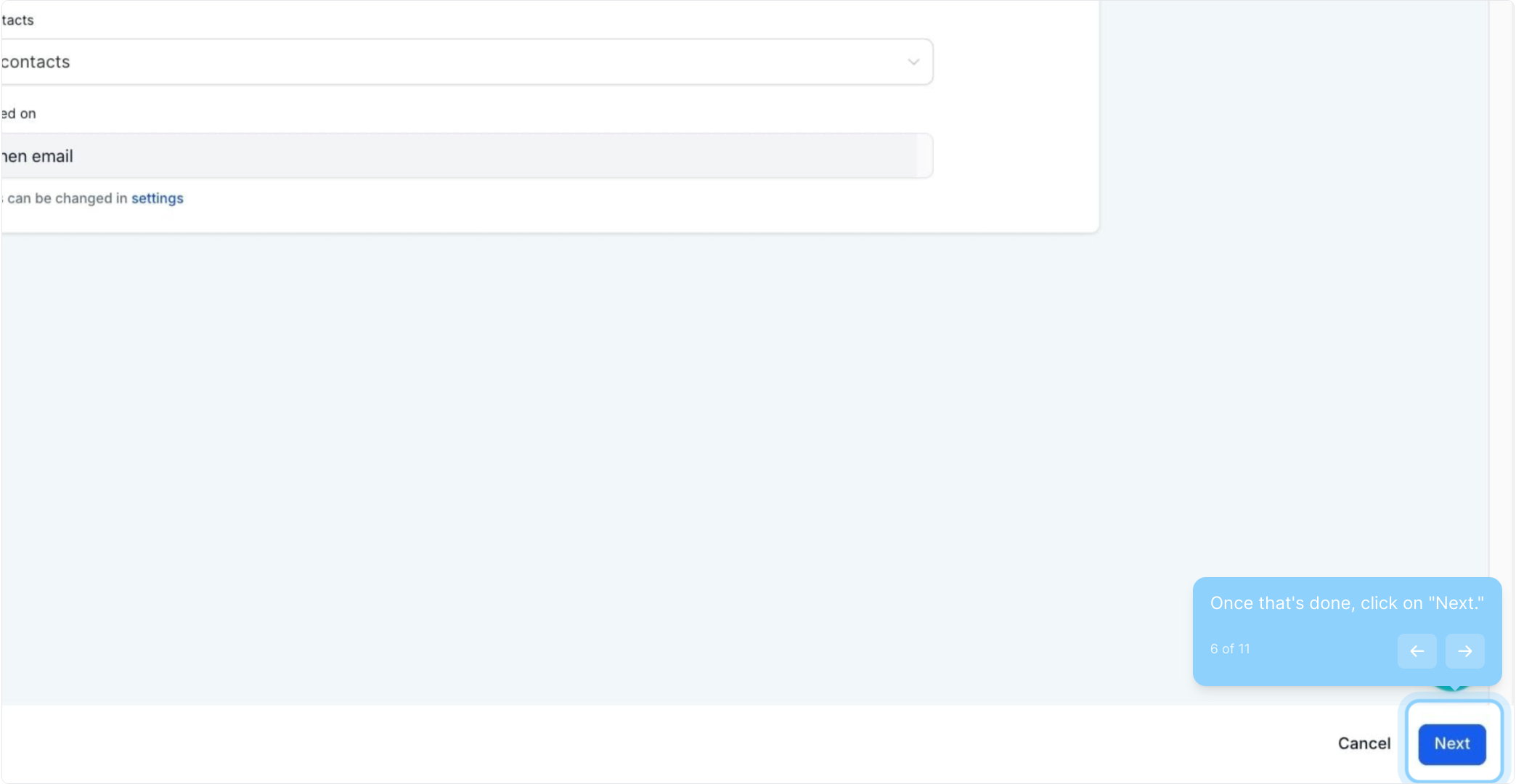
6. Once that's done, click on "Next."
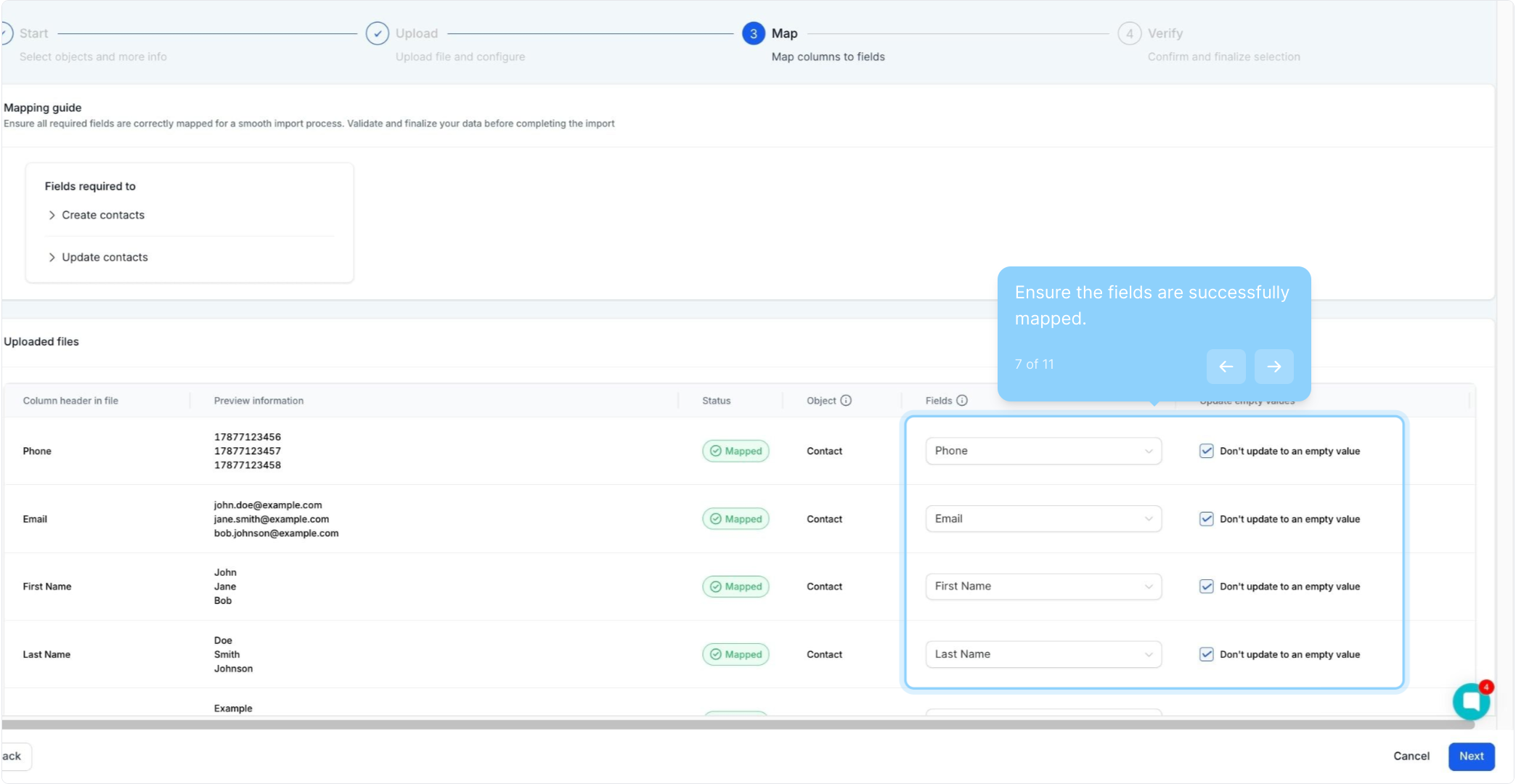
7. Ensure the fields are successfully mapped.
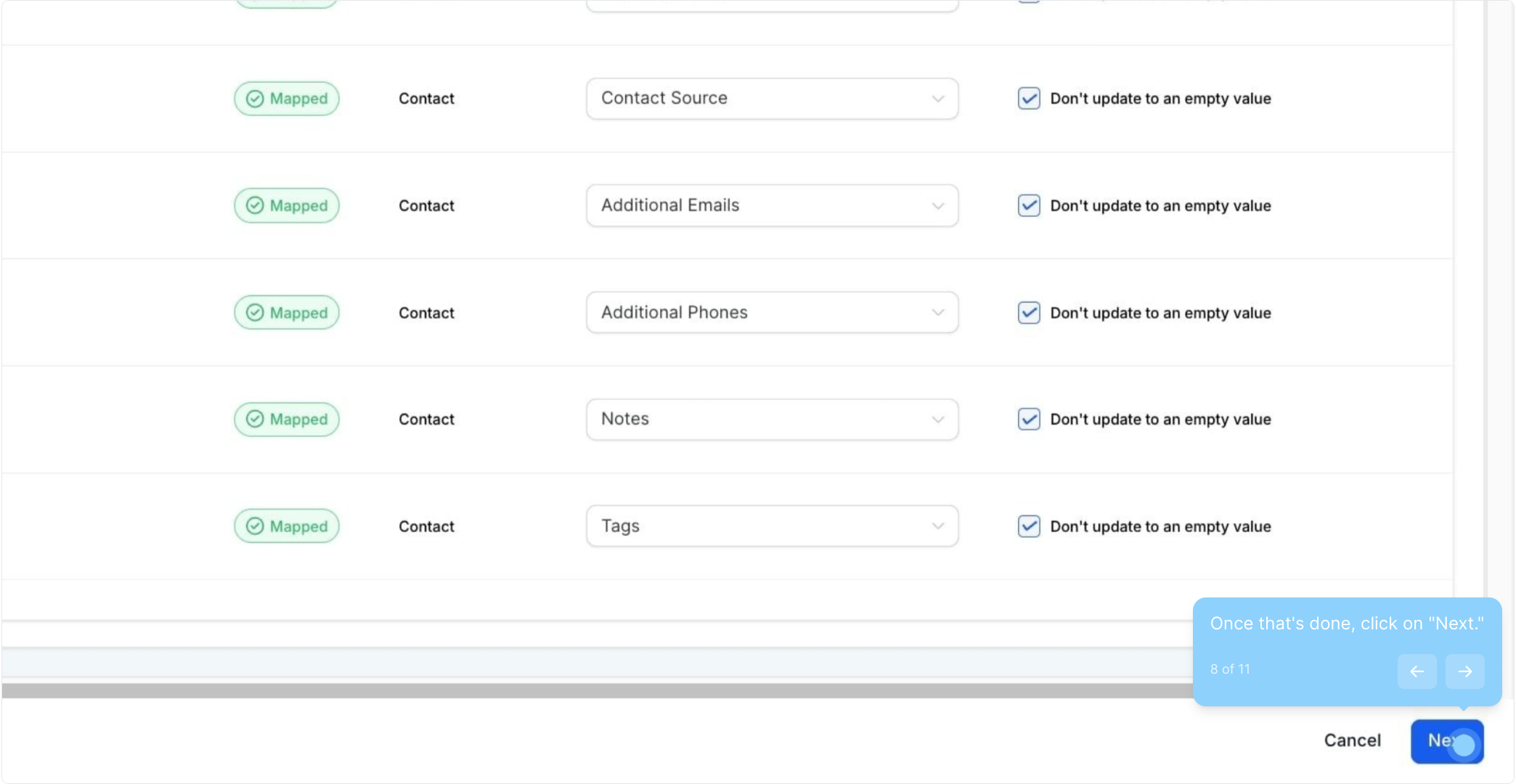
8. Once that's done, click on "Next."
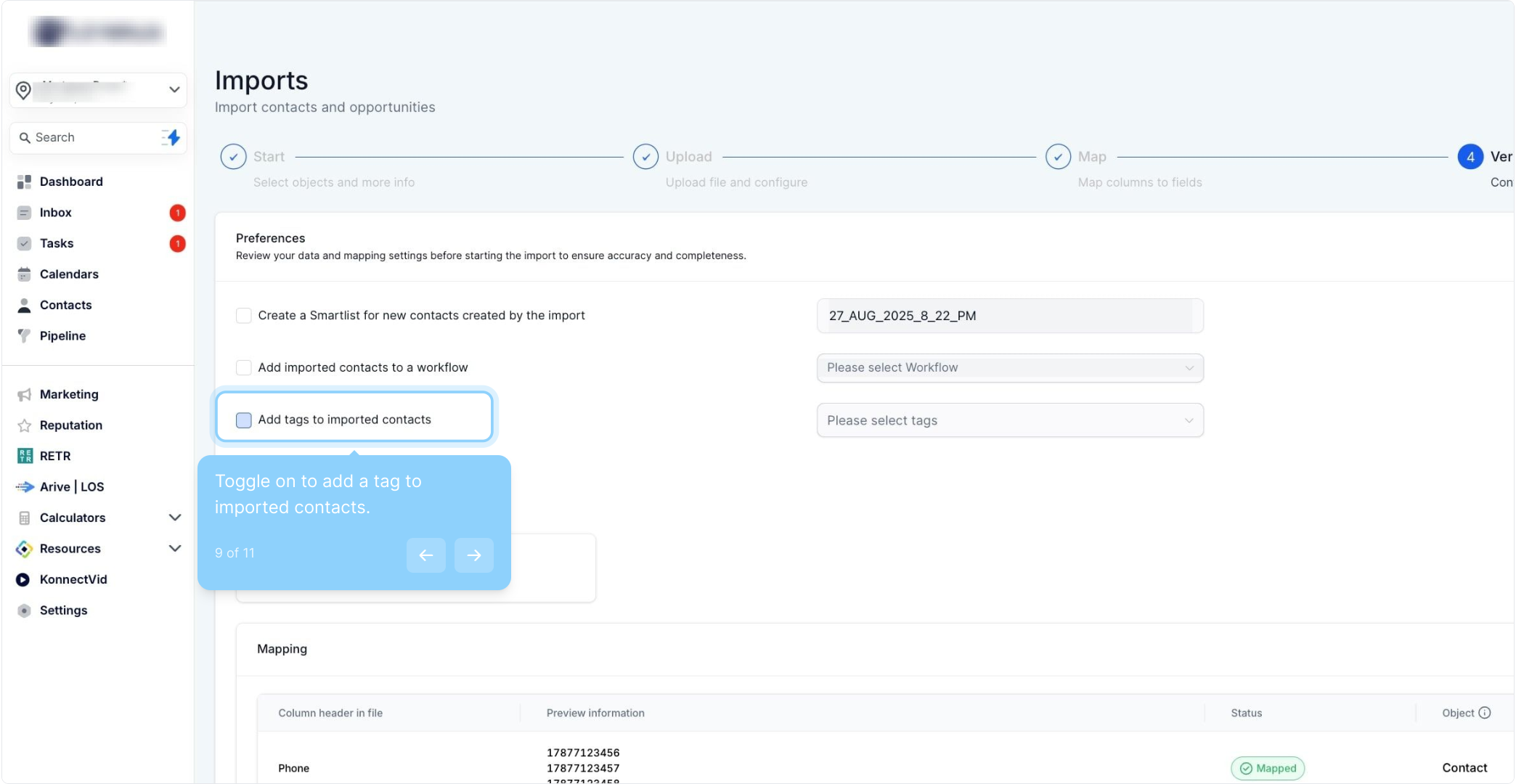
9. Toggle on to add a tag to imported contacts.
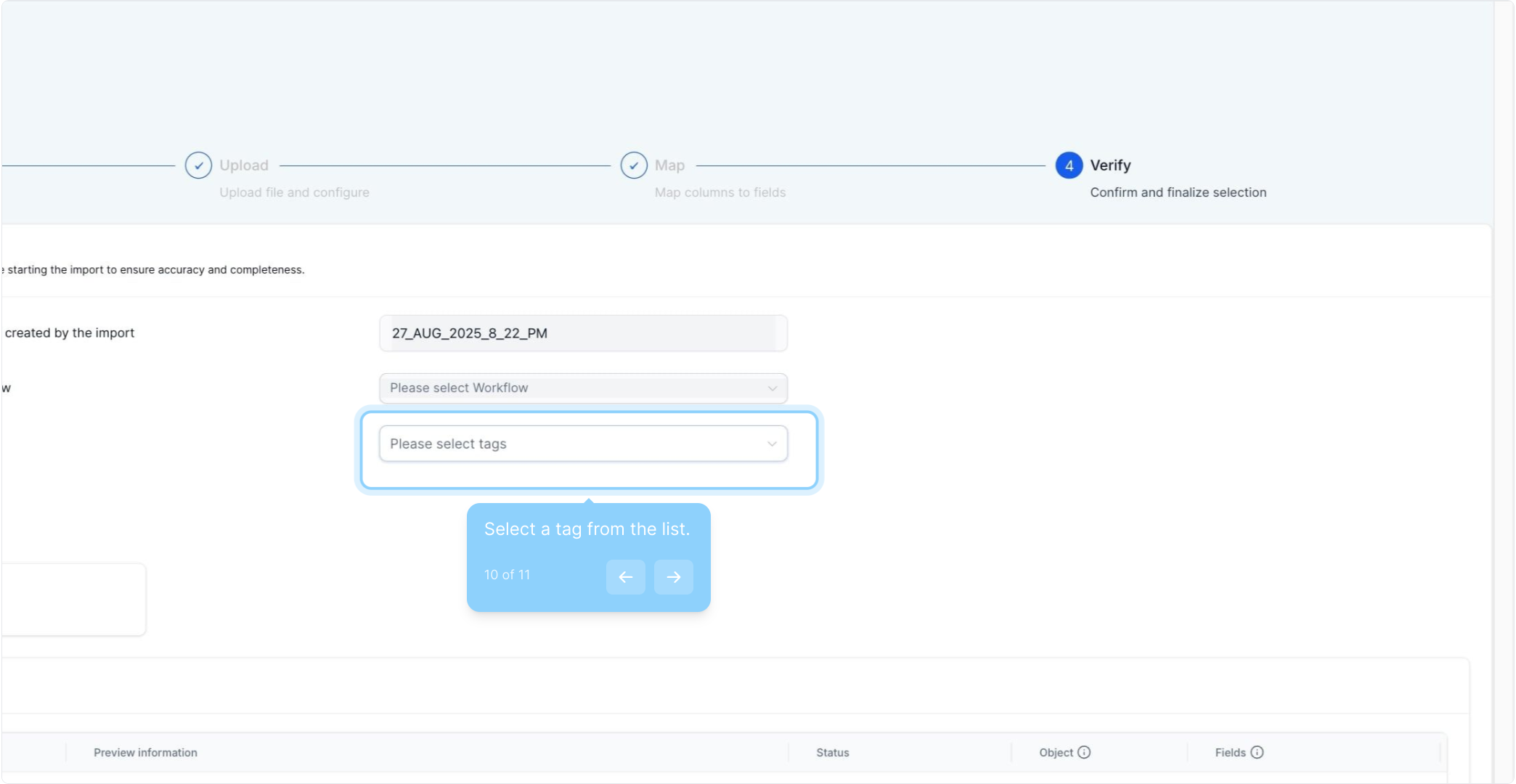
10. Select a tag from the list.
You may include one or multiple tags. You may use existing tags or create new ones right here in the import section.
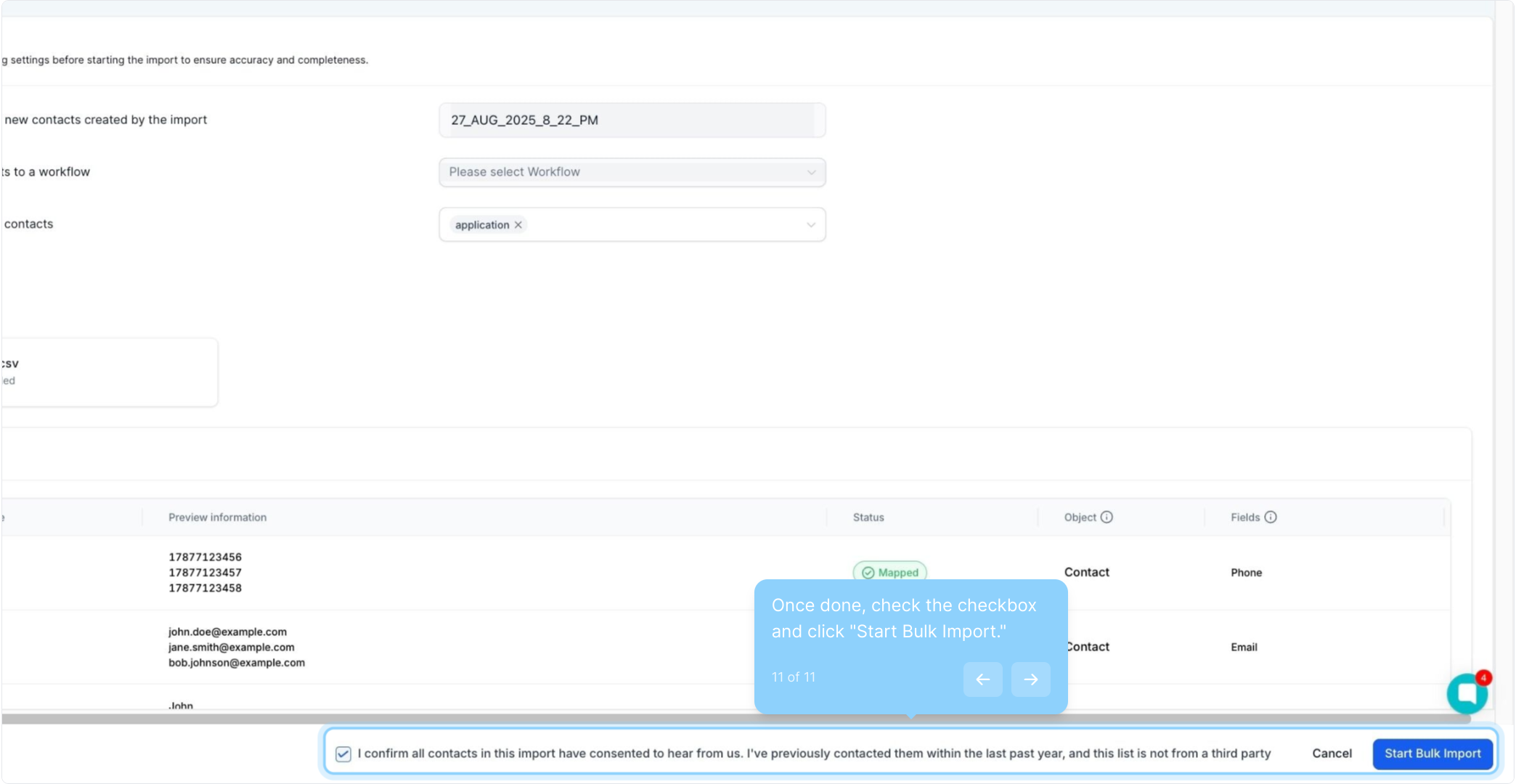
11. Once done, check the checkbox and click "Start Bulk Import."
FAQ
Q: How do I format the "Tags" column in the .csv file?
A: In the "Tags" column, list all applicable tags for each contact, separated by commas. Each tag will be created and applied during the import.
Q: Can I add multiple tags during the list import?
A: Yes, you can add multiple tags either by listing them in the "Tags" column of the .csv file (Option 1) or by entering them in Step 3 "Details" during the import process (Option 2).
Q: Can I use existing tags or create new ones during the import?
A: Both options are available. You can use existing tags or create new tags directly during the import process.
Q: What is the difference between the two options for adding tags?
A: Use Option 1 if different contacts need different tags (set in the .csv file). Use Option 2 if you want to apply the same tag(s) to the entire list during import.