
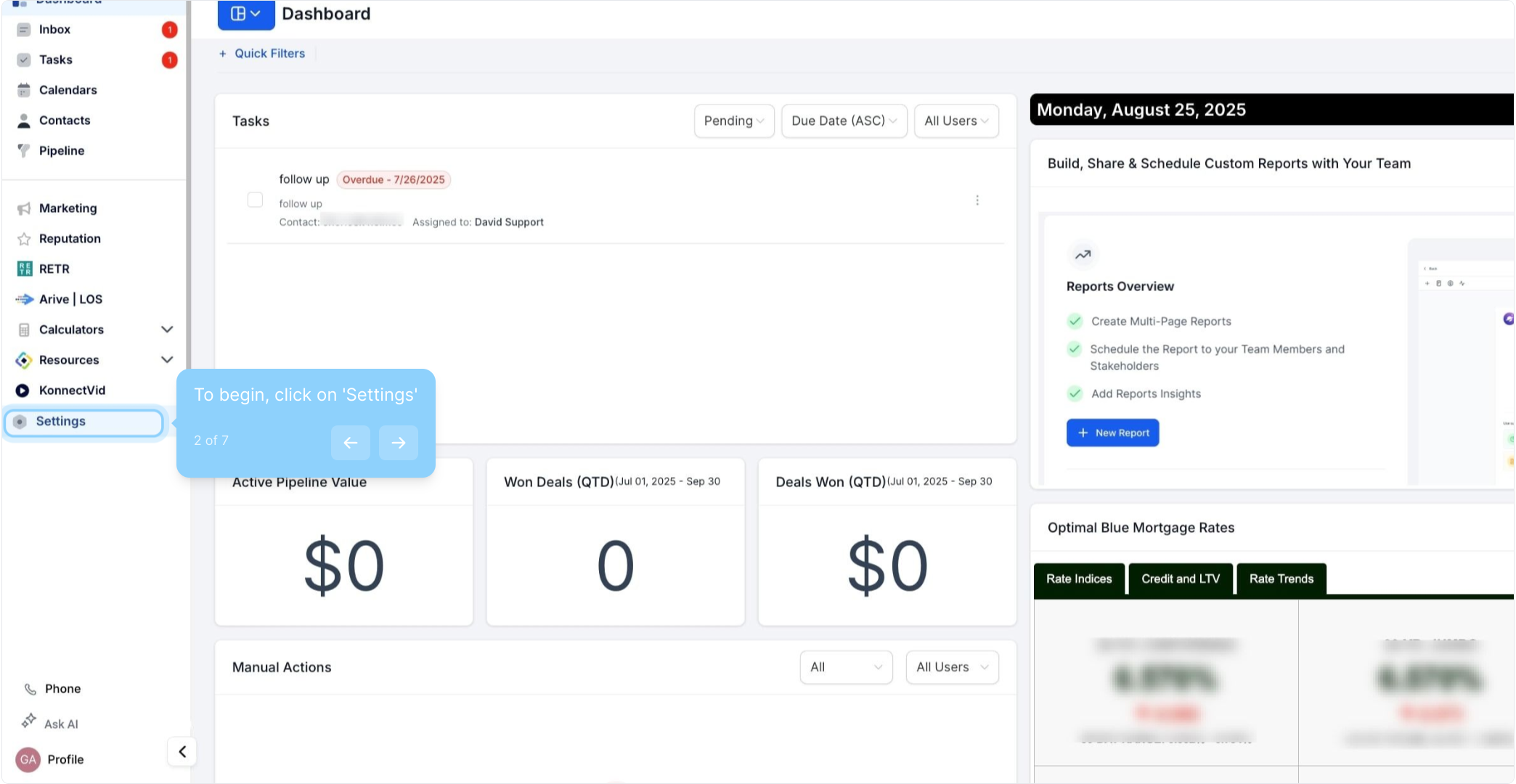
2. To begin, click on 'Settings'
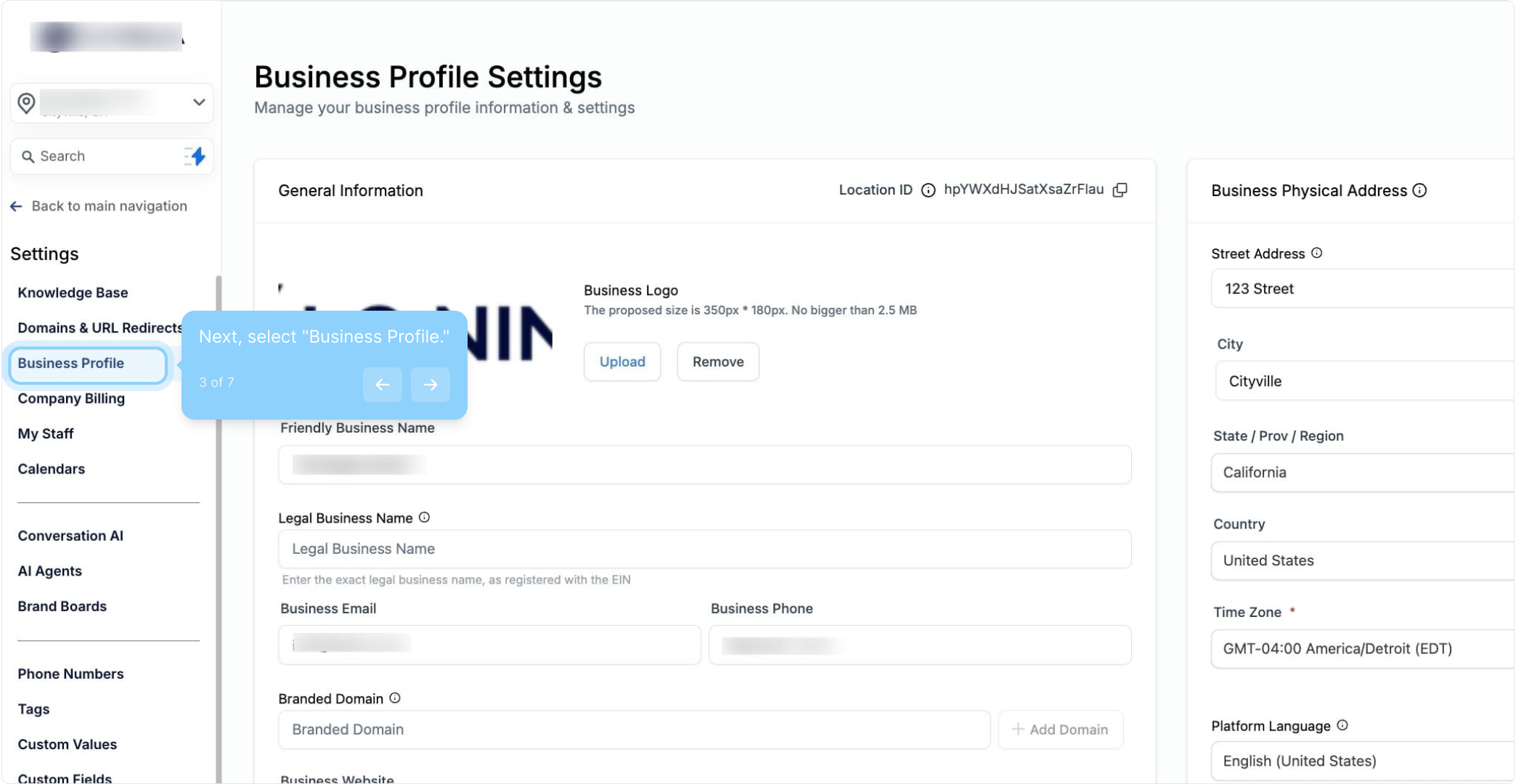
3. Next, select "Business Profile."
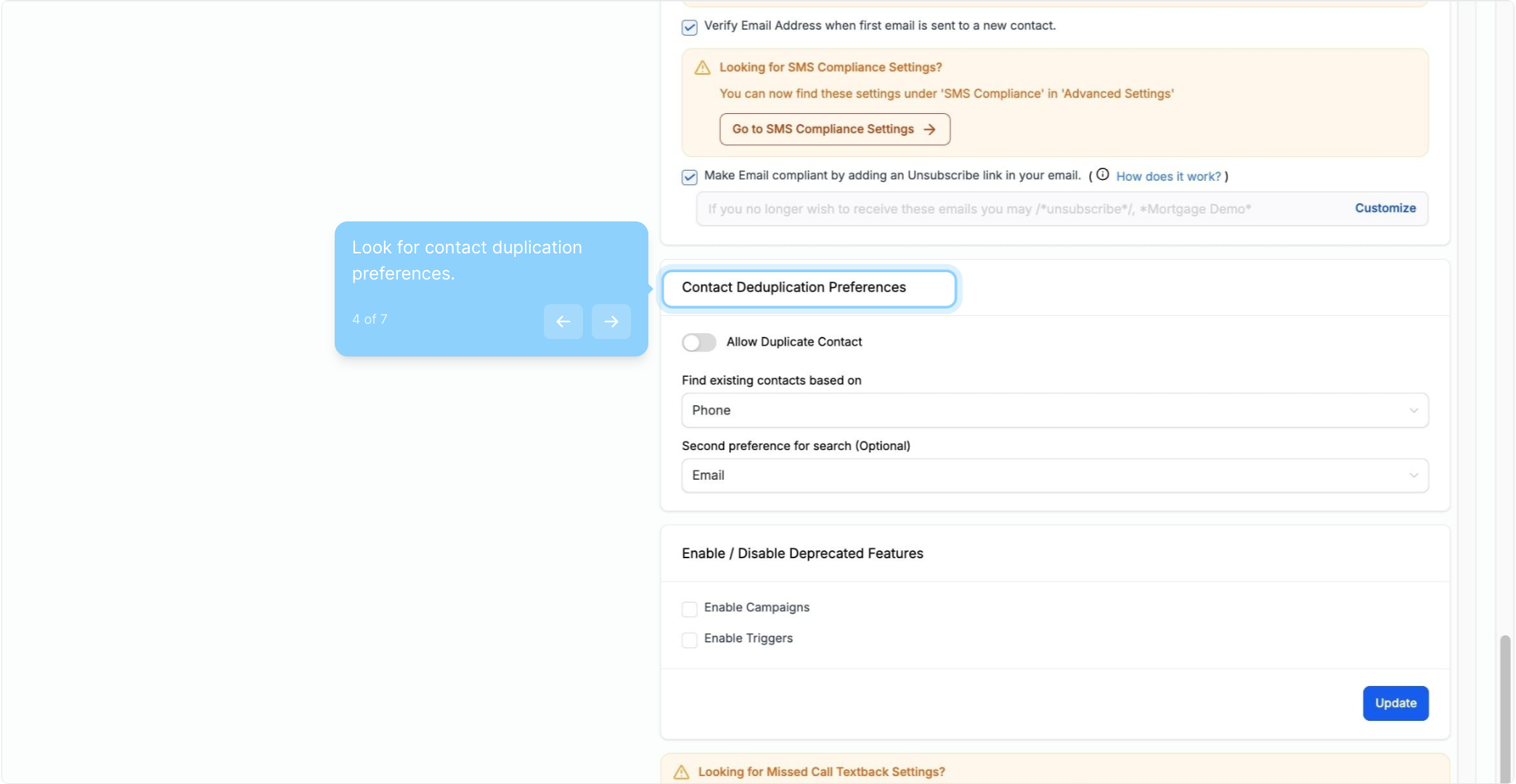
4. Look for contact duplication preferences.
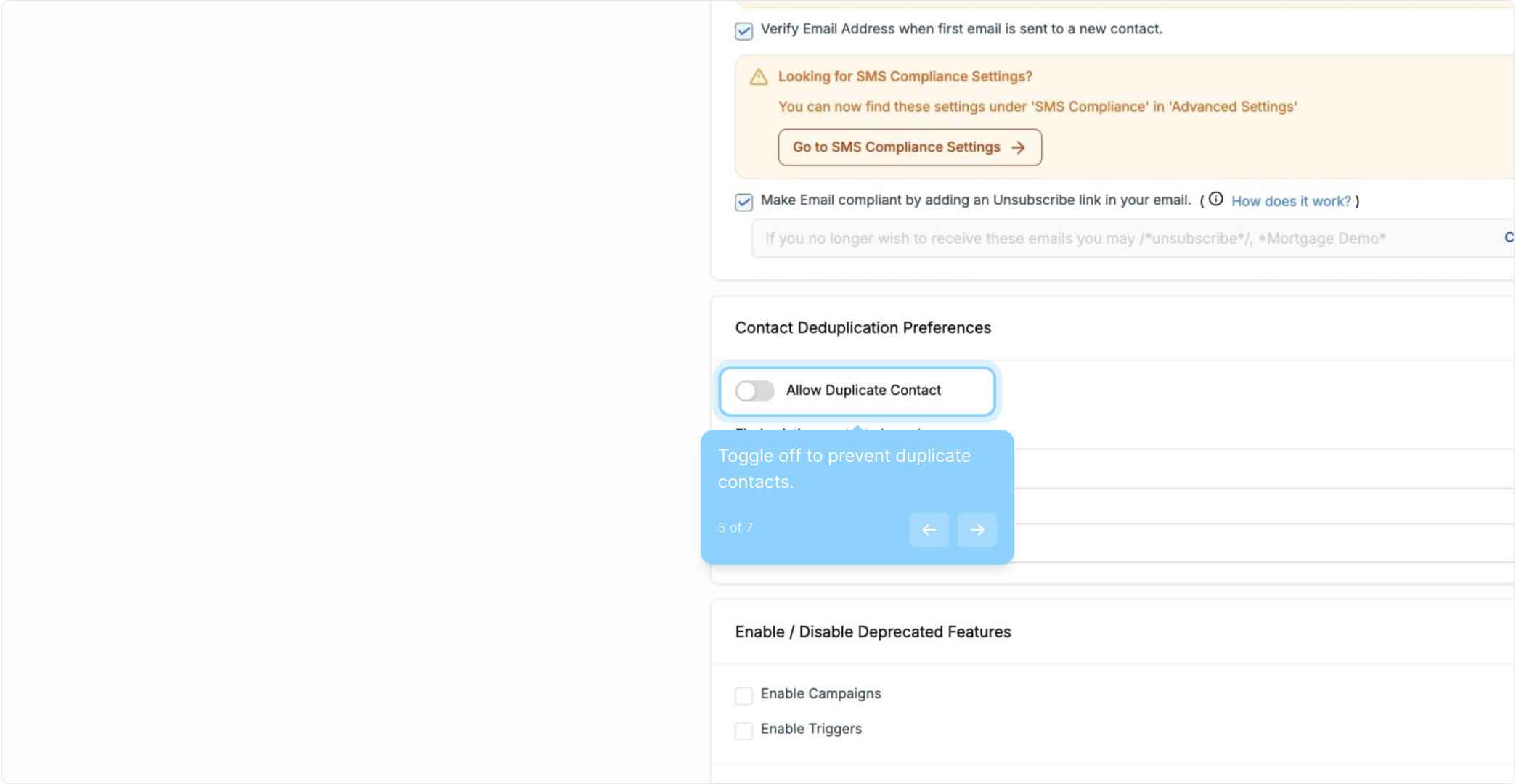
5. Toggle off to prevent duplicate contacts.
6. Adjust how your sub-account handles duplicate contacts.
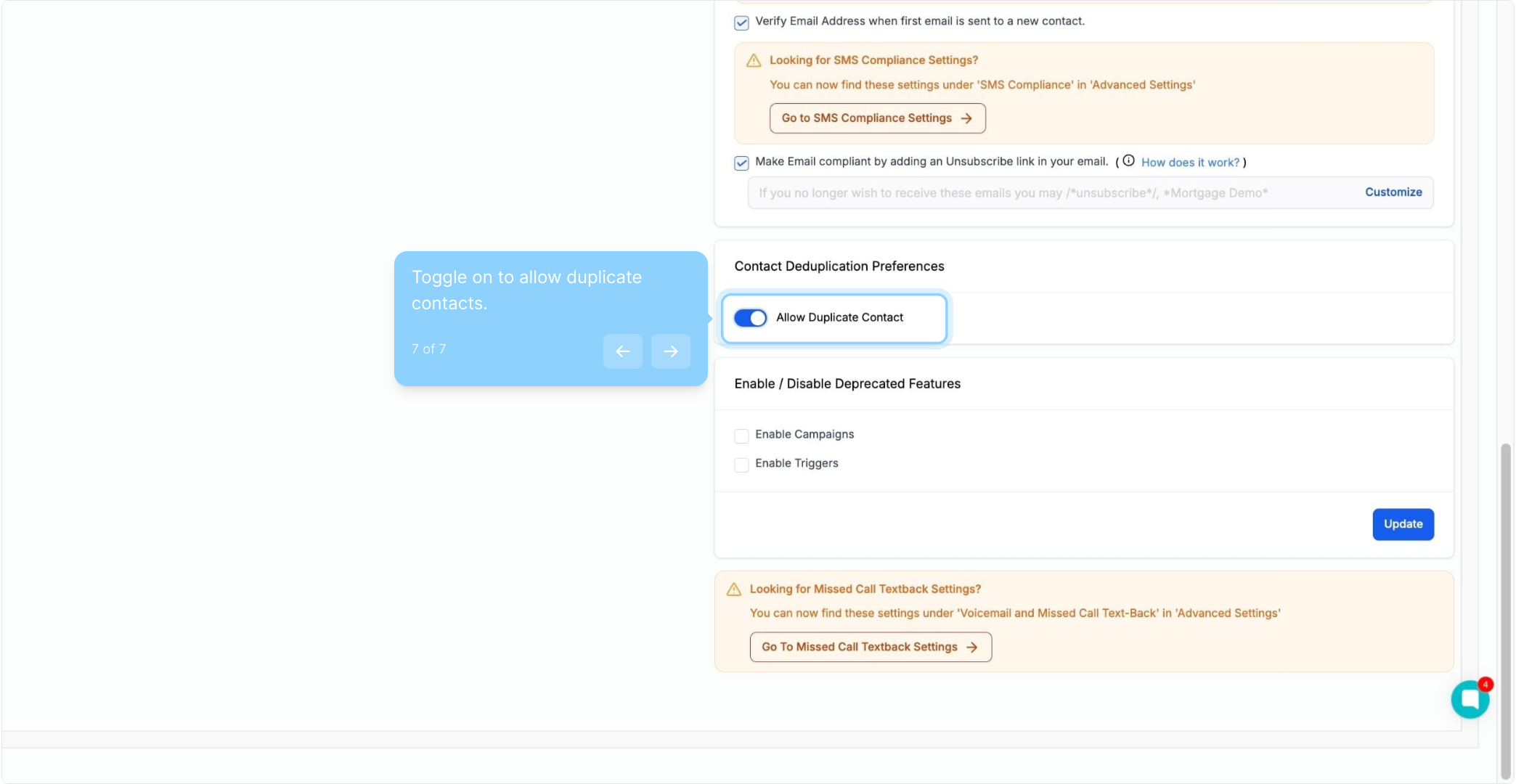
This setting allows you to control how your account treats duplicate contacts.
NOTE: An error will occur if "Allow Duplicate Contact" is on and you try to import a bulk upload.
If you choose to toggle this setting OFF, you can adjust exactly how your sub-account looks for duplicate contacts. You can look for email or phone numbers first when determining if a contact is a duplicate, and if you want another layer of confirmation, you can also select a secondary determining factor.
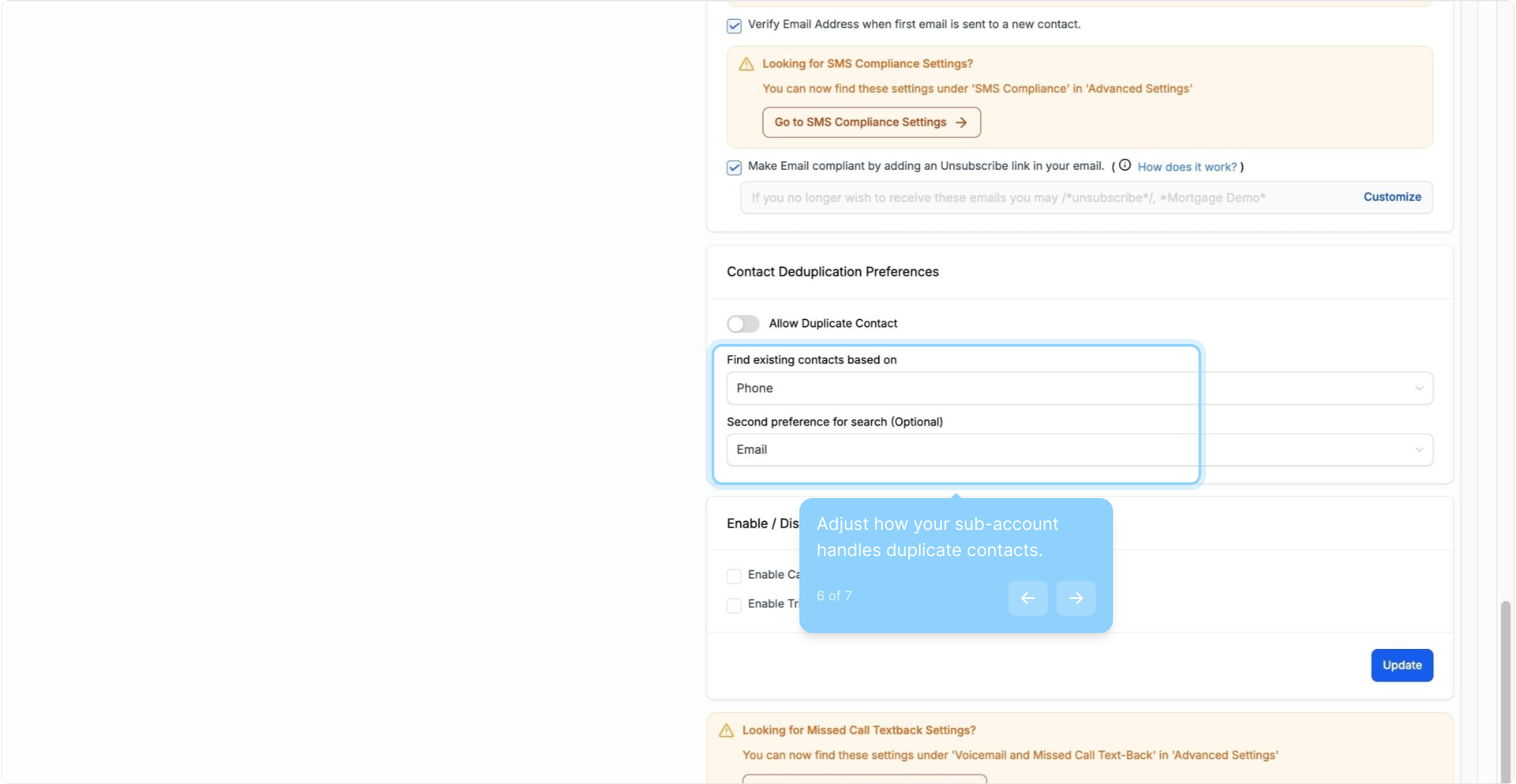
7. Toggle on to allow duplicate contacts.
FAQ
What is the "Allow Duplicate Contact" setting?
This setting controls whether duplicate contacts are allowed in your sub-account. When enabled, duplicates can be created; when disabled, duplicate detection is enforced.
What happens if I try to import contacts with "Allow Duplicate Contact" turned on?
If "Allow Duplicate Contact" is on, you may encounter errors during bulk import due to the system allowing duplicate entries.
How can I configure duplicate contact detection if I turn off the "Allow Duplicate Contact" setting?
You can set your sub-account to detect duplicates based on email addresses, phone numbers, or both. You can choose which factor to prioritize and add an additional layer of confirmation if needed.
Where can I find more information about importing contacts?
For detailed instructions on importing contacts, refer to the article "How To Import and Export Contacts."
Can I filter down duplicate contacts in my contact list?
At the moment, this is not possible, a workaround for this is to export the list, use clean up the list, and import again.