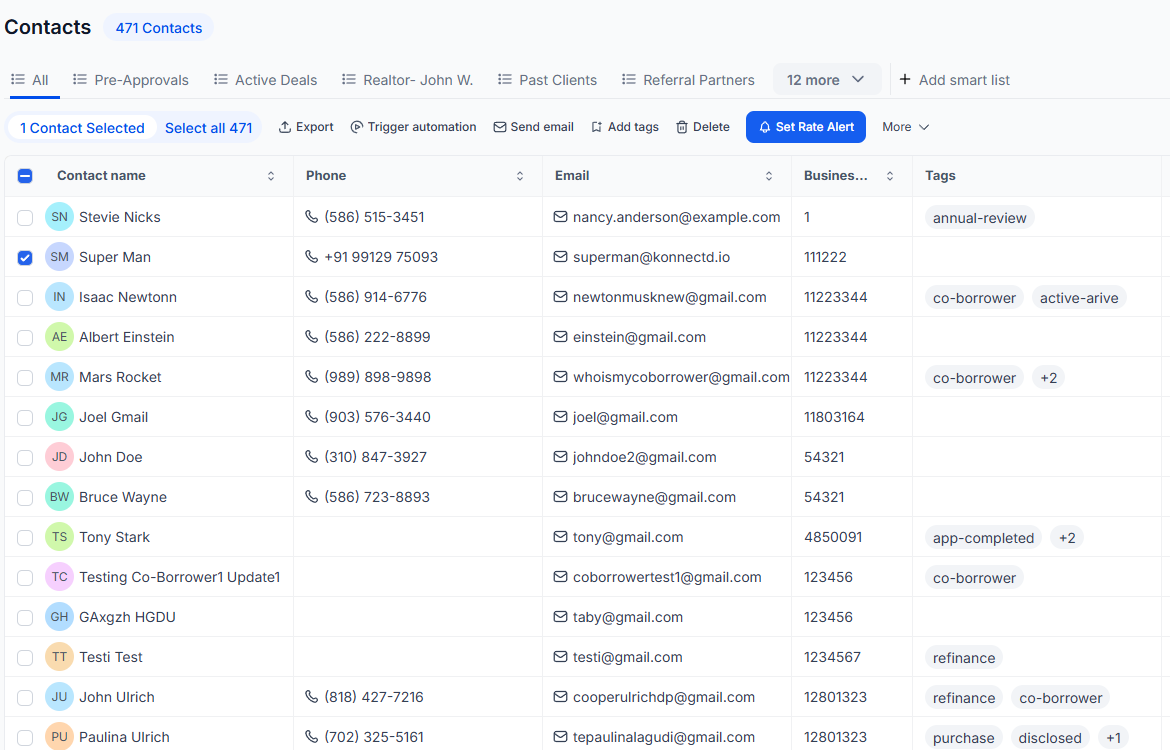
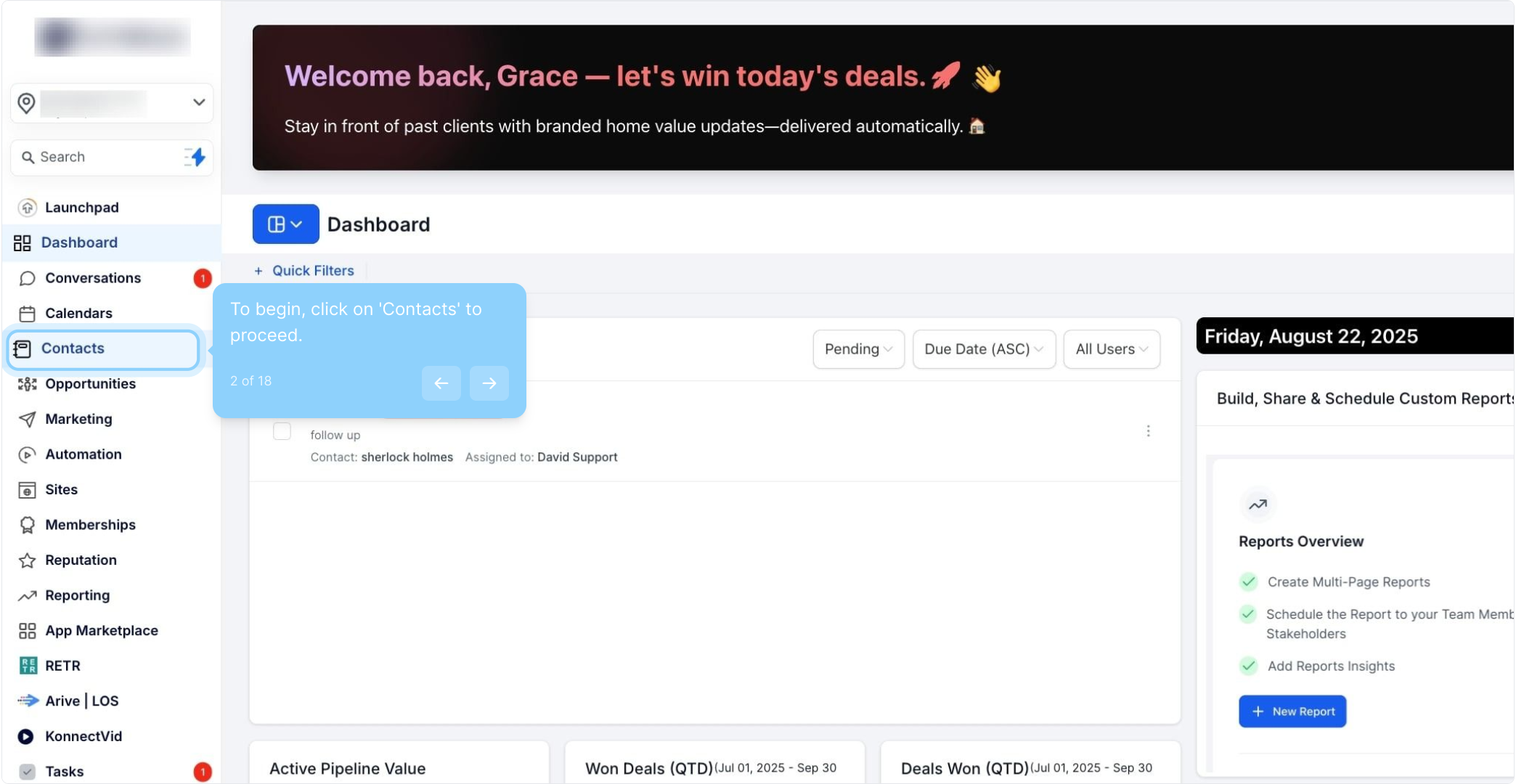
2. To begin, click on 'Contacts' to proceed.
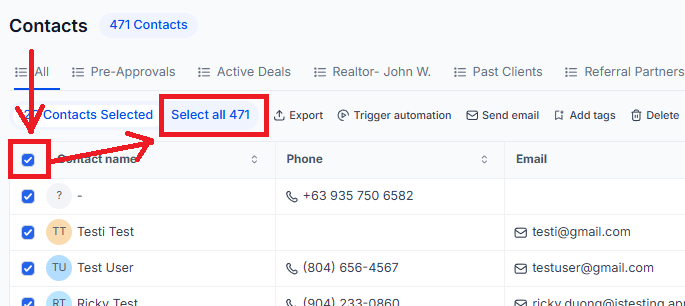
3. Check the box next to the contact name.

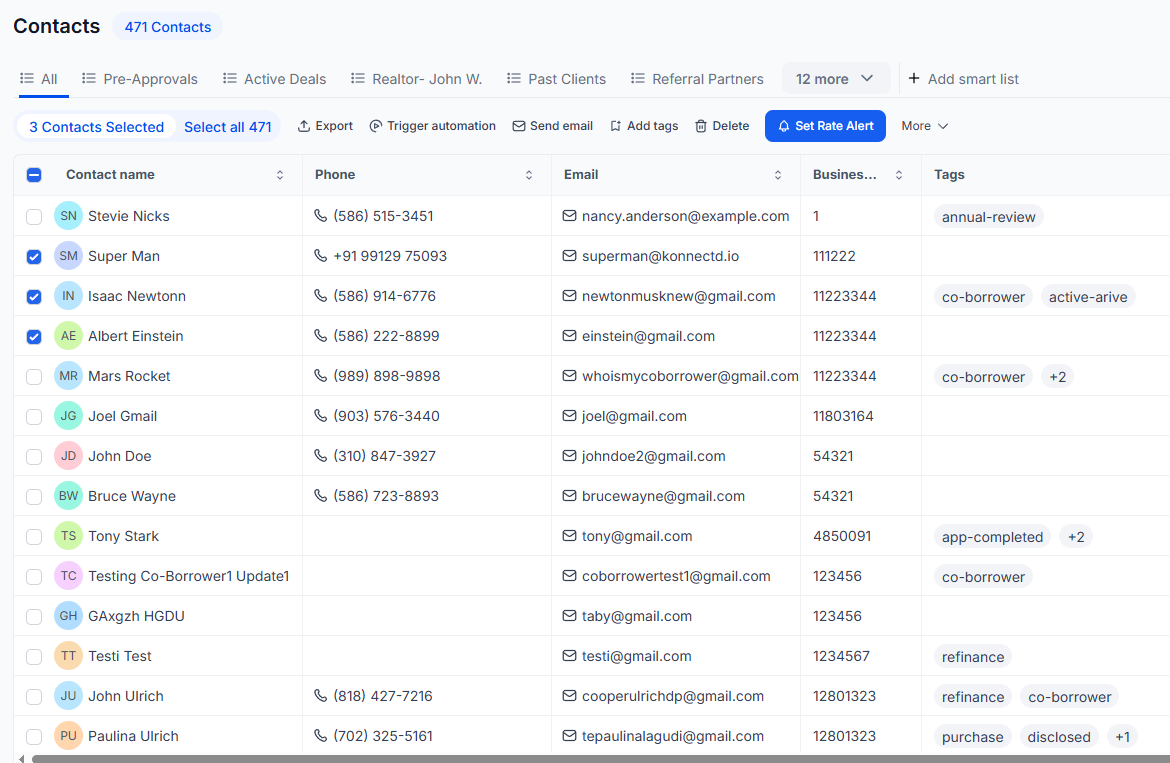
4. Feel free to select multiple contacts from the list.

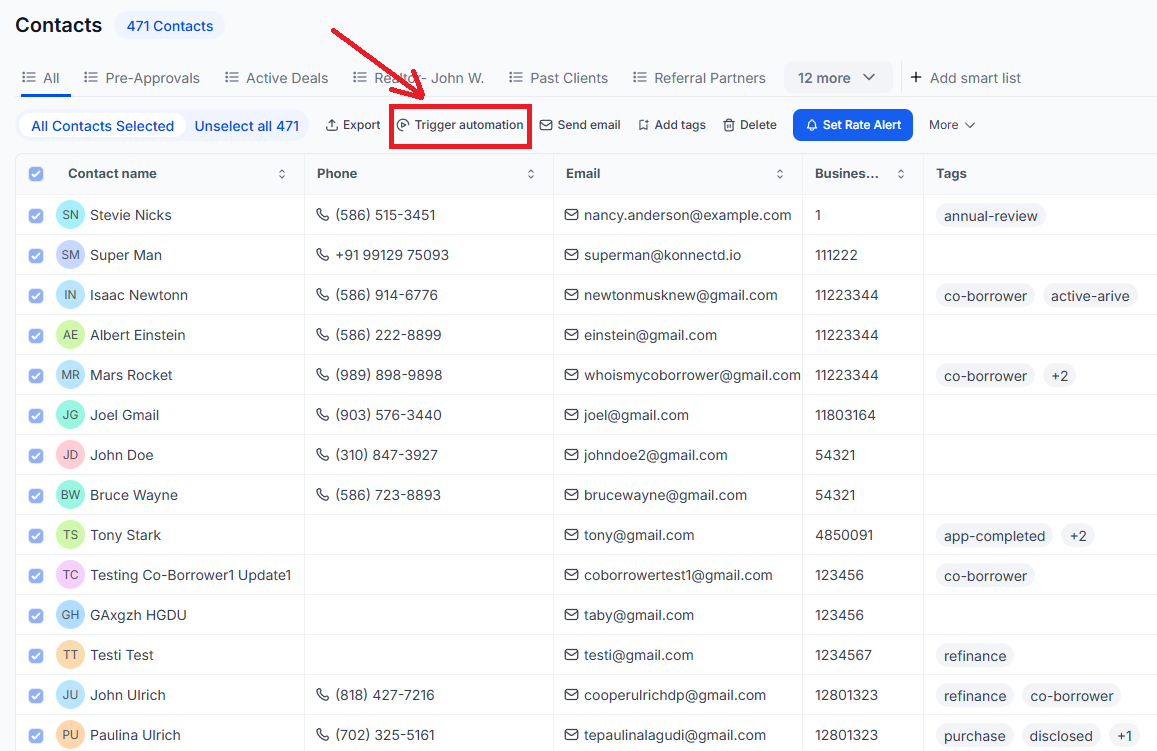
5. Click here to select all contact records at once.
6. Click "Add to Workflow" to continue.

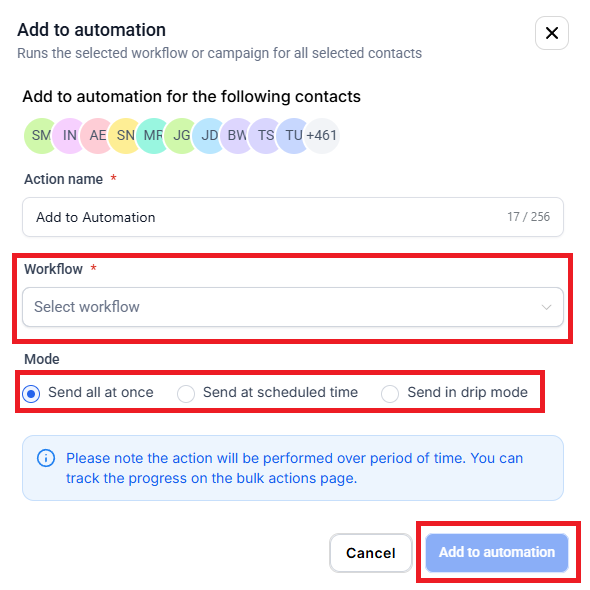
7. The action name will auto-populate when you select a workflow.

8. Choose a workflow from the available options.

9. Select your preferred mode for automation.

10. Click "Send all at once" to finalize. Delivers the message to all selected contacts immediately in a single batch.

11. Choose "Send at scheduled time" for your automation. Send at Scheduled Time – Allows you to choose a specific date and time for the message to be sent to all contacts.

12. Set the start date and time for your automation.

13. Select "Drip mode" for your sending preferences. Send in Drip Mode – Sends messages gradually over time, delivering them to contacts in smaller batches to avoid sending everything at once.

14. Enter the desired batch quantity in the field provided.

15. Specify the repeat interval in the section below.

16. Choose the days you want to send on.

17. Set the processing hours for your automation here.

18. Once done, click "Add to Automation" to complete.