
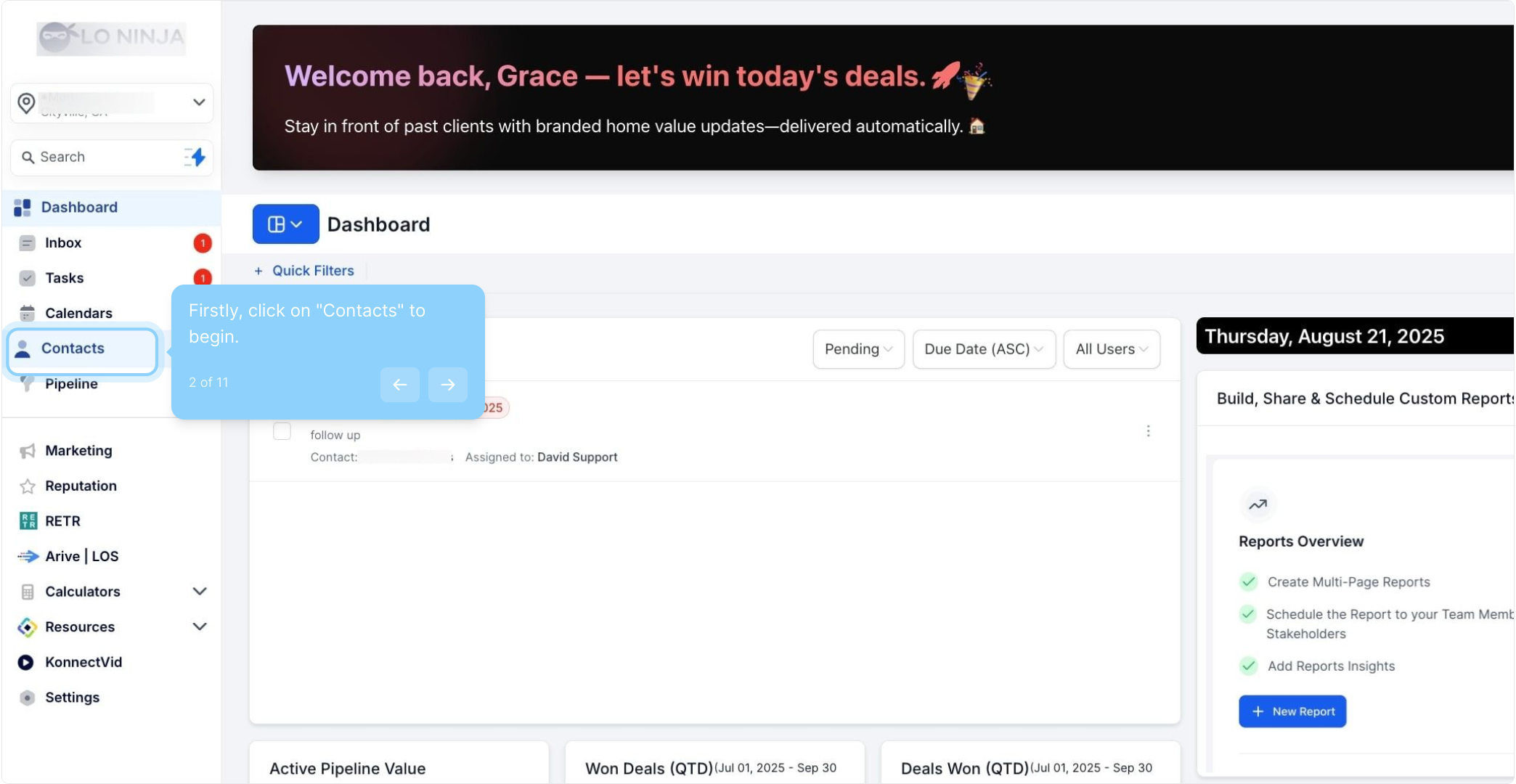
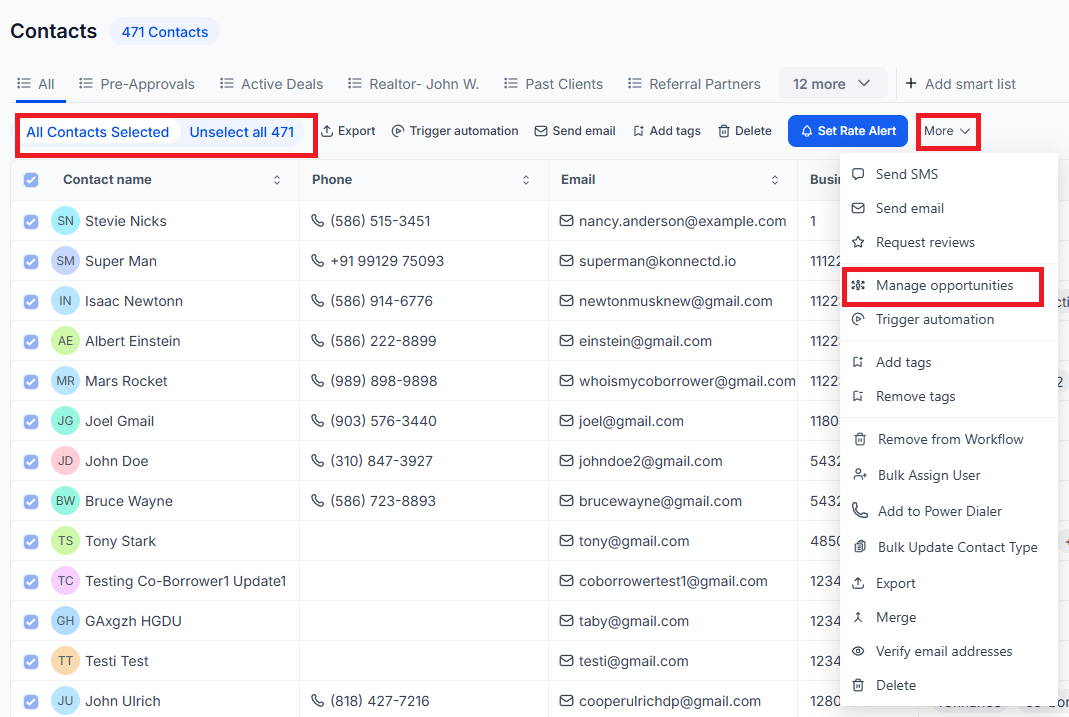
2. Firstly, click on "Contacts" to begin.
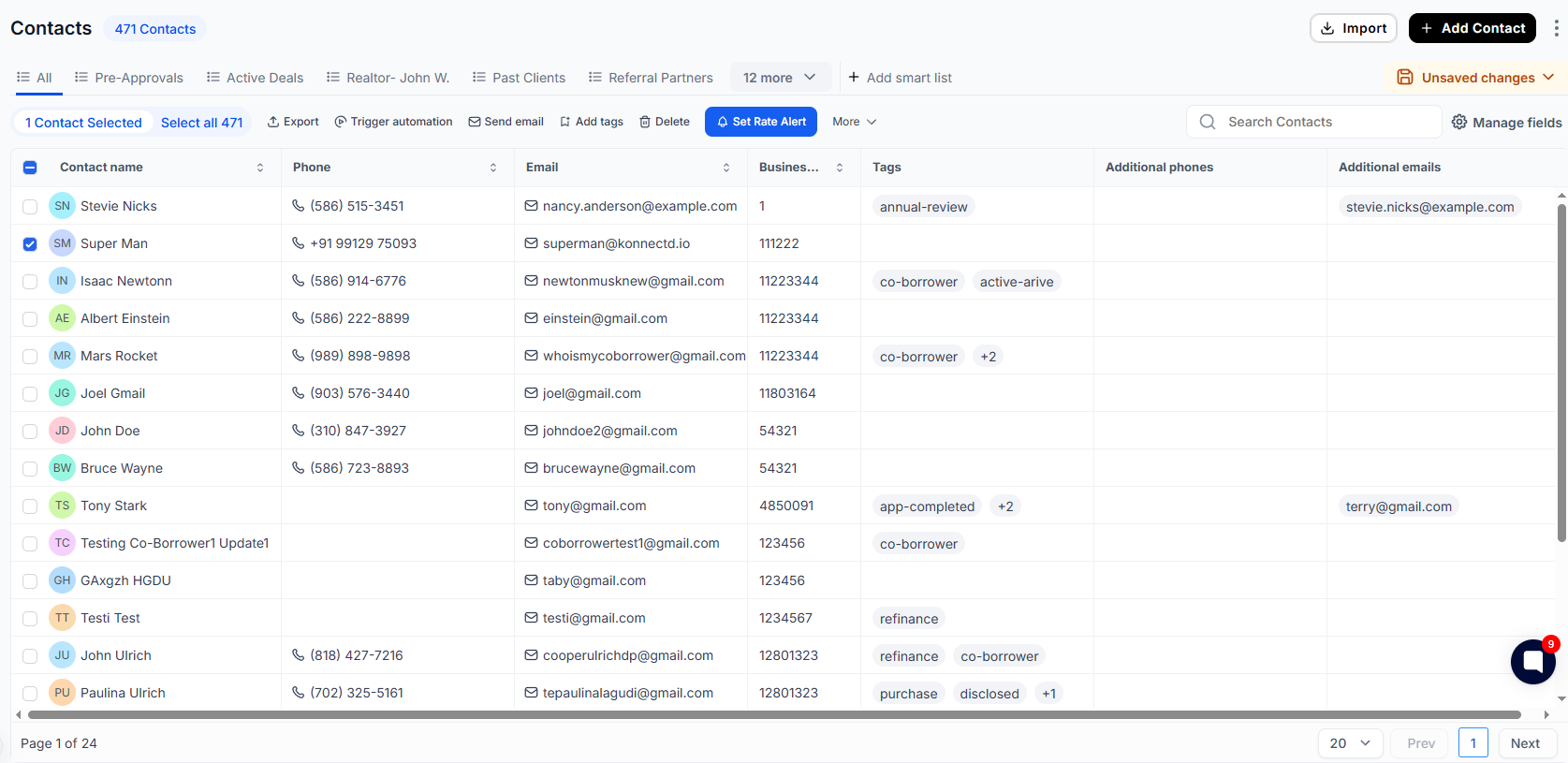
3. Select a contact from the list.
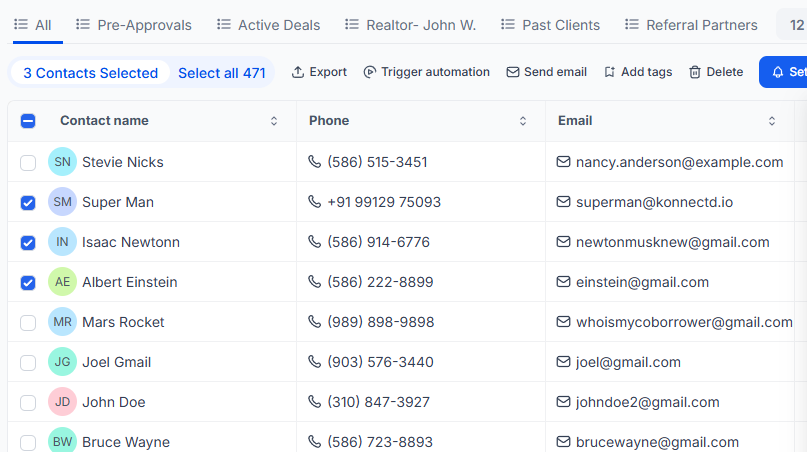
4. You can select multiple contacts if needed.
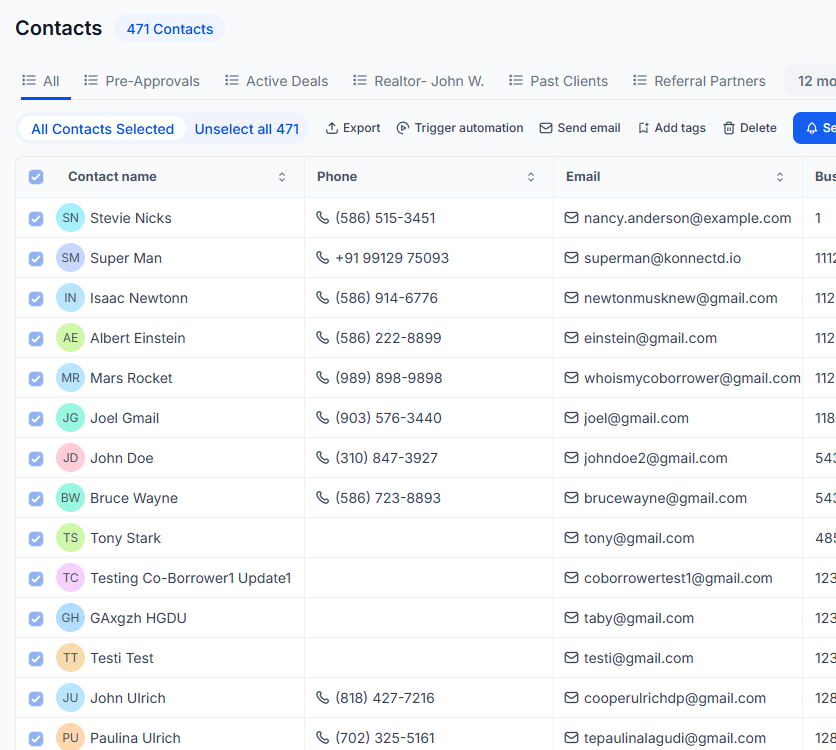
5. Click here to select all contact records.
6. Then click "Manage Opportunities" to proceed.
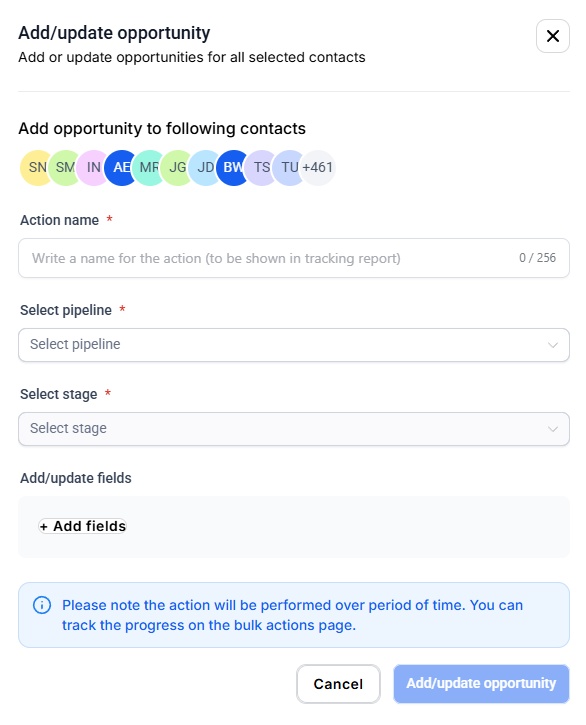
7. Select the pipeline from the dropdown list.
FAQs
1. How do I select contacts for a bulk action?
Navigate to your contacts.
Check the box next to each contact record you want to select.
To select all contacts on the current page, check the box at the top of the page.
To select all contacts in , click the hyperlink to select all.
2. How do I perform a pipeline change using bulk actions?
Choose the icon for “Pipeline Change”.
In the “Add/Update Opportunity” window, select the desired pipeline, stage, opportunity, lead value, opportunity status, and any other necessary details.
Click Add/Update Opportunity to apply the changes.
3. What does the "repeat after" setting do in drip mode?
The "repeat after" setting does not repeat the entire process. Instead, it operates as "run every," meaning the process will run every specified interval (e.g., every 5 hours) until all selected contacts have received the drip communication.
For example, if you have 780 contacts and set it to process 100 contacts every 5 hours, it will take 8 batches to complete: 7 batches of 100 and 1 batch of 80.
4. Can I cancel a bulk action once it has started?
Depending on your system’s capabilities, you may or may not be able to cancel a bulk action once it has started. Check with your system administrator or consult the help documentation for specifics on your platform.