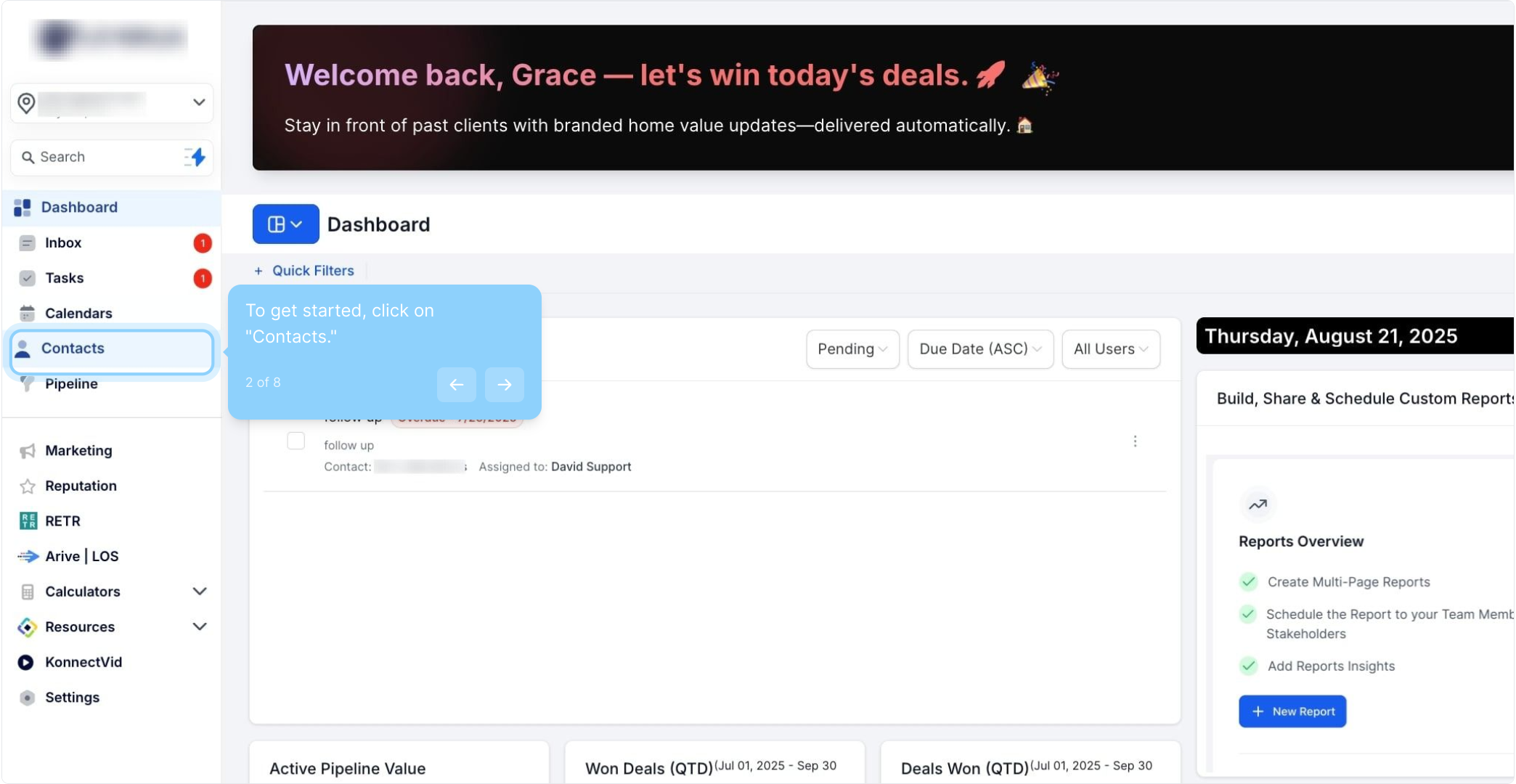

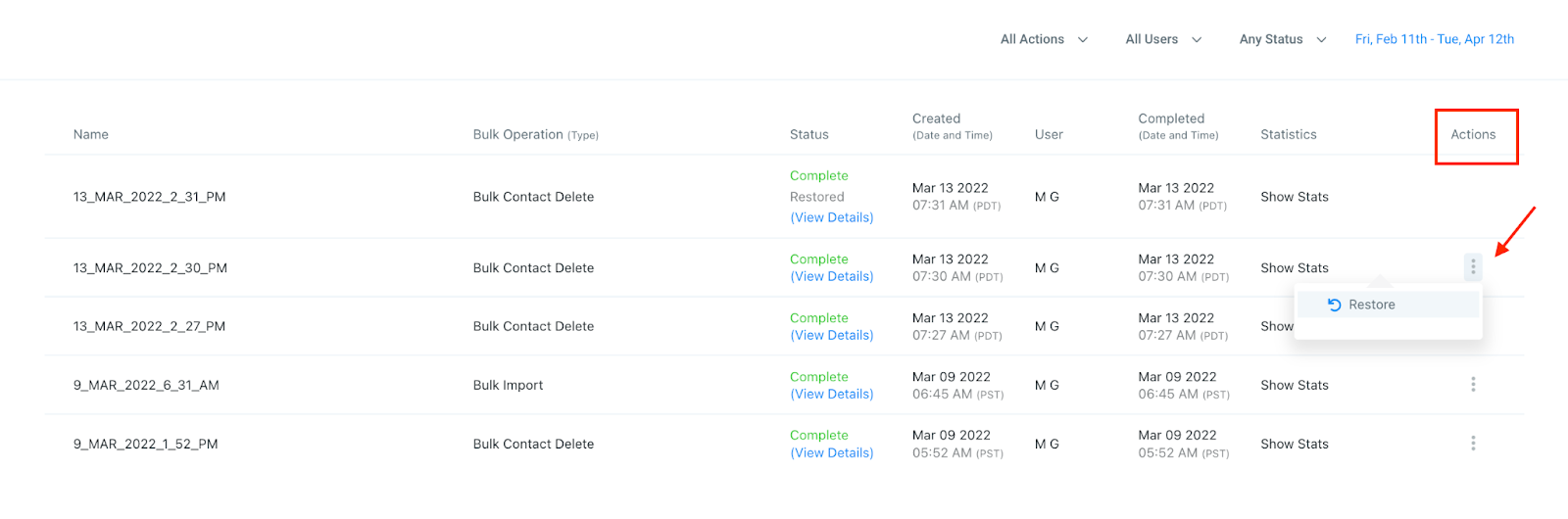
Navigate to Contacts > Bulk Actions
Using the Actions menu, click the three dots to open up the menu.
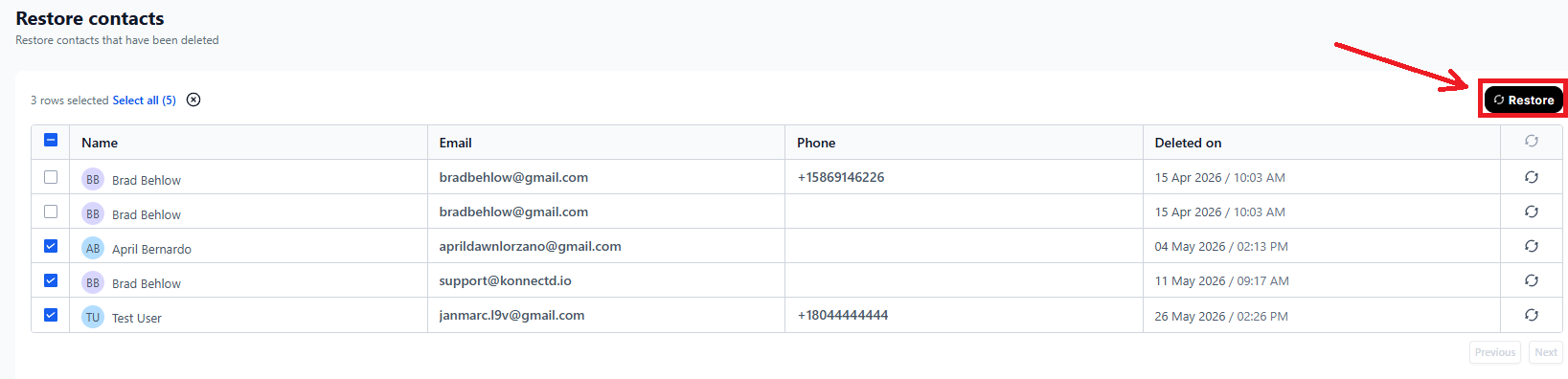
Click “Restore”
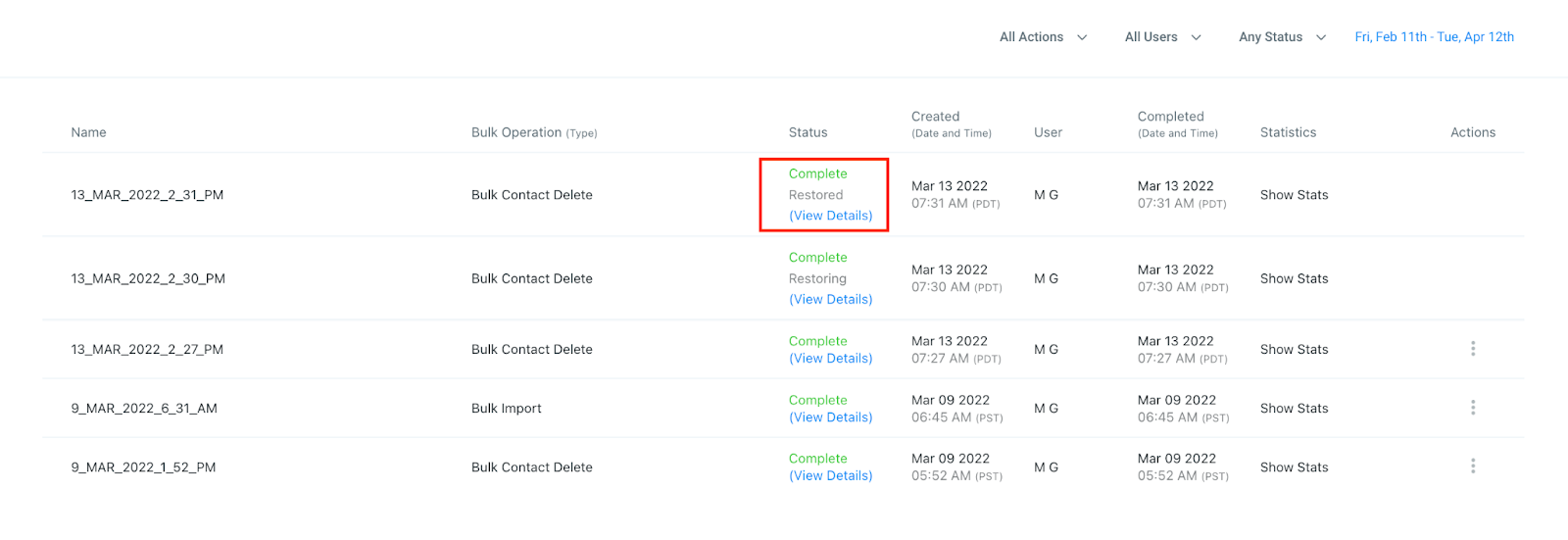
The Contacts will be added back to your list.
You will see the Status shown as “Completed” once the process is done.
FAQs
Q: How do I delete contacts in ?
A: To delete contacts, go to the Contacts section, select one or more records, and click the trashcan icon. Alternatively, you can delete an individual contact directly from their Contact Record.
Q: What if I accidentally delete a contact?
A: If you accidentally delete a contact, you can restore them using the steps below.
Q: How can I restore a deleted contact?
A: You can restore contacts either individually or in bulk.
Individually:
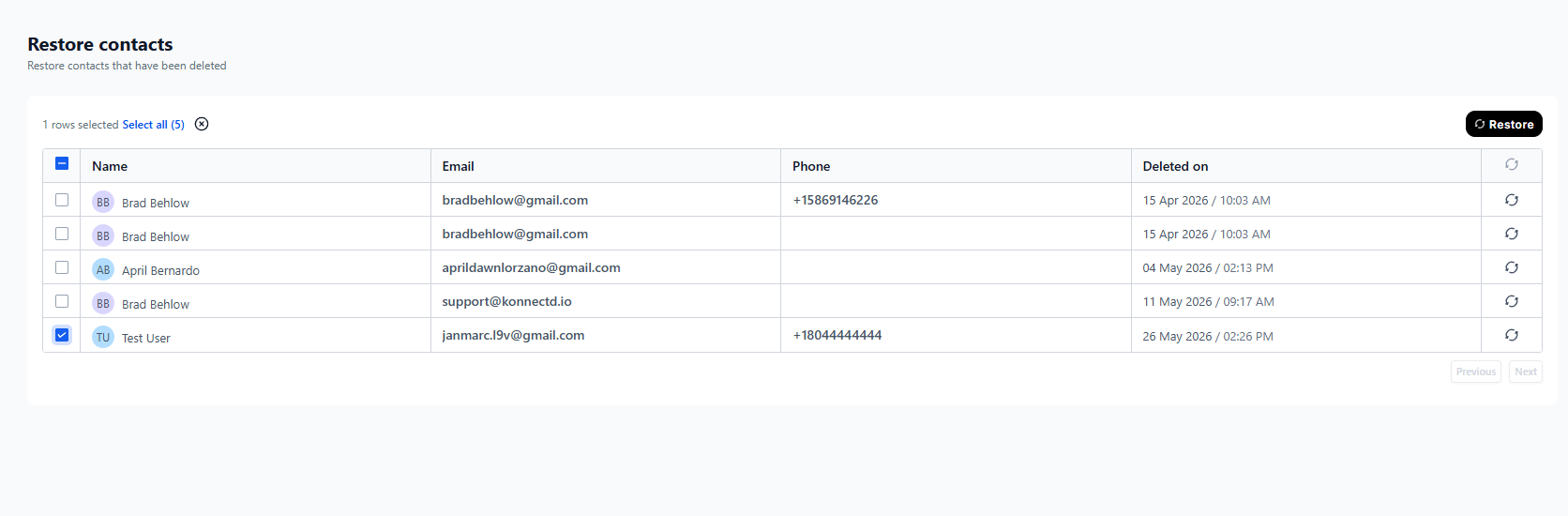
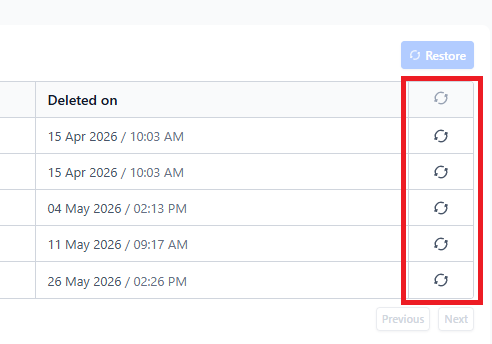
Go to Contacts > Restore.
Check the box next to the contact you want to restore.
Click the “Restore” button in the top right.
Confirm the restoration in the popup window.
In Bulk:
Navigate to Contacts > Bulk Actions.
Open the Actions menu by clicking the three dots.
Select “Restore.”
The contacts will be added back to your list, and you’ll see the Status as “Completed” when the process is done.
Q: Can I restore multiple contacts at once?
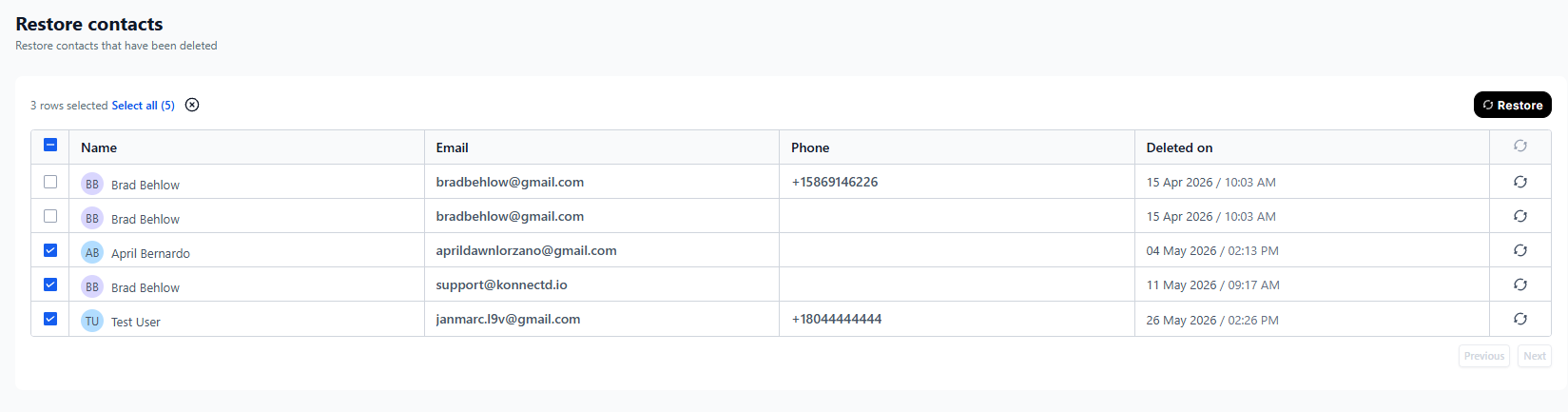
A: Yes, you can restore multiple contacts by selecting them directly from the Restore tab and using the restore option.
Q: How do I know if the restore process was successful?
A: For bulk restores, you will see the Status marked as “Completed” once the process is finished. For individual restores, the contact will reappear in your Contacts list.
