
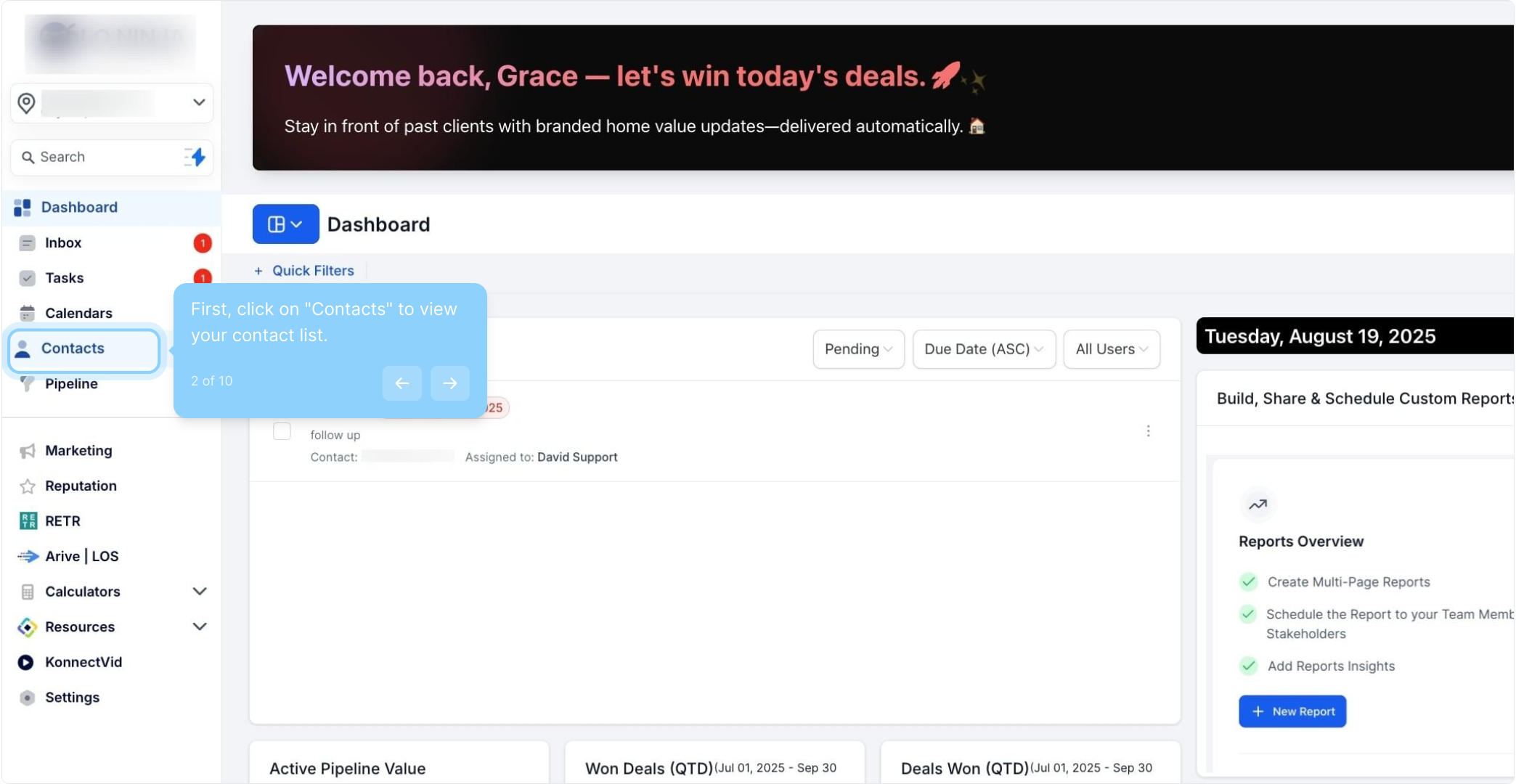
2. First, click on "Contacts" to view your contact list.
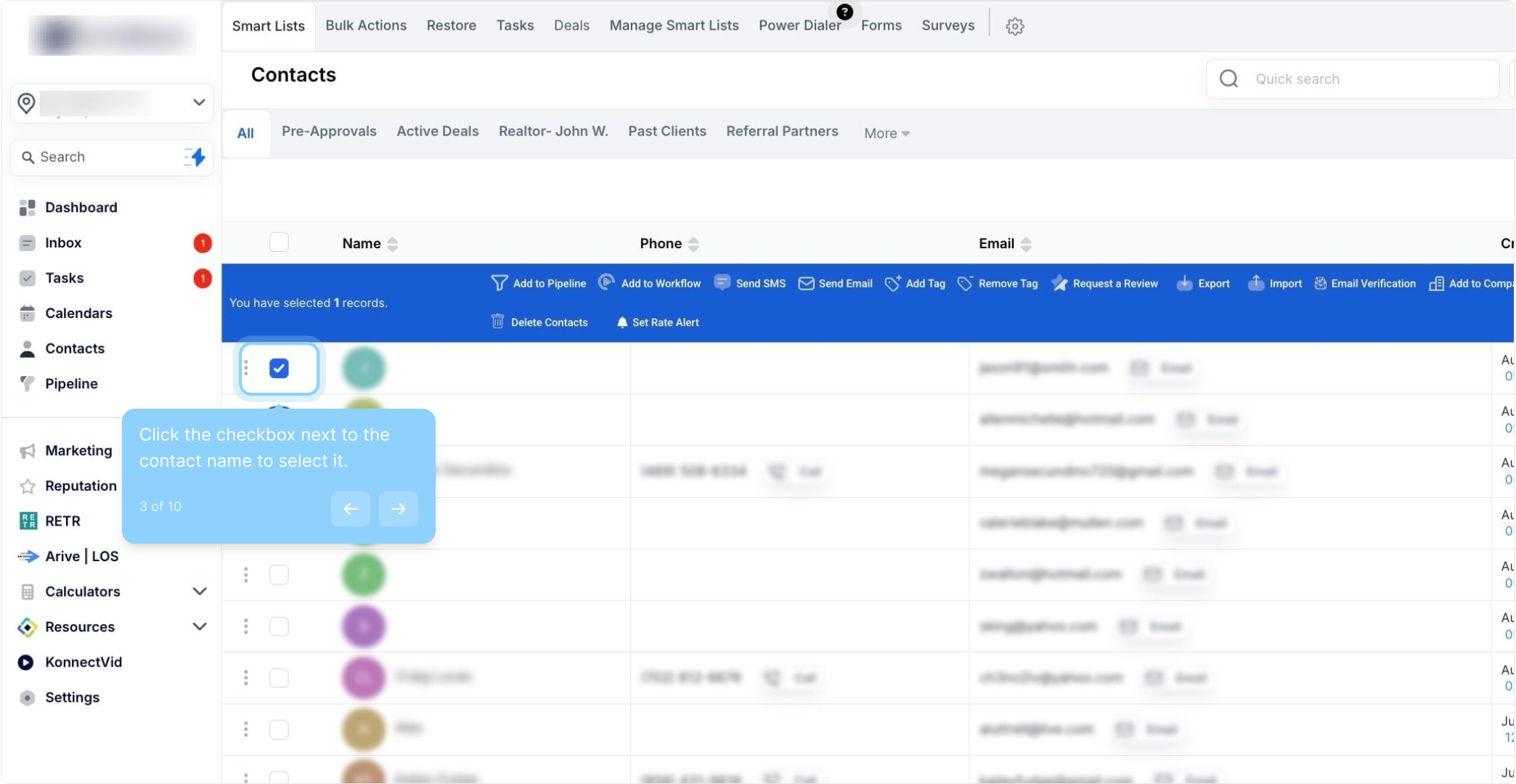
3. Click the checkbox next to the contact name to select it.
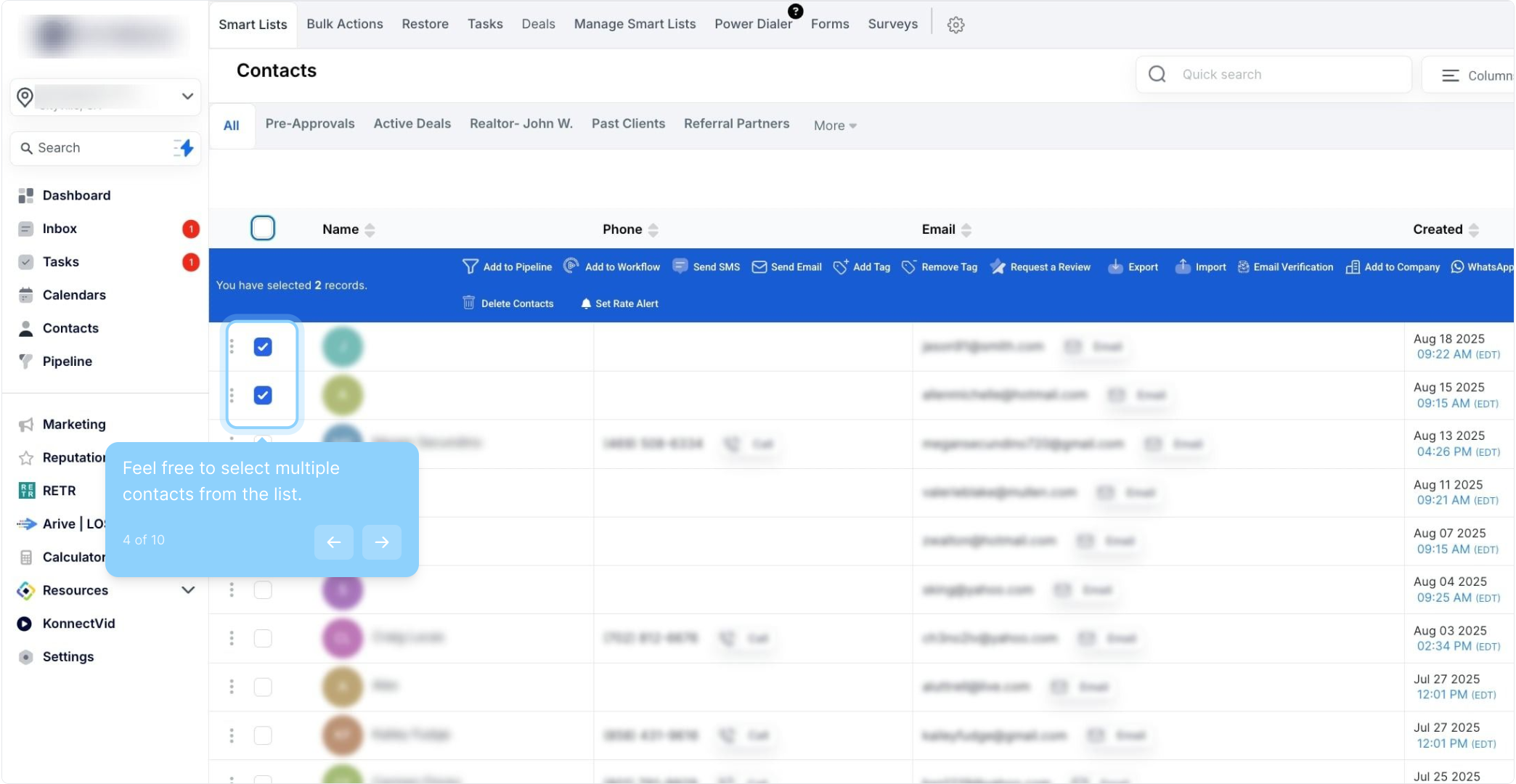
4. Feel free to select multiple contacts from the list.
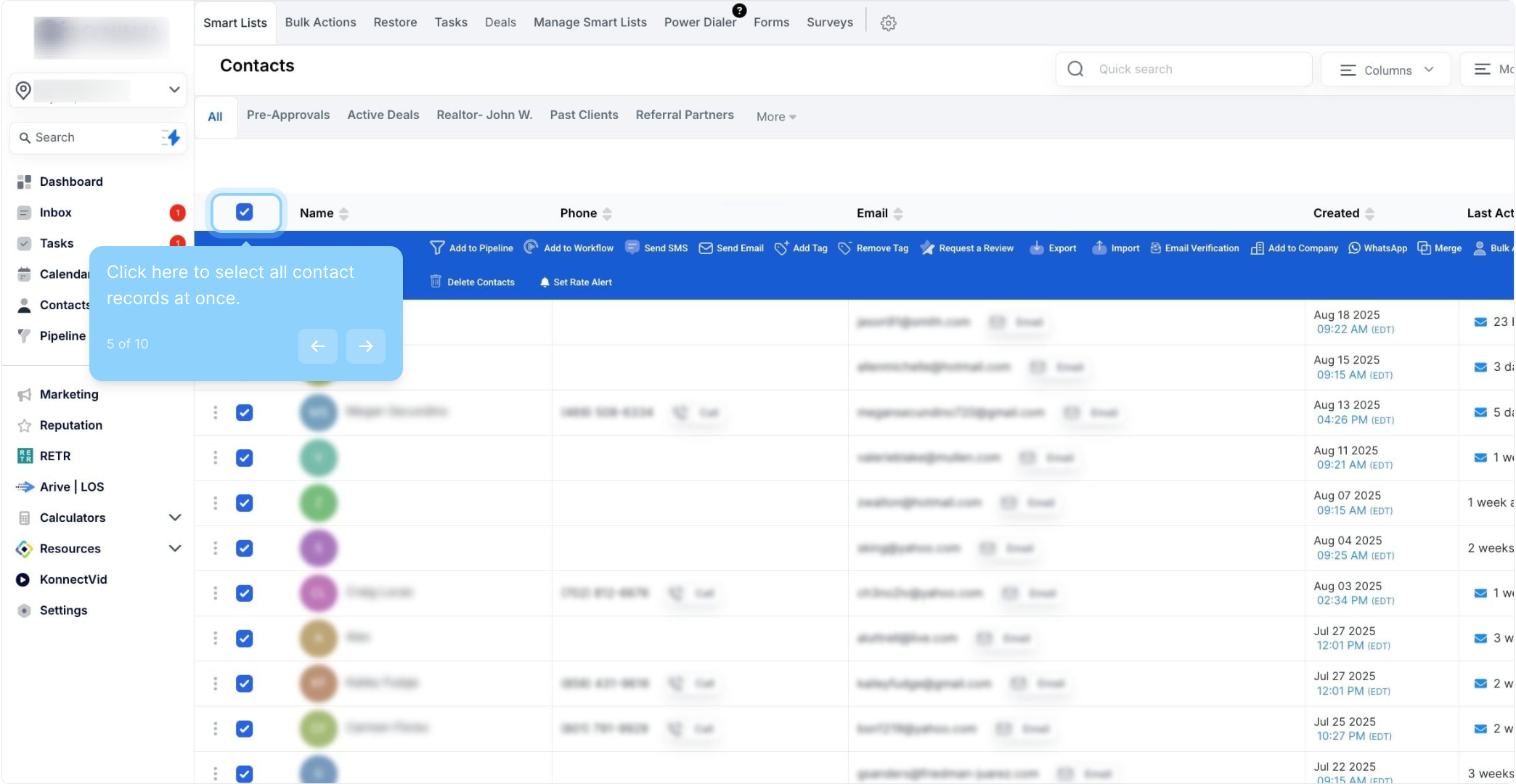
5. Click here to select all contact records at once.
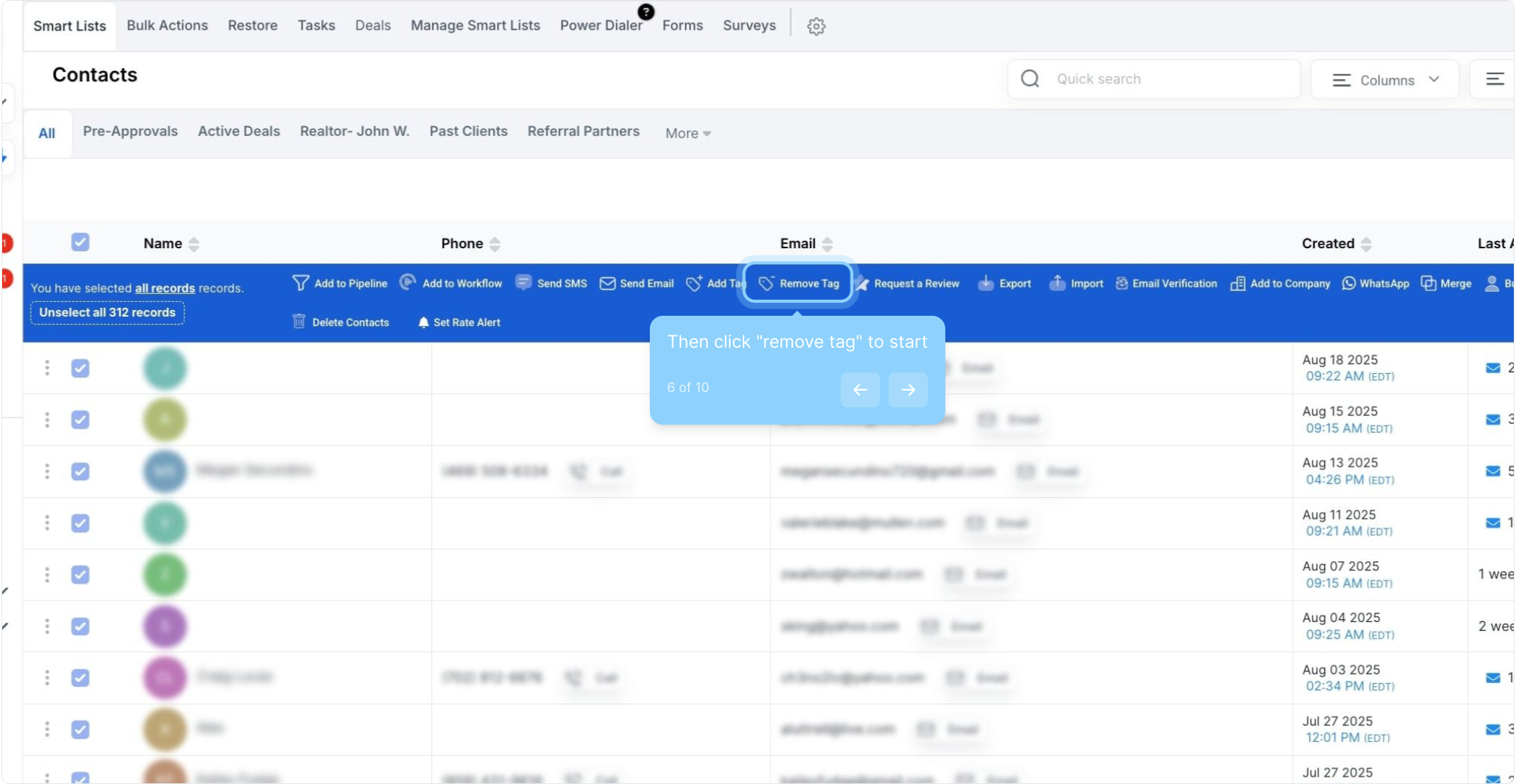
6. Then click "remove tag" to start
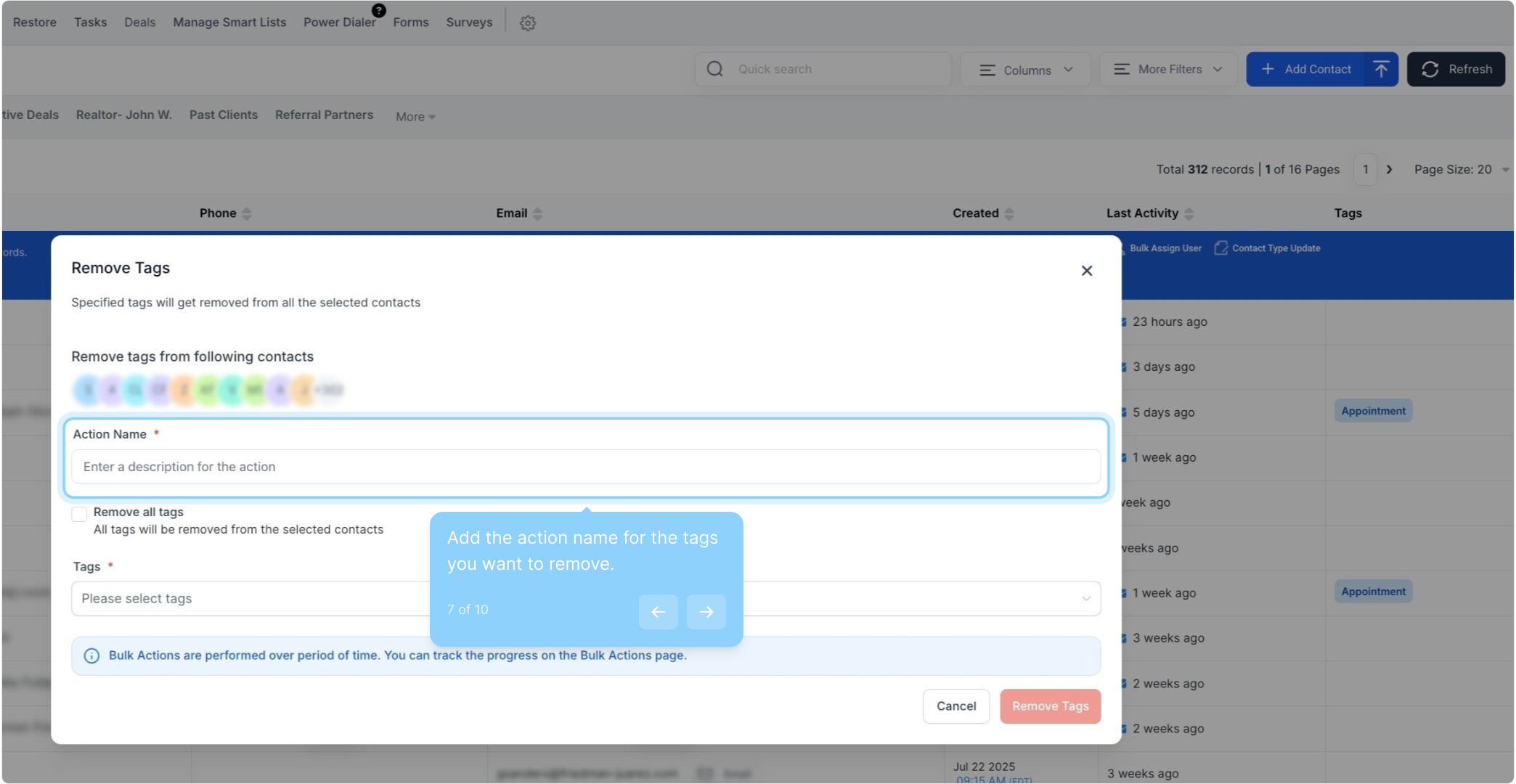
7. Add the action name for the tags you want to remove.
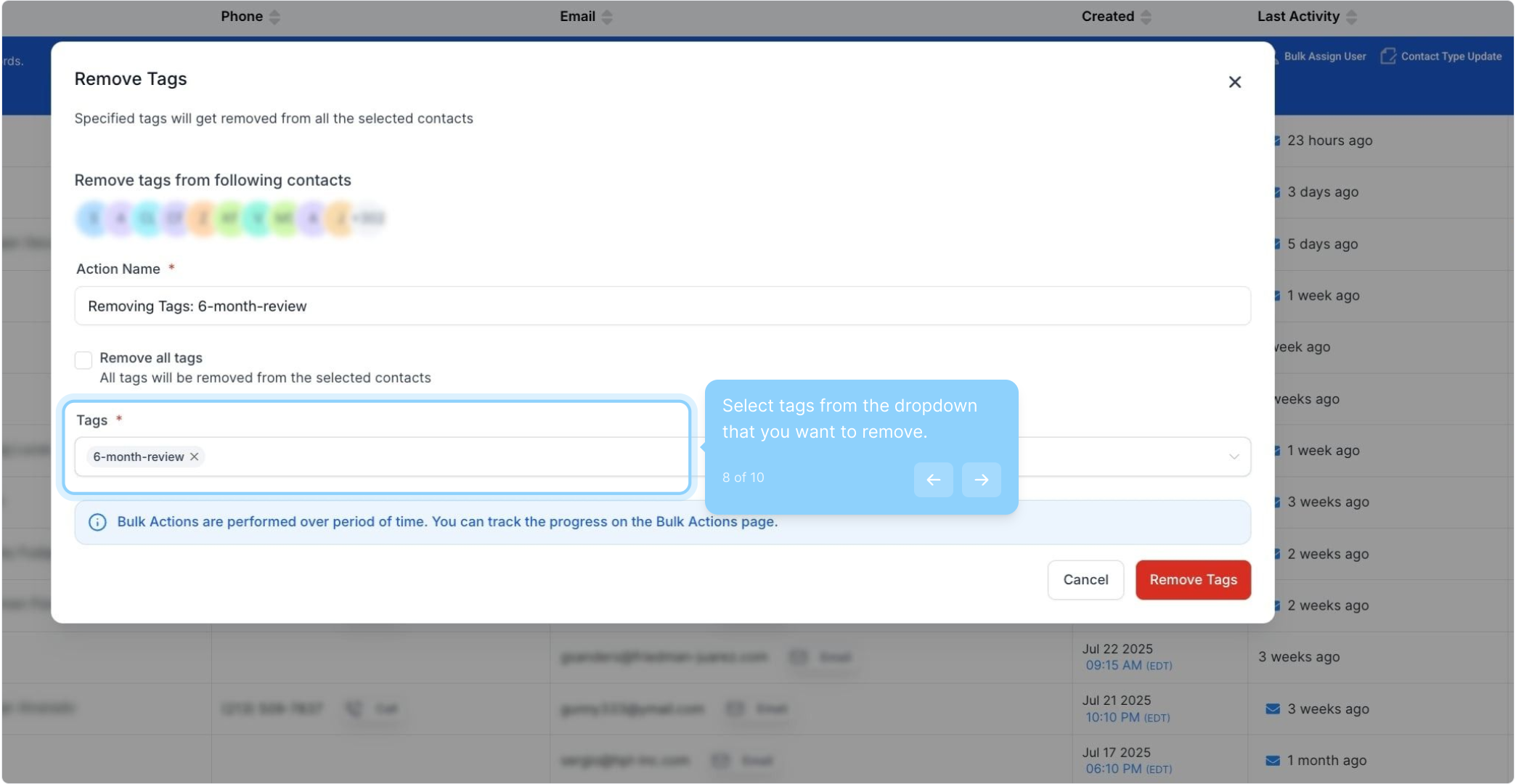
8. Select tags from the dropdown that you want to remove.
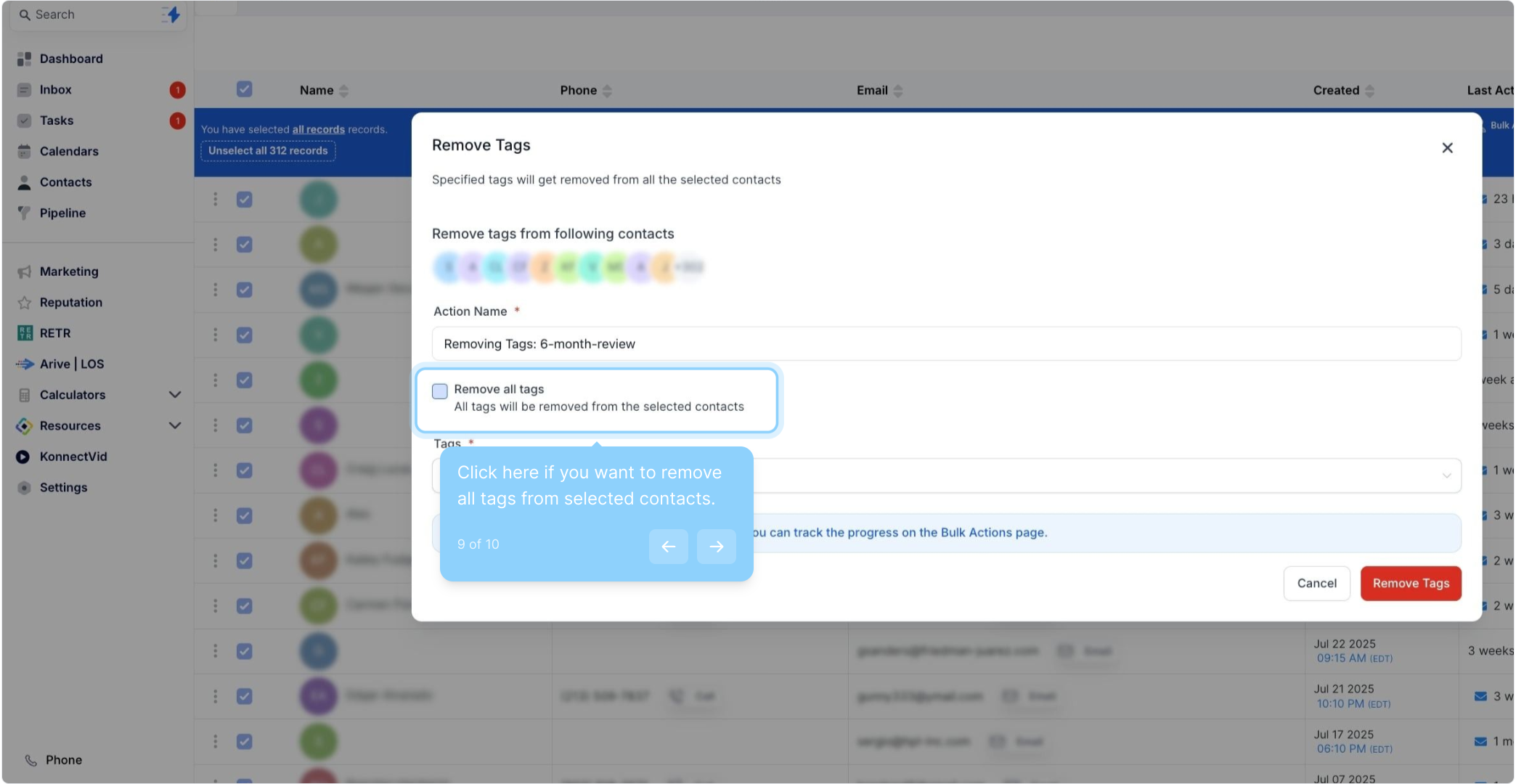
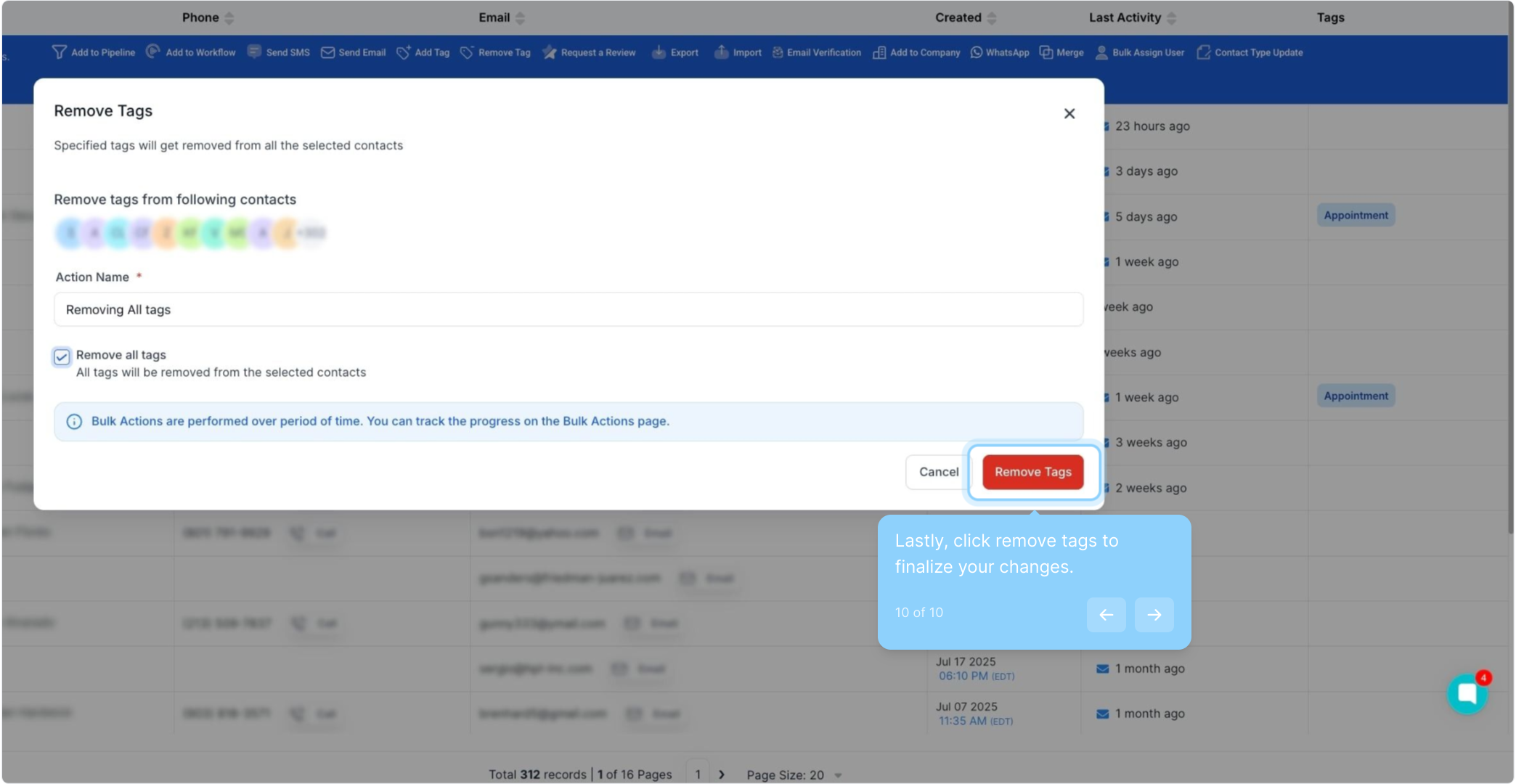
9. Click here if you want to remove all tags from selected contacts.
10. Lastly, click remove tags to finalize your changes.
FAQs:
Q: How do I select all contacts in my list for a bulk action?
A: Navigate to your Contacts or Smart Lists section and check the box at the top of the list to select all contacts on that page. To select all contacts in your company, click the hyperlink that appears after selecting the page contacts.
Q: How do I remove tags from multiple contacts at once?
A: After selecting the contacts, choose the "Remove Tag" icon. In the pop-up window, type in the tag(s) you want to remove, then click "Remove Tags" to remove them from the selected contacts.
Q: Can I undo a bulk action if I make a mistake?
A: Unfortunately, there isn't an "undo" feature for bulk actions. You would need to manually remove or add tags as needed to correct the mistake.