Access Pipeline Reports
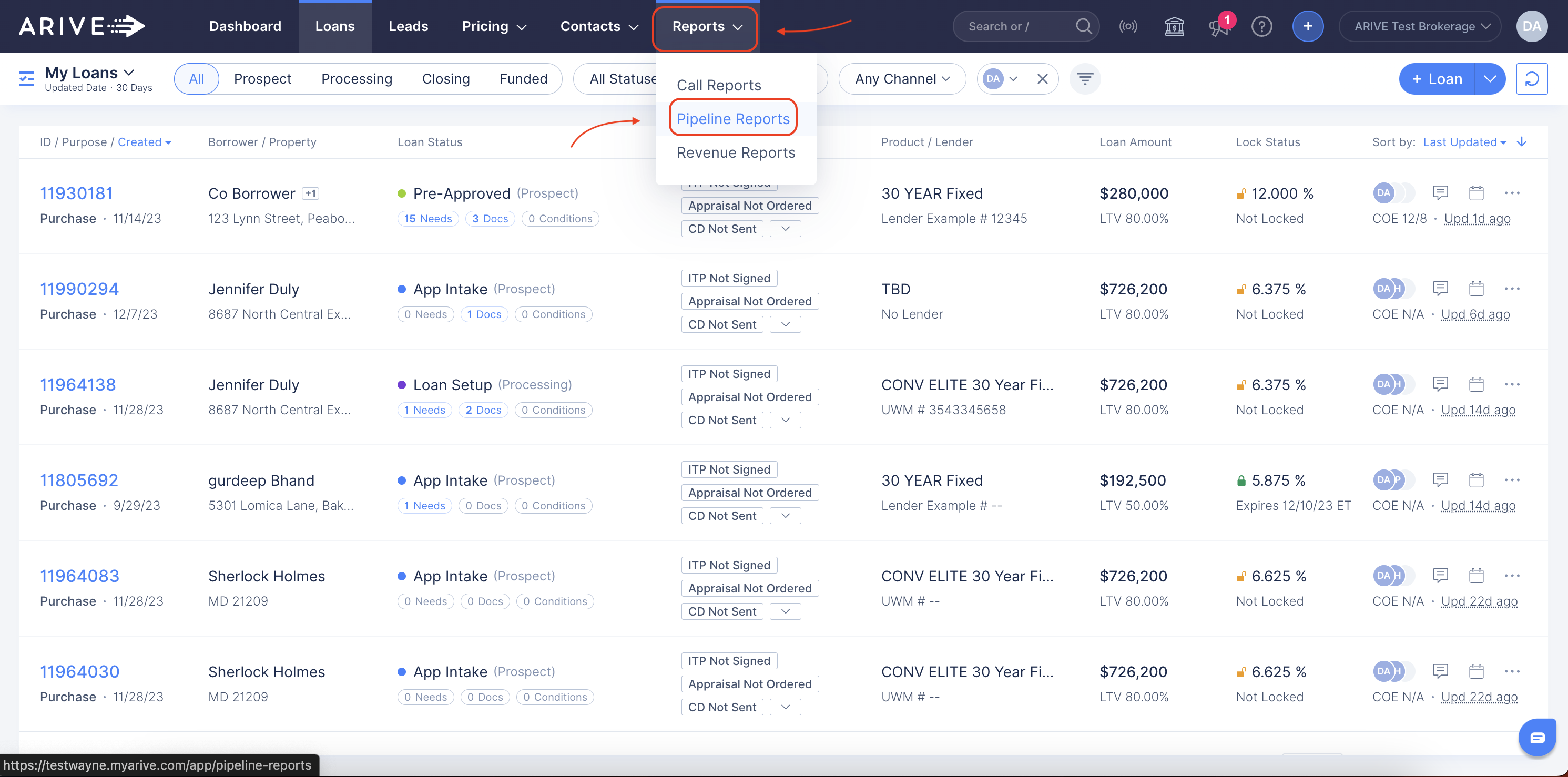
• Click on the Reports tab in the top blue menu bar.
• Select Pipeline Reports from the dropdown menu.
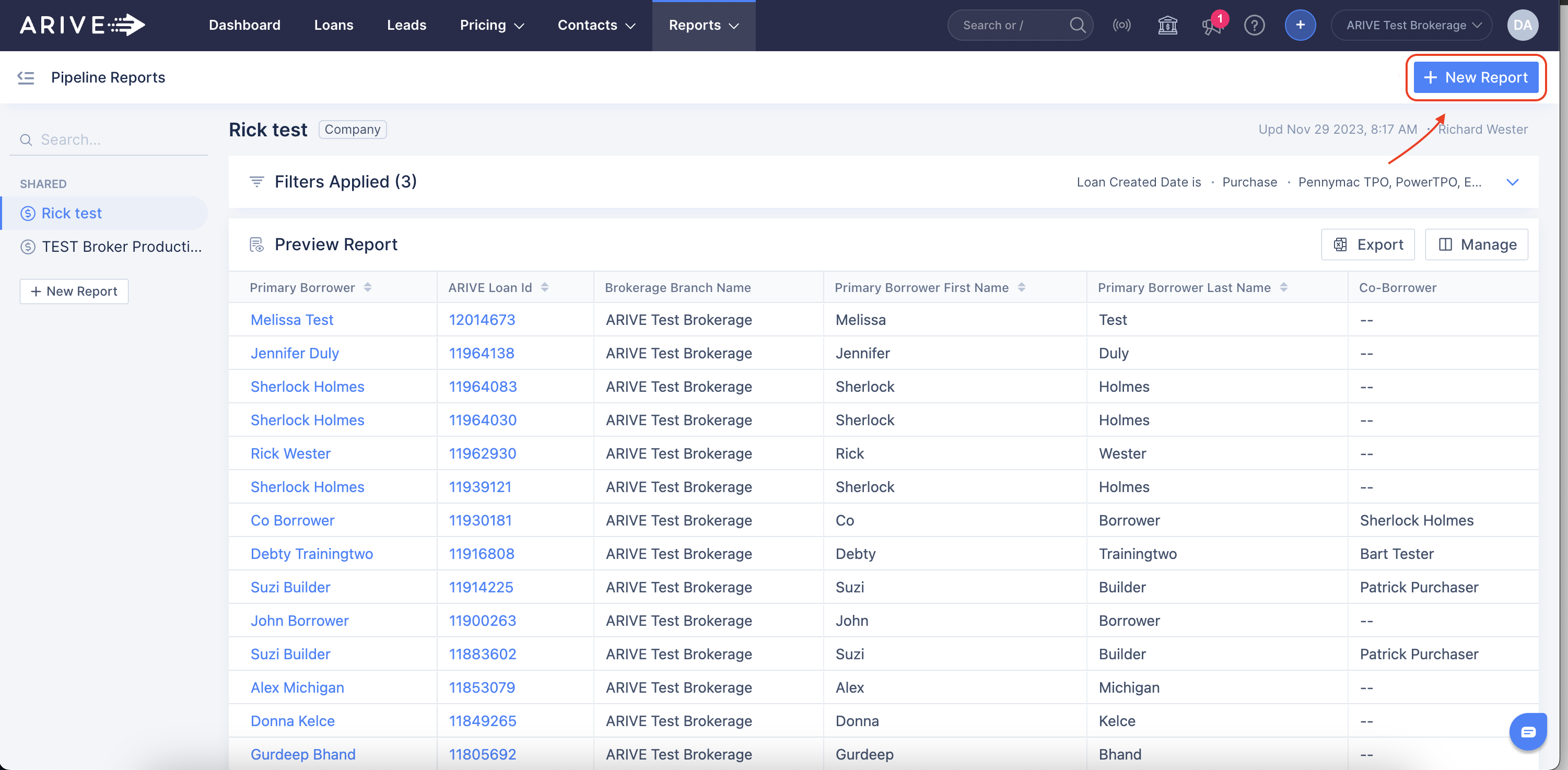
Create a New Report• Click the blue +New Report button at the top right corner.
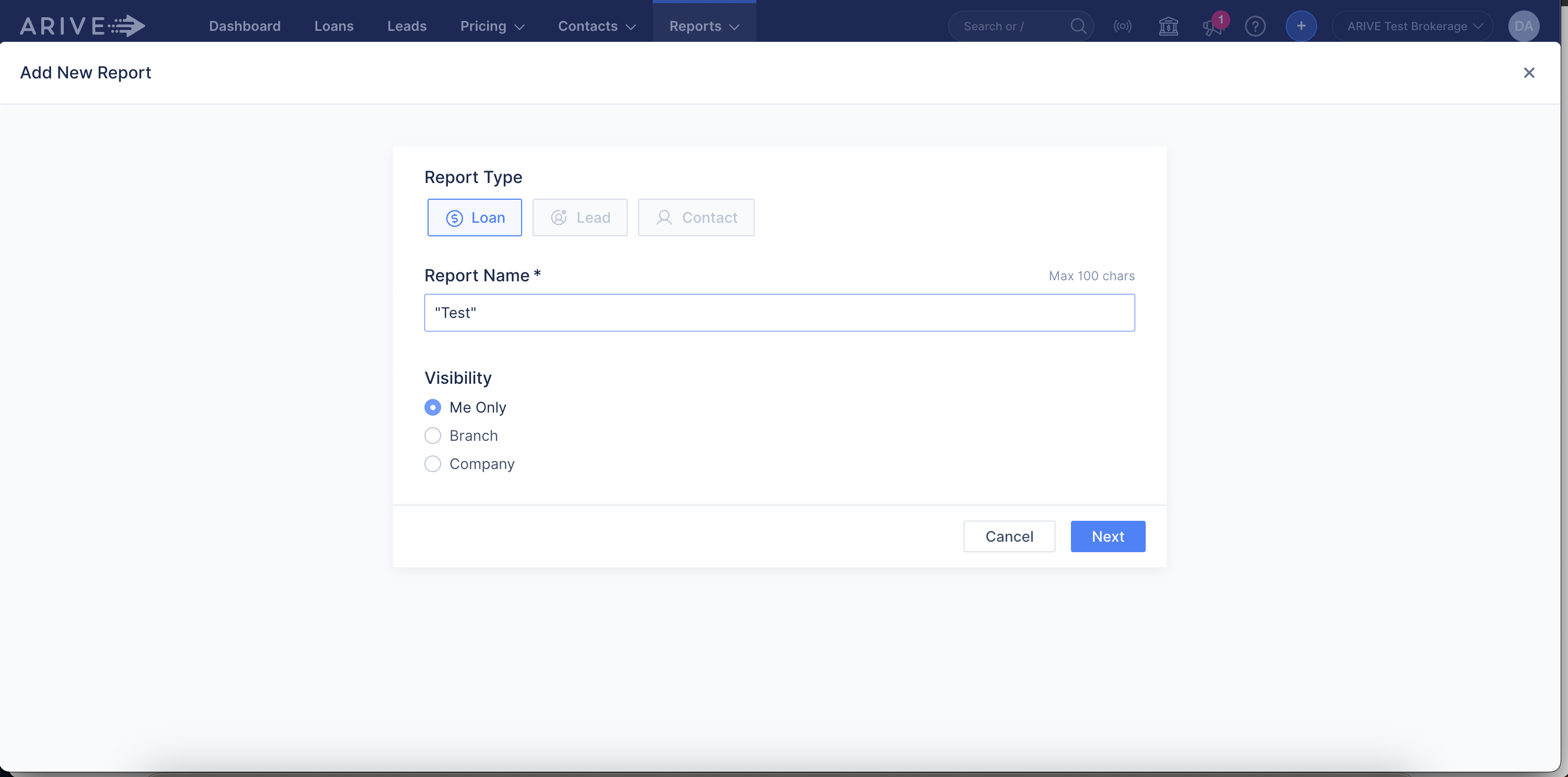
• Enter a name for your report.
• Choose its visibility:
• Me Only
• Branch: Accessible to all Branch members.
• Company: Accessible to everyone in your Company.
Add Filters
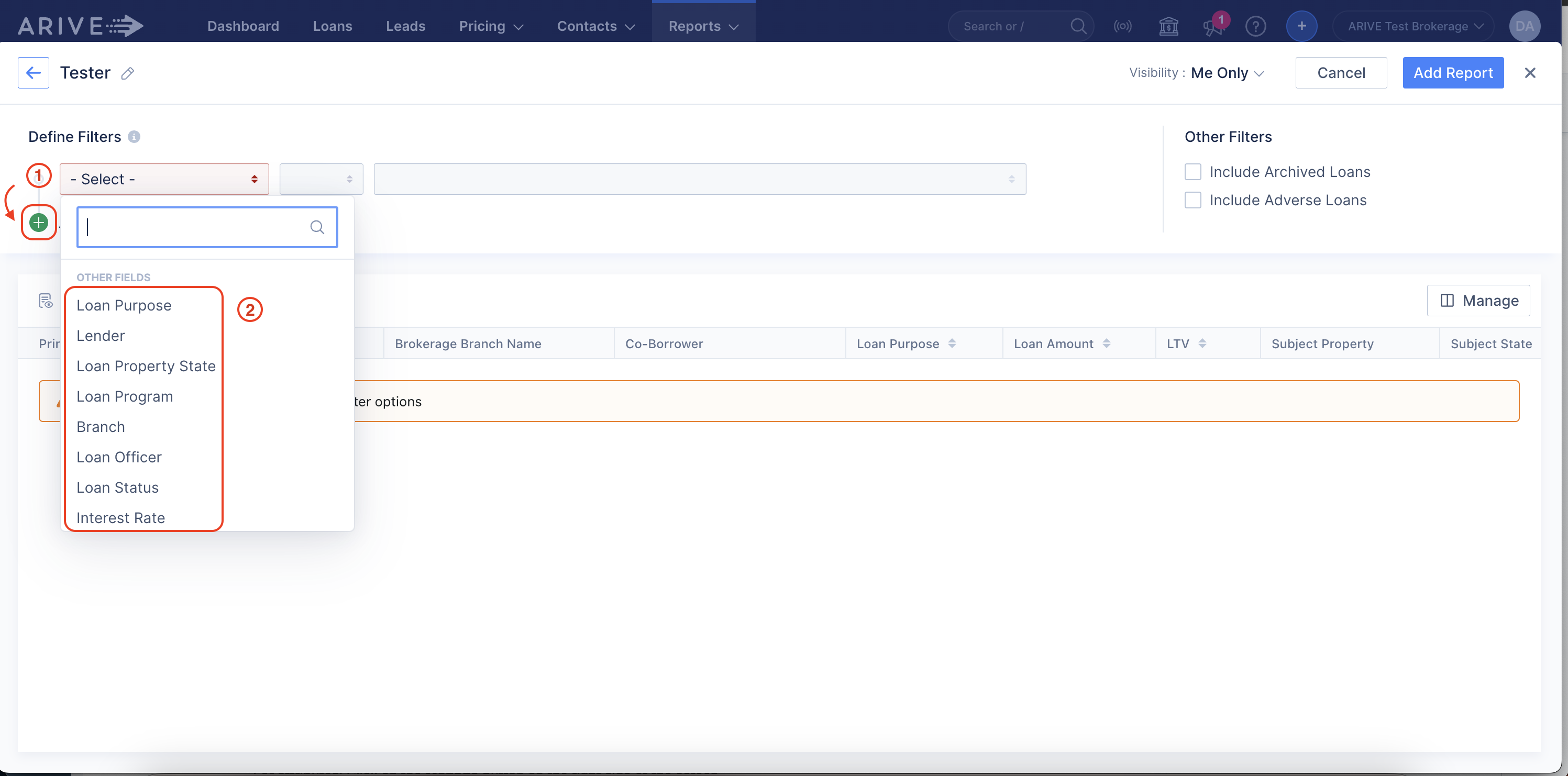
① Click the green +Add Filters button.
② Select the conditions for filtering your report.
• Tip: To only export past clients, set the filter to Loan Funded and select All Time. As long as funded dates are added to past clients, this will work; otherwise, try another filter that captures all past clients.
Save Your Report
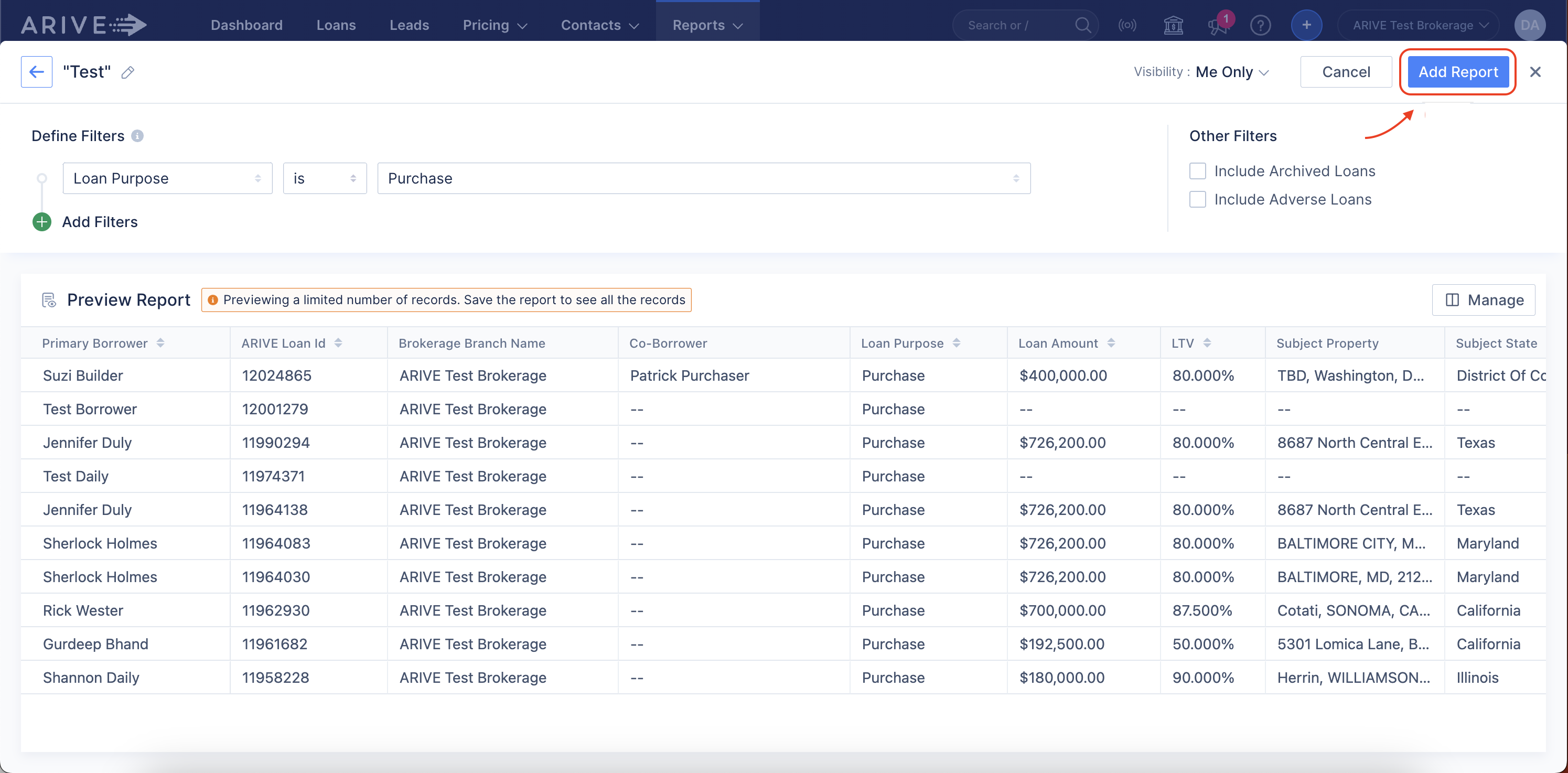
• After setting you filters and attributes, click the blue Add Report button in the upper right.
• Your report is now saved and added to your reports list.
[IMPORTANT] Update the Report Columns
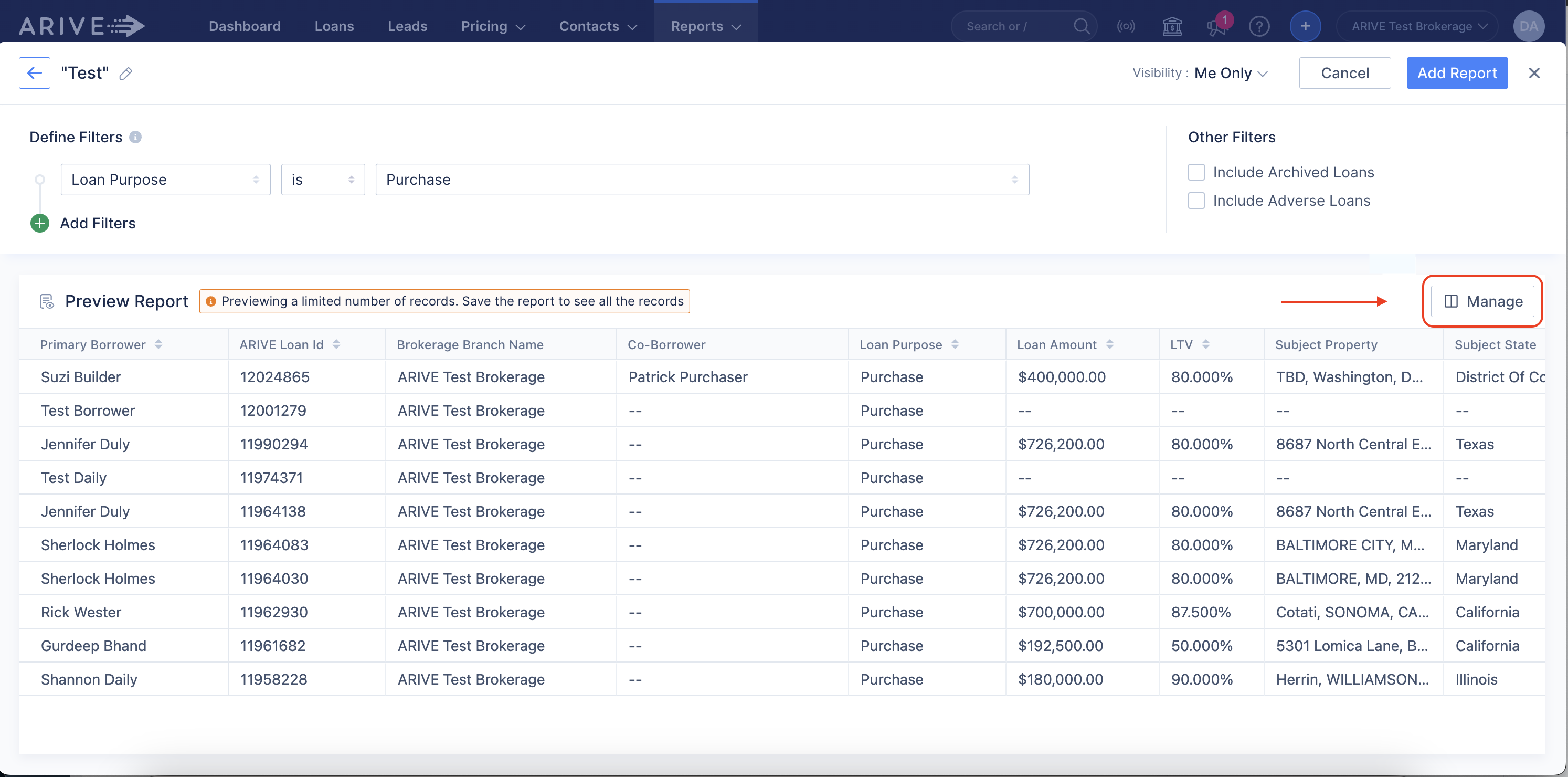
• Click on the Manage button on the right side of your screen.
• Choose "Select All" at the TOP of the page
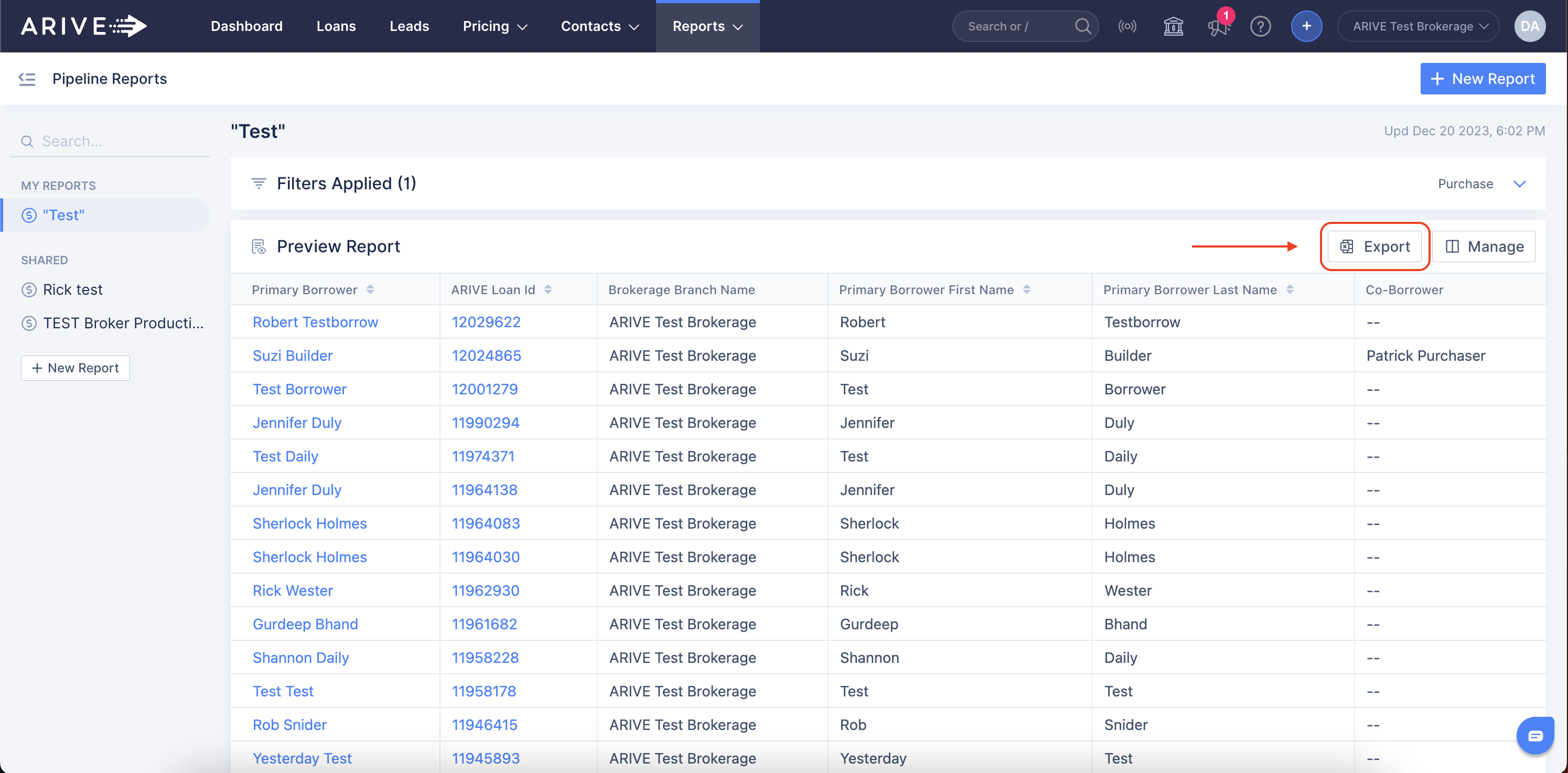
Export Your Report
• Once the report is saved, click on the Export button.
• Save the report as a .csv file and open it in Excel or your preferred spreadsheet editor.